
The Library tab shows every file you've imported into iQ Pro, across all your shows: music, sound effects, videos and images.
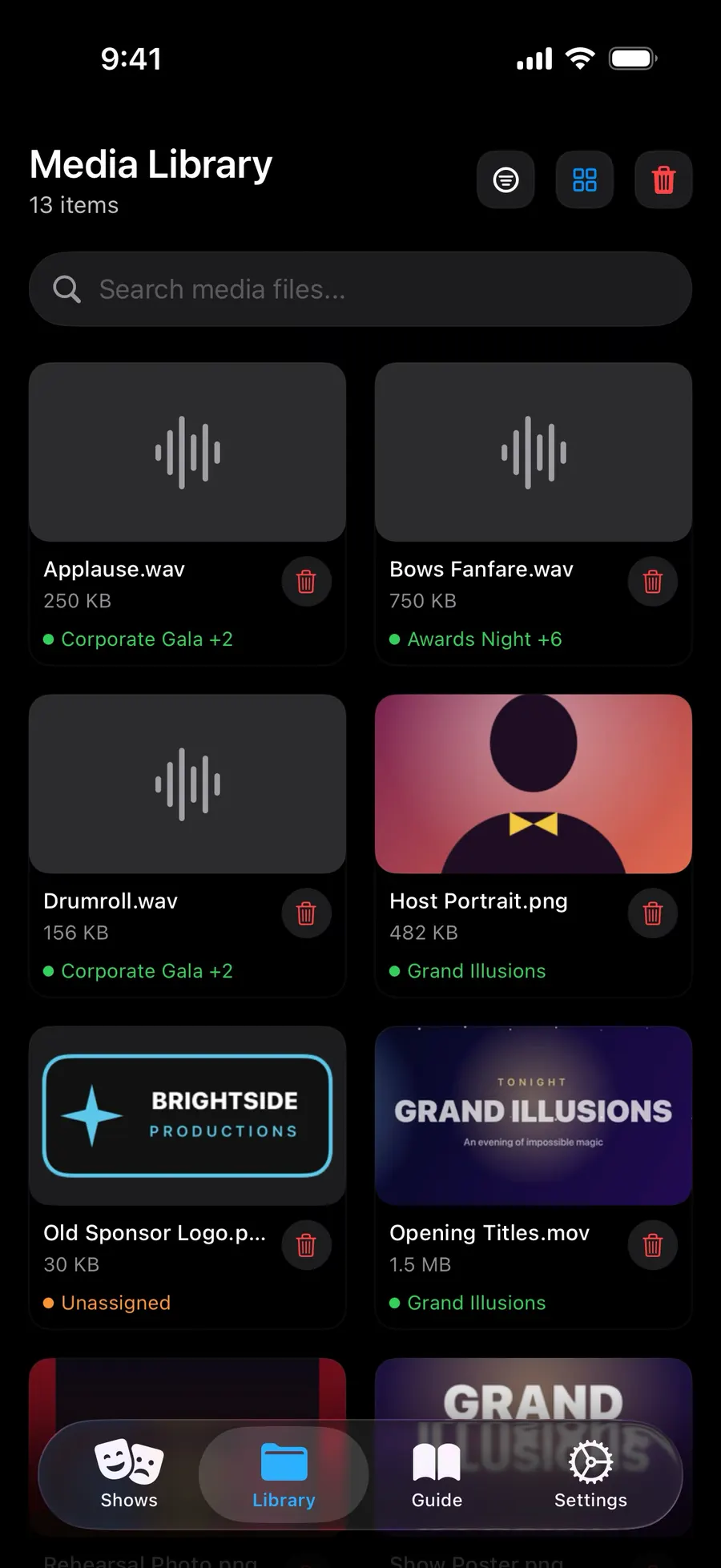
At the top, Media Library shows how many files are listed. Each file shows:
- A thumbnail, or an icon for audio.
- Its name and size.
- Where it's used. A green dot and a show's name mean a cue uses the file. +1, +2 and so on mean other shows use it too. An orange dot and Unassigned mean no cue uses it.
Search and switch views
- Type in the search bar to find files by name.
- Tap the grid button to switch between the grid and a list. The list shows more files on screen at once.
Filter by show
Tap the filter button to choose which files are listed.
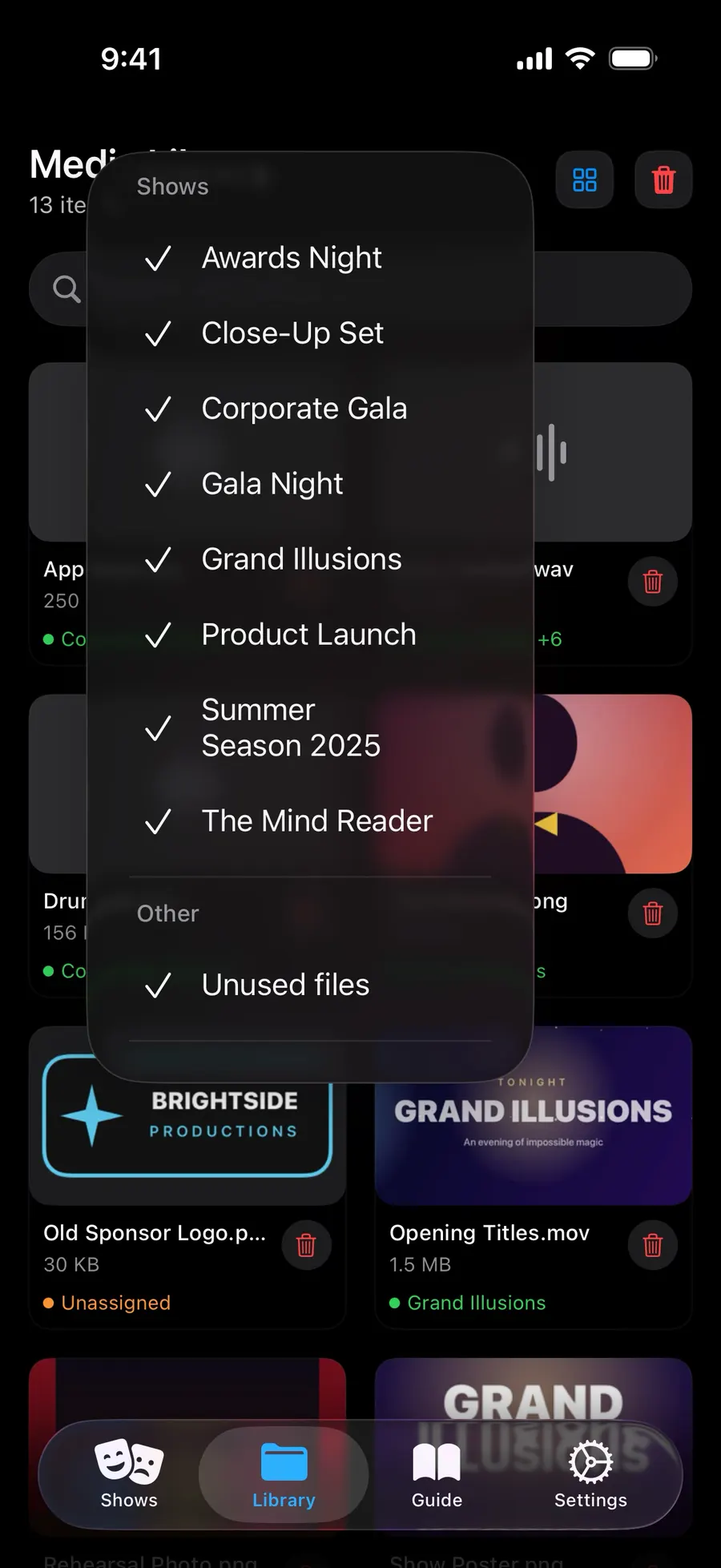
- Under Shows, tick the shows whose media you want to see.
- Under Other, Unused files lists files no cue uses.
- Select all lists everything again. Clear all unticks everything, so you can then tick just one show.
When a filter is on, the filter button is filled in blue.
Preview a file
Tap a file's thumbnail to open it full screen.

Videos and audio have playback controls: play or pause, and jump back or forward 10 seconds. Tap ✕ at the top to close the preview.
Open the Library in iQ Pro