
Guides
Learn iQ Pro, one guide at a time.
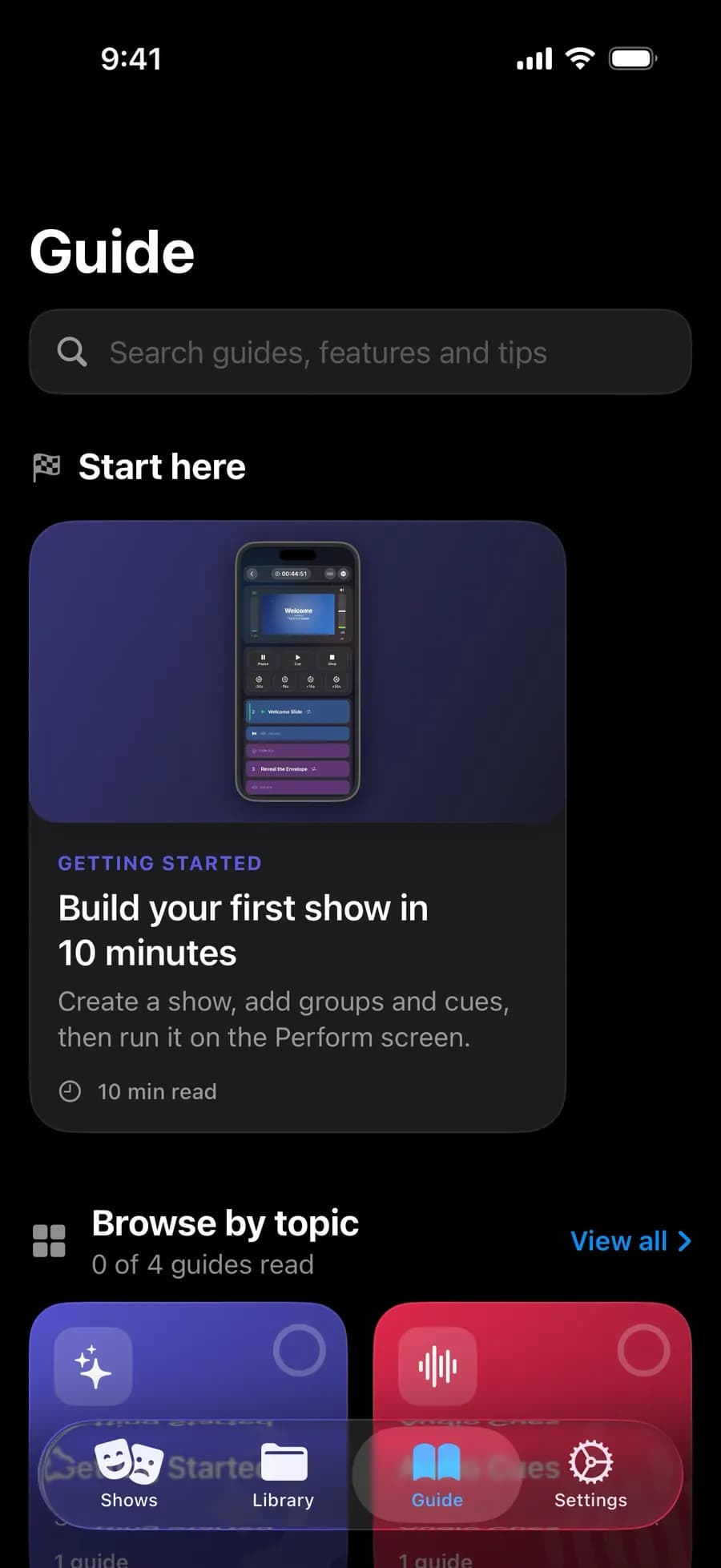
103 step-by-step guides, from your first show to running cameras and remotes on show day. They're the same guides you'll find in the Guide tab inside the app.
Getting Started
Shows, groups, cues and layers, your account and your first show.
4 guides
- Welcome to iQ Pro: shows, groups, cues and layersThe four ideas everything in iQ Pro is built on, and how they fit together.Beginner3 min
- A tour of the app: Shows, Library, Guide and SettingsWhat each of the four tabs is for, and where to find things.Beginner3 min
- Permissions iQ Pro needs, and whyWhat each permission is for, how to grant one, and how to change your mind later.Beginner3 min
- Build your first show in 10 minutesCreate a show, add groups and cues, then run it on the Perform screen.Beginner10 min
Shows & Folders
Create, organise, import and share shows.
8 guides
- Create a new showStart a blank show, name it, bring in your media and add its first group with the new-show wizard.Beginner3 min
- Start a show from another show's groupsBuild a new show from routines you've already programmed, by copying a whole show or picking groups from it.Beginner3 min
- Organise shows into foldersCreate folders on the Shows tab, move shows into them, and rename or delete folders.Beginner3 min
- Rename, duplicate, move and delete showsEverything you can do to a show from the Shows tab and the show editor.Beginner3 min
- Set a show thumbnailGive a show its own artwork so you can spot it at a glance on the Shows tab.Beginner2 min
- Import a showOpen a show archive (.iqpro) that someone has sent you, with all its media, from Files, AirDrop, Mail or a link.Beginner2 min
- Export and share a show with its mediaSave a show as one .iqpro file, with all its media, to back it up or send it to another device.Beginner2 min
- Search your showsFind a show or folder by name, and find any cue inside a show.Beginner2 min
Groups & Cues
Build a show from groups of cues, with delays, auto-follow and checks.
14 guides
- How groups workHow groups divide a show into parts, the order they play in, and what the show editor shows you about each one.Beginner3 min
- Create, rename, reorder and colour groupsAdd groups to a show, give them clear names and colours, and put them in the right order.Beginner3 min
- Enable, disable and copy groupsSkip a group for one performance without deleting it, and copy groups between shows.Beginner2 min
- Import a group from another showCopy one or more groups, with all their cues, from another show into this one.Beginner2 min
- Add a cue with the cue pickerFind the cue you need in the Add Cue sheet, by category or by searching, and add it to a group.Beginner3 min
- Edit, reorder, copy, paste and duplicate cuesOpen a cue's settings, change the order cues fire in, and copy cues within or between shows.Beginner3 min
- Enable and disable cuesSkip a cue when you run the show, without deleting it or losing its settings.Beginner2 min
- Cue delaysMake a cue wait a set time after it's fired before it starts.Beginner2 min
- Auto-follow: start the next cue automaticallyStart the next cue as this one starts, or when it ends, with an optional early start.Intermediate3 min
- Edit a show on iPadOn iPad in landscape, groups, cues and cue settings sit side by side, so you can build a show without moving between screens.Beginner3 min
- Quick transitions from the cue menuAdd a fade or crossfade around a cue in two taps, already linked to the right cues, and check what a transition affects.Beginner2 min
- Preview a groupRehearse one group on the Perform screen, or start the show part-way through.Beginner2 min
- Check your show for issuesScan a show for missing files, broken transitions, layer conflicts and other common mistakes before you go on stage.Beginner3 min
- Automatic cue layoutLet iQ Pro stack pictures in cue order for you, instead of assigning every cue to a layer by hand.Intermediate3 min
Layers & Composition
Stack, position, mask and style what appears on screen.
5 guides
- Layers explainedHow iQ Pro stacks pictures on layers, and when you choose layers yourself.Beginner2 min
- Change a cue's layerMove a cue in front of or behind other pictures by picking its layer.Beginner1 min
- The layer editor: position and resizeMove, resize and rotate pictures on a live preview of your output, with grids, snapping and 3D corners.Intermediate4 min
- Masks: boxes, subtract and text masksCut a picture to a shape, punch holes in it, or show it through text, then fit the cue to the mask.Advanced4 min
- Corner radius, borders, feathering and filtersRound a picture's corners, add a border, soften its edges and adjust its colour from the layer editor.Intermediate2 min
Media Library
Import, browse and tidy up your media.
3 guides
- Import media: Files, Photos, built-in library and PexelsBring music, video and images into iQ Pro from Files, Photos, your library or free stock media.Beginner2 min
- Browse, preview and see where media is usedFind any file in the Library tab, preview it full screen and see which shows use it.Beginner1 min
- Free up space: delete unused mediaFind media no show uses and delete it, one file at a time or all at once.Beginner1 min
Audio Cues
Play, trim, loop and level audio.
7 guides
- Add an audio cueAdd music or a sound effect to a group, set its level and hear it in your show.Beginner2 min
- Voice-over cues: turn a script into speechWrite a script, pick a natural, Apple or ElevenLabs voice, add pauses between lines, and play it in your show like any audio cue.Beginner3 min
- Trim and loop with the waveform editorSkip an intro, cut a track short, shape its level over time and set it to loop.Beginner2 min
- Volume, dB and loudness analysisSet how loud a cue plays as a percentage, or as a target loudness in decibels that iQ Pro measures for you.Intermediate2 min
- Click tracksSend a click to one side of your audio output, so performers can keep time with a backing track.Advanced1 min
- Normalise audio across a showAnalyse every audio and video cue in a show and bring them to a matching loudness in one go.Intermediate1 min
- Audio groups and venue overridesTag cues as background, stings or your own groups, then turn each group up or down for a venue in one place.Intermediate1 min
Video & Image Cues
Play video, show images and run animated backgrounds.
5 guides
- Add a video cueAdd a video to a group, from a file or a web address, and preview it in the cue's settings.Beginner2 min
- Trim, loop, hold last frame, start paused and speedChoose which part of a video plays, what happens when it ends, and how fast it runs.Intermediate2 min
- Image cues: fit, fill and coverShow a still image and choose how it fills the screen when its shape doesn't match.Beginner2 min
- Animated backgroundsLoop a moving gradient, a scrolling mosaic of pictures or a sparkling effect behind everything else, and see what every style, motion and effect looks like.Beginner4 min
- Loop cues: videos, images and slides on repeatPlay a list of videos, images and slides in order, a set number of times or until you stop it.Beginner2 min
Transitions
Fades, crossfades, cuts, animations and volume changes.
6 guides
- Fade in and fade out cuesBring pictures and sound up smoothly, and fade them away at the end of a section.Beginner2 min
- Crossfade and cutBlend from one cue into another, or switch between them instantly.Intermediate1 min
- Animate a cueMove, resize or rotate a picture that's already on screen, smoothly over a time you set.Intermediate1 min
- Play and pause video cuesPause a video mid-show and carry on from the same frame later, or hold it until you're ready.Intermediate1 min
- Volume cuesTurn a playing track up or down mid-show, smoothly over a time you set, without stopping it.Beginner1 min
- Zoom cues for camerasPunch in on a live camera, smoothly, to a point you choose.Intermediate1 min
Slides & Slide Designer
Design slides with text, images, timers and live captions.
9 guides
- Add a slide cuePut a designed slide on screen, from a title card to a countdown or a QR code.Beginner2 min
- A tour of the Slide DesignerThe canvas, the controls under it, the elements list and the slide's own settings.Beginner3 min
- Text, fonts, Google Fonts and custom fontsAdd text to a slide and style it with any installed font, a Google Font or your own font file.Beginner2 min
- Images, shapes and QR codesAdd logos and photos, coloured shapes and scannable QR codes to a slide.Beginner2 min
- Countdown timer elementPut a live countdown on a slide for doors, intervals and speaker time.Beginner1 min
- Live captions and speakersShow a live transcription of what's said on stage, in the colour you choose.Intermediate1 min
- Transforms, grid and fine positioningMove, scale, rotate, fade and blur elements, and line them up with the grid and centre guides.Intermediate2 min
- Intro and loop animationsAnimate slide elements with keyframes, so titles fly in and backgrounds gently move.Advanced2 min
- Slide transitionsFade slides in and out, and crossfade or cut from one slide to the next.Intermediate1 min
Cameras
Built-in, USB and network cameras, grading and face tracking.
6 guides
- Camera sources overviewShow a live camera in your show, and choose where the picture comes from.Beginner1 min
- Built-in and USB camerasUse your iPhone or iPad's own cameras, or a USB camera on iPad, and set the zoom.Beginner1 min
- NDI® and network camera sourcesBring a camera or video mixer into iQ Pro over your network with NDI®.Intermediate1 min
- Colour grading and saved gradesGive a live camera a cinematic look with a ready-made grade, or build and save your own.Intermediate1 min
- Face trackingKeep a performer or speaker in frame automatically, with the camera standing still.Beginner1 min
- Frames, backgrounds and camera templatesPut a branded frame over a live camera, a background behind it, and save the look as a template.Intermediate2 min
Performing
Run a show live, from the Perform screen to show day.
9 guides
- The Perform screen at a glanceWhat every part of the Perform screen does, from the show timer to the cue list and dynamic cues.Beginner2 min
- Running a show: cue, pause, stop and scrubFire cues in order, pause and resume, jump around the cue list, and stop the show cleanly.Beginner2 min
- Now, Next and the cue listRead the Perform cue list at a glance, and switch the preview to big Now and Next names.Beginner1 min
- Dynamic cues: create, assign and fireKeep drumrolls, applause and reveals ready to fire at any moment, outside your running order.Intermediate2 min
- Fullscreen mode and the show timerGive the preview the whole screen, and keep an eye on your running time with the show timer.Beginner2 min
- External displays and AirPlaySend your show to a projector, TV or Apple TV while your iPhone or iPad keeps the controls.Beginner2 min
- Pre-show checklistThe Performance checklist iQ Pro shows before a show, and a scan that catches programming mistakes first.Beginner1 min
- Siri and ShortcutsStart a show, fire the next cue or stop with your voice, a Shortcut or an automation.Intermediate1 min
- Show-day checklist: battery, Do Not Disturb, preloadingEverything to check on your iPhone or iPad before the doors open, so nothing interrupts the show.Beginner2 min
Remote Control & Triggers
Flic buttons, keyboards, MIDI, OSC and the Apple Watch.
10 guides
- Choosing a remoteFlic buttons, presentation remotes, MIDI, OSC or the Apple Watch? What each one is good for, and the actions they can run.Beginner2 min
- Pair and name a Flic buttonPair a Flic button with iQ Pro and give it a name you'll recognise on show day.Beginner3 min
- Single Press vs Multi PressChoose between the fastest possible Flic and one that can do three jobs.Beginner1 min
- Assign Flic actionsChoose what each click, double click and hold of a Flic does in a show.Beginner2 min
- Flic Duo: small button and swipesUse a Flic Duo's second button and four swipe gestures for up to ten actions from one remote.Intermediate1 min
- Presentation remotes and keyboardsUse a presentation clicker or a Bluetooth keyboard to run your show, by mapping its keys to actions.Beginner2 min
- Custom keyboard triggers for dynamic cuesGive a key on your remote or keyboard its own dynamic cue, such as a drumroll or applause.Intermediate1 min
- MIDI triggersFire cues, dynamic cues and other actions from MIDI notes sent by a keyboard, pad controller or console.Intermediate1 min
- OSC triggersLet show-control software and consoles fire your cues over the network with OSC messages.Advanced1 min
- The Apple Watch appFire cues, jump to groups, play dynamic cues and set the volume from your wrist.Beginner1 min
Show Settings
Playback, resolution, the show timer, security and exports.
6 guides
- General, playback and orientation lockFind your way around Show Settings, rename a show, and choose how it plays, loops and rotates.Beginner2 min
- Resolution and letterboxingMatch your show to the shape of your screen, and choose letterbox or stretch for the output.Intermediate1 min
- The show timerCount down or up, set the length, choose when the timer starts, and colour it as time runs out.Beginner2 min
- Lock show settings with Face IDStop anyone else changing a show's settings by asking for Face ID or Touch ID first.Beginner1 min
- Default microphoneChoose which microphone a show uses when a live participant camera is on screen.Intermediate1 min
- Export the cue listSave your show's cue list as a text file to print, share with your crew or keep as a record.Beginner1 min
Lighting, MIDI, OSC & Integrations
Lighting scenes, MIDI and OSC cues, time code and ATEM.
5 guides
- Lighting library: scenes, chases and banksName your lighting desk's scenes, chases and banks once, then trigger them from any cue.Intermediate2 min
- MIDI cuesFire lighting scenes, chases, banks and custom MIDI notes as part of your running order.Intermediate1 min
- OSC output devices and OSC cuesSend OSC messages to QLab, lighting desks, sound consoles and show-control software.Advanced2 min
- Time-code events on audio and videoFire lighting, MIDI and OSC at exact moments in a piece of music or video.Advanced2 min
- ATEM switcher integrationSwitch a Blackmagic ATEM Mini to another camera input as part of your show.Intermediate1 min
Account, Settings & Help
Devices, app settings, support and troubleshooting.
6 guides
- Account, devices and device limitsSee who's signed in and on which plan, manage the devices on your account, log out or delete your account.Beginner2 min
- General settings: custom backdrop, permissions and debuggingChoose what your external screen shows between shows, review permissions, and turn on debugging when support asks.Beginner1 min
- Read guides aloudListen to any guide, follow along word by word, and pause, skip or change the speed from the player.Beginner2 min
- Voice & Speech: set up voicesChoose natural, Apple or ElevenLabs voices, set the speed, connect your ElevenLabs account and manage the natural voice download.Beginner2 min
- Contact support: tickets, attachments and logsOpen a support ticket from inside iQ Pro, add screenshots and files, and send the logs support needs.Beginner2 min
- TroubleshootingQuick fixes for the most common problems, from silent audio to a remote that won't fire.Beginner2 min
Ready to build your first show?
Download iQ Pro and run your first cue in minutes.
