
Sometimes you want the Perform screen to be nothing but the picture: on a confidence monitor, on an iPad propped on a table, or when a remote does all the cueing. iQ Pro has two ways to do it.
Hide the cue list in landscape
Turn your iPhone or iPad to landscape and a fullscreen button appears at the right of the header. Tap it to hide the cue list and let the preview fill the screen. The header, with the show timer and dynamic cues, stays. Tap the button again to bring the cue list back.
This is a quick switch you can flip mid-show, and it doesn't change any settings.
Run a show with only the picture
The Fullscreen setting goes further: the Perform screen shows only the output, with a Back button at the top left and no controls at all.
- 1
Open the show's settings and tap Playback Settings.
- 2
Turn on Fullscreen.
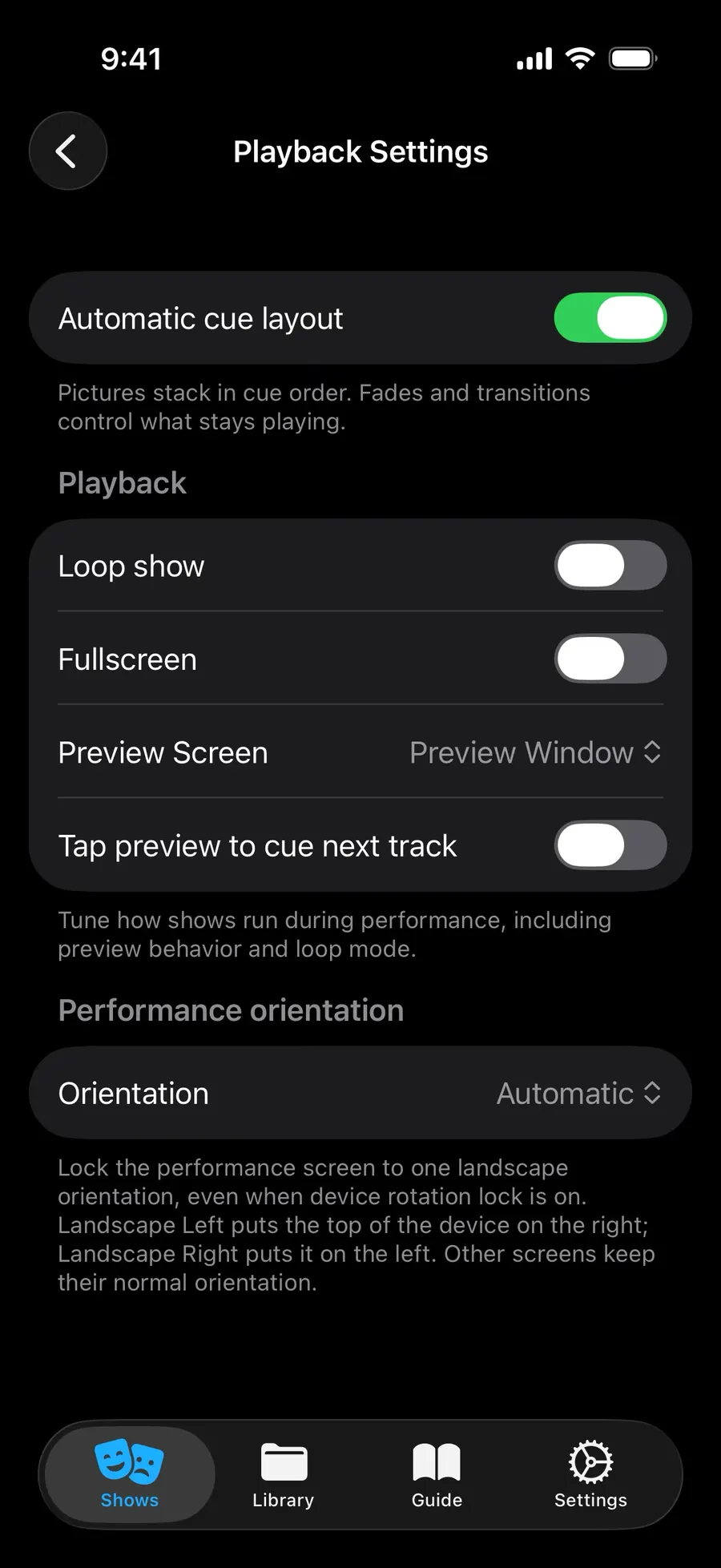
Fullscreen hides every control on the Perform screen - 3
Start the show. Fire cues with a remote, or turn on Tap preview to cue next track so a tap on the picture fires the next cue.
To leave a fullscreen show, tap Back, or swipe down with two fingers.
The show timer
The timer in the middle of the header shows how long your show has left. It starts when you fire the first cue, counts down from 45 minutes, and resets when you tap Stop.
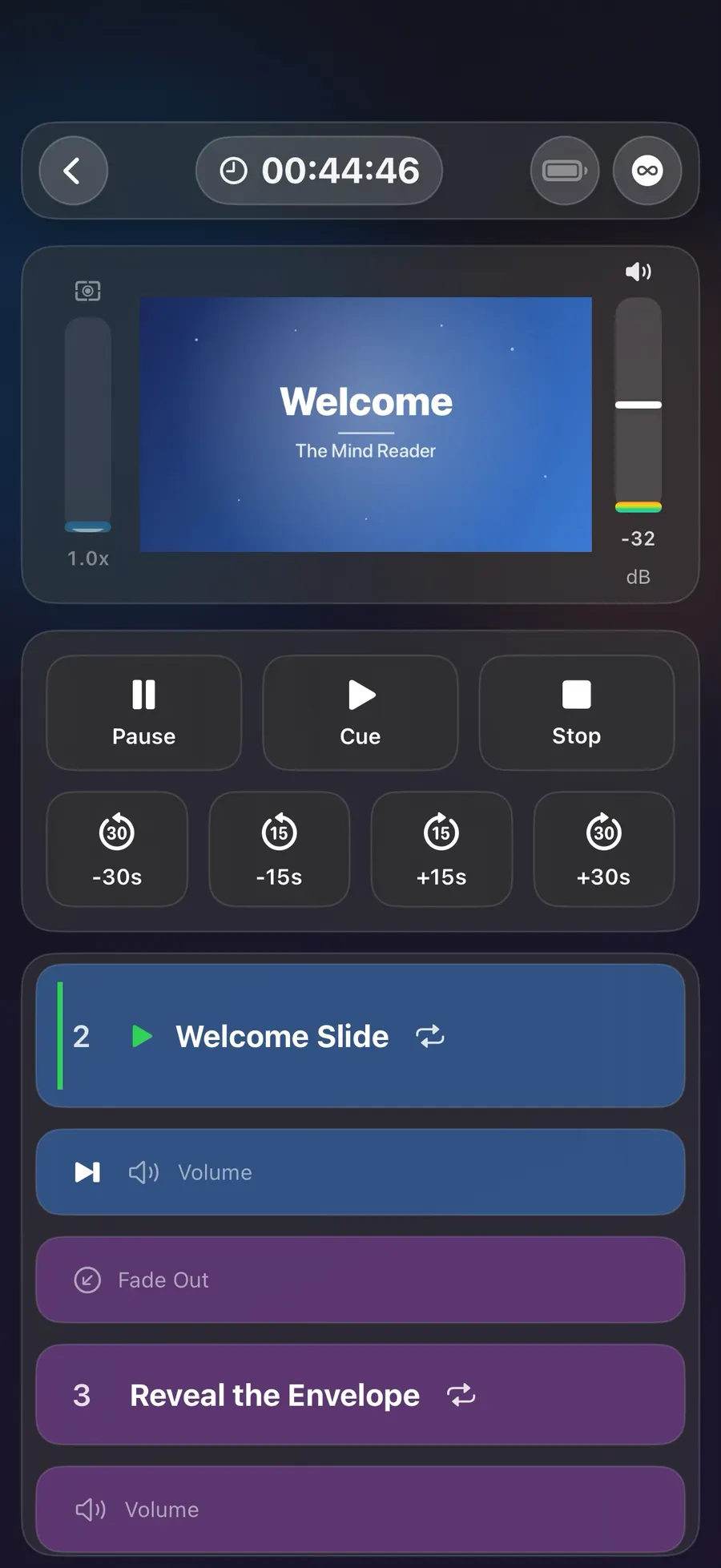
You can change all of that for each show: count up instead of down, set the length, start the timer later (for example after your pre-show music), and colour it as you near the end. See The show timer.
