
Most cues fire in order. Dynamic cues don't: they wait to one side until you need them. Use them for anything you can't time in advance, such as a drumroll while a volunteer decides, a round of applause, or a reveal you might show twice.
Each dynamic cue is a small group of its own, with as many cues as you like. Firing it plays its cues and then your show carries on from where it was.
Create a dynamic cue
- 1
In the show editor, tap Dynamic Cues.
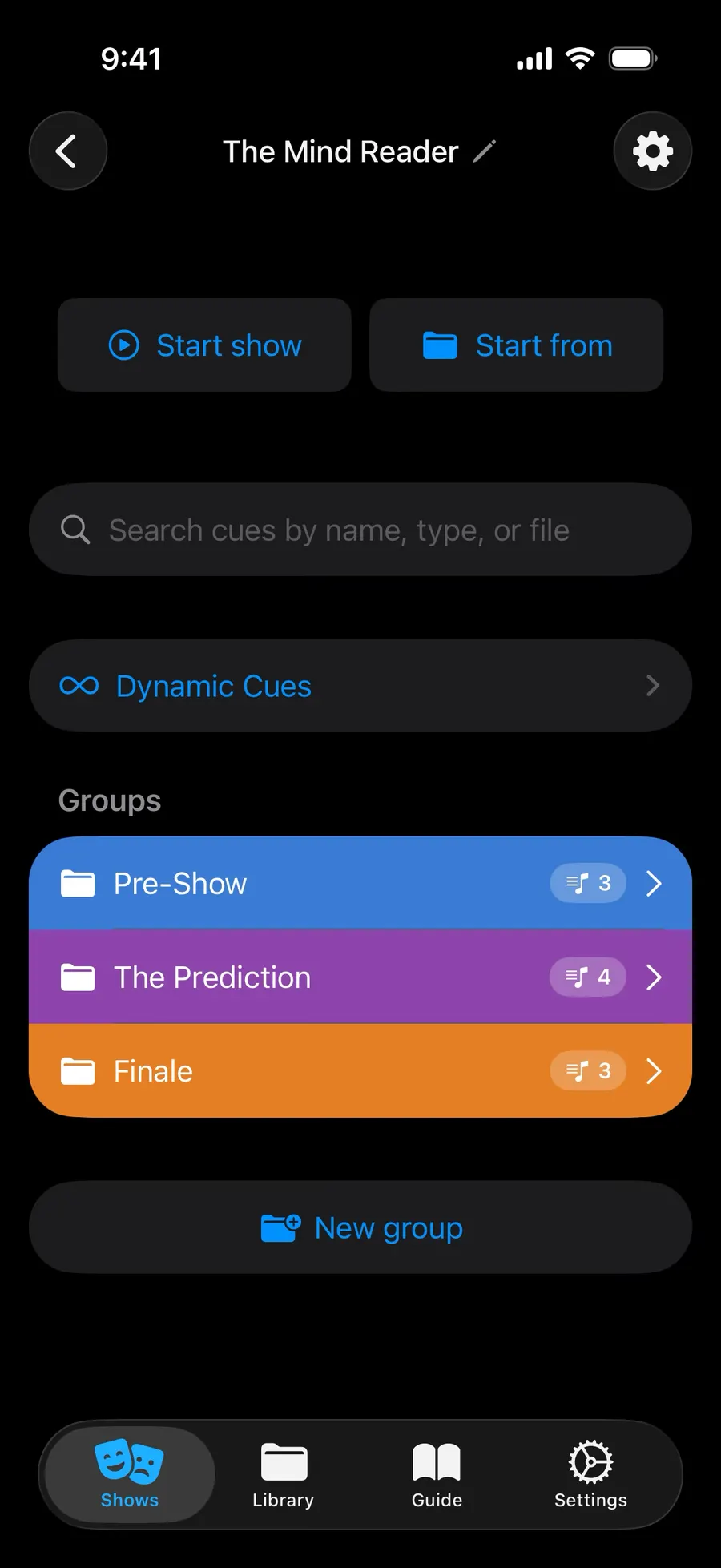
Dynamic Cues sits above your groups - 2
Tap New dynamic cue. iQ Pro adds it and opens it.
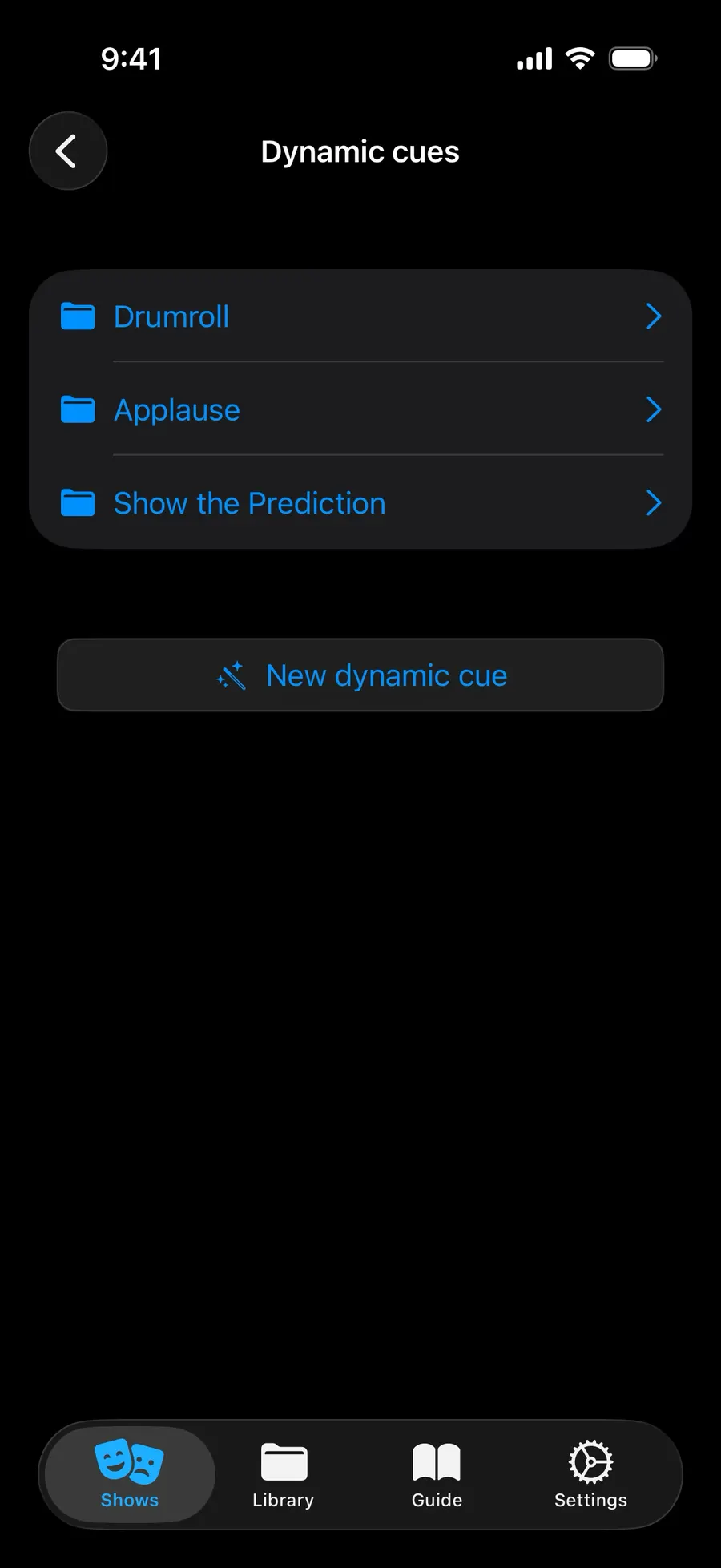
Every dynamic cue in the show, with New dynamic cue at the bottom - 3
Tap Add cue and add its cues, exactly as you would in a group: an audio cue for a sting, an image for a reveal, a transition to clear it.
- 4
Give it a clear name in its settings, under Set dynamic cue name. That name is what you'll see on the Perform screen.
To delete a dynamic cue, swipe left on it in the Dynamic cues list.
Fire it from the Perform screen
Tap ∞ in the Perform screen's header to open Dynamic cues, then tap a tile. The sheet closes, the dynamic cue fires, and your place in the show stays where it was.
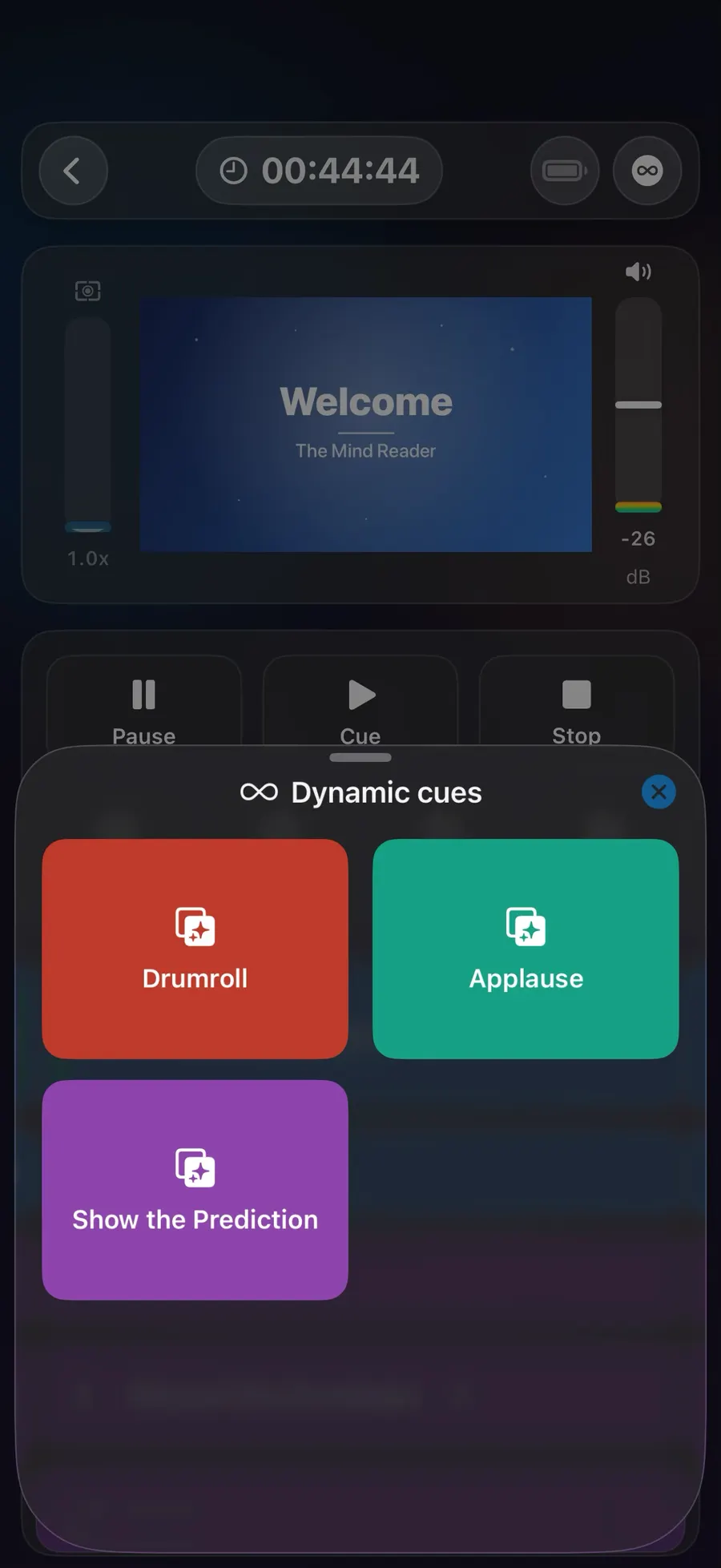
Fire it from a remote
A dynamic cue is most useful on a button you can press without looking. Any trigger can fire one with the Cue Group action:
- Flic: give a click, double click or hold the Cue Group action and pick the dynamic cue. See Assign Flic actions. A dynamic cue's own settings also have Configure Trigger, which binds it to a Flic button and press in one step.
- Keyboard or presentation remote: see Custom keyboard triggers for dynamic cues.
- MIDI and OSC: see MIDI triggers and OSC triggers.
