
A paired Flic already does something useful: in Multi Press mode a Click fires Cue, a Double Click runs Pause/Play and a Hold runs Stop. You can change any of these for each show.
Choose the actions
- 1
Open your show's settings, tap Configure Triggers, then Flic buttons.
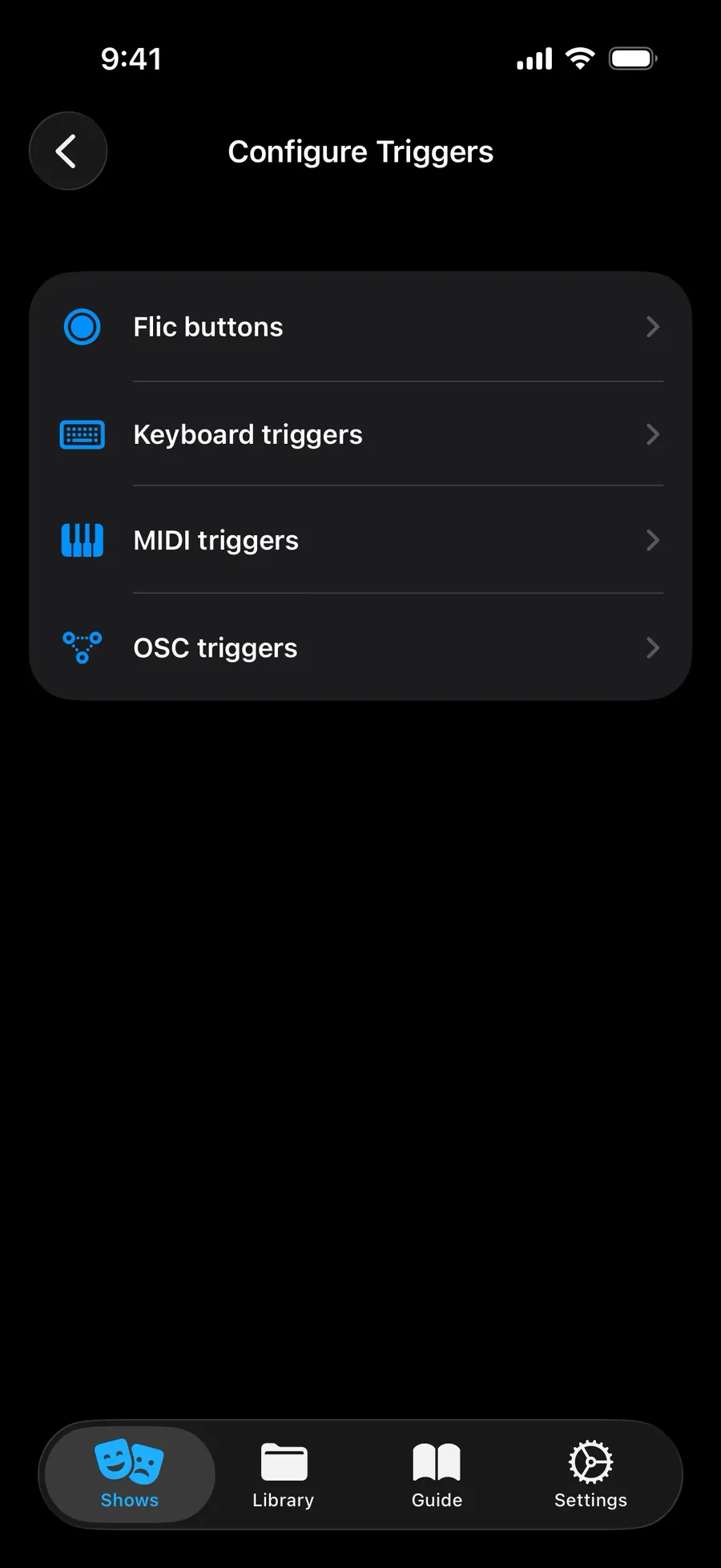
Flic buttons lists every Flic you've paired - 2
Tap the Flic you want to set up. Each one says Configure actions under its name.
- 3
Tap Main Flic Triggers. You'll see a row for each press: Click, Double Click and Hold.
- 4
Tap the orange action next to a press and choose a new one from Choose action.
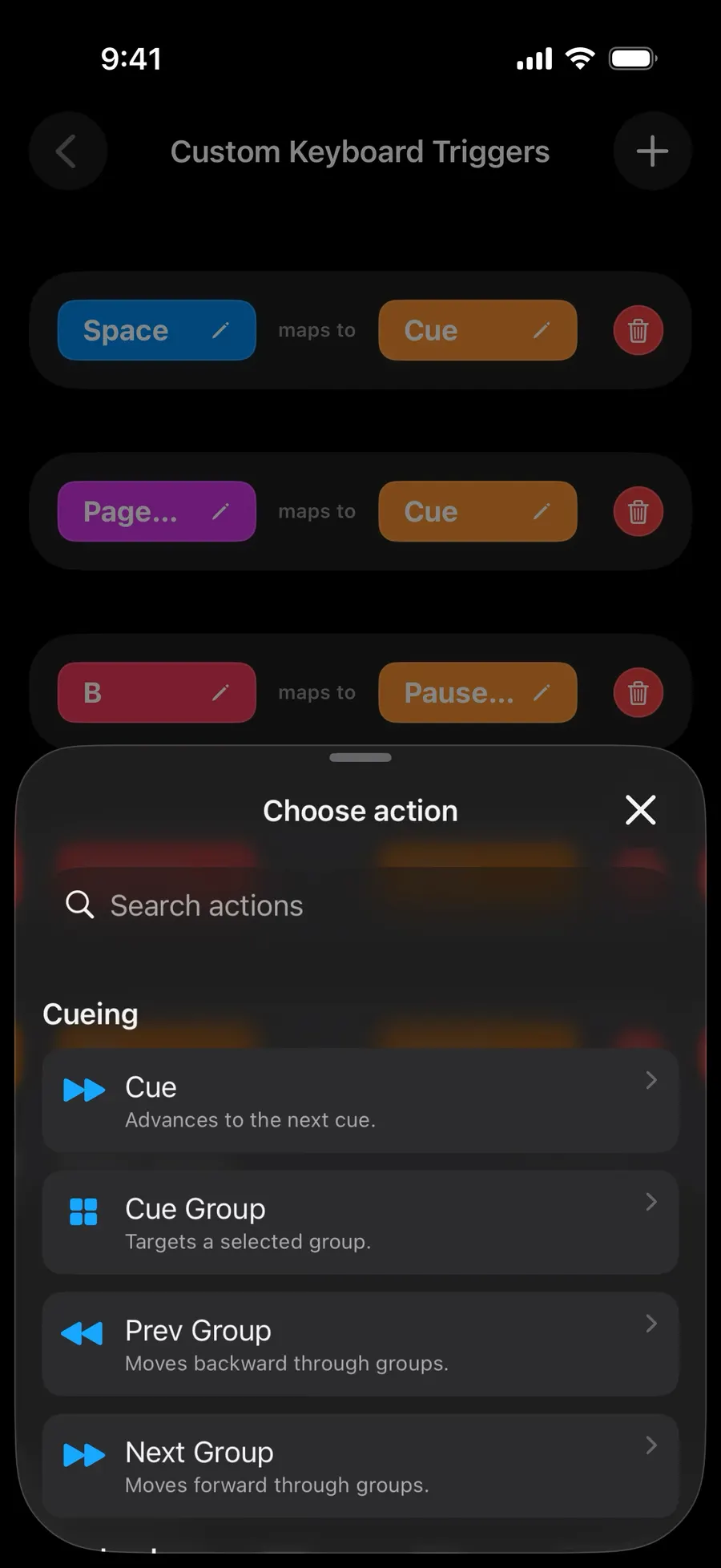
Actions are grouped into Cueing, Playback and Other - 5
Go back. Your changes are saved for this show.
The actions are the same for every kind of trigger:
- Cueing: Cue, Cue Group, Prev Group and Next Group.
- Playback: Pause/Play and Stop.
- Other: Nothing, which leaves the press unassigned.
Fire a dynamic cue
Choose Cue Group and a Select group menu appears under the press. Pick one of your show's dynamic cues. Each press then fires that dynamic cue, wherever you are in the show.
If a dynamic cue is deleted, its press shows This trigger points to a deleted dynamic queue. Choose a replacement. Pick another one from the menu.
Check it's working
While you're on a Flic's trigger screen, press the button. Its icon turns green, and so does the row for the press it recognised, so you can see which press is which before the show.
For a Flic Duo's small button and swipes, see Flic Duo: small button and swipes.
