
With MIDI triggers, any MIDI device that sends notes can run your show: a keyboard on stage, a pad controller, a drum module or a console. Each trigger listens for one note on one channel.
Connect your MIDI device
Connect it to your iPhone or iPad with a USB MIDI interface or a USB-C cable, or pair a Bluetooth MIDI device. iQ Pro checks for MIDI devices whenever you open MIDI triggers and when you start a show.
Add a trigger
- 1
Open your show's settings, tap Configure Triggers, then MIDI triggers.
- 2
Tap + at the top right. A new trigger appears with Listen for note on the left.
- 3
Tap Listen for note. It changes to Listening…. Play the note on your MIDI device. The trigger now shows the note and channel, such as Note 60 · Ch 1.
- 4
Tap the orange action and choose what the note does. For Cue Group, also pick the dynamic cue under Select group.
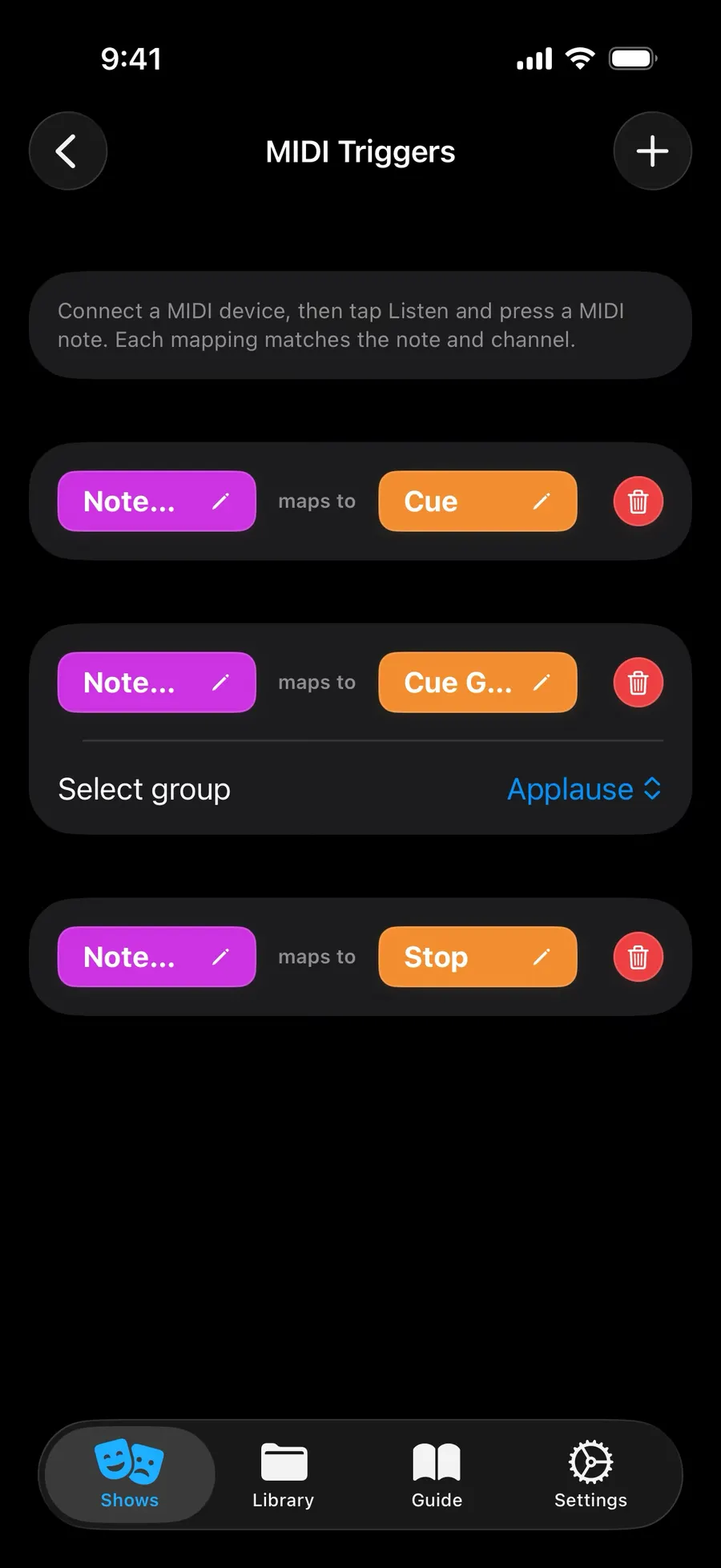
To change a note, tap it and play the new one. To remove a trigger, tap the red bin or swipe left on it.
Good to know
- A trigger matches both the note number and the channel. If nothing happens, check your device is sending on the channel shown.
- Triggers fire on note on, the moment you press the key or pad.
- MIDI triggers belong to the show, like every trigger.
