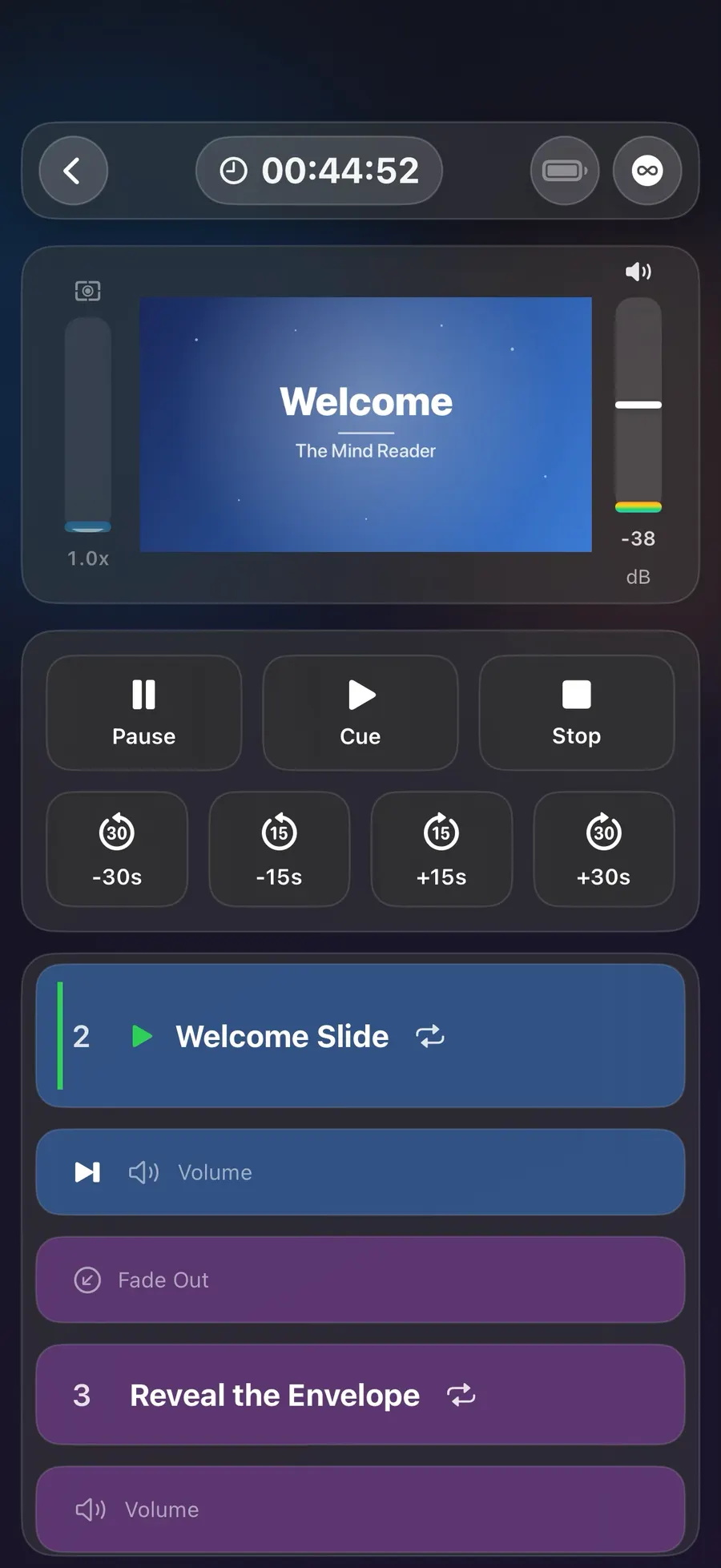
A Flic is a small Bluetooth button you can hide in a pocket, on a table or in a prop, and press to fire your next cue. iQ Pro works with Flic 2 and Flic Duo. You pair each button once, and it's then available in every show.
Pair the button
- 1
Open the Settings tab and tap Configure Flics.
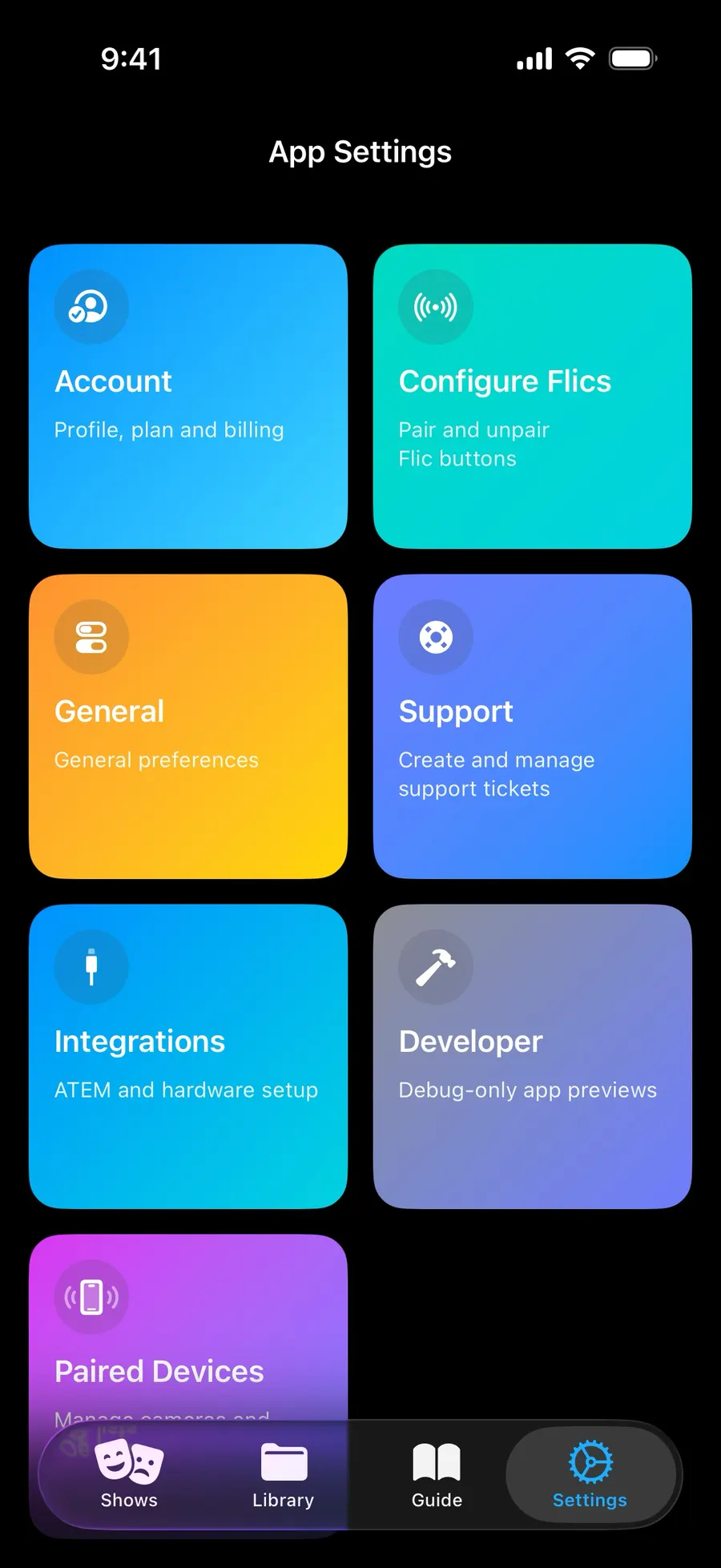
Configure Flics: pair and unpair Flic buttons - 2
On Flic Buttons, tap + at the top right. Until you've paired one, the list says No Flic buttons added.
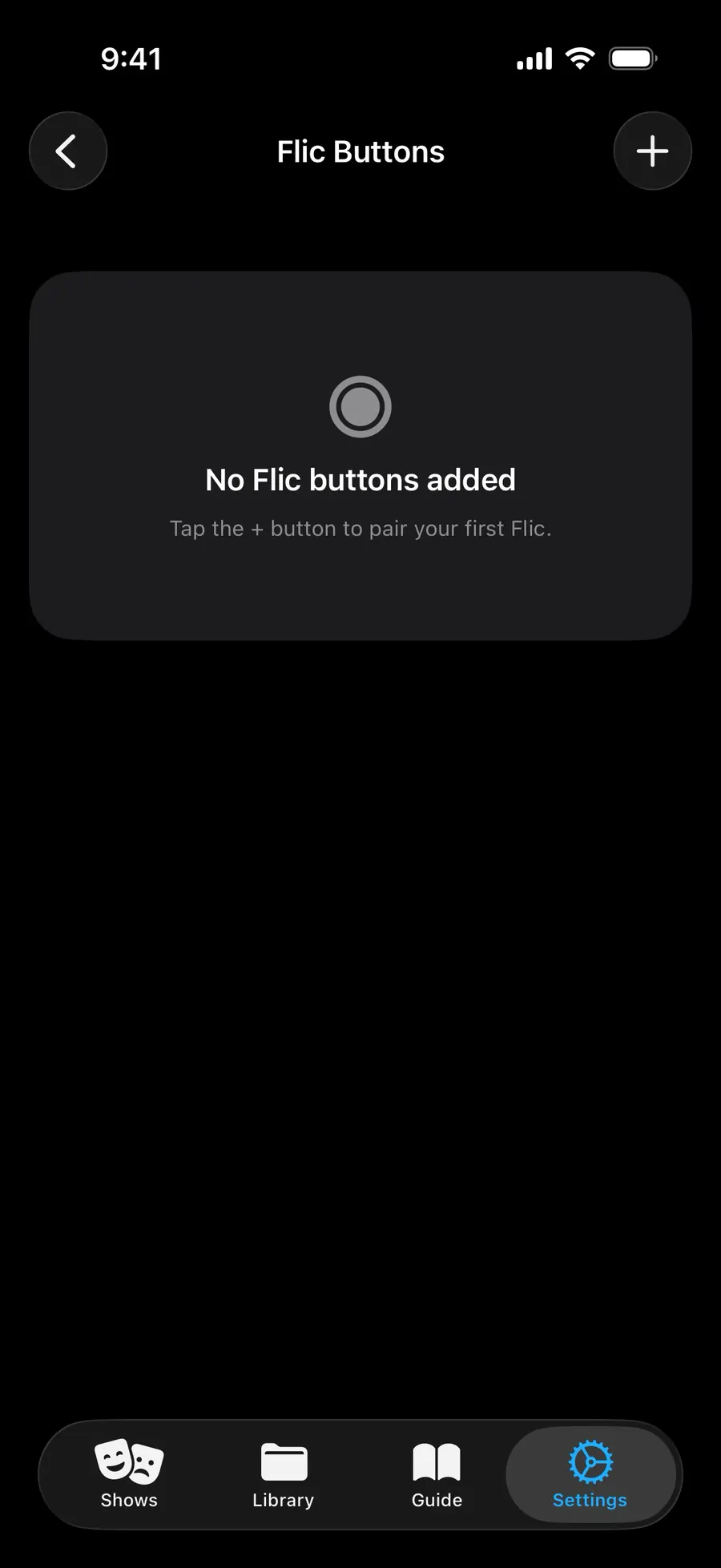
Tap + to pair a Flic - 3
Press and hold your Flic. While Searching for your Flic... is showing, keep holding the button until pairing completes.
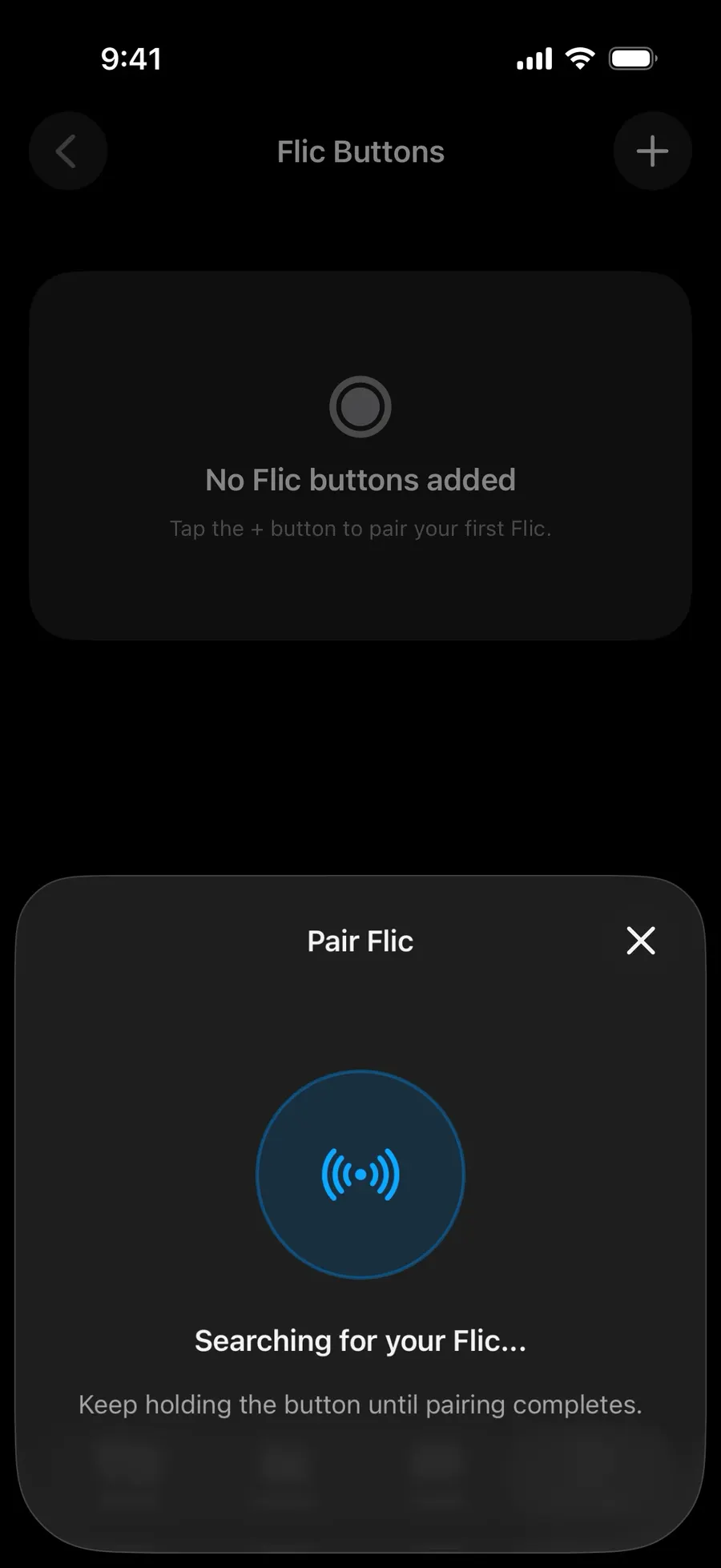
Keep holding the button until it pairs - 4
Under Name your Flic, type a name and tap Continue.
- 5
Under Choose Trigger Mode, tap Single Press or Multi Press. The button is saved and appears in the list as a Paired Flic.
Single Press or Multi Press?
- Single Press has the lowest latency, but only recognises a single click. Pick it when the button only ever fires the next cue.
- Multi Press recognises a click, a double click and a hold, so one button can do three jobs. Each press waits a moment to tell a click from a double click.
Rename or forget a button
In Settings › Configure Flics, each paired button has two buttons on the right:
- The pencil renames it. Type the new name and tap Save.
- The bin forgets it. Tap Forget to remove the Flic from iQ Pro. To use it again, pair it from the start.
If the Flic doesn't appear
- Keep holding the button: pairing only starts once the Flic is in pairing mode.
- A Flic can only be paired with one app at a time. If it's paired with the Flic app or another device, remove it there first.
- Check Bluetooth is on and that iQ Pro is allowed to use it, in the iOS Settings app under Privacy & Security › Bluetooth.
Next: give it a job
A paired Flic doesn't do anything until you choose its actions for a show. Open your show's settings, tap Configure Triggers, then Flic Buttons. You can then test it on the Perform screen, where each press runs the action you gave it, such as Cue.