
The Perform screen is where you run your show live. Everything is on one screen: the show timer, a preview of what your audience sees, the transport buttons and your cue list.
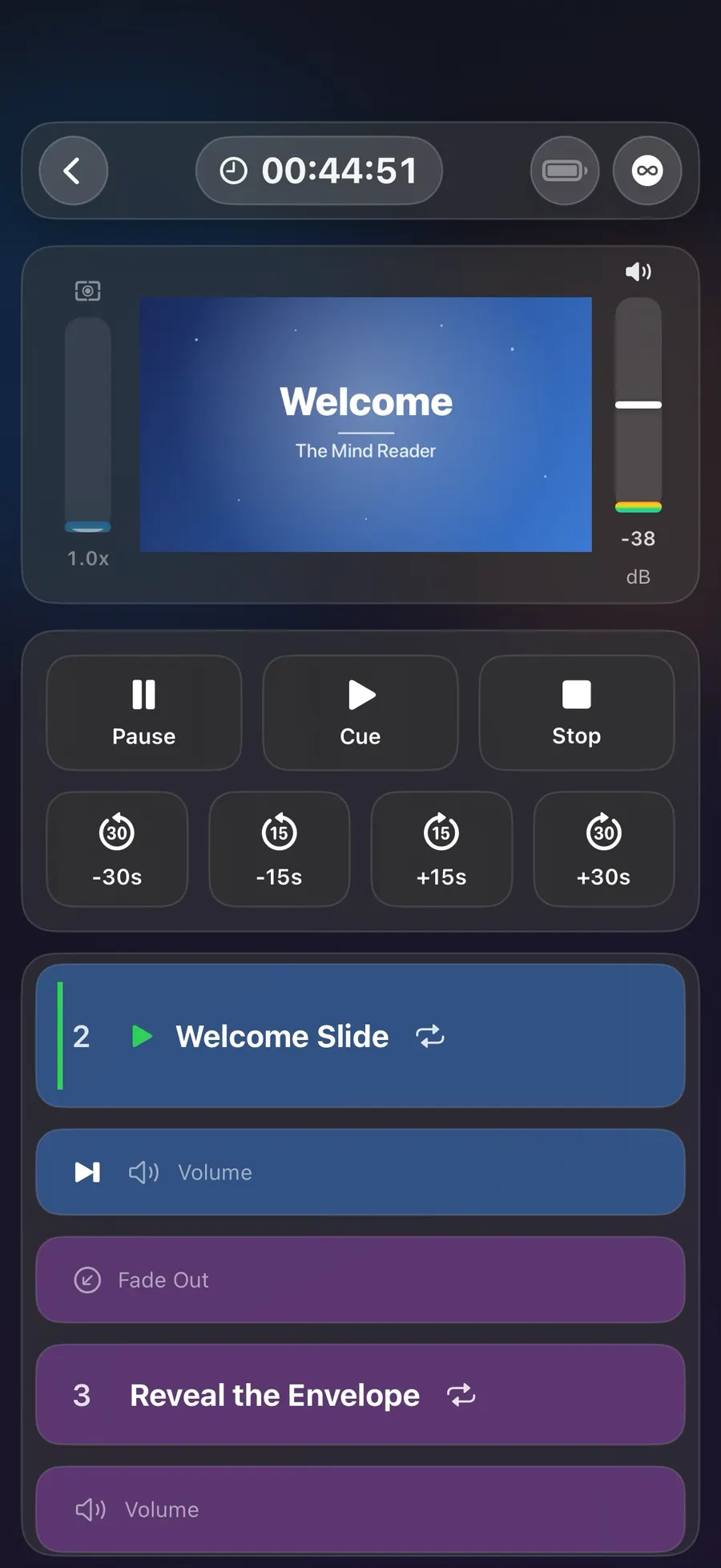
Open it from the show editor with Start show. To run a single group, open the group and tap Quick preview instead.
Turn your iPad to landscape for a layout made for a table or lectern: a large preview with big transport buttons underneath, and the cue list down the right-hand side.
The header
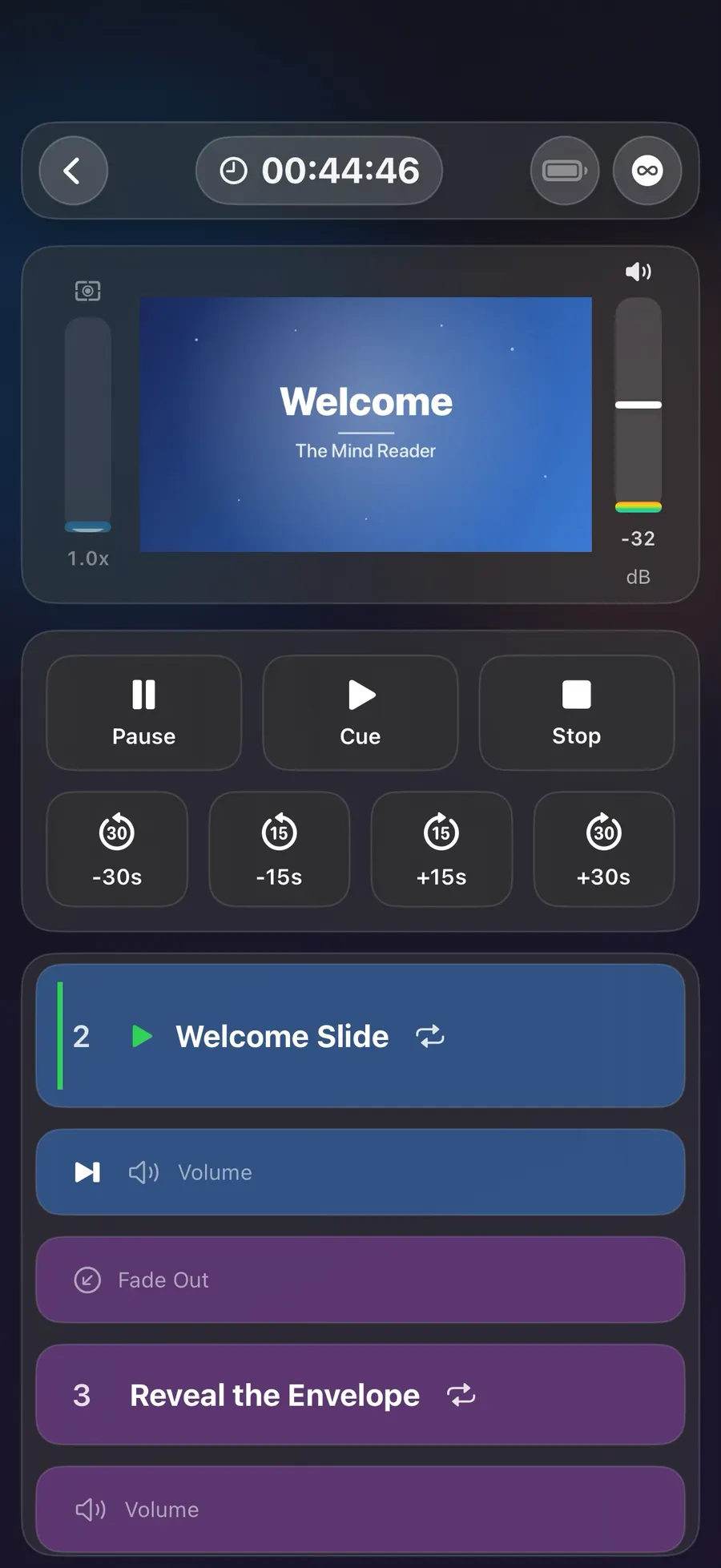
- Back (the arrow at the left) stops the show and leaves the Perform screen.
- The show timer starts when you fire the first cue. It counts down from 45 minutes unless you change it in the show's Timer Settings, where you can also make it count up and set Countdown Colour Codes, so the timer changes colour as you near the end.
- The battery shows how much charge your device has left.
- ∞ opens your dynamic cues (see below).
The preview
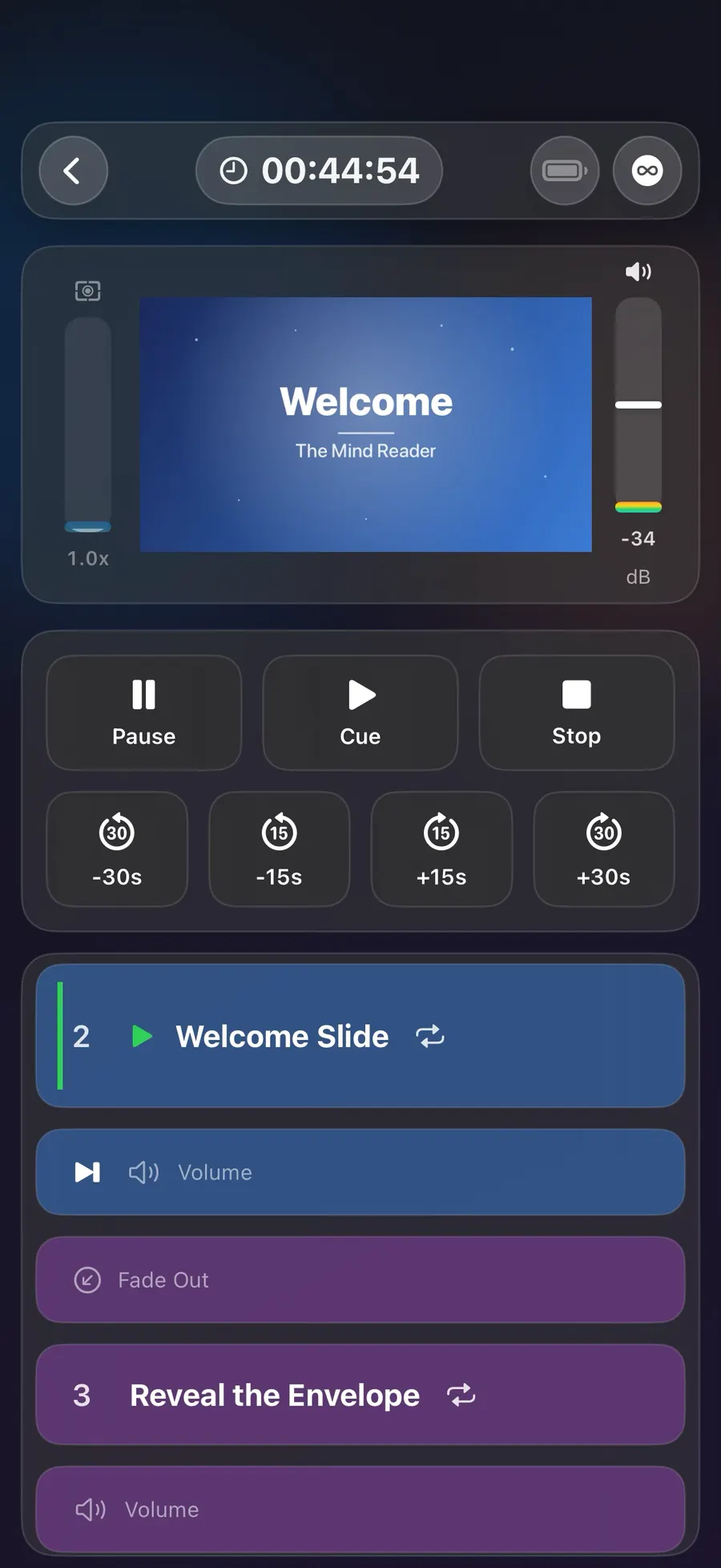
The preview shows exactly what's on your output: a second screen, a projector or AirPlay.
- The slider on the left zooms a live camera. It's dimmed when no camera is on screen.
- The meter on the right shows the output level in dB. Drag its handle to cap the volume of everything that's playing.
The controls
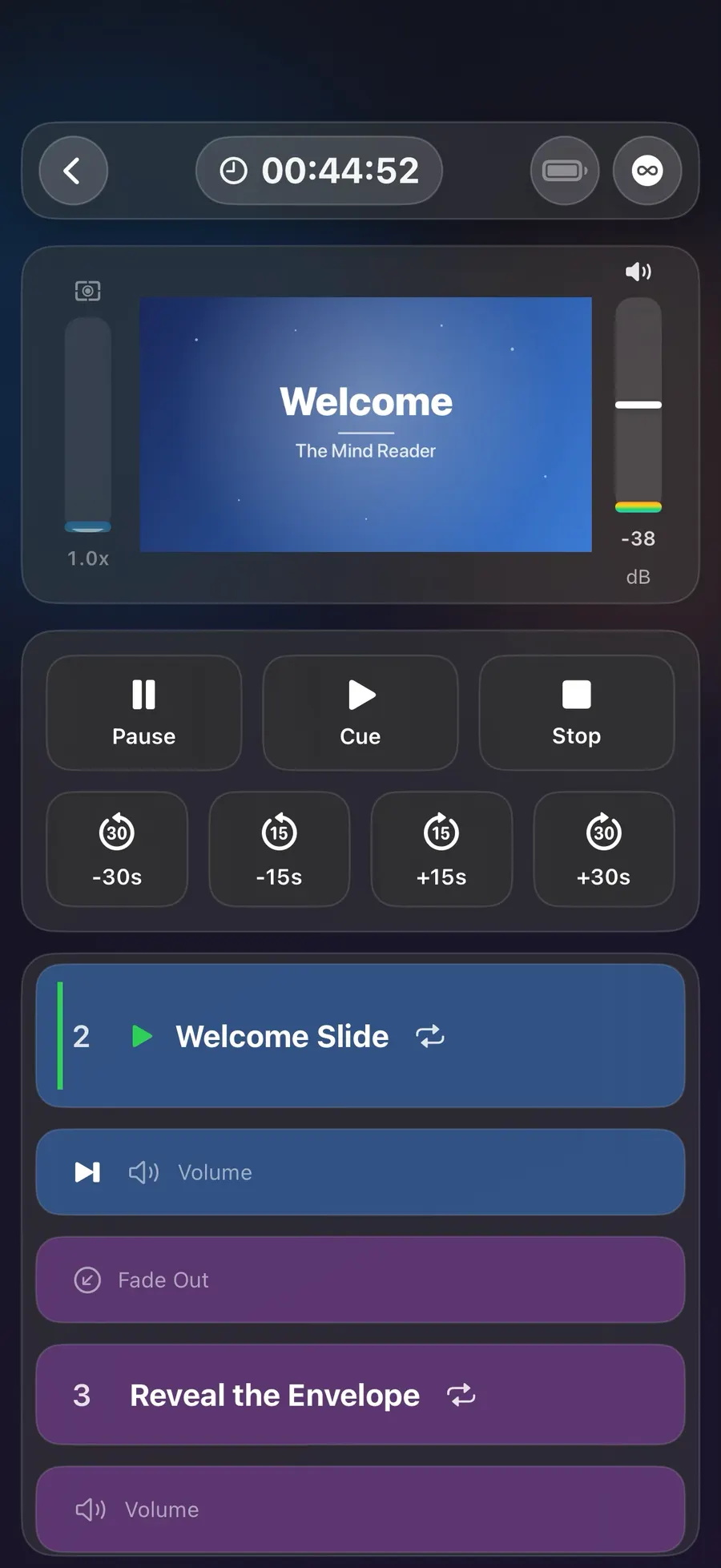
- Cue fires the next cue.
- Pause pauses everything that's playing. It changes to Resume.
- Stop stops every cue and resets the show timer.
- -30s, -15s, +15s and +30s jump back or forward in the audio or video that's playing.
The cue list
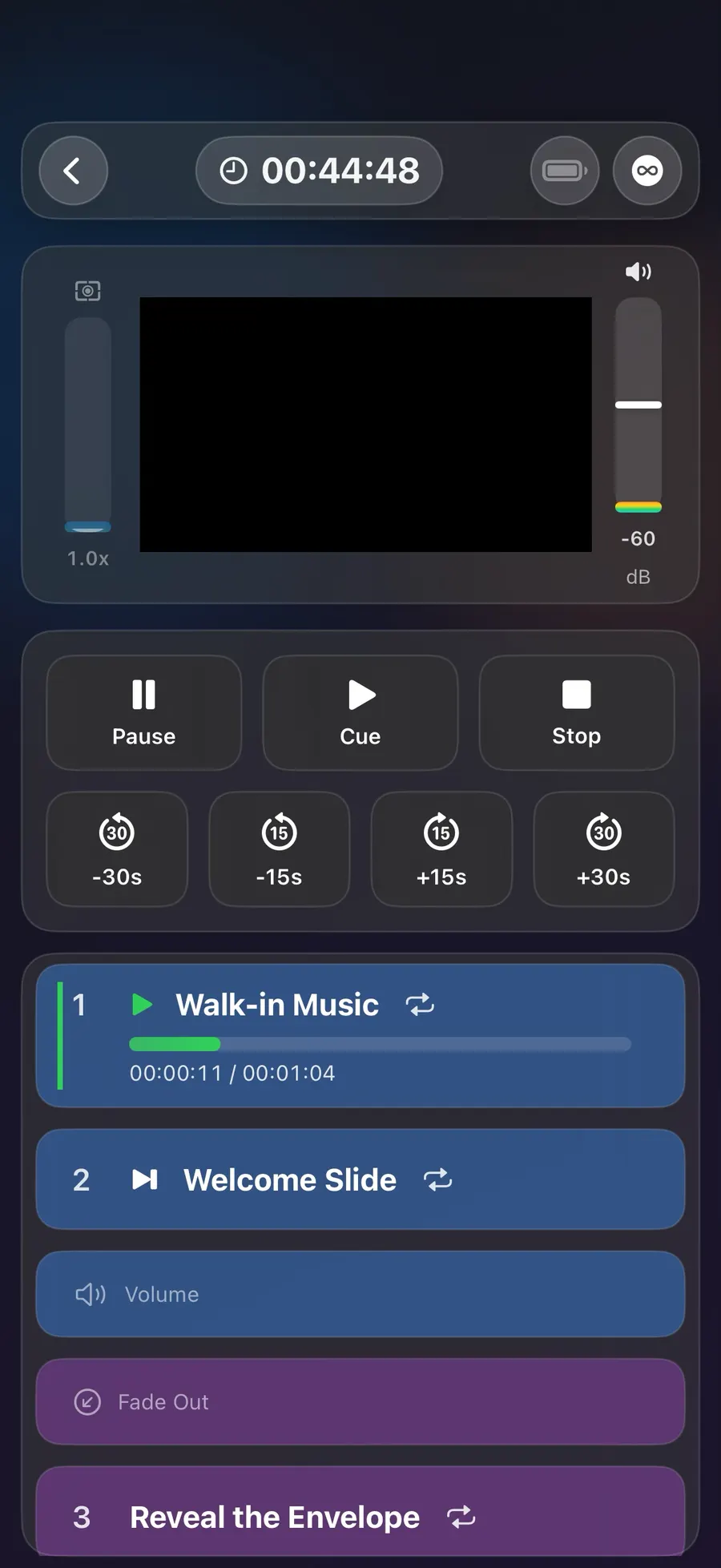
Your cues are listed in show order, coloured by group.
- The cue that's playing has a green bar and a progress line with its elapsed and total time.
- The next cue to fire is marked with the next-up arrow.
- Tap any cue to fire it straight away. The show carries on from there.
Dynamic cues
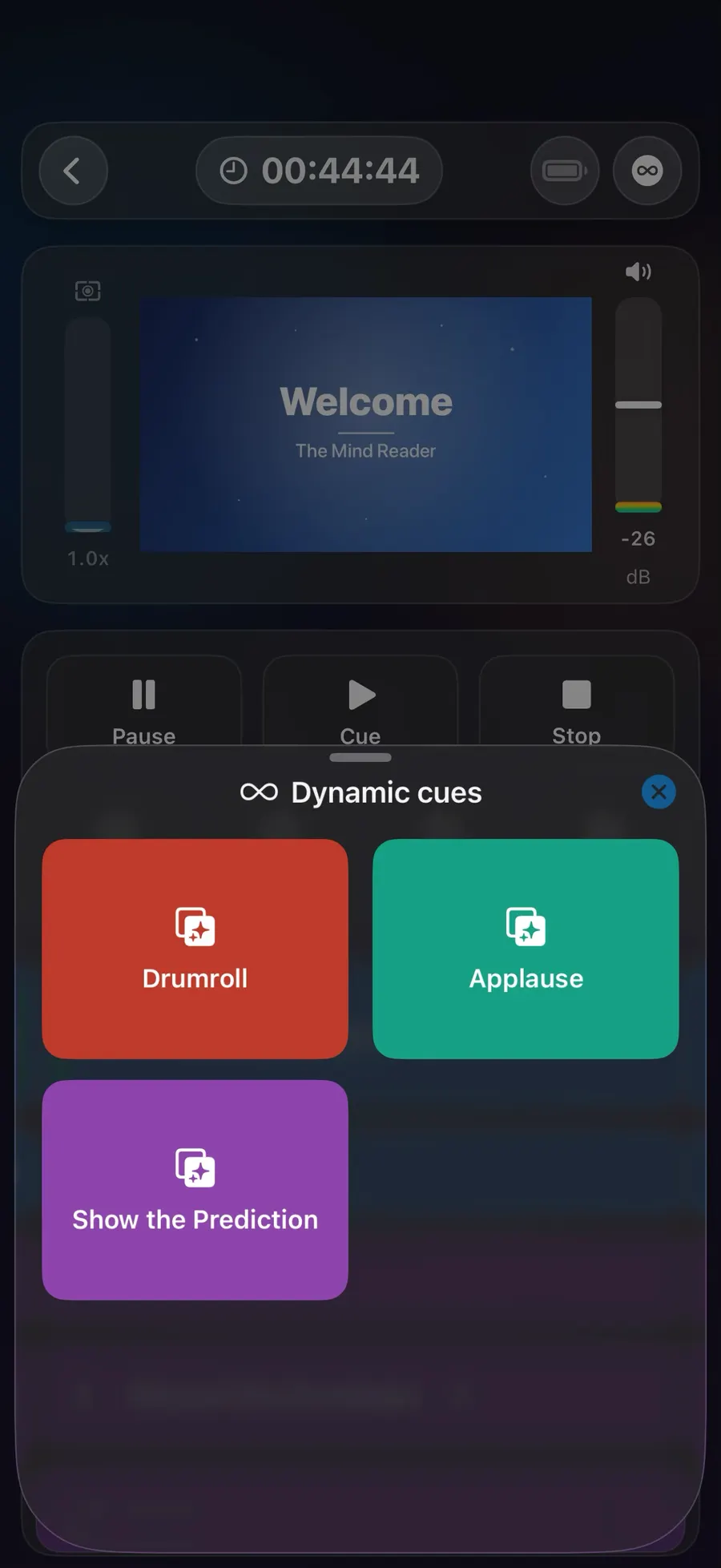
Dynamic cues sit outside your running order, ready for whenever you need them: a drumroll, a round of applause, a reveal. Tap ∞ in the header, then tap a tile to fire it. The sheet closes and your place in the show stays the same.
Run it hands-free
A remote lets you fire Cue without touching the screen. See Pair and name a Flic button.
