
Two checks help a show go right: one for your show file, before the day, and one for your device, just before you start.
Scan your show for problems
Check for Issues looks through every cue for common programming mistakes, such as cues that fight over the same layer, and suggests fixes.
- 1
Open your show's settings and tap Check for Issues.
- 2
Tap Scan Show. When it's done you'll either see All Clear! or a list of issues to fix.
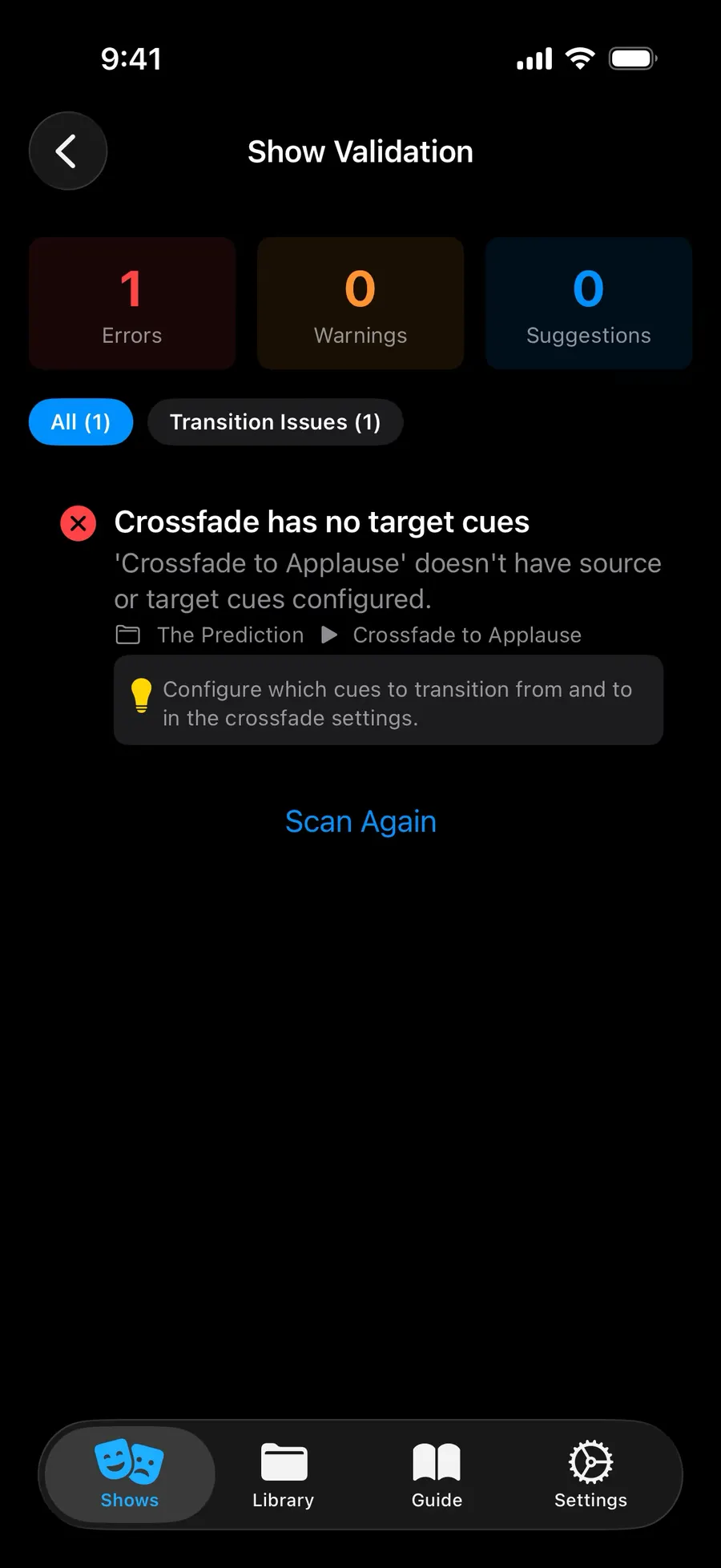
The demo show scans clean - 3
Fix any issues, then tap Scan Again to confirm.
The Performance checklist
When you tap Start show, iQ Pro shows the Performance checklist: a short list of things to do on your device before an audience sees it.
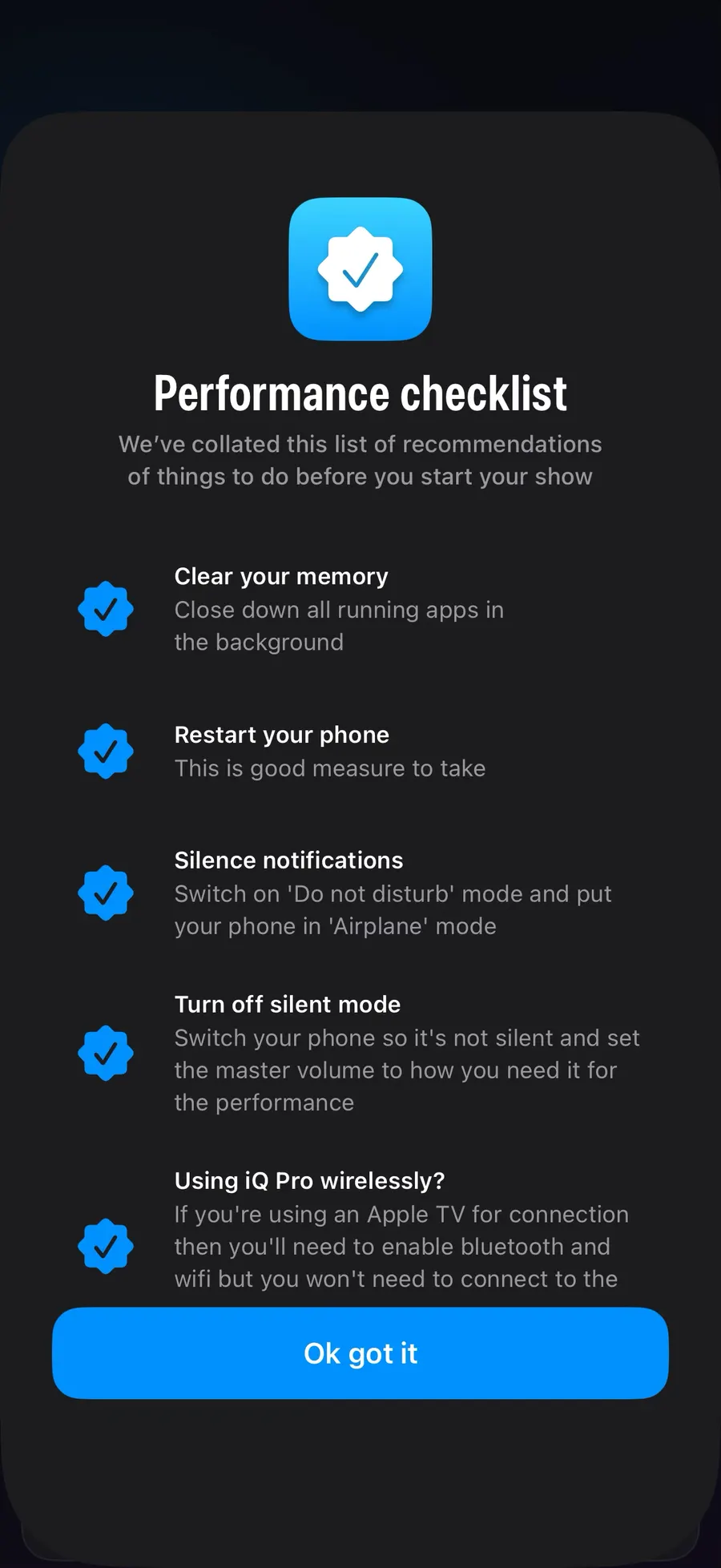
- Clear your memory: close the apps running in the background.
- Restart your phone: a fresh start is a good precaution.
- Silence notifications: switch on Do Not Disturb and Airplane mode.
- Turn off silent mode: and set the master volume to the level you need.
- Using iQ Pro wirelessly? With an Apple TV, keep Bluetooth and Wi-Fi on; you don't need an internet connection.
Tap Ok got it to close it and go to the Perform screen.
Show-day checklist explains each of these, and a few more.
