
Most problems have a quick fix. Find yours below. If it's not here, or the fix doesn't work, contact support.
Start with a scan
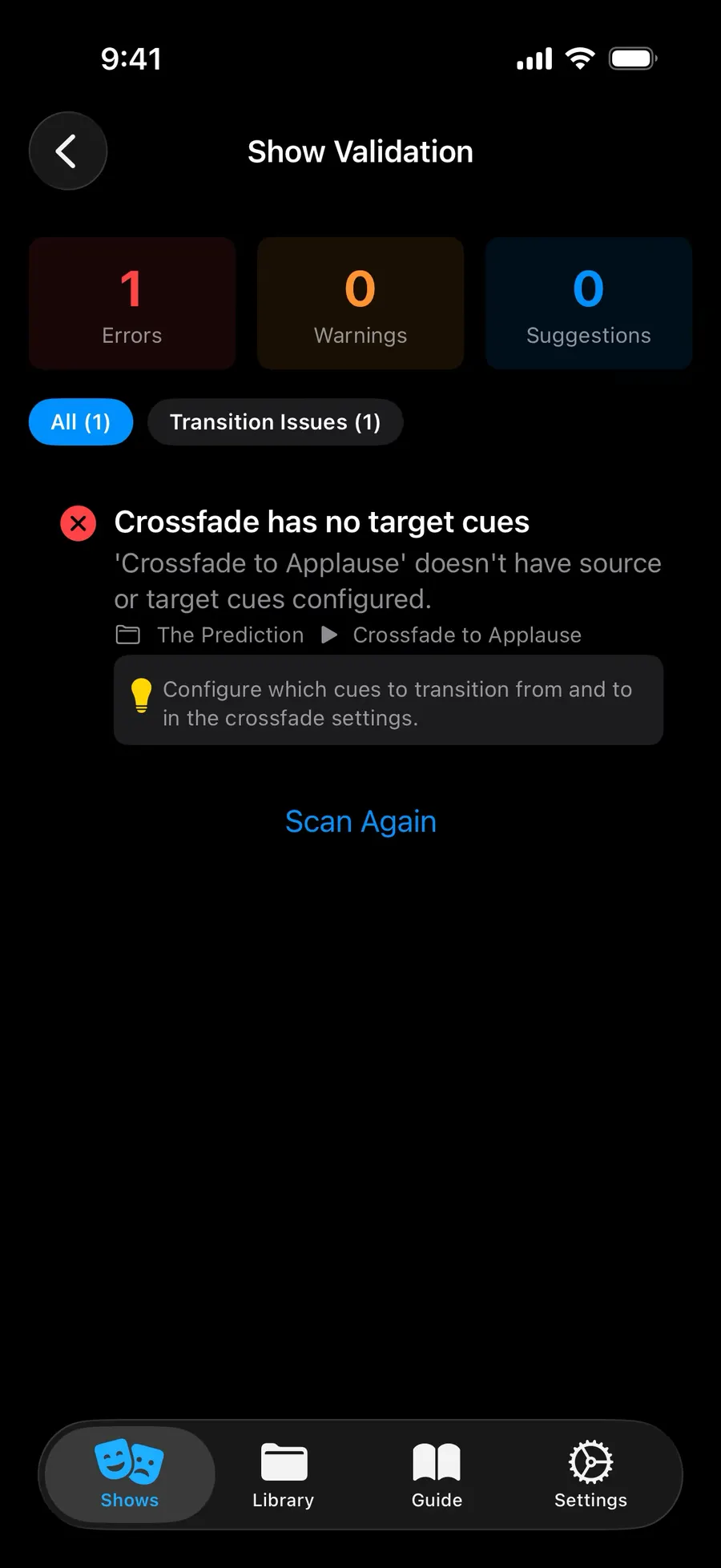
Many problems come from a cue that's set up in a way you didn't intend. In your show's settings, tap Check for Issues, then Scan Show, and fix anything it finds.
No sound
- Turn off silent mode and turn the volume up with the buttons on your device.
- On the Perform screen, check the level handle on the meter to the right of the preview. It caps the volume of everything that's playing.
- Check the cue's own level, and any Audio Overrides in the show's settings.
- If the sound should come from a projector or speaker, check the cable or AirPlay connection.
Nothing on the projector or TV
- Unplug the adapter and plug it back in, then reopen iQ Pro.
- If the picture is squashed or has black bars, check Resolution Settings. See Resolution and letterboxing.
- For AirPlay, check your device and the Apple TV are on the same Wi-Fi network. See External displays and AirPlay.
A remote doesn't fire
- Flic: check it's paired in Settings › Configure Flics and that Bluetooth is on. Then check its actions in the show's Configure Triggers. Triggers belong to each show.
- Presentation remote or keyboard: check it's connected in the iOS Settings app, and that the key is mapped in Keyboard triggers for this show.
- MIDI or OSC: check the note and channel, or the address and port, match exactly.
- Close any sheet that's open on the Perform screen: keys are ignored while one is showing.
A feature asks for access
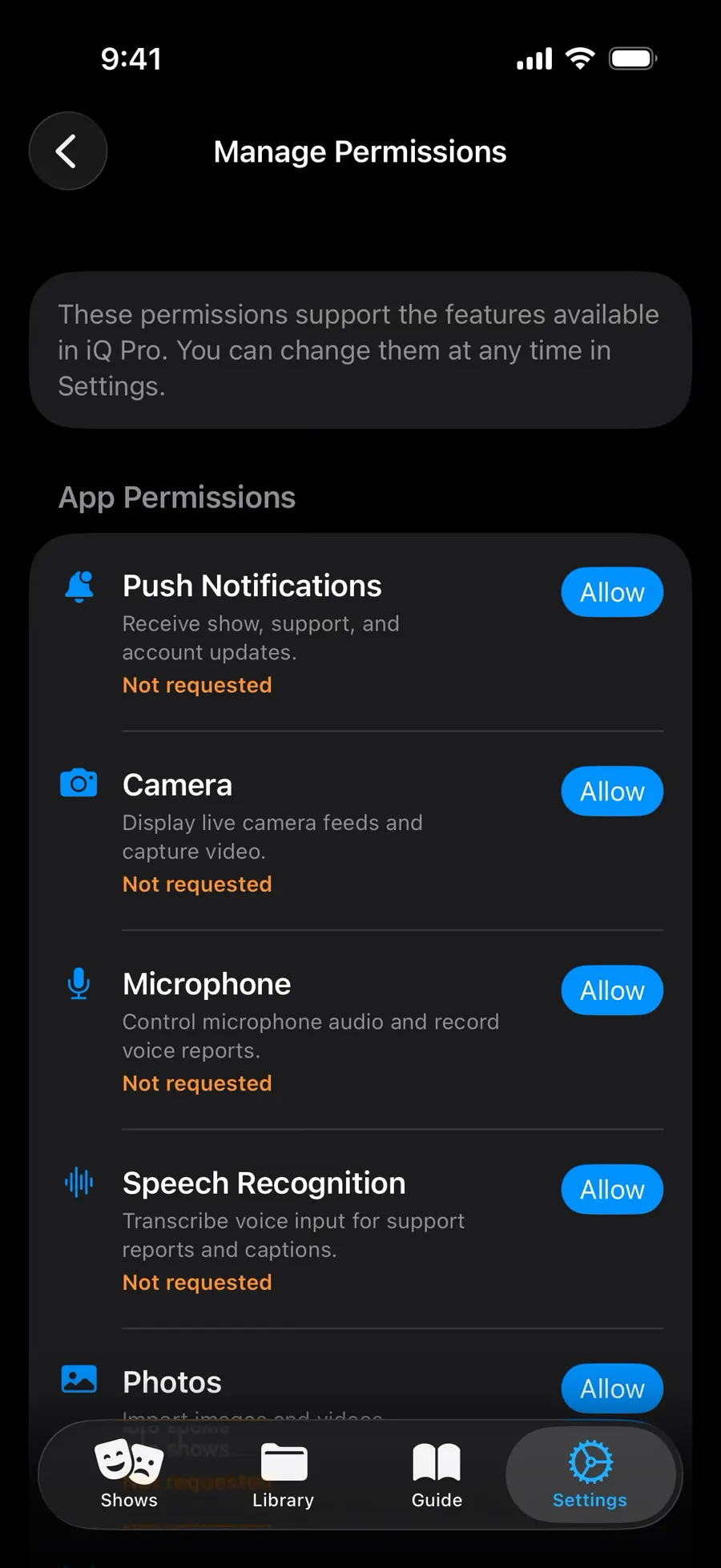
Live cameras, the microphone, Photos, Bluetooth and the network all need permission. Go to Settings › General › Manage Permissions, tap Allow, or Open Settings if you said no before.
Cues are slow or stutter
- Restart your device before the show to free up memory, and close other apps.
- Use media at the size you need: a 4K video on a 1080p projector makes your device work much harder for no benefit.
- Keep at least a few gigabytes of storage free.
Signed out, or "Device limit reached"
Your account allows a set number of devices. Remove one you don't use any more from Settings › Account › Manage Devices. See Account, devices and device limits.
Still stuck?
Open a support ticket. It sends iQ Pro's diagnostic logs automatically. If support asks, turn on Enable debugging in Settings › General and reproduce the problem first. See General settings.
Open Support in iQ Pro