
If something isn't working, or you have a question or an idea, open a support ticket. You talk to the iQ Pro team in the ticket, and iQ Pro sends the technical details for you.
Open a ticket
- 1
Open the Settings tab and tap Support.
- 2
On Support Tickets, tap + at the top right.
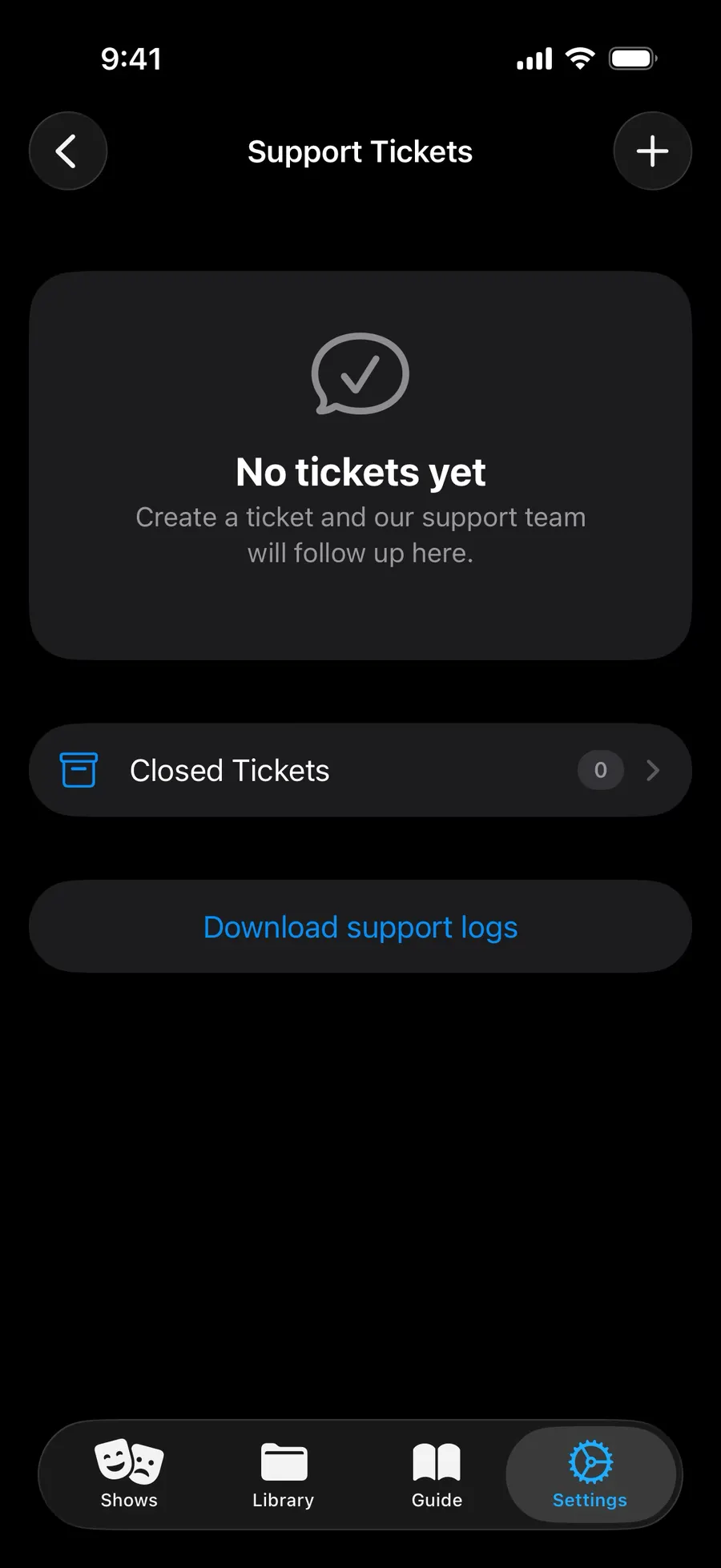
Your open tickets, closed tickets and support logs - 3
Give the ticket a short Title and choose its Type: Bug report, Troubleshooting, New feature request, Question or Other.
- 4
In Description, say what you did, what you expected and what happened instead.
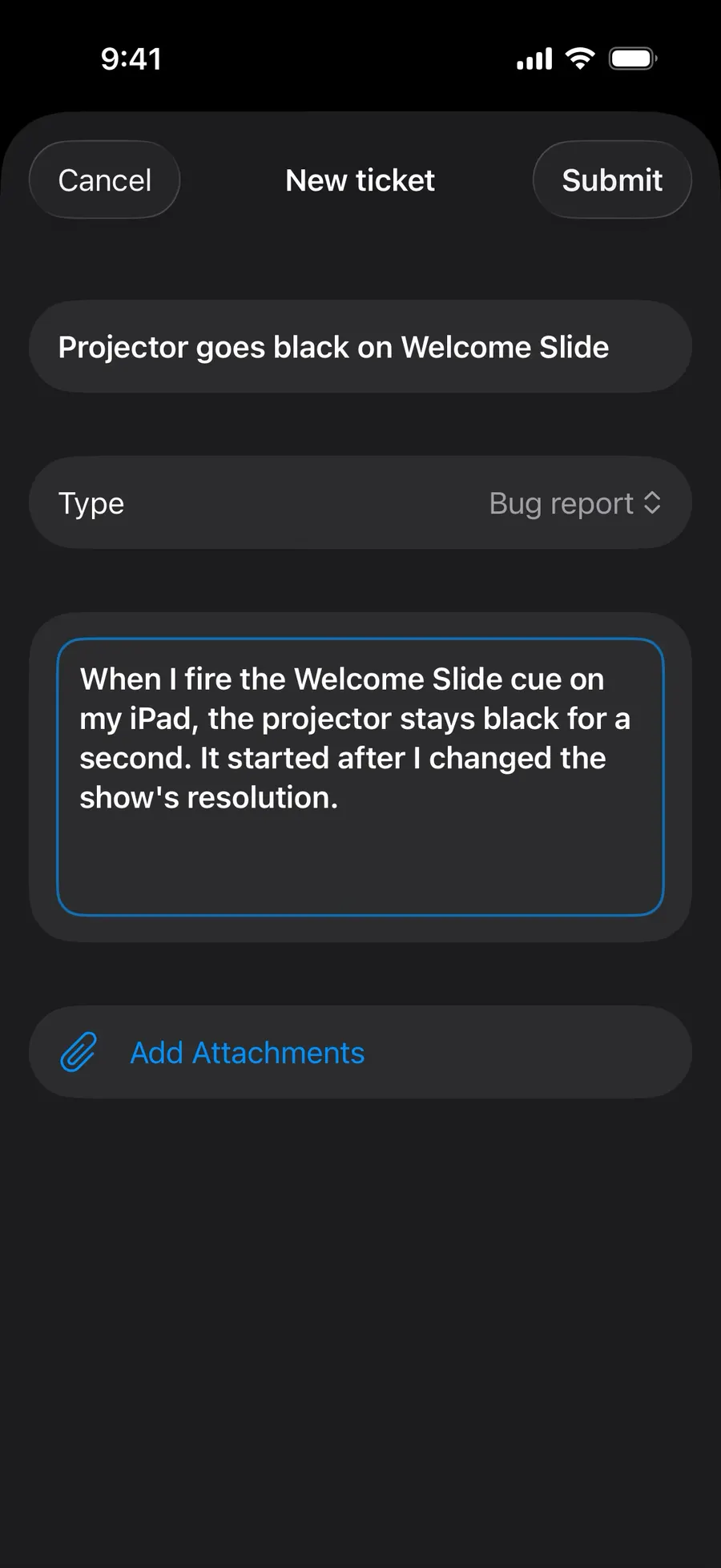
A clear title and the steps that cause the problem - 5
To add screenshots, videos or show files, tap Add Attachments.
- 6
Tap Submit. When you see Ticket created, tap View ticket to open it.
Follow up in the ticket
Open tickets are listed on Support Tickets. Tap one to see the conversation.
- Type a reply at the bottom and tap send. Tap + to attach Choose Files or Photo Library.
- You'll see when support has read your message, and Support is typing… while they reply.
- The … menu has View Details, Resend Logs and Close Ticket.
When your problem is solved, close the ticket, or swipe left on it in the list and tap Close. Closed tickets move to Closed Tickets, where you can Reopen them.
Download your support logs
Tap Download support logs at the bottom of Support Tickets to save the same diagnostics as a ZIP file, for example to send by email.
Open Support in iQ Pro