
Your iQ Pro account works on more than one iPhone or iPad, up to a limit. Everything about it is in Settings › Account.
- 1
Open the Settings tab and tap Account.
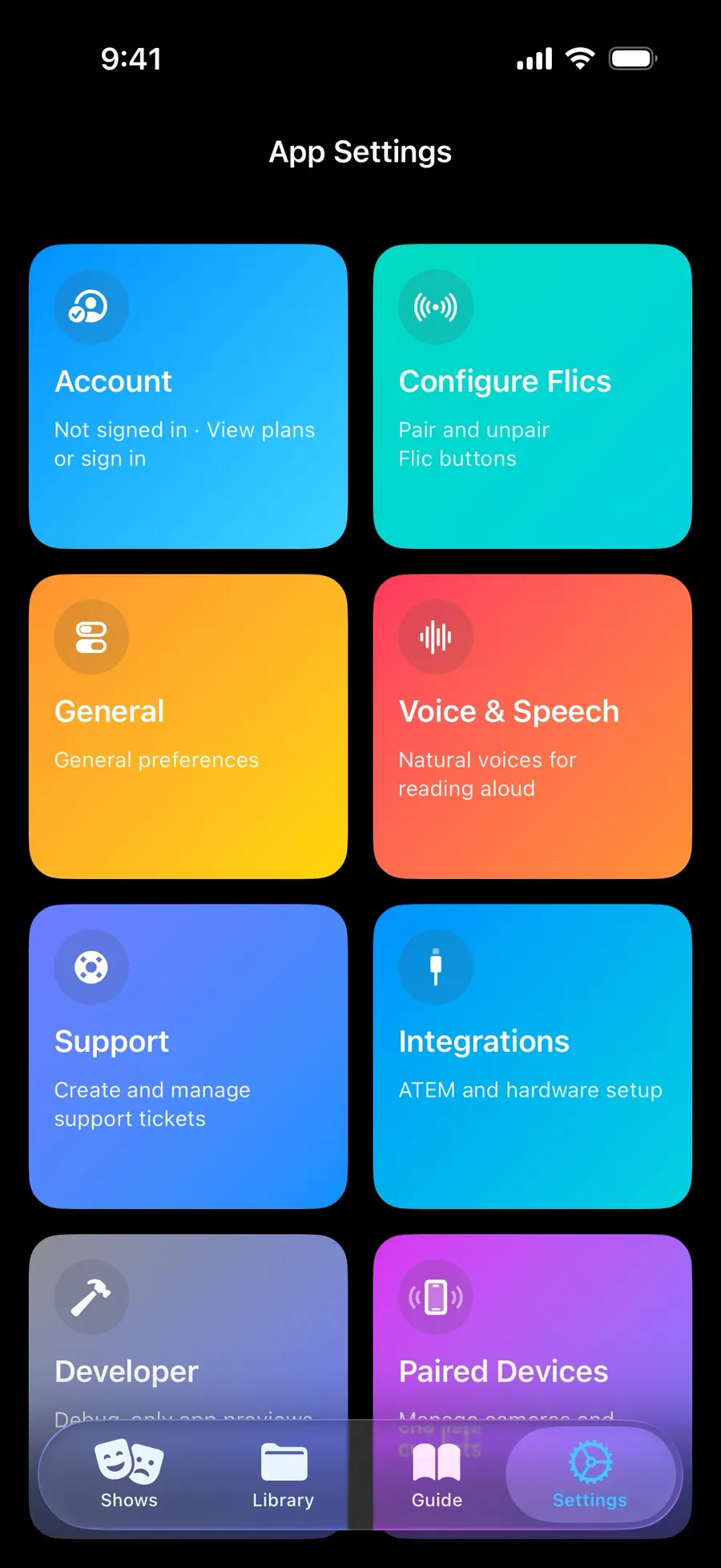
Account: profile, plan and billing - 2
The top of the screen shows who you're Logged in as: and your Current Plan:.
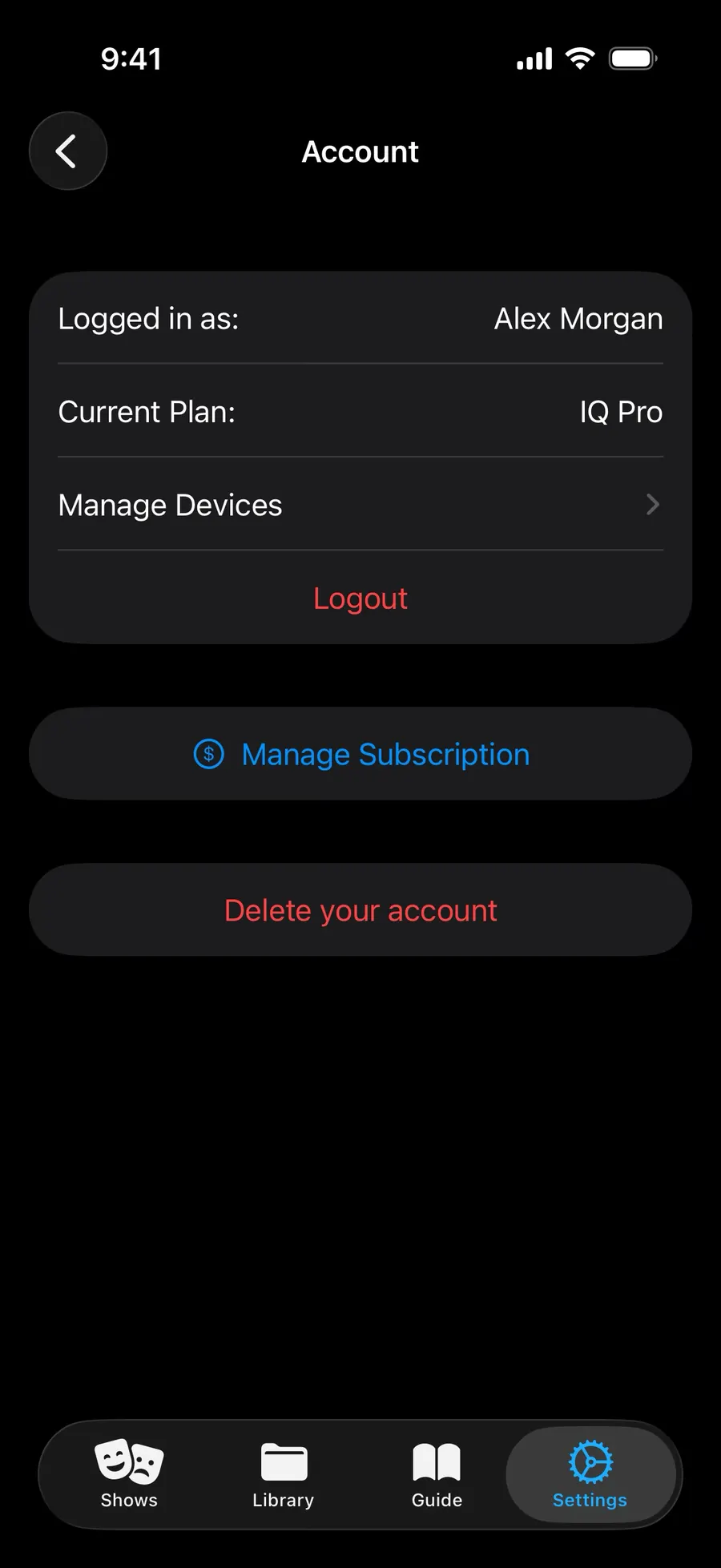
Manage Devices lists every device on your account
Manage your devices
Each iPhone or iPad you sign in on is assigned to your account. Tap Manage Devices to see them on Account Devices:
- The top line says how many devices are assigned, out of how many your account allows, such as 2 of 2 devices are assigned to this account.
- Under Assigned devices, each one shows its name, its platform and when it was Last active. The one you're holding is marked This device.
- Tap Remove to take a device off your account. It's signed out the next time it connects. Pull down to refresh the list.
If you reach the device limit
Signing in on one device too many shows Device limit reached. with You need to remove a device on an existing device.
- 1
On a device that's already signed in, go to Settings › Account › Manage Devices.
- 2
Remove a device you no longer use, such as an old iPad.
- 3
Sign in on the new device again.
Subscription, logging out and deleting your account
- Manage Subscription opens the plans screen, where you can change or restore your subscription.
- Logout signs you out of this device after you confirm with Yes. Your shows stay on the device.
- Delete your account permanently deletes your account after you confirm with Yes. This can't be undone.
