
If your show runs through a Blackmagic ATEM Mini video switcher, iQ Pro can change its camera for you. An ATEM cue cuts to the input you choose at the right moment in your running order, so you don't need a second operator on the switcher.
Connect your ATEM
- 1
Connect the ATEM to the same network as your iPhone or iPad, and find its IP address in ATEM Software Control.
- 2
In iQ Pro, open the Settings tab and tap Integrations, then ATEM Mini.
- 3
Enter the address in ATEM IP Address.
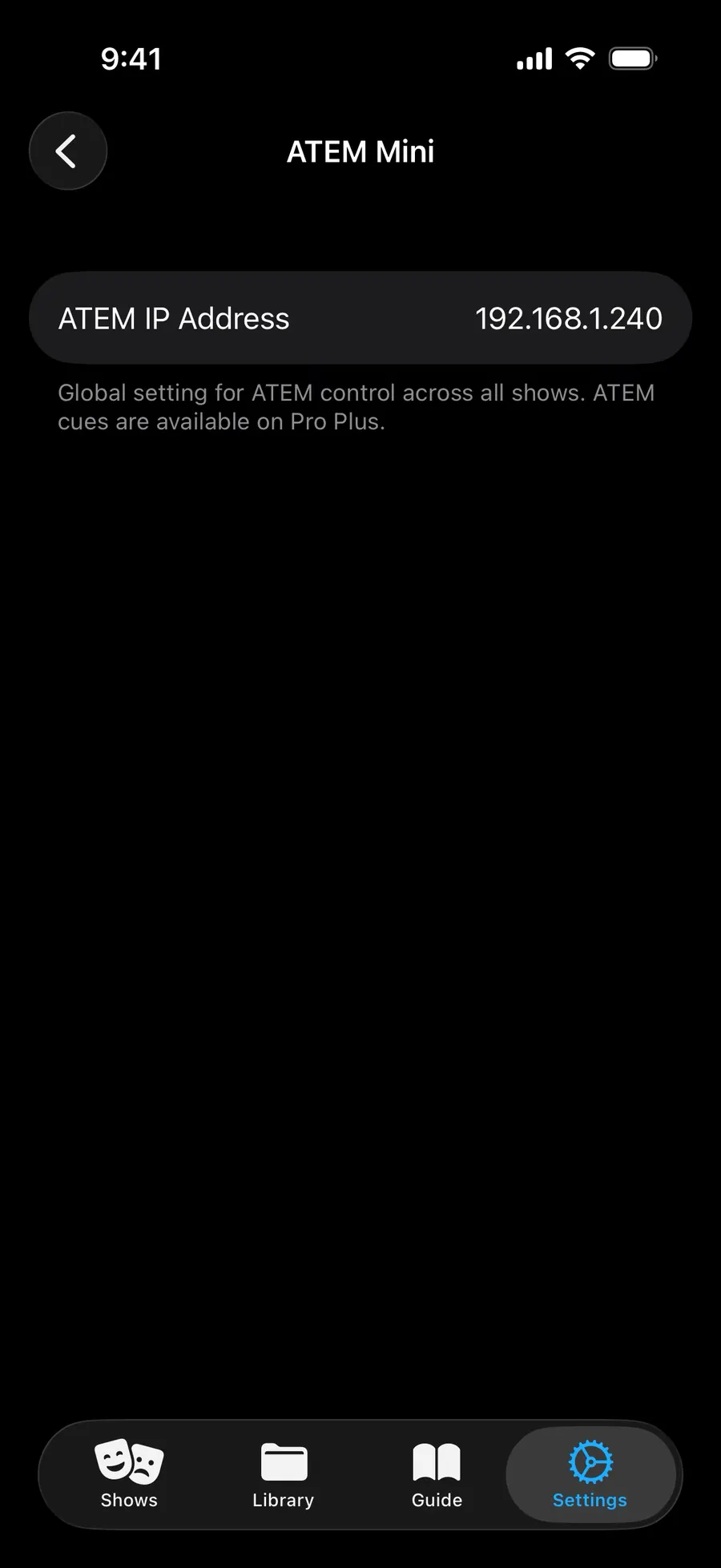
One address for every show
The address is saved app-wide, so every show uses the same ATEM. If iOS asks to find devices on your local network, tap Allow.
Add an ATEM cue
- 1
Open a group and tap Add cue. Under Control, tap ATEM: Switch sources on a connected ATEM mixer.
- 2
Give the cue a name that says where it switches to, such as Switch to Stage Camera.
- 3
Tap Source Settings and choose the input under Select Source: Source 1 to Source 4.
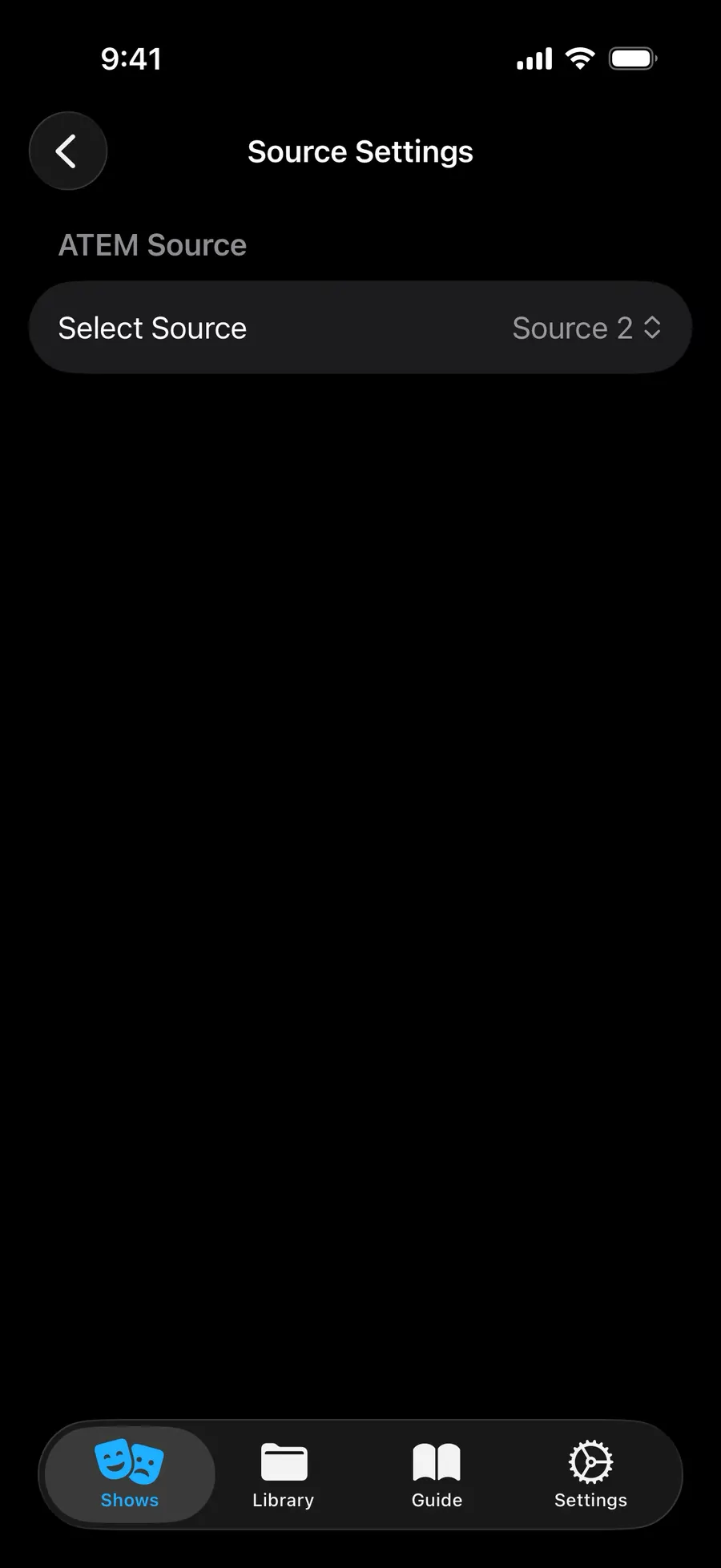
Switch to Stage Camera uses Source 2
When the cue runs, iQ Pro puts that source on the ATEM's preview and runs an auto transition, so it mixes to the new camera using the transition set on the switcher.
Open ATEM Mini settings in iQ Pro