
OSC (Open Sound Control) is how many show-control systems talk over a network. With an OSC cue, iQ Pro can tell QLab to start a cue, fire a lighting desk cue, or change a level on a sound console, exactly when you reach that point in your show.
You set it up in two parts: the devices iQ Pro sends to, in the show's settings, then the messages in OSC cues.
Add your OSC devices
- 1
Open your show's settings and tap OSC Settings.
- 2
Tap + at the top right.
- 3
Under Device, give it a Name, and enter its IP Address or Host and the Port it listens on. QLab, for example, listens on port 53000.
- 4
Tap Send Test Message and check the device's OSC log to make sure it arrives.
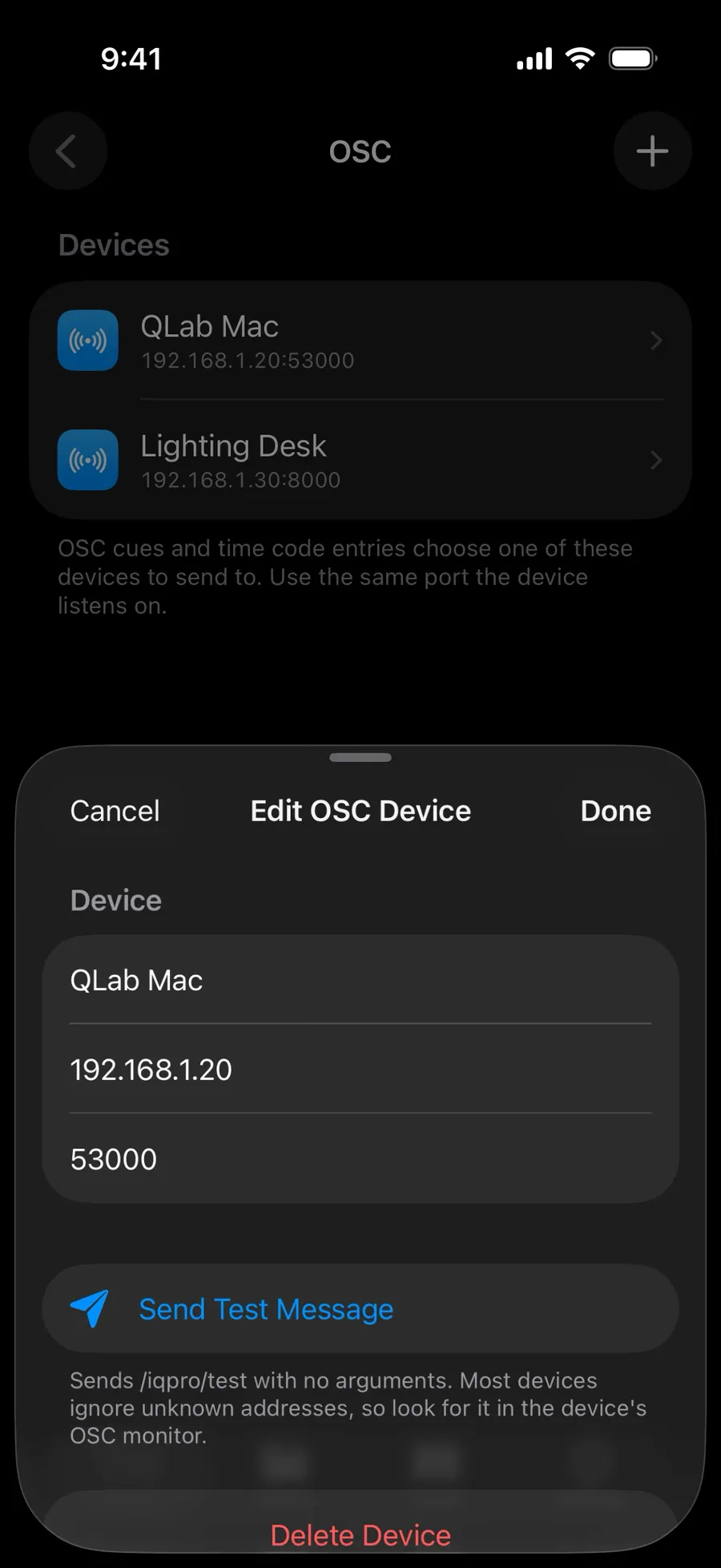
Send a test message to check the address and port - 5
Tap Add.
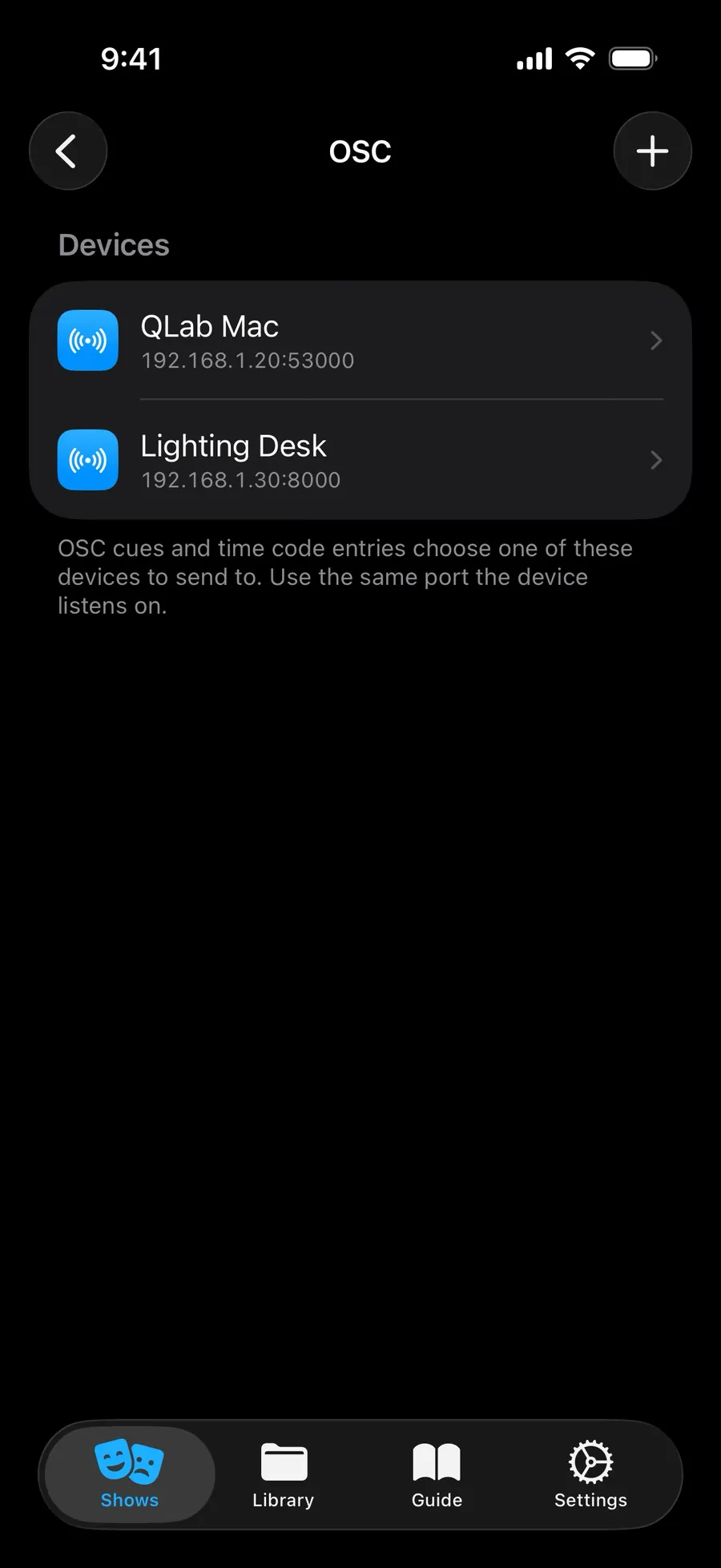
Your devices are listed under Devices, each with its address and port. Tap one to edit it, or swipe left to delete it.
Add an OSC cue
- 1
Open a group and tap Add cue. Under Control, tap OSC: Send OSC messages to lighting, sound and show-control devices.
- 2
Under Fires When This Cue Runs, tap Add Action, then OSC Message.
- 3
Choose the device under Send To. If you only have one, it's chosen for you.
- 4
Under Address, type the OSC address, starting with a slash, such as
/cue/12/start. - 5
Under Arguments, tap Add Argument for each value the message needs. Choose its type (Integer, Float, Text or Boolean) and enter the value.
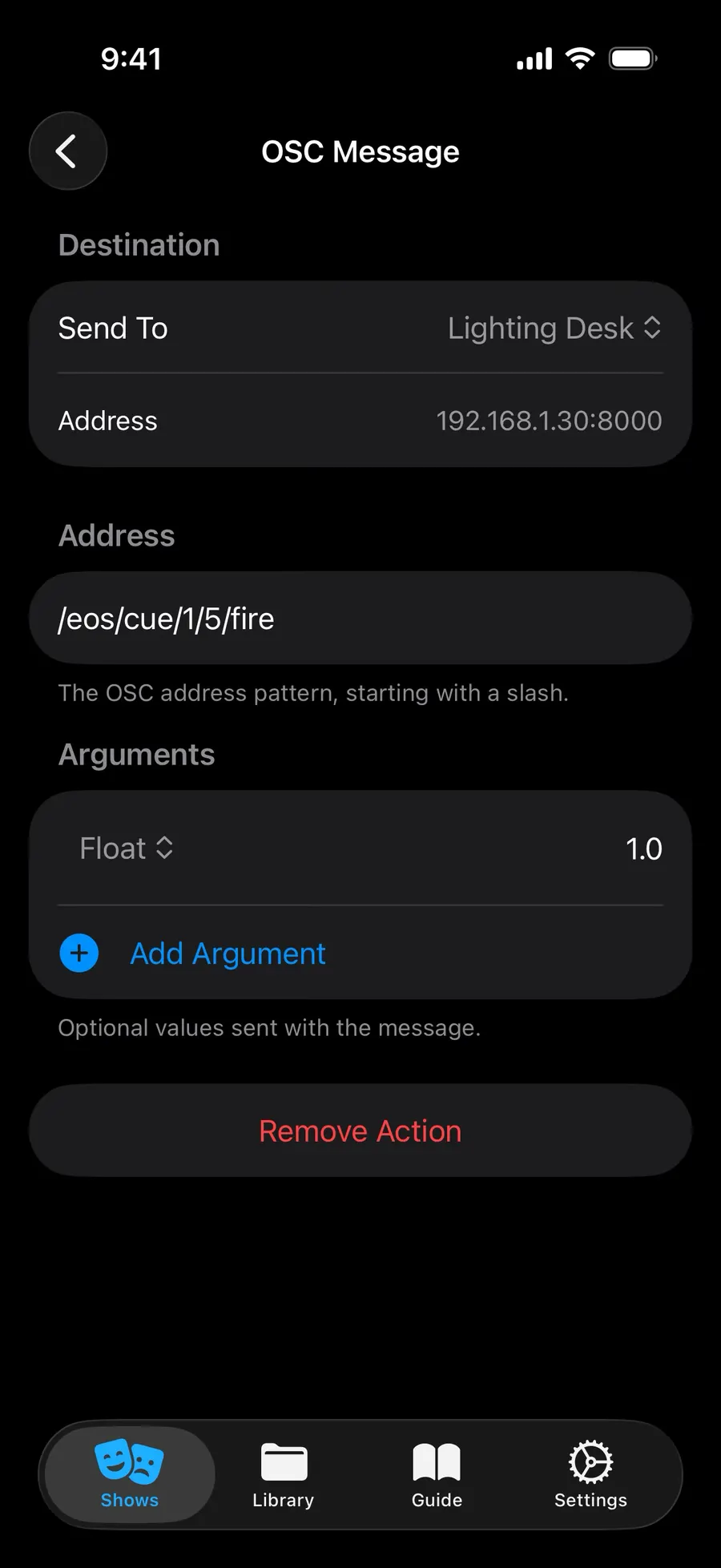
A message to the lighting desk with one float argument - 6
Go back and add more messages if you need them. They all send together when the cue runs.
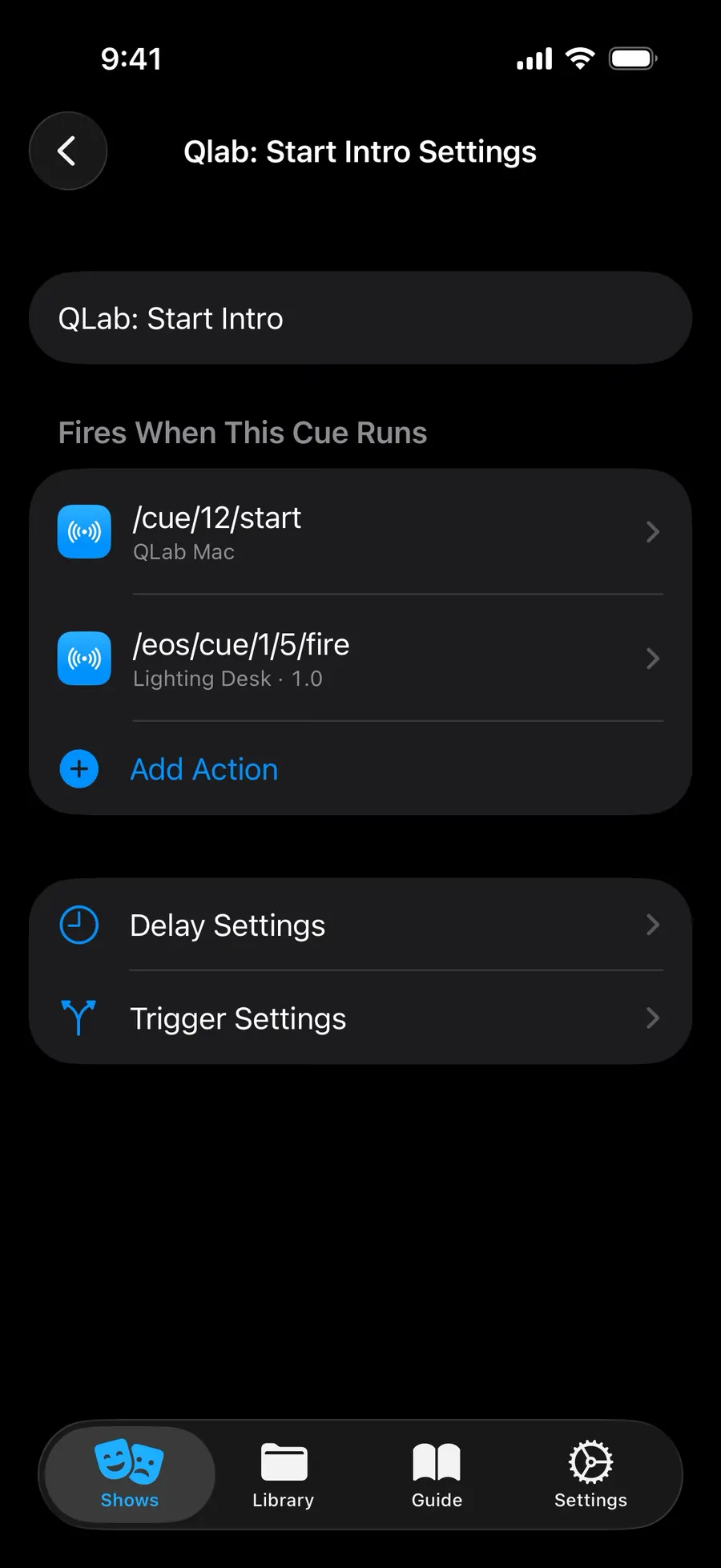
Each message shows its address, its device and its arguments. A message turns red if its device has been deleted or has no address. In the message itself, an argument that isn't valid for its type turns red, and the message won't send until you fix it.
