
A MIDI cue sends MIDI when you fire it: one or more items from your lighting library, and any custom MIDI notes. Put it in your group where the change should happen, such as Walk-in Lighting at the top of your pre-show.
Add a MIDI cue
- 1
Open your show, tap a group, then tap Add cue.
- 2
Under Control, tap MIDI: Trigger scenes, chases, banks, and custom MIDI.
- 3
Under Fires When This Cue Runs, tap Add Action and choose what to send: a scene, chase or bank from the Scenes, Chases or Banks menus, or Custom MIDI.
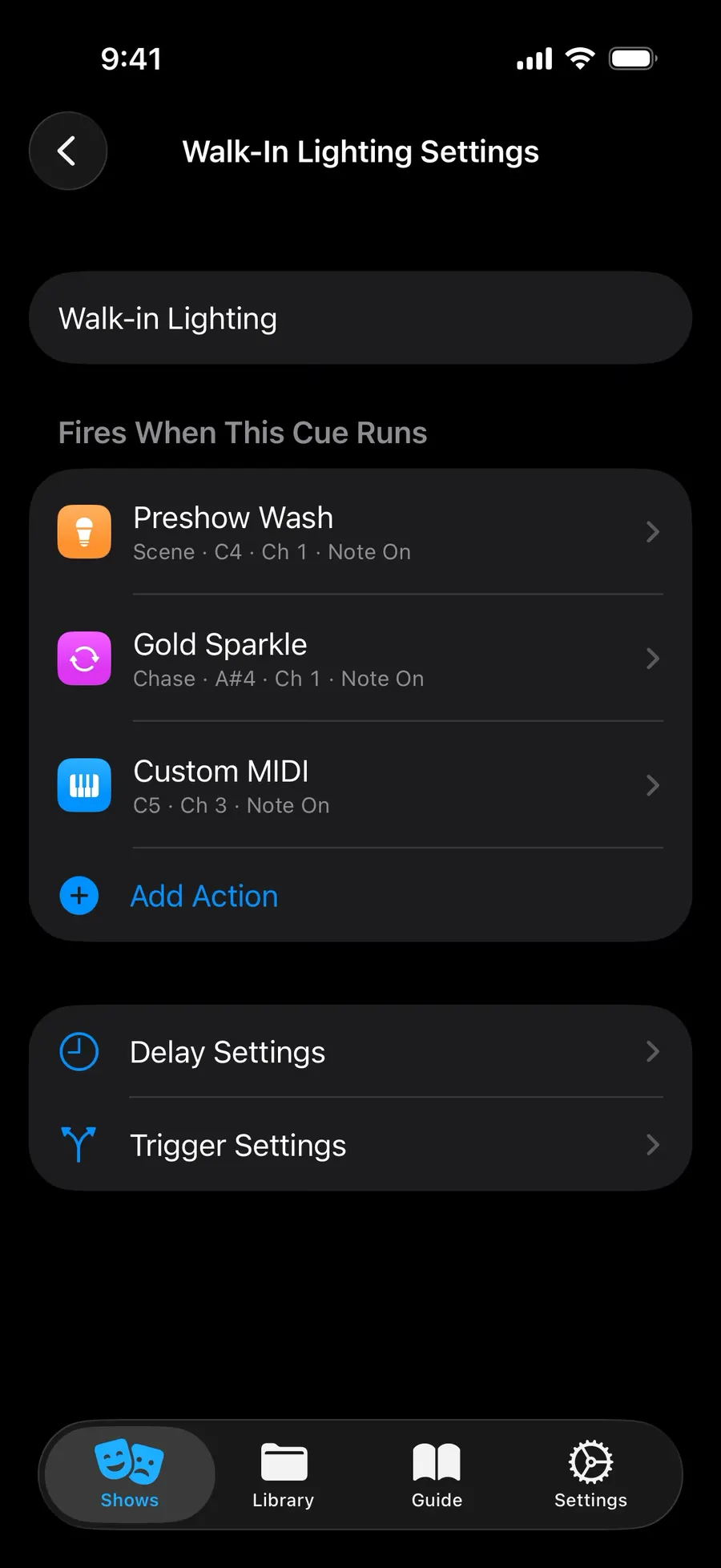
Walk-in Lighting fires two lighting items and a custom note - 4
Add as many actions as you need. They all fire together when the cue runs.
Each action shows its name and what it sends, such as Scene · C4 · Ch 1 · Note On.
Custom MIDI notes
For anything that isn't in your lighting library, such as a sound desk or a video server, add a Custom MIDI action. Tap it to set the Note, the Channel (1 to 16), and Note On or Note Off.
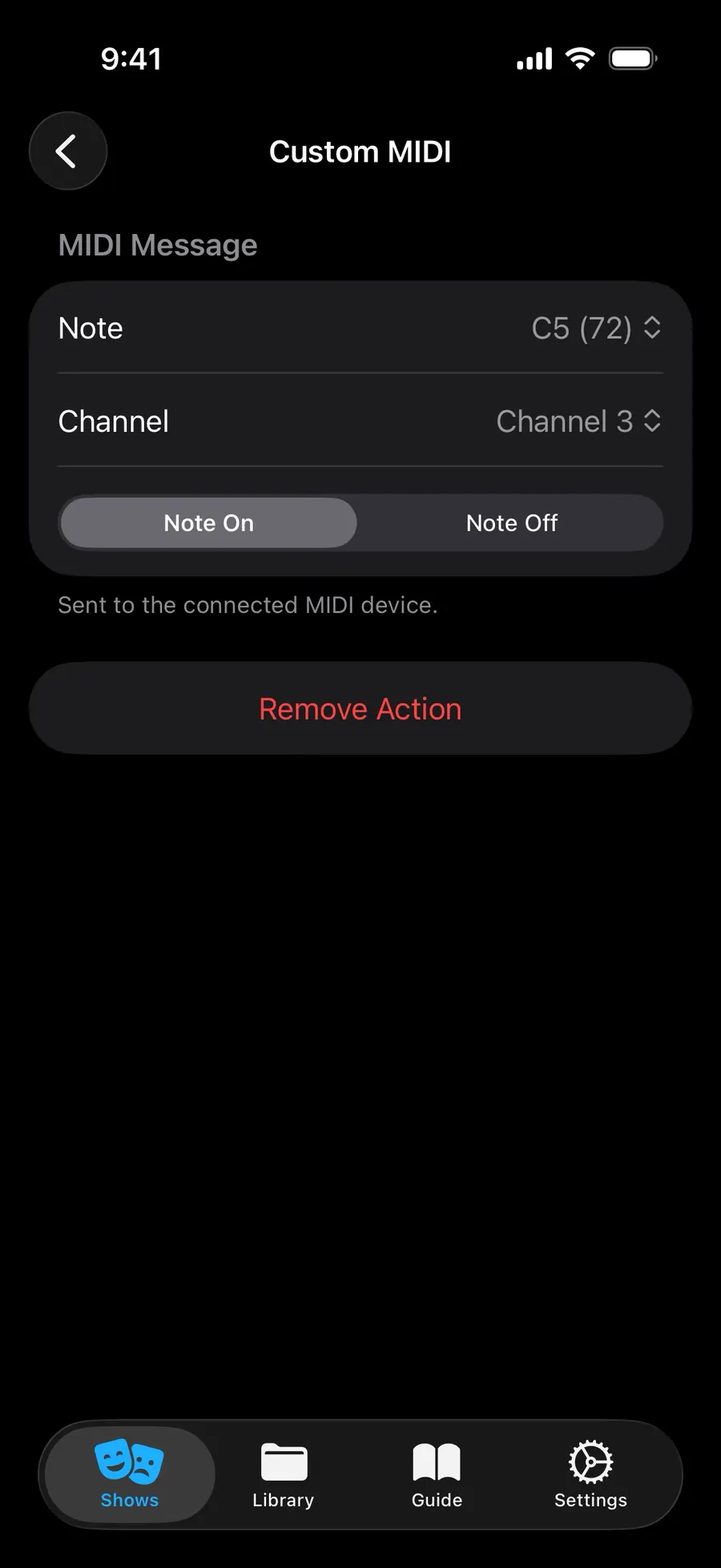
Tap Remove Action at the bottom to delete it, or swipe left on it in the cue's list.
Timing
Like any cue, a MIDI cue can wait before it sends, and can start the next cue automatically. Use Delay Settings and Trigger Settings at the bottom of the cue. See Cue delays and Auto-follow.
