
Time-code events tie lighting and show control to your media. Place an event at 0:12.50 in your opening music and it fires on that beat, every time, without anyone pressing a button. Each audio and video cue has its own list of events.
An event can fire a scene, chase or bank from your lighting library, a custom MIDI note, an OSC message to one of your OSC devices, or several of these at once.
Add events
- 1
Open an audio or video cue and tap Configure Time Code.
- 2
Play the media with the play button, or drag along the waveform, to find the moment. The arrow buttons jump 5 seconds back or forward. Existing events show as markers on the timeline.
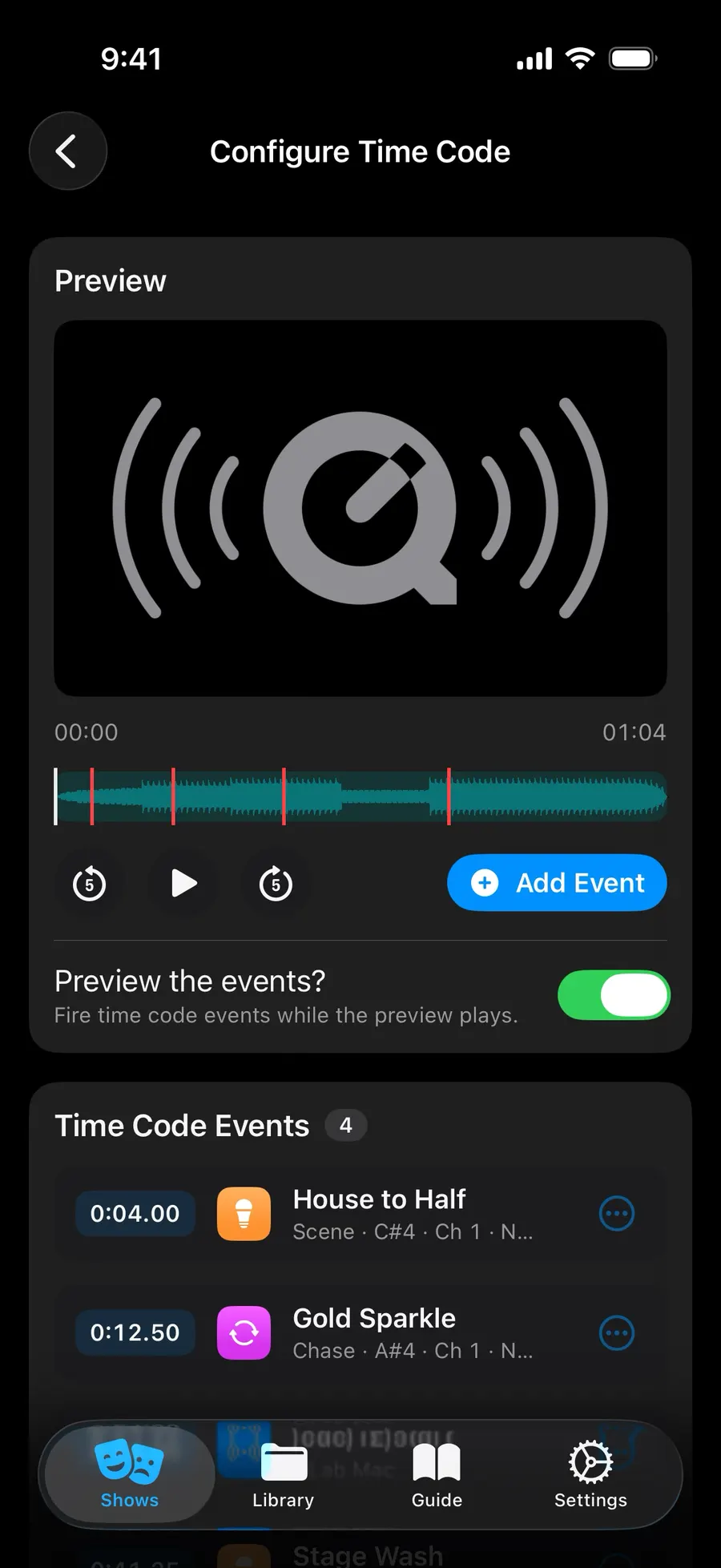
Opening Music with four events - 3
Tap Add Event.
- 4
Under Event Time, fine-tune the exact moment.
- 5
Tap a scene, chase or bank to fire, or under Other Actions tap Custom MIDI or OSC Message. Use the filter and search at the top to find an item in a long list.
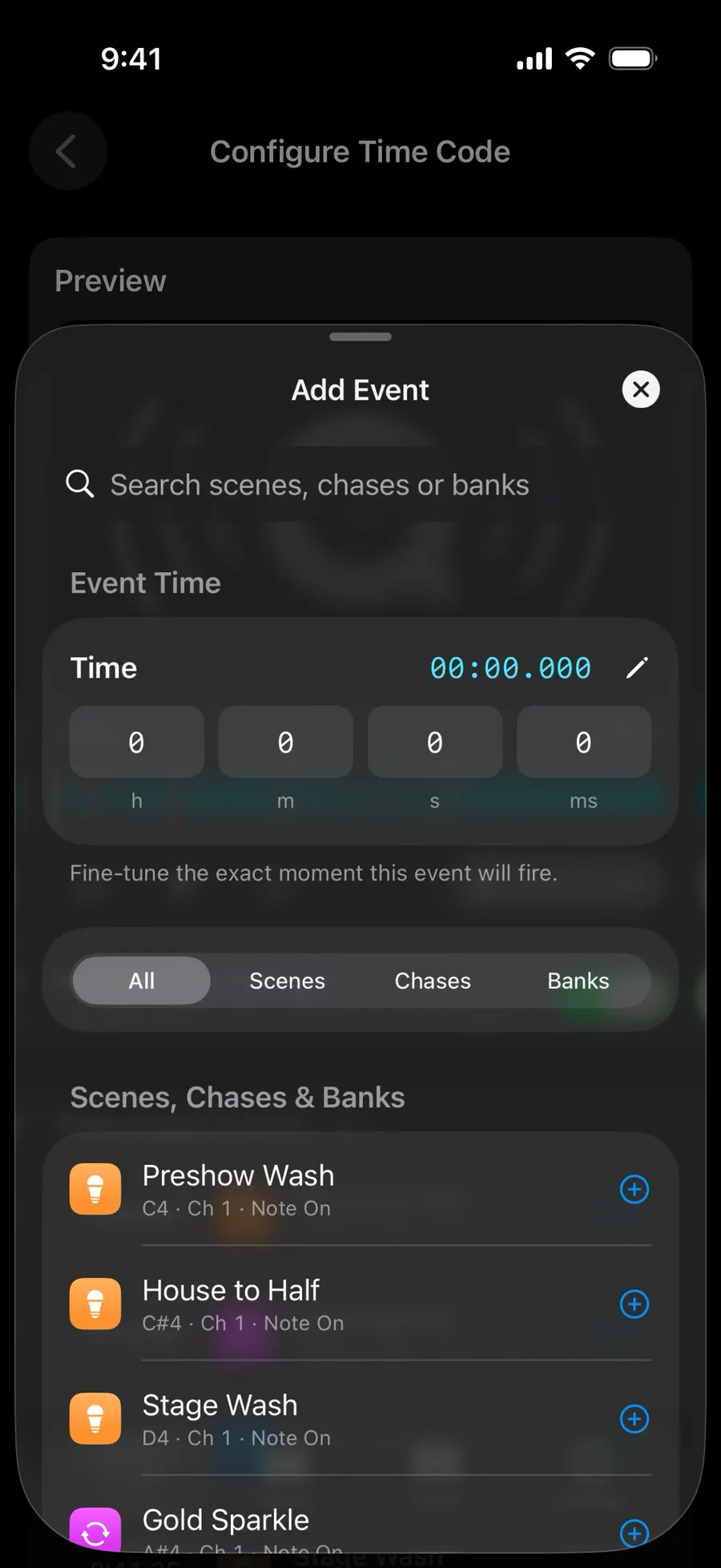
Event time, your lighting library and other actions
The event appears under Time Code Events, in time order, with what it fires.
Edit and rehearse
- Tap an event to change its time, or add more actions so it fires several things at once. Tap Done when you've finished.
- Tap ⋯ on an event for Edit, Jump to Event and Delete.
- Turn on Preview the events? to fire the events for real while the preview plays here. The time on each event flashes green Fired as it goes. Turn it off to scrub through without changing the lights.
