iQ Pro controls lighting by sending MIDI notes to your lighting desk. Rather than remembering that C4 on channel 1 is your preshow wash, you build a lighting library for the show: each scene, chase or bank gets a name and the MIDI note your desk listens for. After that, you pick lights by name in MIDI cues and time code events.
Open the library
- 1
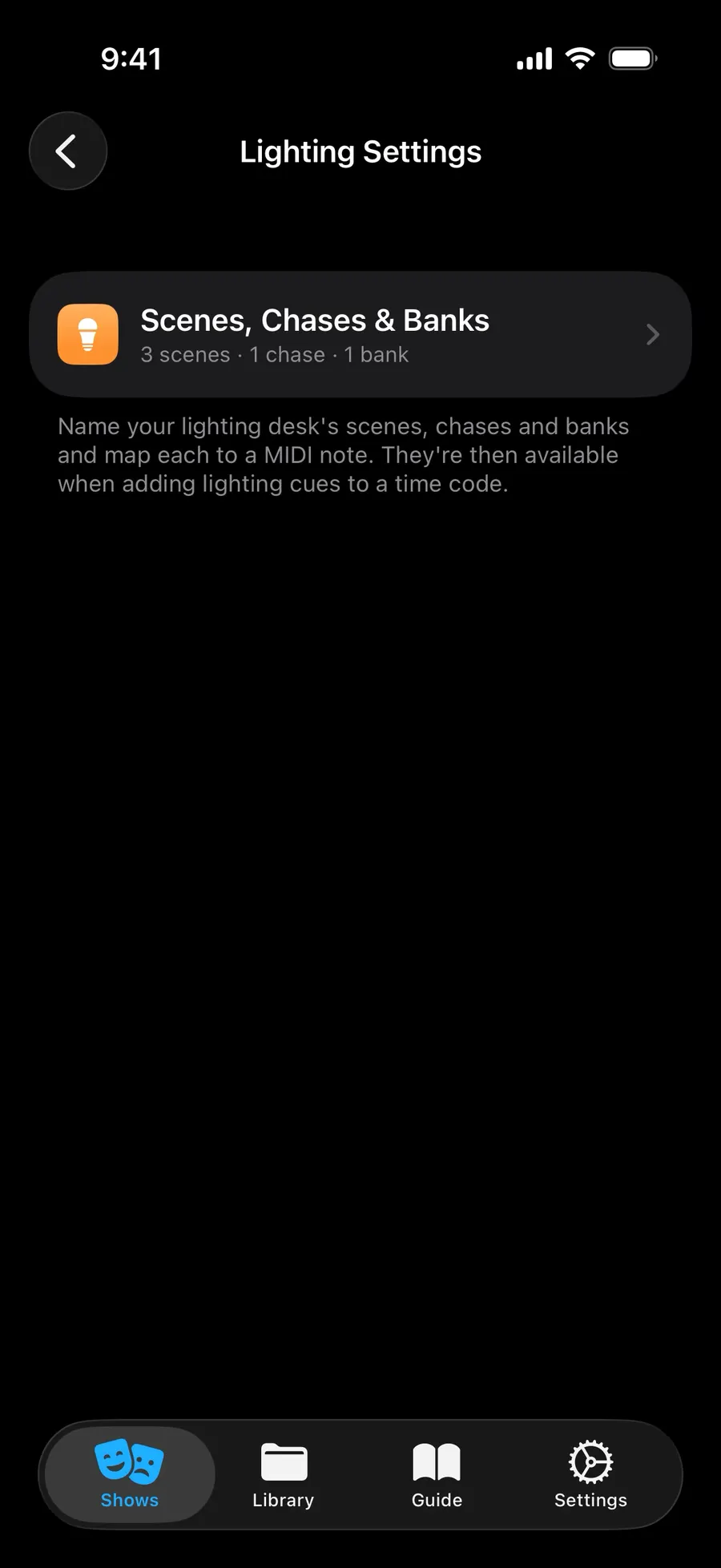
Open your show's settings and tap Lighting Settings.
- 2
Tap Scenes, Chases & Banks. The row shows how many of each you have.
The show's lighting library
Add a scene, chase or bank
- 1
Tap + at the top right and choose Add Scene, Add Chase or Add Bank.
- 2
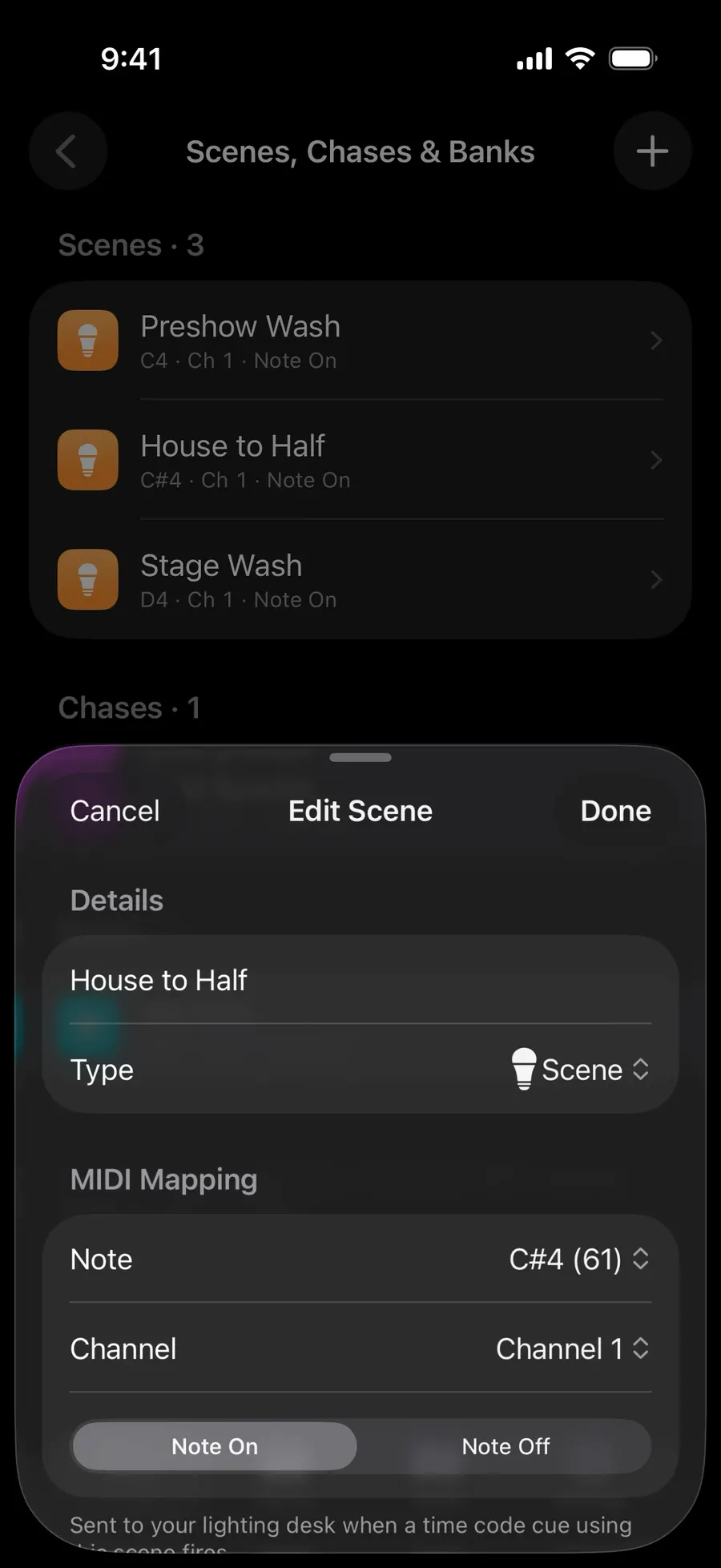
Under Details, type a Name you'll recognise, such as House to Half. Change the Type if you need to.
- 3
Under MIDI Mapping, choose the Note and Channel your desk expects, and whether to send Note On or Note Off.
- 4
Tap Add.
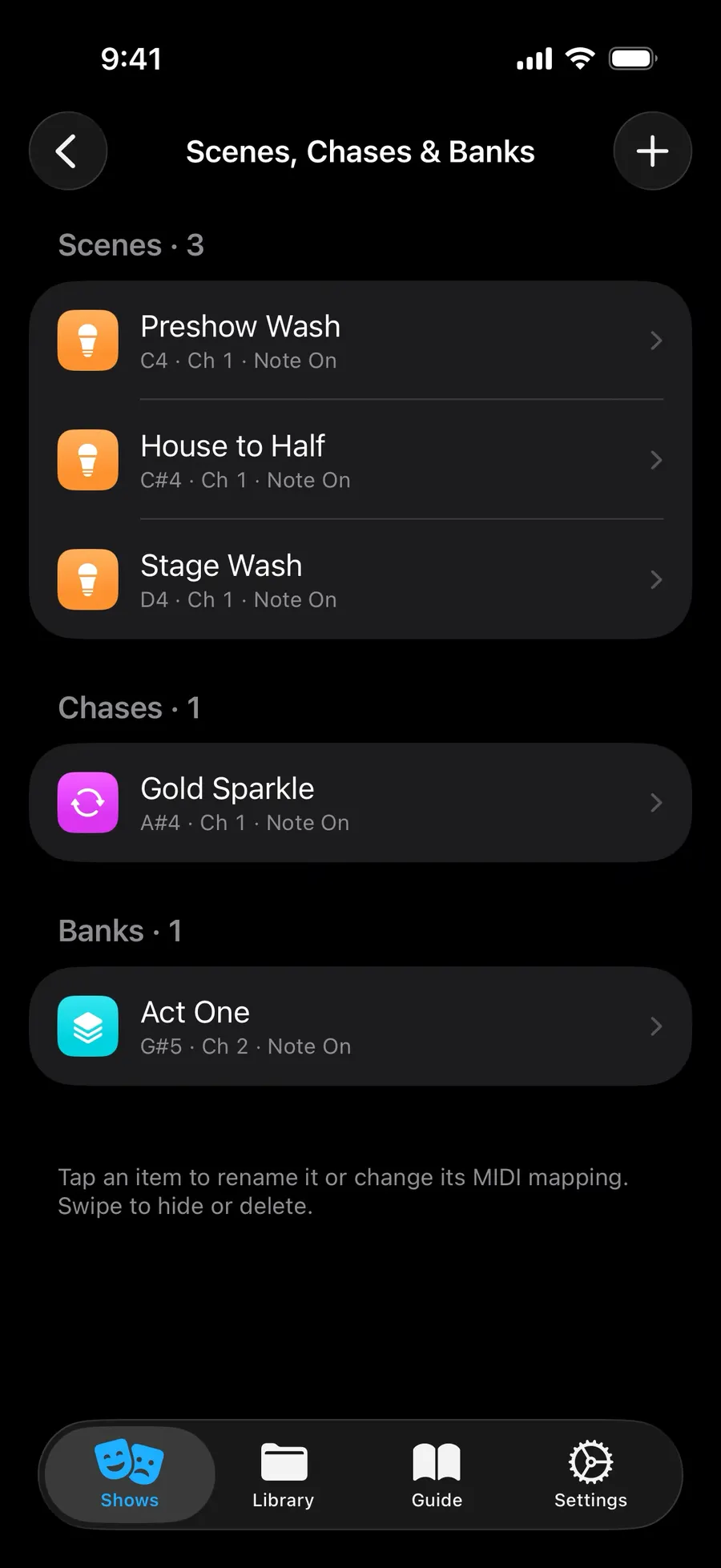
The library groups your items under Scenes, Chases and Banks, each with its MIDI mapping underneath.
Edit, hide or delete
- Tap an item to rename it or change its mapping, then tap Done.
- Swipe right and tap Hide to keep an item but leave it out of the lists when you add cues. Turning off Show When Adding Cues in the editor does the same.
- Swipe left and tap Delete, or tap Delete Scene in the editor.