
OSC (Open Sound Control) sends short messages over a network. With OSC triggers, a lighting console, a Stream Deck running Companion, or any other show-control software can fire actions in iQ Pro.
Before you start
- Your iPhone or iPad and the device sending OSC must be on the same network.
- iQ Pro listens for OSC over UDP, on port 8000 unless you change it.
- In your OSC software, send to your iPhone or iPad's IP address (in the iOS Settings app, under Wi-Fi, tap ⓘ next to the network) and the port iQ Pro uses.
Set the port
- 1
Open your show's settings, tap Configure Triggers, then OSC triggers.
- 2
Tap the gear at the top right to open OSC Settings.
- 3
Under OSC Input, enter the UDP port (1–65535) and tap Done.
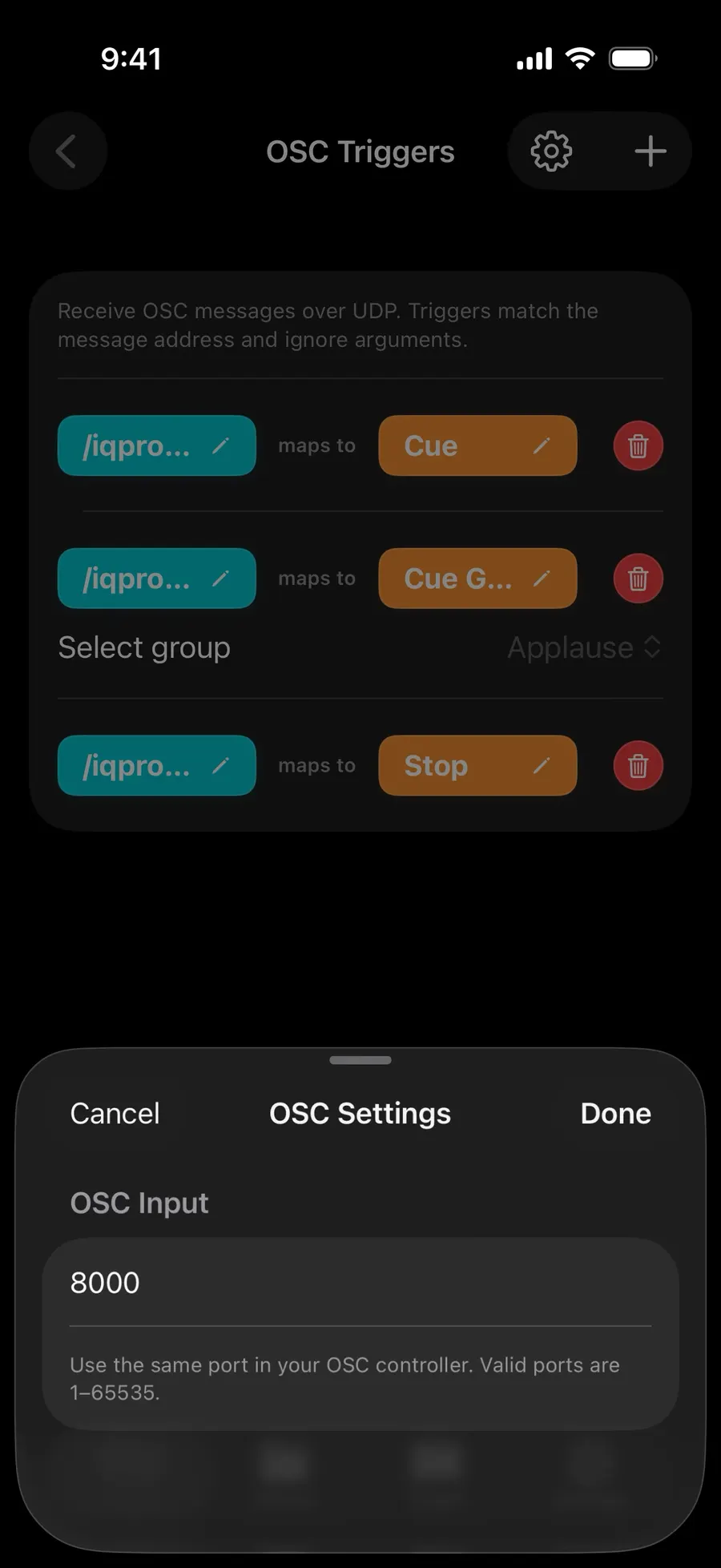
Use the same port in your OSC controller
Add a trigger
- 1
On OSC Triggers, tap +. A new trigger shows Listen for OSC address.
- 2
Tap it. It changes to Listening…. Send the message from your OSC software, and iQ Pro fills in its address, such as
/iqpro/go. - 3
Tap the orange action and choose what the message does. For Cue Group, pick the dynamic cue under Select group.
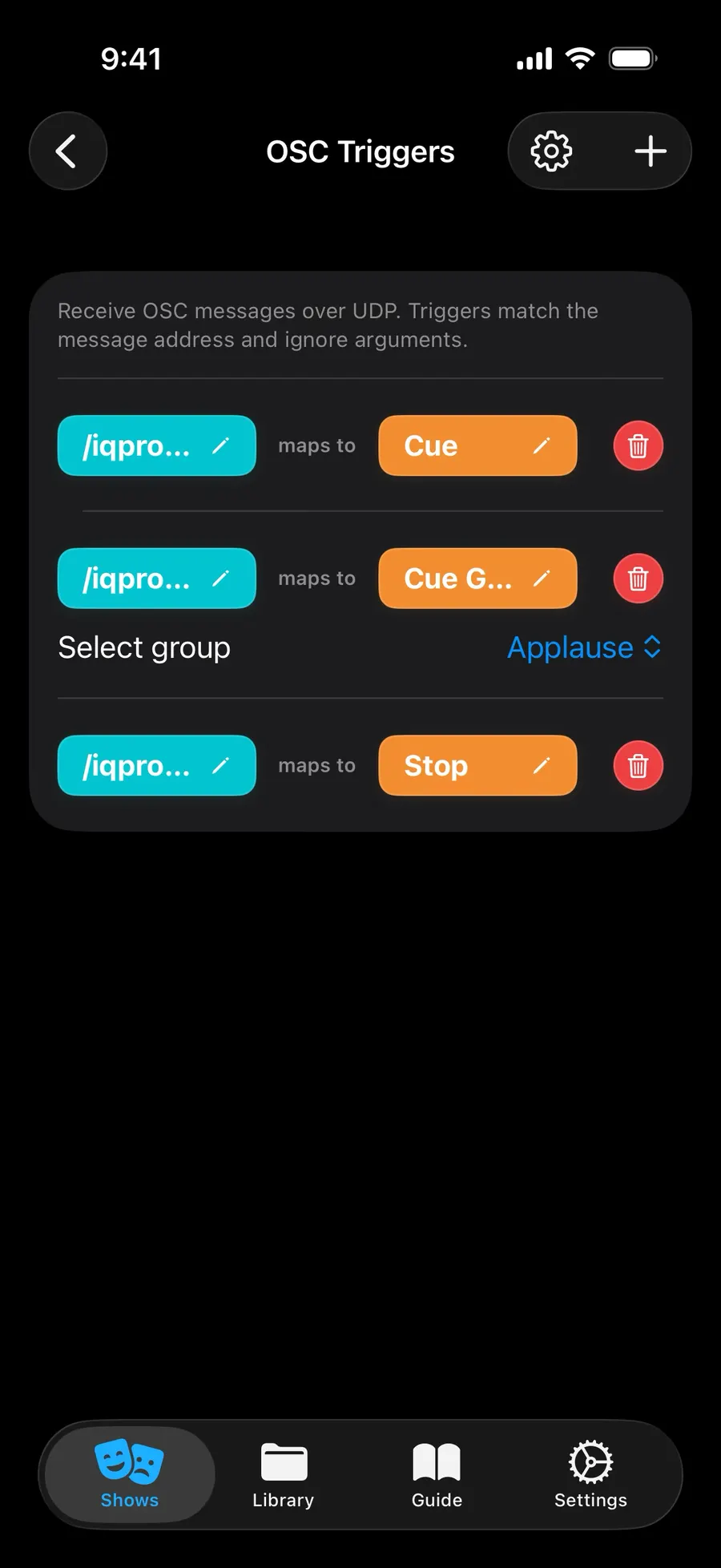
Triggers match the message address and ignore any arguments, so /iqpro/go 1 and /iqpro/go both fire the same action. To remove a trigger, tap the red bin or swipe left on it.
