
A dynamic cue is ready to fire at any moment. Put it on a key and you can fire it from a clicker or keyboard without opening the Dynamic cues sheet.
Set it up
- 1
Create the dynamic cue first, in the show editor under Dynamic Cues.
- 2
Open the show's settings, tap Configure Triggers, then Keyboard triggers, and tap +.
- 3
Tap Press key and press the key on your remote or keyboard.
- 4
Tap the orange action and choose Cue Group.
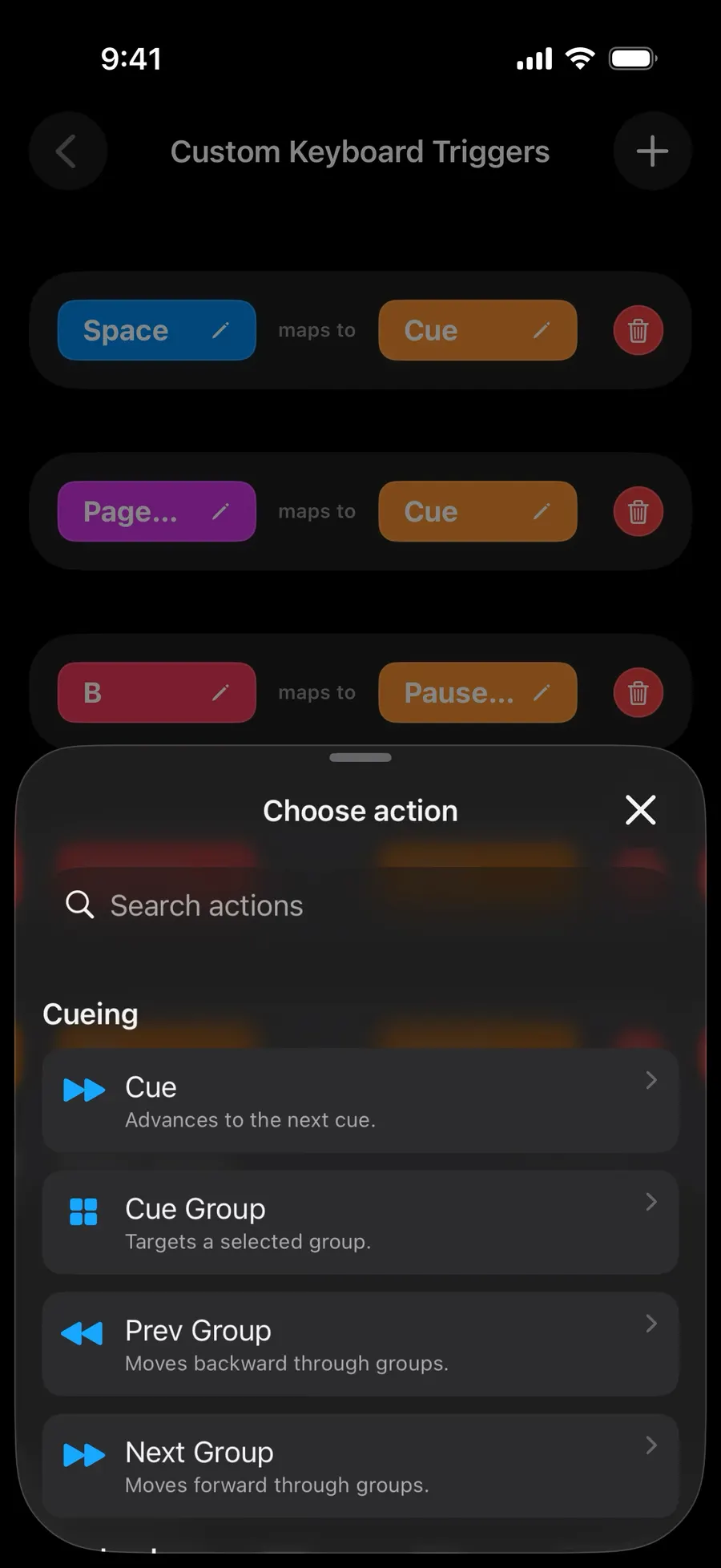
Cue Group targets one of your dynamic cues - 5
Under the trigger, open Select group and pick the dynamic cue.
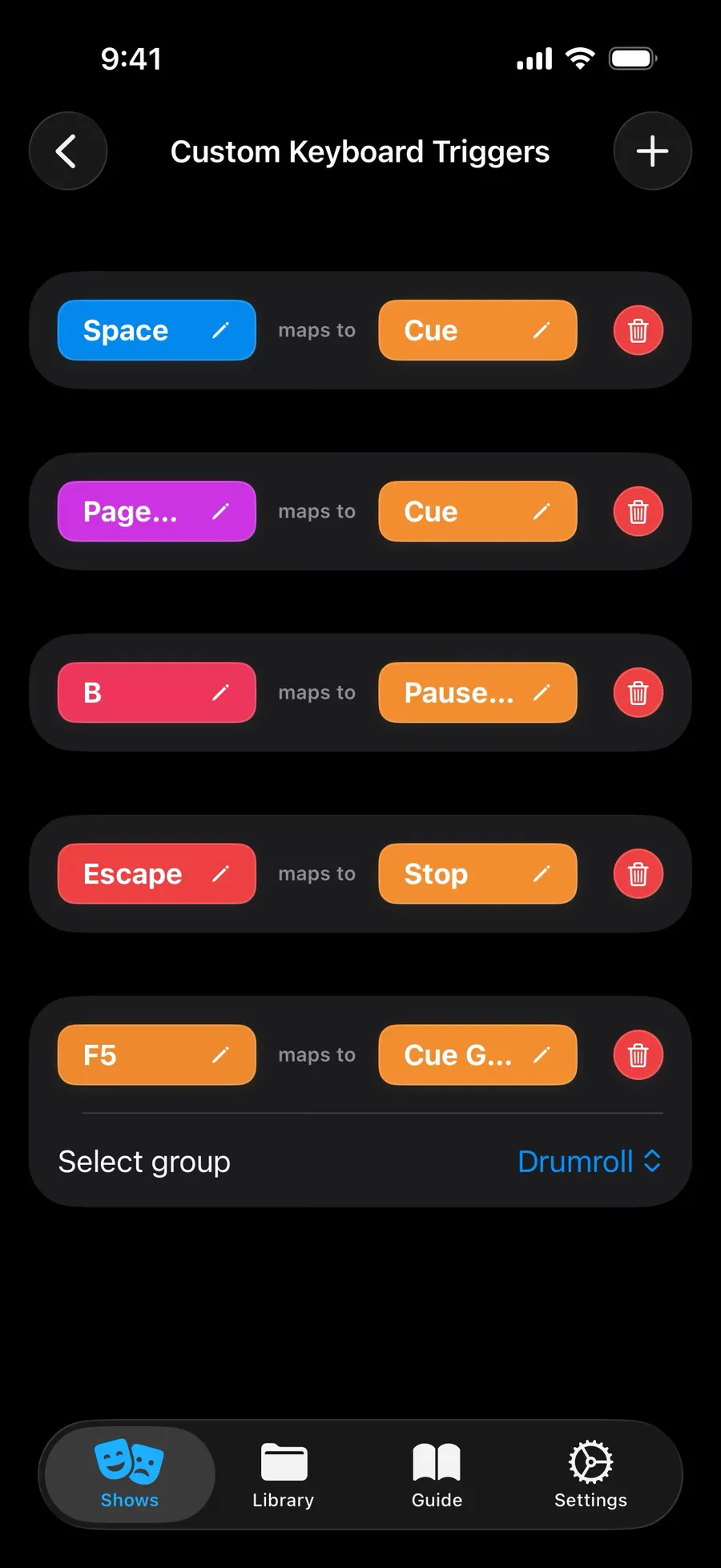
F5 fires the Drumroll dynamic cue
Select group only lists dynamic cues. If its dynamic cue is deleted, the trigger shows This trigger doesn't point to a dynamic queue. Choose one. until you pick another.
How it plays
- If the dynamic cue has one cue, each press fires it.
- If it has several, each press fires the next one. After the last, the next press starts it again from the top. A drumroll followed by a cymbal crash can live on one key.
- Your place in the main show doesn't change, so the next Cue carries on where you left off.
The same Cue Group action works for Flic buttons, MIDI triggers and OSC triggers.
