
Most presentation clickers connect to your iPhone or iPad as a Bluetooth keyboard: each button sends a key, such as Page Down or Right Arrow. In iQ Pro you decide what each key does, per show.
Connect the remote
- 1
Put the remote in pairing mode (see its instructions).
- 2
On your iPhone or iPad, open the Settings app, tap Bluetooth and choose the remote. Remotes with a USB receiver need a USB-C adapter instead.
- 3
Open iQ Pro.
Map its keys
Keys don't do anything in iQ Pro until you map them. That way a keyboard on the table can't fire a cue by accident.
- 1
Open your show's settings, tap Configure Triggers, then Keyboard triggers.
- 2
Tap + at the top right. A new trigger appears with Press key on the left, maps to, and the action Cue on the right.
- 3
Tap Press key. It changes to Listening… and Press the key on your remote. appears underneath. Press the button on your remote.
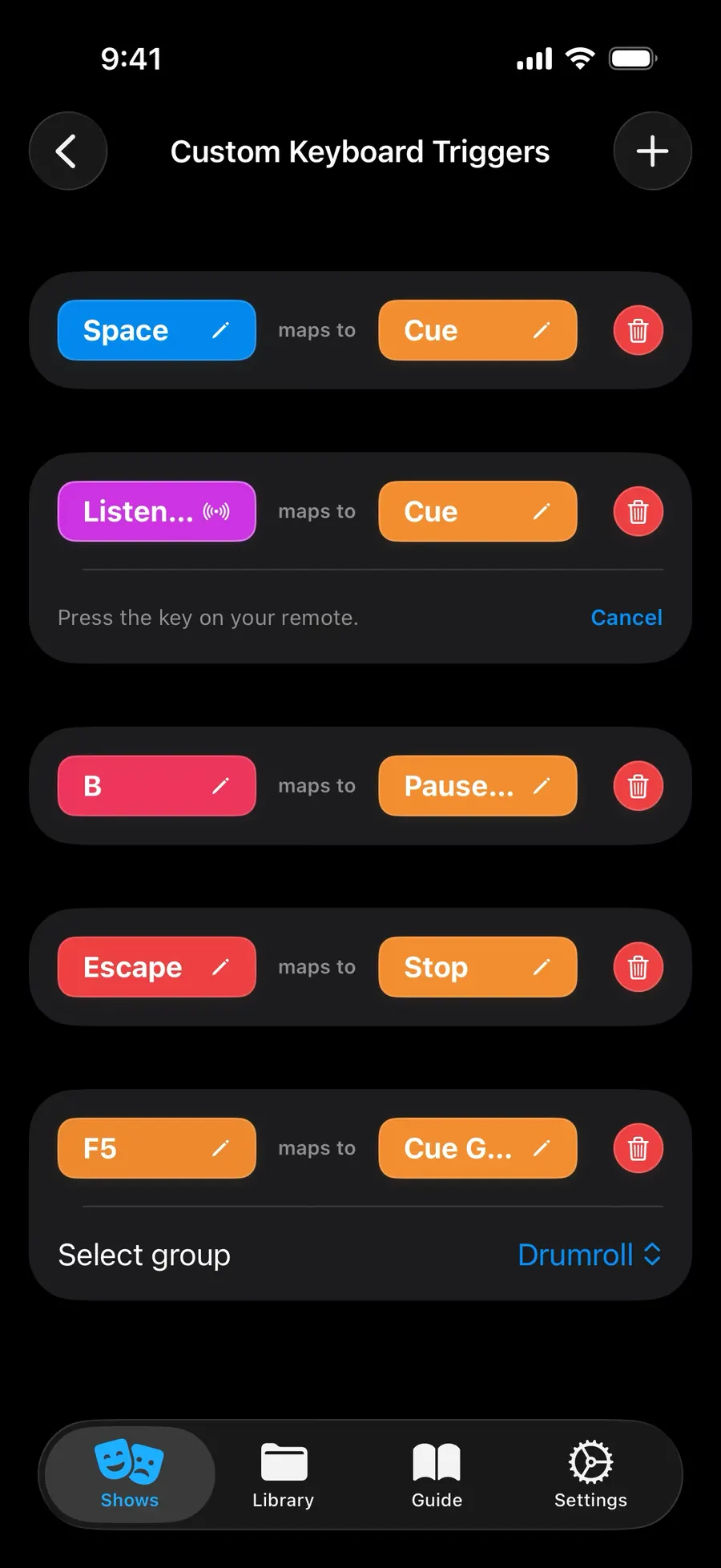
Tap the key, then press the button on your remote - 4
Tap the orange action and choose what the key does, such as Cue, Pause/Play or Stop.
- 5
Repeat for each button on your remote.
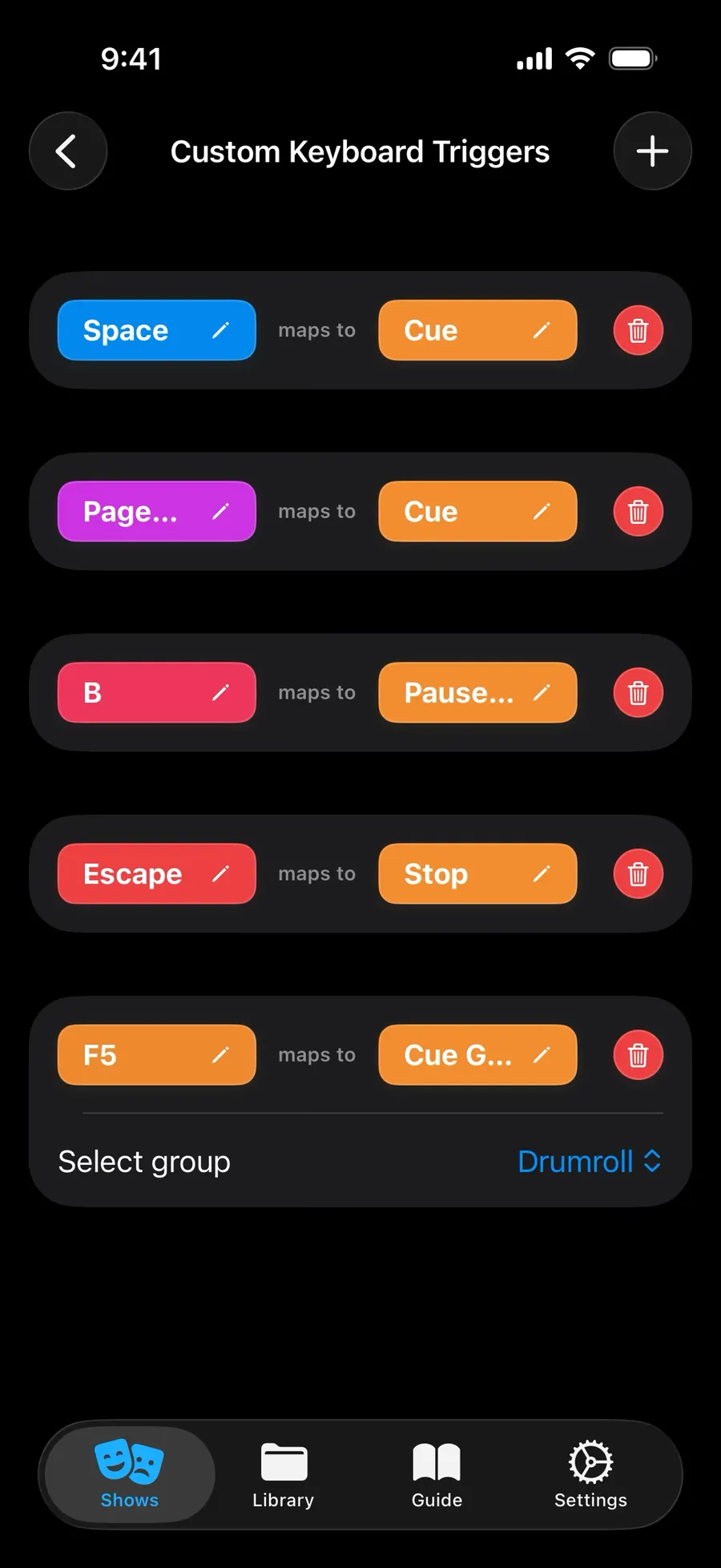
To change a key, tap it and press a new one. To remove a trigger, tap the red bin and confirm Delete, or swipe left on it.
Typical clicker keys
Every clicker is different, so always press the button rather than guessing. As a guide:
- The forward button usually sends Page Down or Right Arrow. Map it to Cue.
- The back button usually sends Page Up or Left Arrow. There's no "previous cue" action, so map it to Prev Group, Pause/Play or Nothing.
- The blank screen button often sends B or ., and the slideshow button F5 or Escape. They make good Pause/Play or Stop keys, or fire a dynamic cue.
Using it in the show
Keys work while the Perform screen is open. They're ignored while a sheet, such as Dynamic cues, is open over it, so close it before you press.
