
Once your show is built, running it is mostly one button: Cue. This guide covers the rest of the transport controls and what each one does to your show.
Start the show
- 1
Open your show and tap Start show in the show editor. To rehearse a single group, open the group and tap Quick preview instead.
- 2
Wait a moment while Preparing show… is on screen. iQ Pro loads your media so the first cue fires straight away.
- 3
Tap Cue to fire the first cue. The show timer starts and the cue turns green in the cue list.
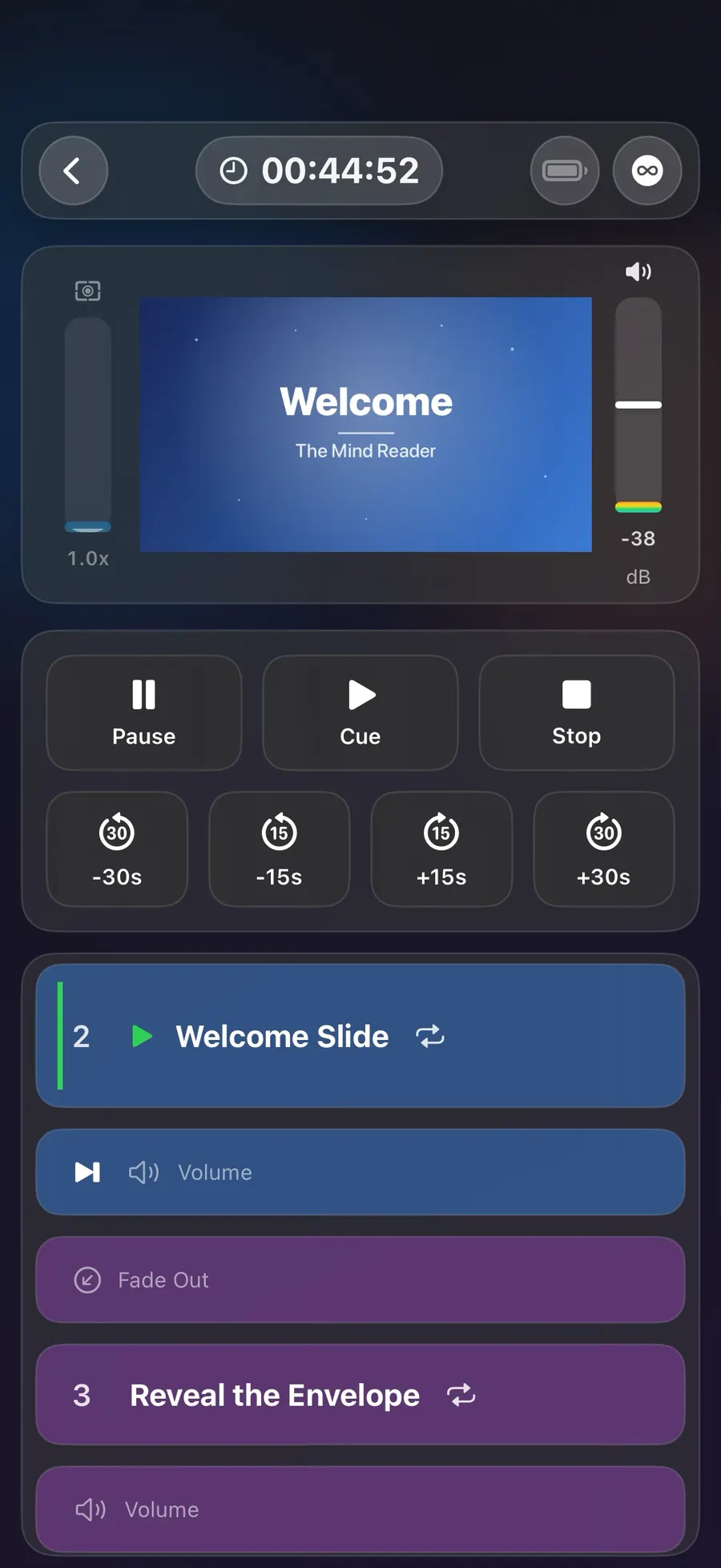
Cue fires the next cue in the running order
Each tap of Cue fires the next cue. Cues set to auto-follow fire on their own, so you only press Cue where your show needs a human decision.
Pause and resume
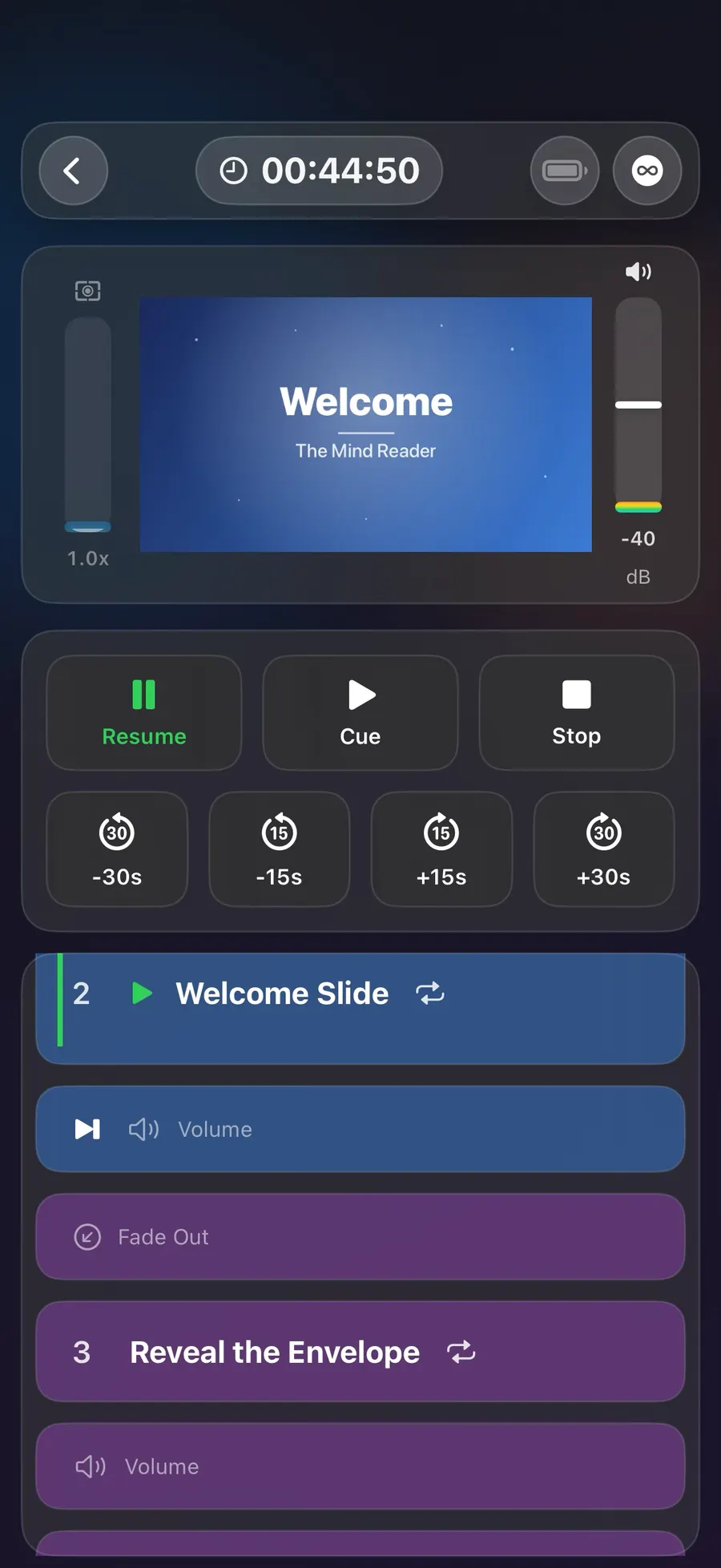
Pause freezes everything that's playing: audio, video and any running transition. The button turns green and changes to Resume. Tap it again and everything carries on from the same point.
Jump back or forward
The four buttons under the transport controls skip through the audio or video that's playing: -30s, -15s, +15s and +30s.
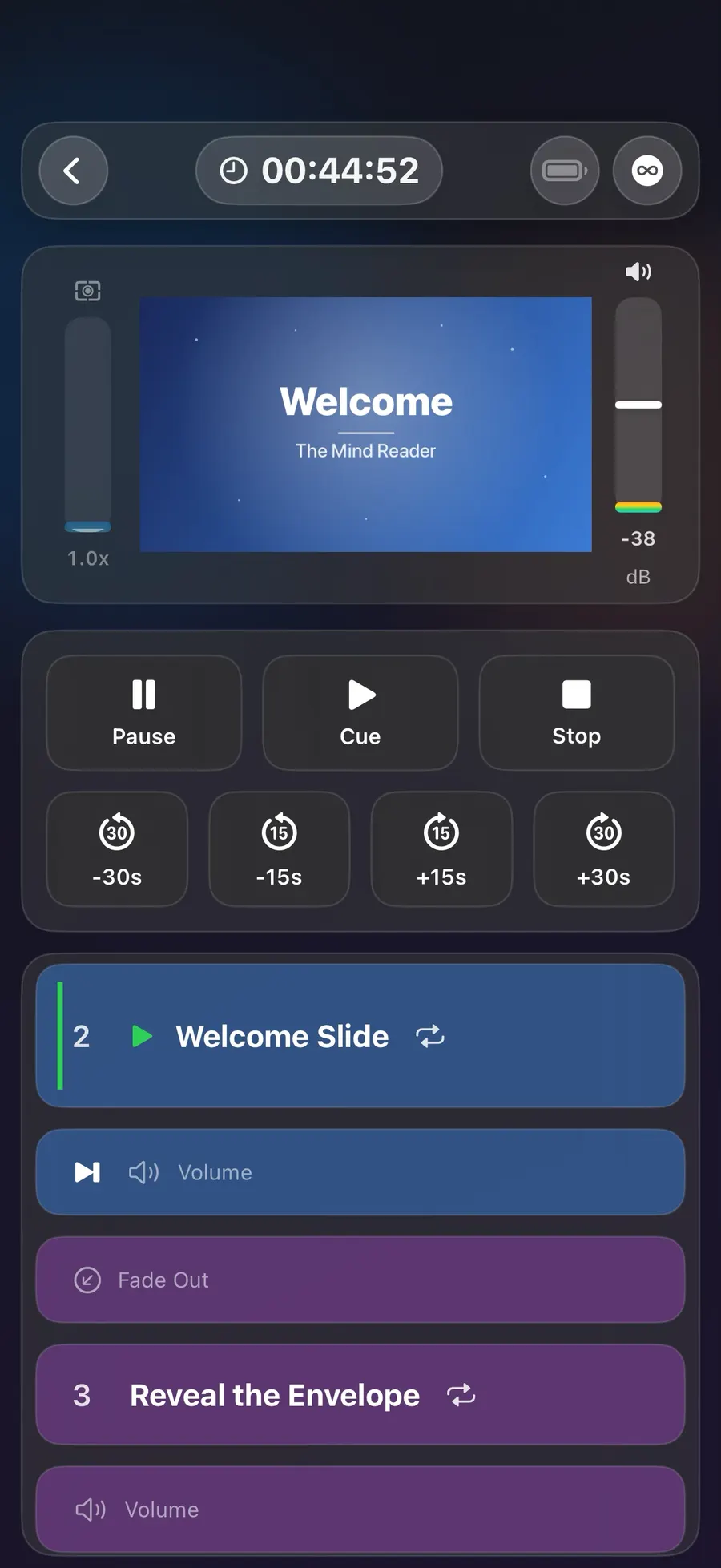
Use them to cut a long walk-in track short, or to replay a moment of music you talked over.
Fire any cue
Tap any cue in the cue list to fire it straight away. The show carries on from that cue, so the next tap of Cue fires the one after it. Now, Next and the cue list explains what the list shows.
Stop the show
Stop stops every cue at once, resets the show timer and takes the show back to its first cue, ready to start again.
To leave the Perform screen, tap the back arrow at the top left. Leaving also stops the show.
Run it hands-free
Everything here can also be done from a Flic button, a presentation remote, a MIDI controller or OSC. See Choosing a remote.
