
iQ Pro is built to run on a second screen. When a projector, TV or Apple TV is connected, your audience sees the show on it, full screen, while your iPhone or iPad keeps the Perform screen with its controls and cue list.
Connect with a cable
- 1
Connect an HDMI adapter to your iPhone or iPad (a USB-C or Lightning digital AV adapter), and an HDMI cable from the adapter to the projector or TV.
- 2
Open iQ Pro. It finds the display by itself; there's nothing to switch on.
- 3
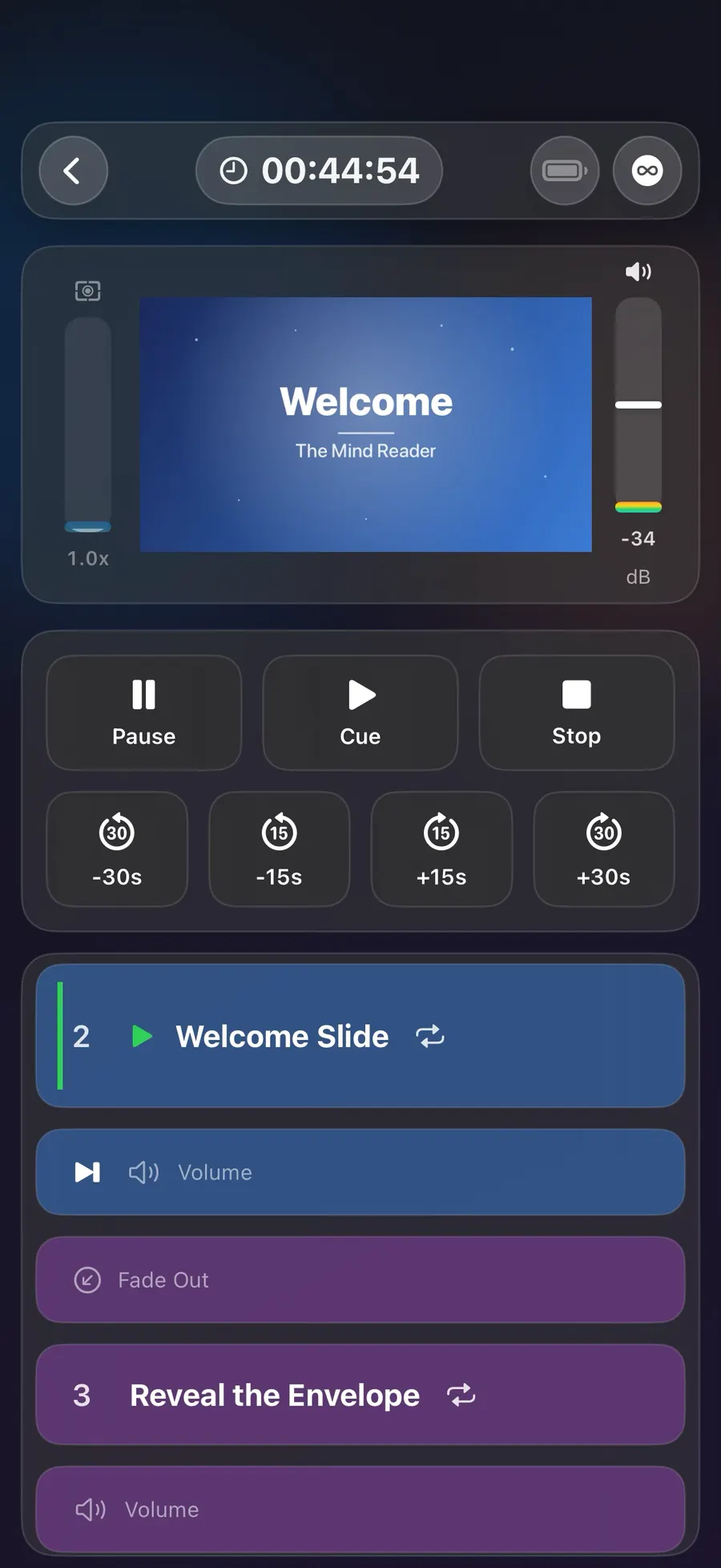
Start your show. What you see in the Perform screen's preview is what's on the big screen.
Connect with AirPlay
- 1
Join your iPhone or iPad to the same Wi-Fi network as the Apple TV or AirPlay display.
- 2
Open Control Centre, tap Screen Mirroring and choose the display.
- 3
Switch to iQ Pro. The display shows your show's output, not a copy of your screen.
Before the show starts
When no show is running, the external display shows a backdrop, so the screen is never blank or showing your home screen. You can replace the standard iQ Pro backdrop with one of your own slides in Settings › General › Custom Backdrop. See General settings.
Get the picture right
- Shows are 1920×1080 (16:9) by default. If your projector or LED wall is a different shape, set a custom size in the show's Resolution Settings. See Resolution and letterboxing.
- Check the picture on the real screen at your tech rehearsal, not only in the preview.
