
A show is designed at a resolution: the size, in pixels, of the picture iQ Pro draws. By default that's 1920×1080, the 16:9 shape of most TVs and projectors.
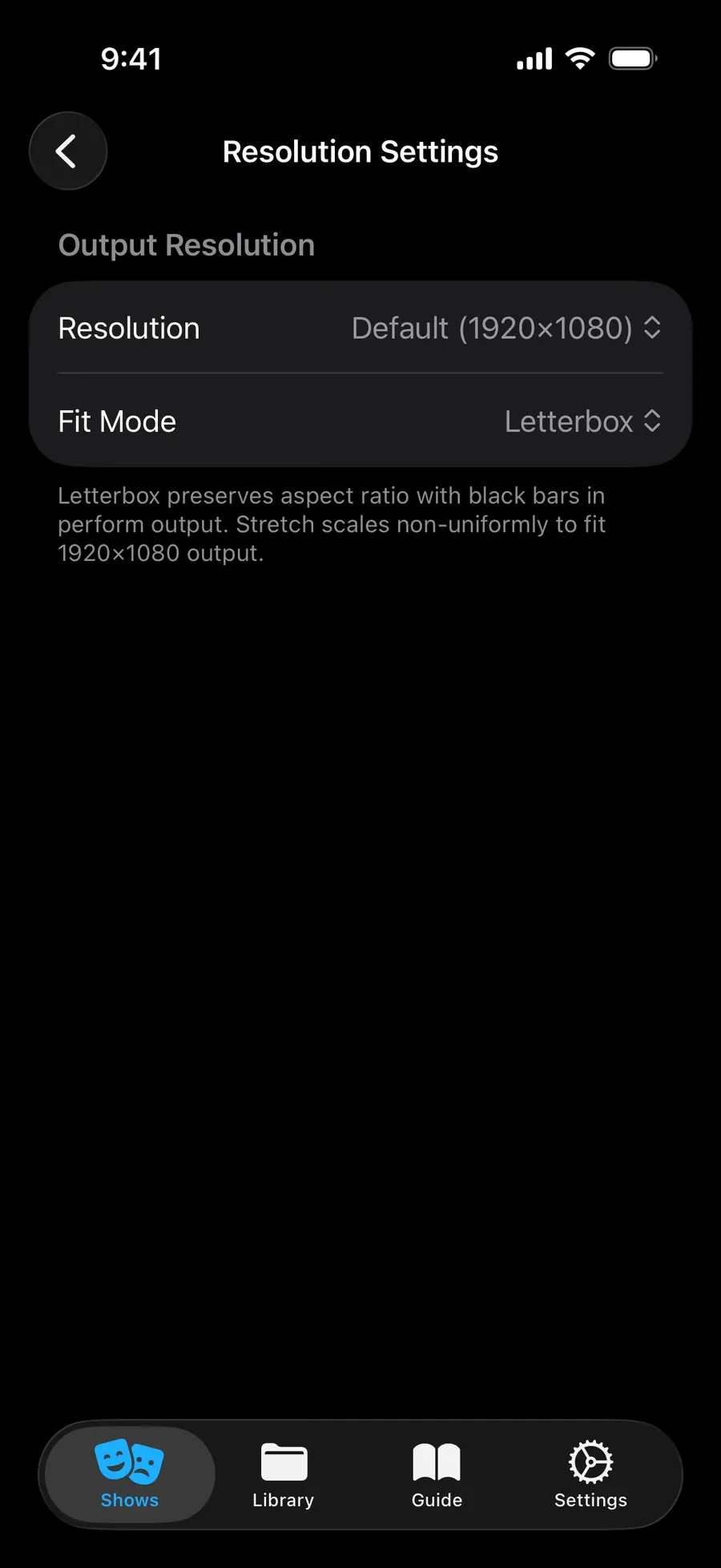
Change the resolution
- 1
Open your show's settings and tap Resolution Settings.
- 2
Under Output Resolution, set Resolution to Custom.
- 3
Use the Width and Height steppers to set the size of your screen. They move in steps of 16 pixels, from 16 up to 8192.
Choose Default (1920×1080) to go back.
Letterbox or stretch
Fit Mode decides what happens when the picture's shape doesn't match the output:
- Letterbox keeps the shape and adds black bars to fill the gaps. Nothing looks squashed.
- Stretch to 16:9 stretches the picture to fill a 1920×1080 output, even if that distorts it.
Check the result on the real screen at your tech rehearsal. See External displays and AirPlay.
