
The show timer sits at the top of the Perform screen. It tells you how long you have left, or how long you've been on, without looking at a watch.
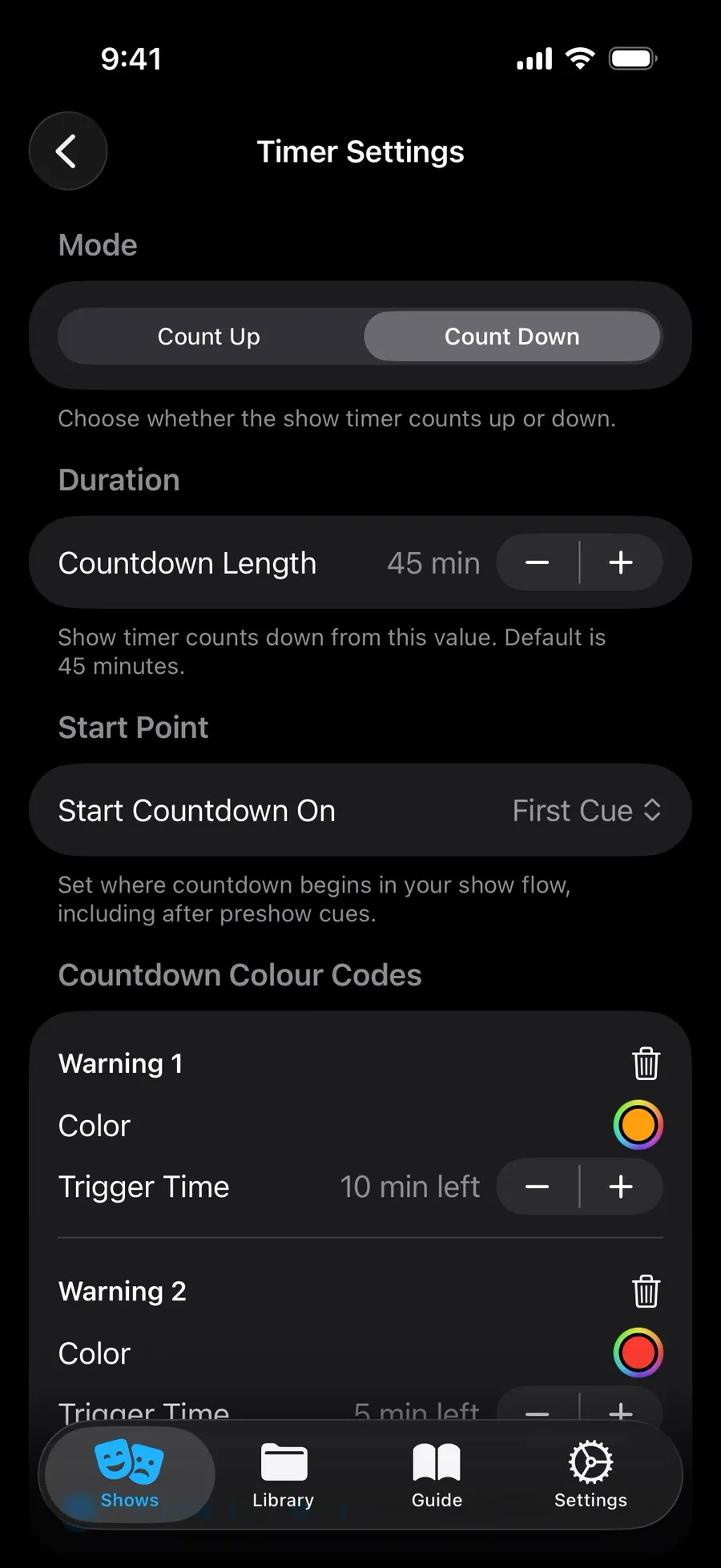
Open your show's settings and tap Timer Settings.
Count down or up
- Count Down starts at the length you set and counts down to zero. It's the default, at 45 minutes.
- Count Up counts the time since the timer started.
Set the length with the stepper under Duration, from 1 to 360 minutes. It's called Countdown Length for a countdown and Elapsed Reference when counting up.
Choose when it starts
By default the timer starts on the First Cue. If your show opens with walk-in music, start it later instead:
- Group starts the timer when the first cue of a group you choose fires, such as your opening number.
- Specific Cue starts it when one particular cue fires. Choose its Group, then the Cue.
The menu is called Start Countdown On for a countdown and Start Timer On when counting up.
Colour the countdown
Colour codes change the timer's colour as the end approaches, so you can see at a glance that it's time to wrap up.
- 1
With Count Down selected, scroll to Countdown Colour Codes and tap Add Colour Code.
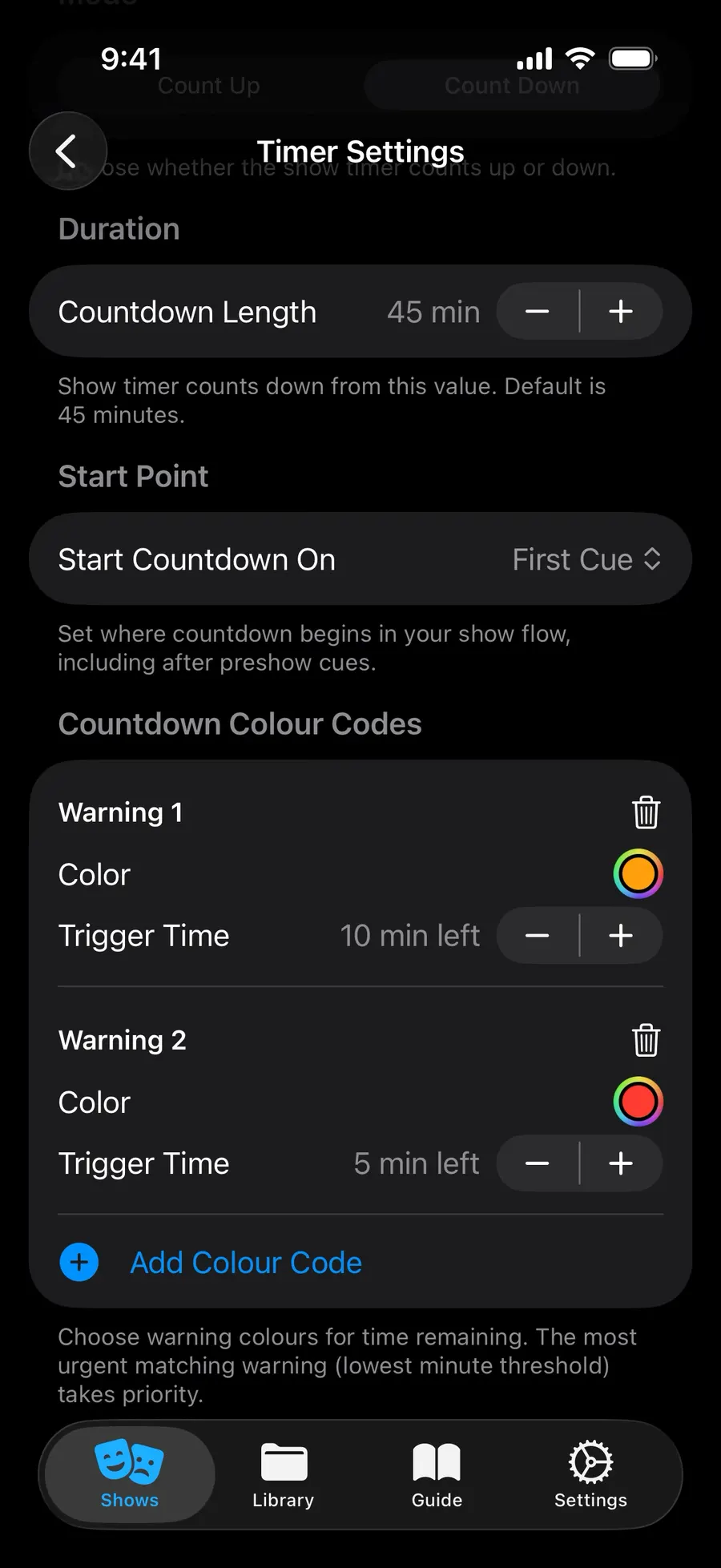
Orange at 10 minutes left, red at 5 - 2
Tap Color and choose a colour.
- 3
Use the Trigger Time stepper to set how many minutes are left when the colour kicks in.
- 4
Add more for later warnings. To remove one, tap its bin.
When more than one colour code matches, the most urgent (the one with the fewest minutes left) wins.
Stop resets the timer, ready for the next run.
