
Every show has its own settings. Open a show and tap the settings button in the show editor to get to Show Settings.
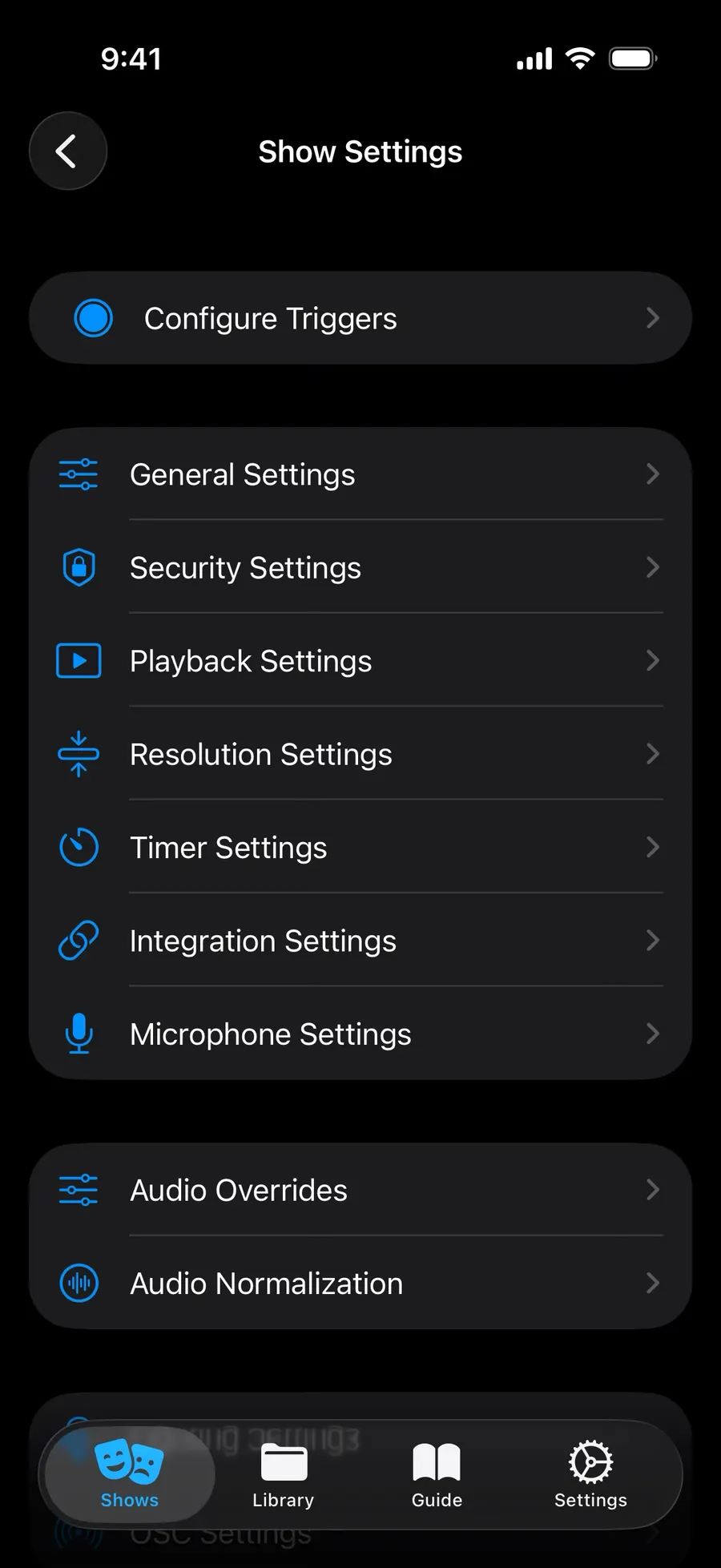
From top to bottom:
- Configure Triggers: Flic buttons, keyboards, MIDI and OSC. See Choosing a remote.
- General Settings, Security Settings, Playback Settings, Resolution Settings, Timer Settings, Integration Settings and Microphone Settings.
- Audio Overrides and Audio Normalization, for levels across the show.
- Lighting Settings and OSC Settings, for lighting scenes and OSC output devices.
- Check for Issues, which scans your show for mistakes. See Pre-show checklist.
- Export Cue List. See Export the cue list.
On a large iPad in landscape, the list is centred on the screen so it's easier to read.
General Settings
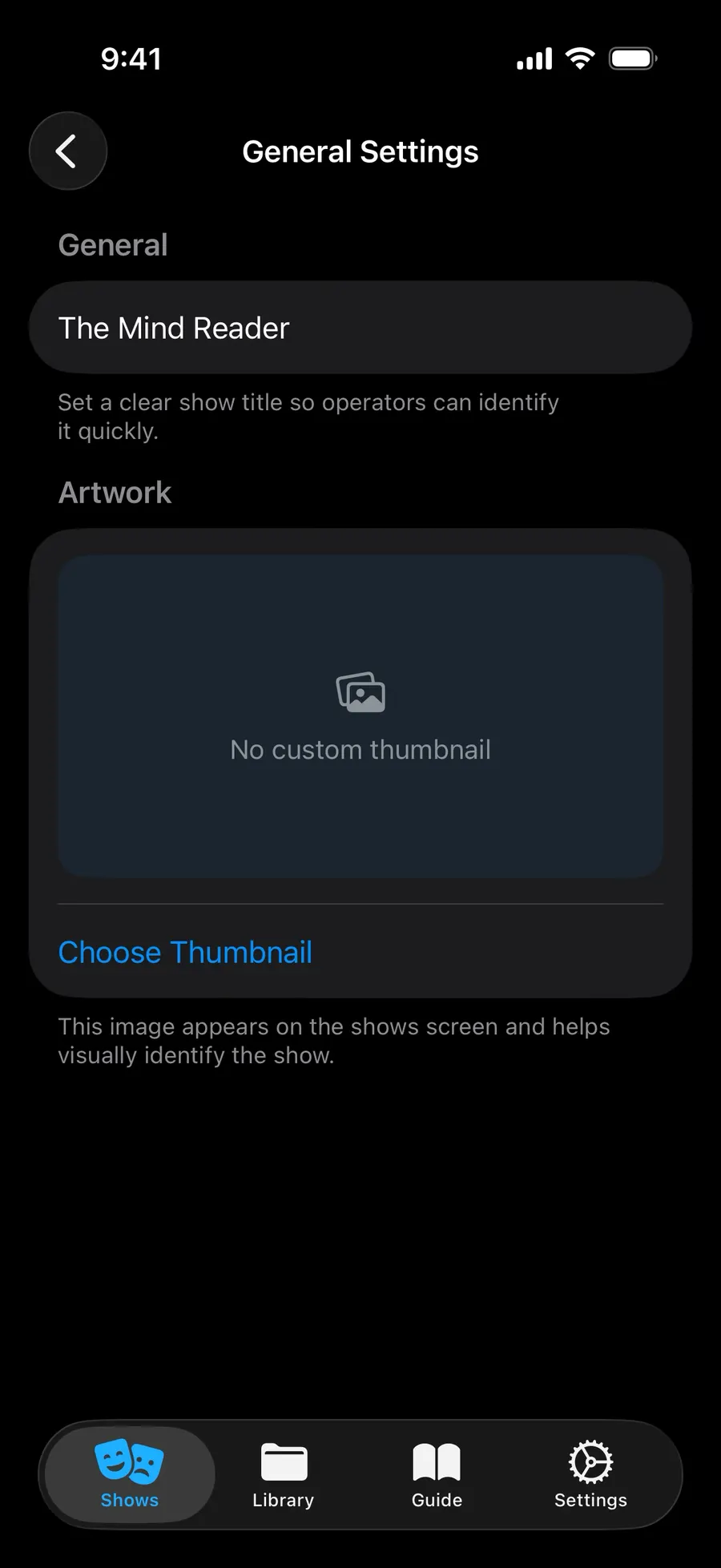
- Show Name is what operators see in the Shows tab. Pick a clear title.
- Under Artwork, Choose Thumbnail sets the picture on the show's tile, from Files, Photos, the built-in library or stock images. Remove Thumbnail goes back to the standard tile.
Playback Settings
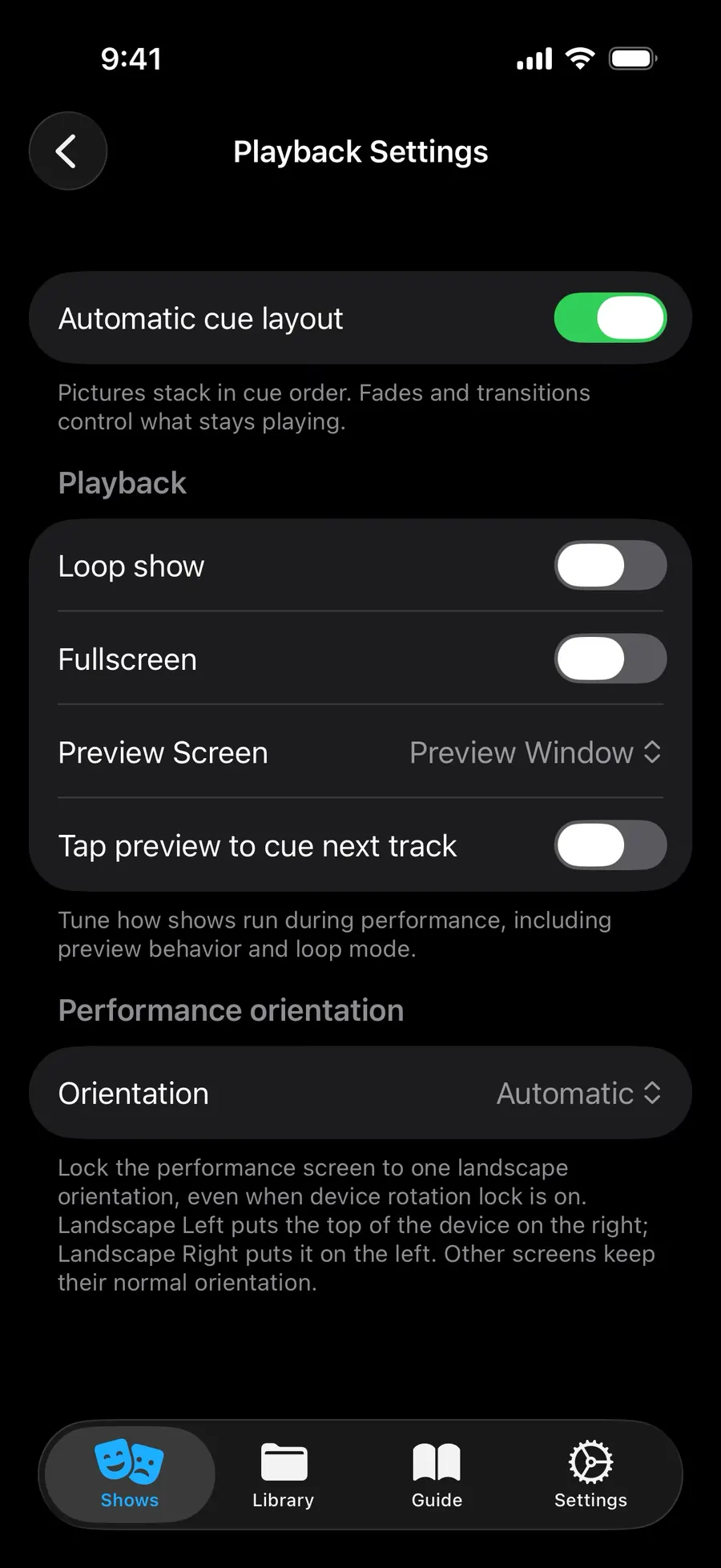
- Automatic cue layout stacks pictures in cue order and lets fades and transitions decide what stays on screen. Turn it off to use the layers you set on each cue.
- Loop show starts the show again from the first cue after the last one.
- Fullscreen hides the Perform screen's controls and shows only the output. See Fullscreen mode and the show timer.
- Preview Screen shows either the Preview Window (a picture of your output) or the Currently Playing Cue (big Now and Next names).
- Tap preview to cue next track fires the next cue when you tap the preview. It needs Preview Window.
Lock the orientation
Under Performance orientation, Orientation decides which way the Perform screen faces:
- Automatic follows the device as you turn it.
- Landscape Left and Landscape Right lock the Perform screen to one landscape orientation, even when the iOS rotation lock is on. With Landscape Left, the top of the device is on the right; with Landscape Right, it's on the left.
Only the Perform screen is locked; the rest of iQ Pro turns as usual.
