
A remote lets you run your show without touching your iPhone or iPad. iQ Pro works with several kinds, and you can use more than one at once.
Your options
- Flic buttons are small Bluetooth buttons you can hide in a pocket, a prop or on a table. One button can do up to three jobs with a click, double click and hold. Start with Pair and name a Flic button.
- Presentation remotes and keyboards are clickers that connect to your iPhone or iPad as a Bluetooth keyboard. You choose what each key does. See Presentation remotes and keyboards.
- MIDI controllers suit shows with a keyboard player or a lighting desk that sends notes. See MIDI triggers.
- OSC lets show-control software, such as a Stream Deck with Companion or a lighting console, fire cues over the network. See OSC triggers.
- Apple Watch puts Cue, Stop, volume and your dynamic cues on your wrist. See The Apple Watch app.
Where you set them up
Flic buttons are paired once, in the Settings tab. Everything else, including what each Flic press does, is set up per show, under Configure Triggers in the show's settings.
- 1
Open your show and tap the settings button in the show editor.
- 2
Tap Configure Triggers at the top of Show Settings.
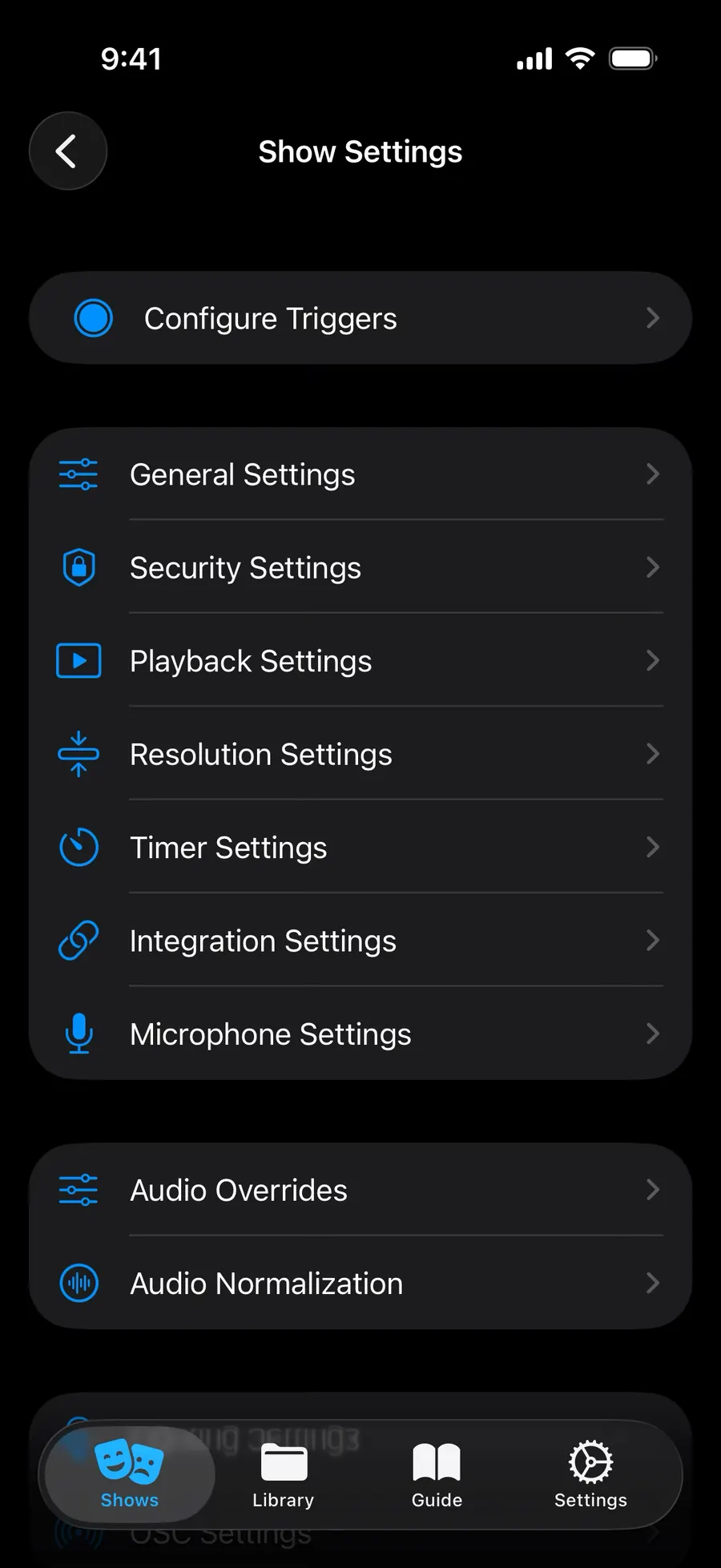
Configure Triggers is the first item in Show Settings - 3
Choose Flic buttons, Keyboard triggers, MIDI triggers or OSC triggers.
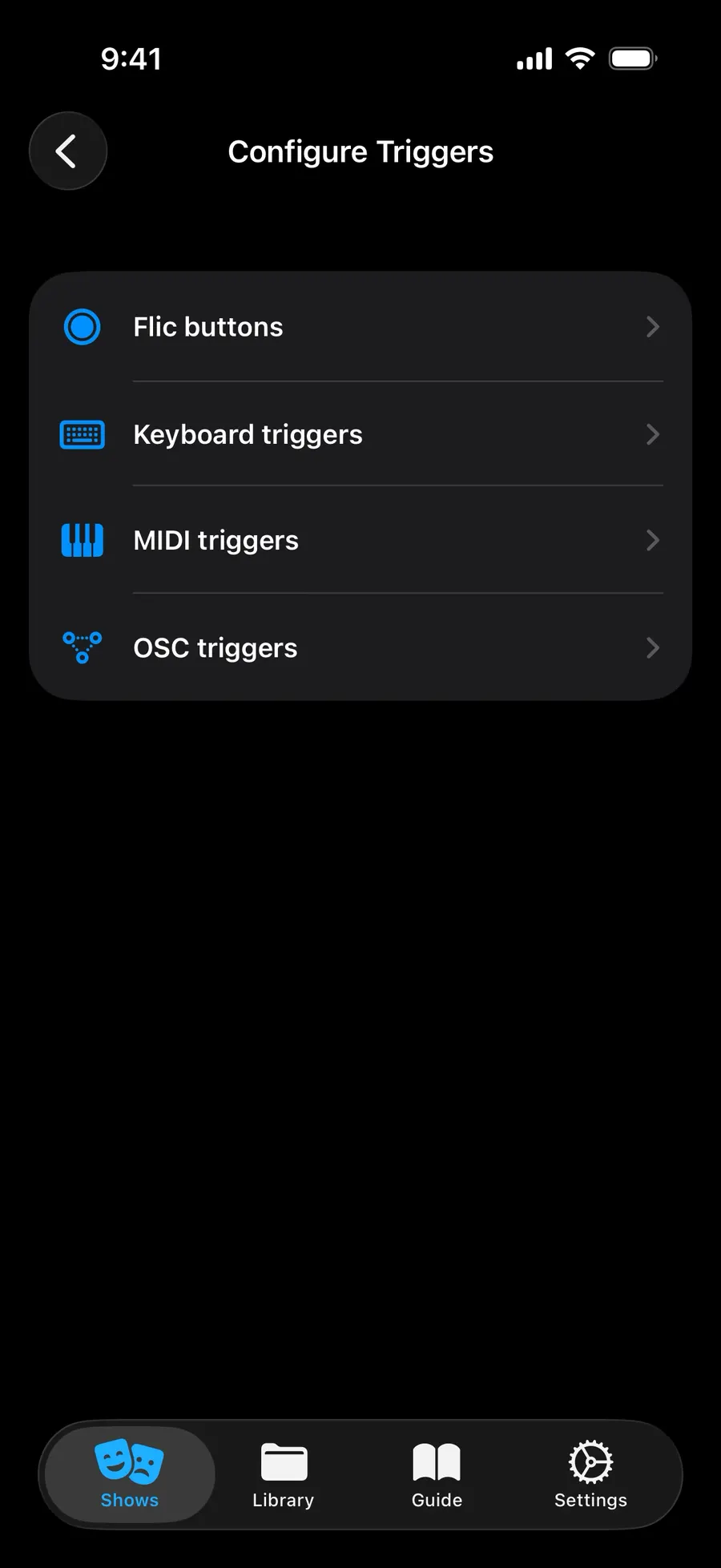
One place for every kind of trigger
Because triggers belong to the show, two shows can use the same remote in different ways.
What a trigger can do
Every kind of trigger chooses from the same actions:
- Cue fires the next cue, like the Cue button.
- Cue Group fires a dynamic cue you choose.
- Prev Group and Next Group stop what's playing and jump to the first cue of the previous or next group, then fire it.
- Pause/Play pauses everything that's playing, or resumes it.
- Stop stops the show, like the Stop button.
- Nothing leaves the trigger unassigned.
Triggers work while the Perform screen is open, whether you started the whole show or a group's Quick preview.
