
A show that worked in rehearsal can still trip up on the day because of the device it runs on. Work through this list before the doors open.
The day before
- Scan the show. Run Check for Issues in the show's settings and fix anything it finds. See Pre-show checklist.
- Rehearse on the real device. Run the whole show once on the iPhone or iPad you'll perform with, to the outputs you'll use.
- Keep your media local. Import every file into iQ Pro before you travel, so nothing depends on the venue's Wi-Fi.
- Charge everything: your device, any Flic buttons and your presentation remote.
An hour before
- 1
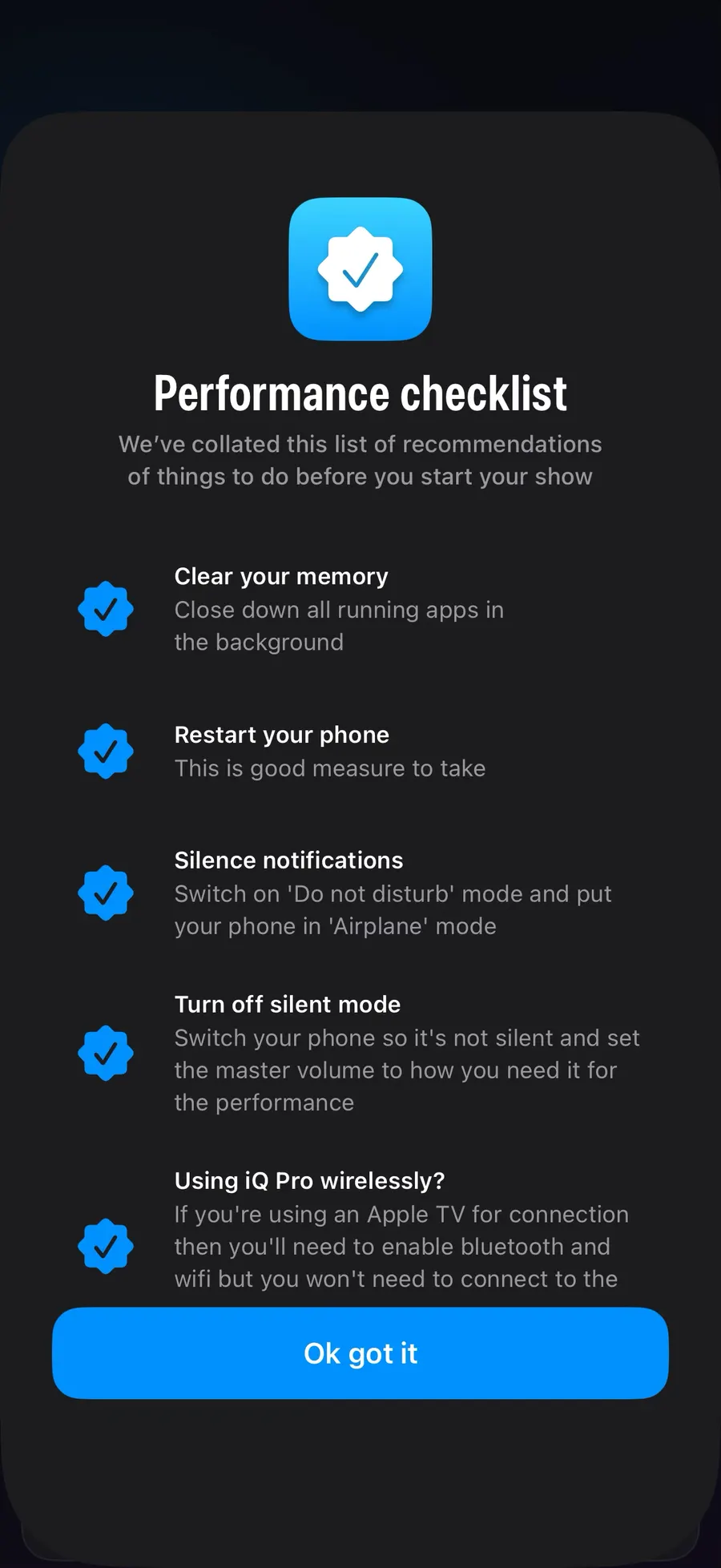
Restart your device. It clears memory and closes anything left running in the background.
- 2
Plug in to power if you can. If not, keep an eye on the battery in the Perform screen's header. In landscape it also shows the percentage.
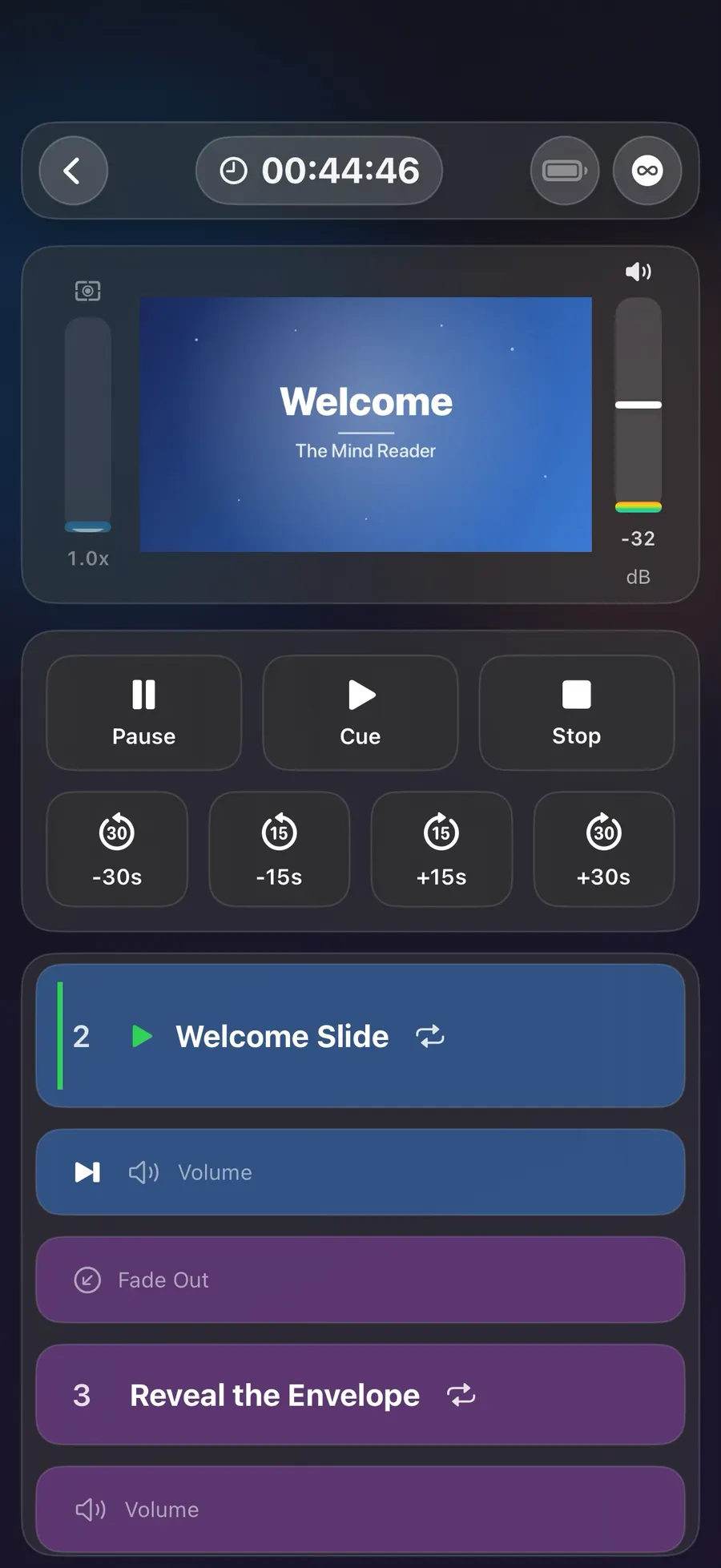
The battery sits to the right of the show timer - 3
Silence everything. Turn on Do Not Disturb so calls and notifications can't appear on stage. Airplane mode is even safer; turn Bluetooth back on afterwards if you use a Flic or a Bluetooth remote, and Wi-Fi if you use AirPlay.
- 4
Turn off silent mode and set the volume. iQ Pro plays through your device's audio output, so the ring/silent switch and volume buttons matter.
- 5
Connect your outputs. Plug in the projector or connect AirPlay, then check the picture and sound in the room. See External displays and AirPlay.
- 6
Test your remote. Open the show, start it, and press each button you'll use.
Just before you start
Tap Start show. iQ Pro shows the Performance checklist as a final reminder, then prepares the show.
While Preparing show… is on screen, iQ Pro is preloading your media. Wait for it to finish before the first cue, and during the show it keeps loading each cue a few seconds before it's needed, so cues fire straight away.
