
The cue list on the Perform screen is your running order, live. It tells you what's playing, what fires next and how far through each cue you are.
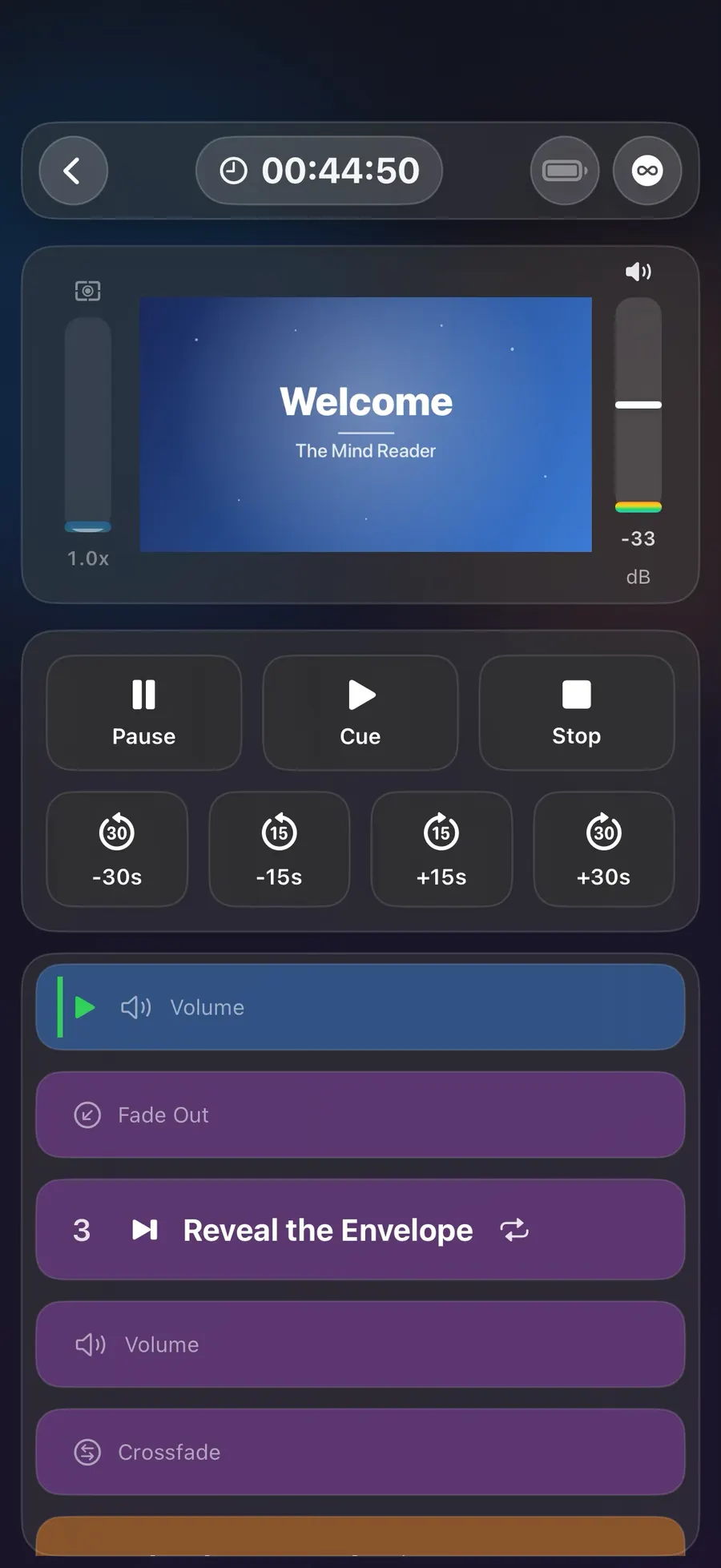
Reading the list
- Numbers count the cues that put something on stage, such as audio, video, images and slides. Transitions such as Fade Out and Volume sit between them as slimmer rows, without a number.
- Colours come from each cue's group, so you can see where one part of your act ends and the next begins.
- The cue that's playing has a green bar on its left and a green play symbol. Audio and video show a progress bar with the elapsed and total time.
- The cue that fires next has the next-up symbol (a play arrow with a bar). That's what Cue fires.
- A transition that's running shows its own progress bar and how long it has left. A cue that's waiting for its delay shows an orange clock.
- The loop symbol after a name means the cue repeats until something stops it.
Tap any row to fire that cue straight away.
Show Now and Next instead of the preview
If you'd rather see names than a picture, the preview area can show the cue that's playing and the one that's next, in large text.
- 1
In the show editor, open the show's settings and tap Playback Settings.
- 2
Set Preview Screen to Currently Playing Cue.
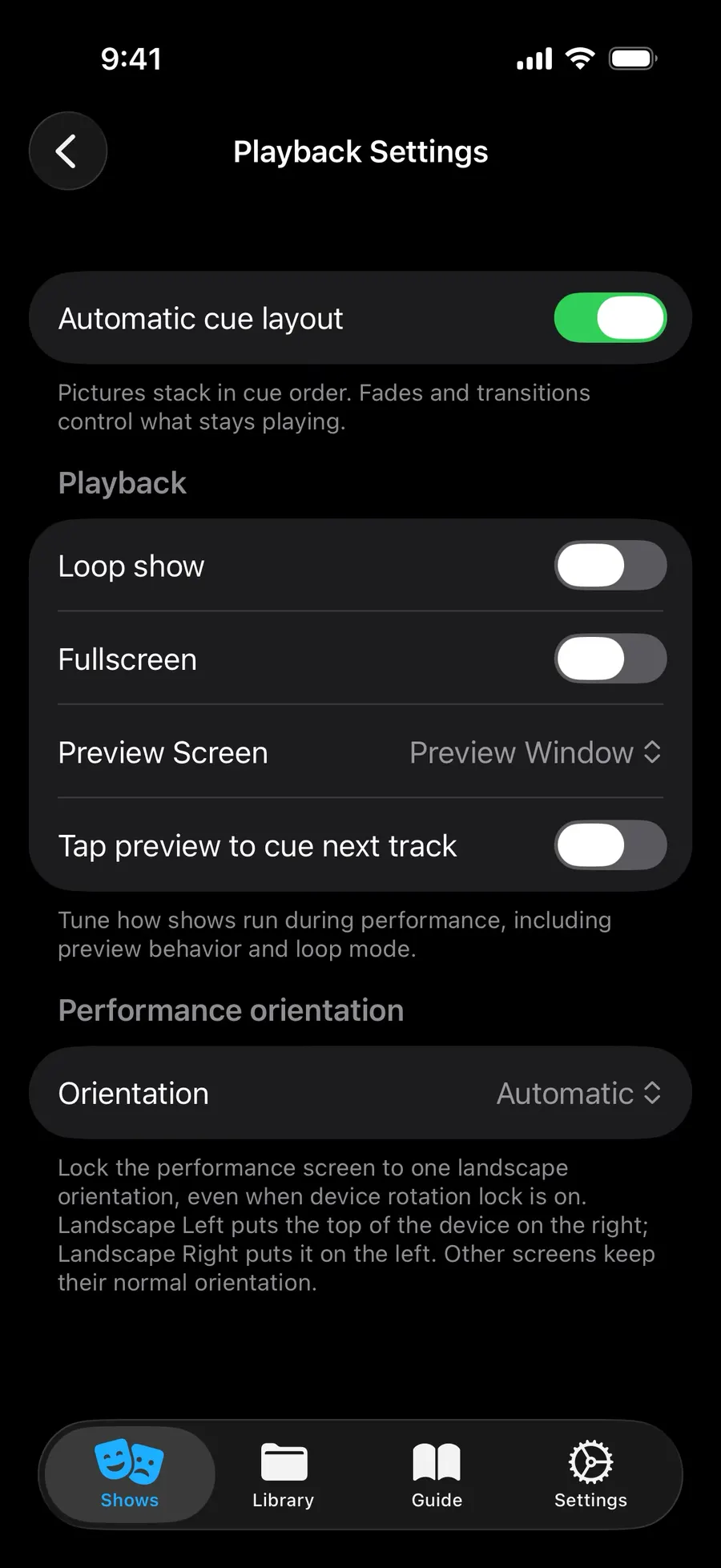
Choose Currently Playing Cue for big Now and Next names - 3
Start the show. The top of the Perform screen now shows Now and Next, with a progress bar for audio and video.
