
iQ Pro can read any guide aloud. Tap the speaker button at the top right of a guide to start, and tap it again to stop. As it reads, the guide follows along, and a player at the bottom of the screen lets you pause, skip and jump around.
The first time you listen
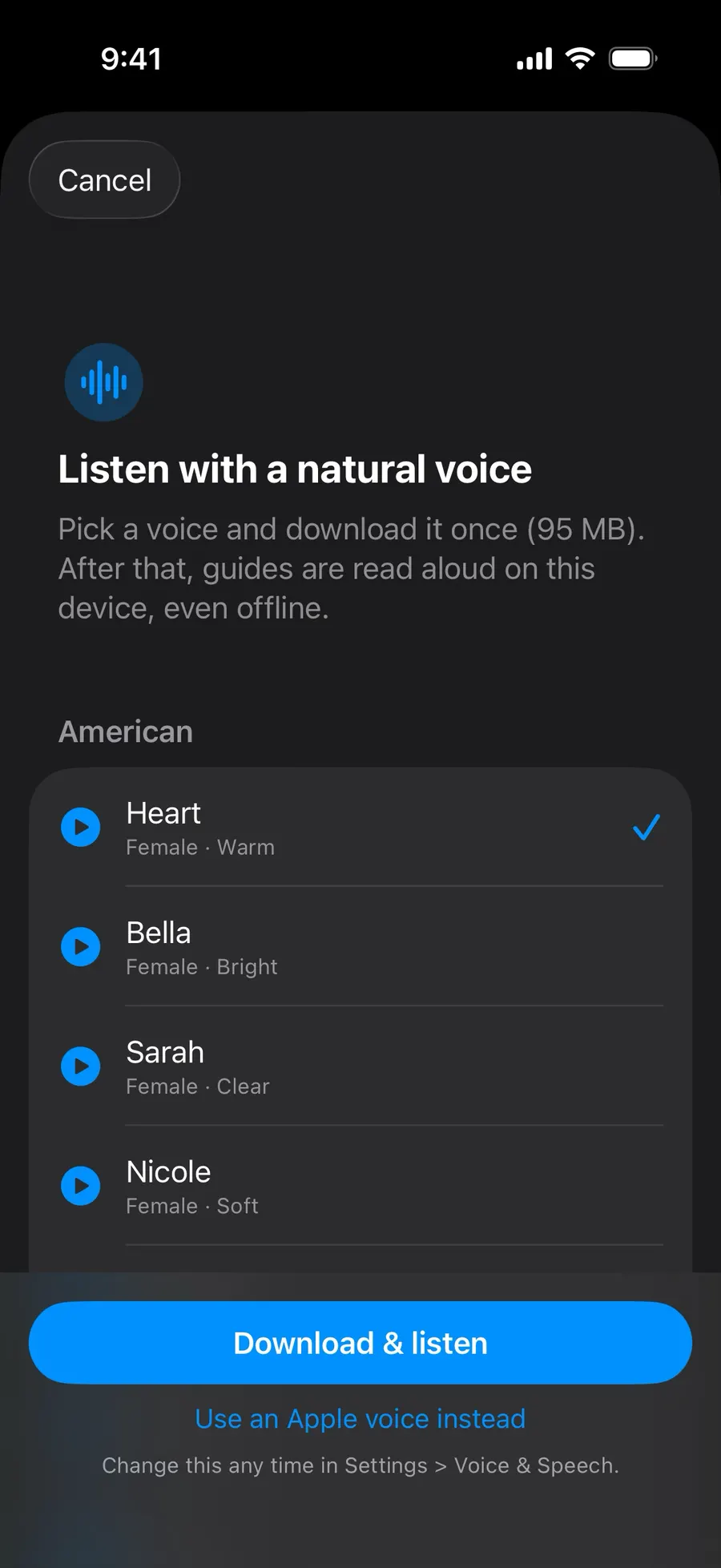
The first time you tap the speaker, iQ Pro asks which voice you'd like.
- 1
Open any guide and tap the speaker button at the top right.
- 2
Tap the play button beside a voice to hear a sample, then tap the voice you like.
- 3
Tap Download & listen. The natural voice downloads once (about 95 MB) and the guide starts reading as soon as it's ready.
- 4
To skip the download, tap Use an Apple voice instead.
Follow along and control playback
When reading starts, the text greys out and fills in word by word as it's spoken. The guide scrolls by itself to keep the part being read in view.
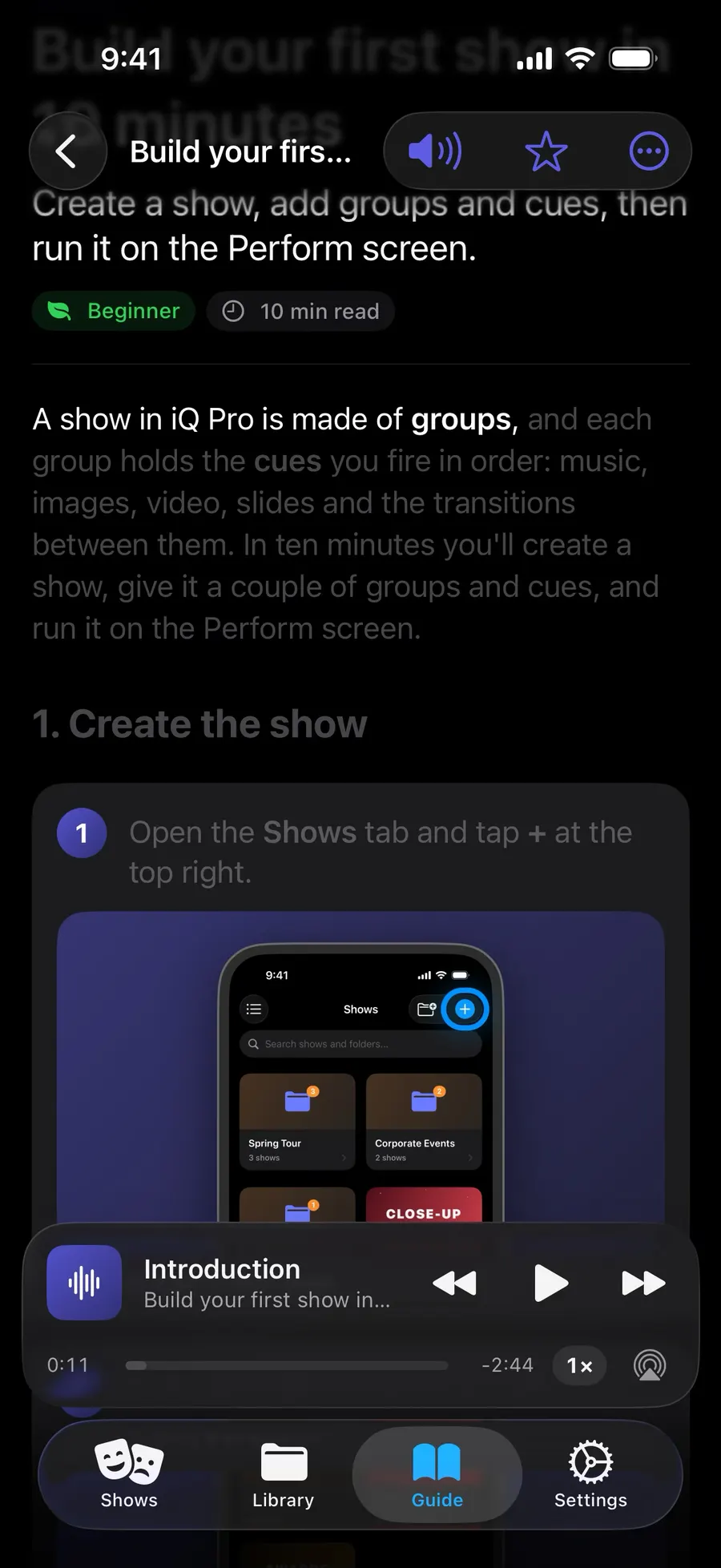
The player at the bottom of the screen shows the section being read and how much time is left:
- Tap pause to stop where you are, and play to carry on from the same word.
- Tap skip forward to jump to the next paragraph or step. Skip back starts the current one again, or goes to the previous one if it has only just begun.
- Drag along the bar, or tap a point on it, to jump to that part of the guide.
- Tap the speed button (1×) to choose 0.75×, 1×, 1.25× or 1.5×.
- Tap the AirPlay button to listen on another speaker or headphones.
The player goes away when the guide finishes, or when you tap the speaker button at the top right.
Change the voice
Guides read with the voice chosen in Settings › Voice & Speech. Guides always use a voice on your device, so they work offline. If you've chosen ElevenLabs there, guides use the natural voice (or an Apple voice) instead. See Voice & Speech: set up voices.
Open Voice & Speech in iQ Pro