
iQ Pro has four tabs along the bottom of the screen. On iPad they sit at the top.
Shows
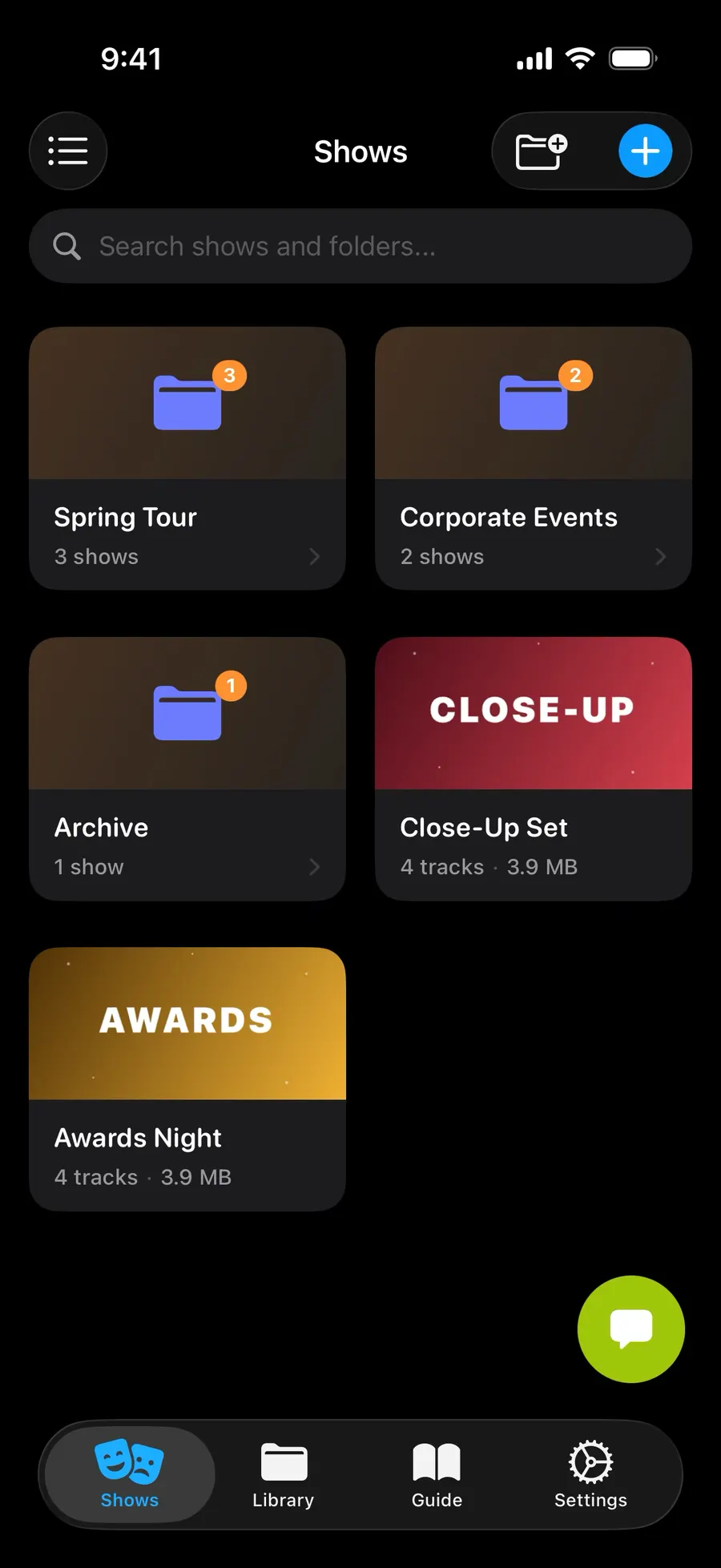
Shows is where you start. It lists your folders and shows, with each show's artwork, cue count and size.
- + at the top right creates a show or imports one. See Create a new show.
- The folder button next to it adds a folder. See Organise shows into folders.
- The button at the top left switches between tiles and a list.
- The search bar finds shows and folders by name.
- Touch and hold a show for Duplicate show, Export show, Move to Folder... and Delete.
Tap a show to open it in the show editor, where you build its groups and cues and start the show.
Library
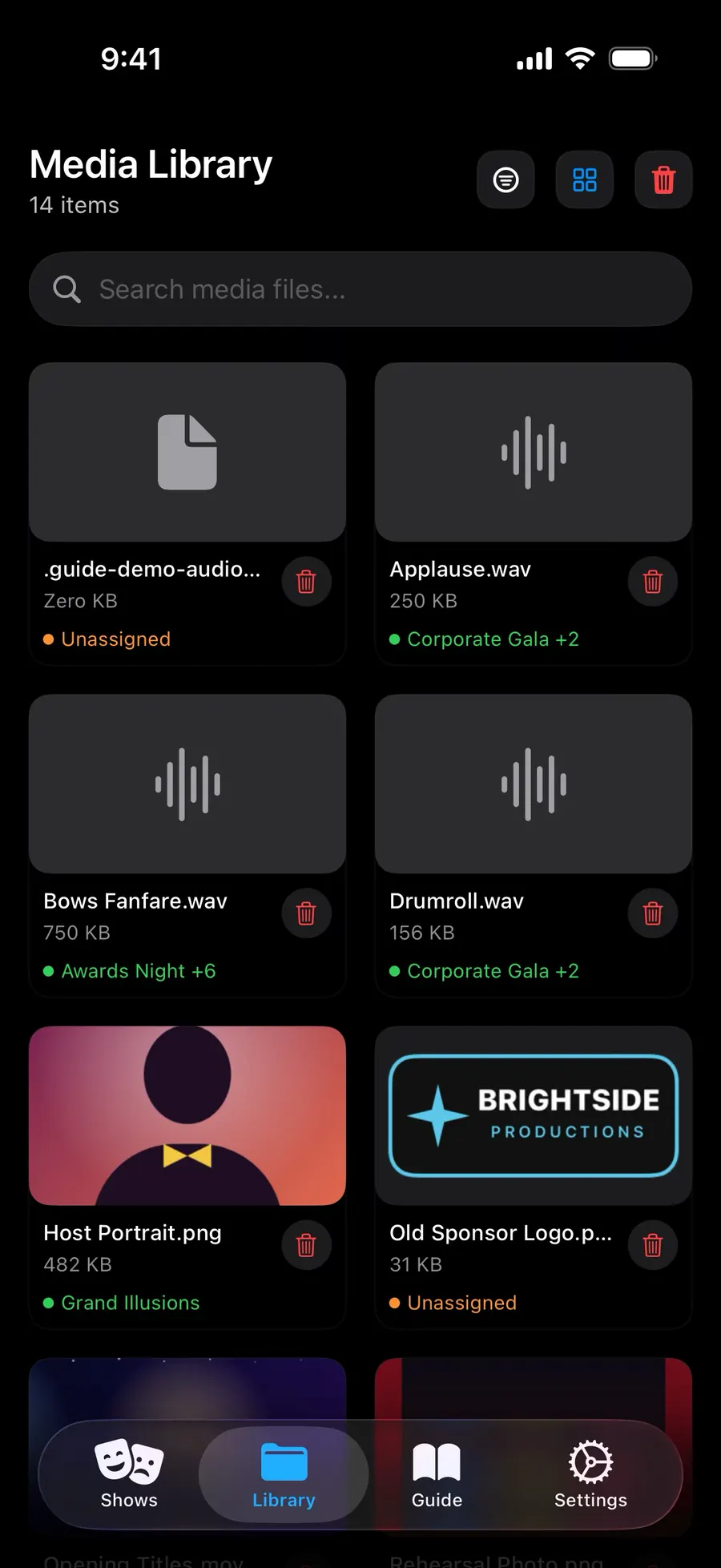
Library holds every piece of media you've imported: audio, video and images. Search it, filter it, preview a file, see which shows use it, and delete files you no longer need to free up space.
Guide
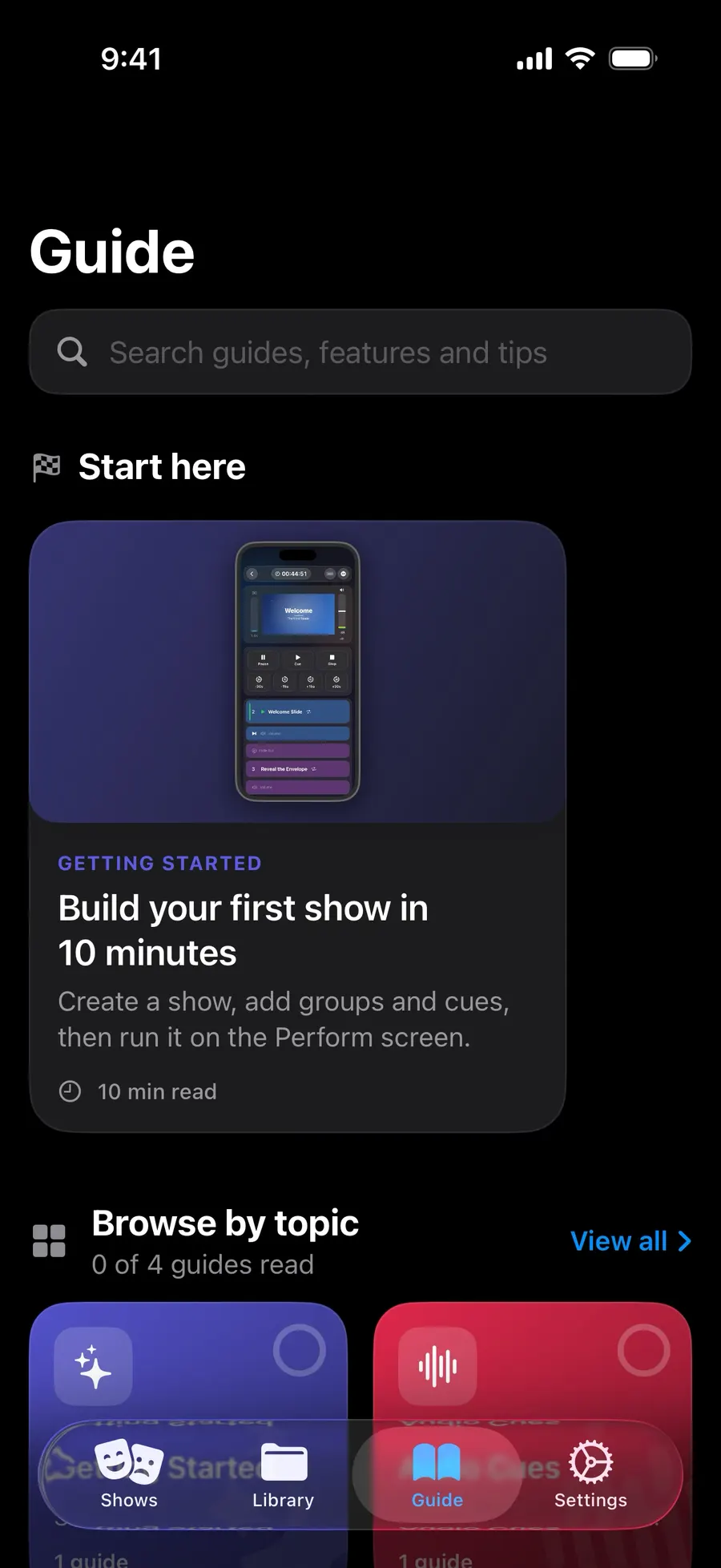
Guide is where you are now. Browse the sections, search for a topic, or open a guide straight from the app. Many guides end with a button that takes you to the right screen. To listen instead of reading, tap the speaker button at the top of a guide and it's read aloud; tap it again to stop. See Read guides aloud.
Settings
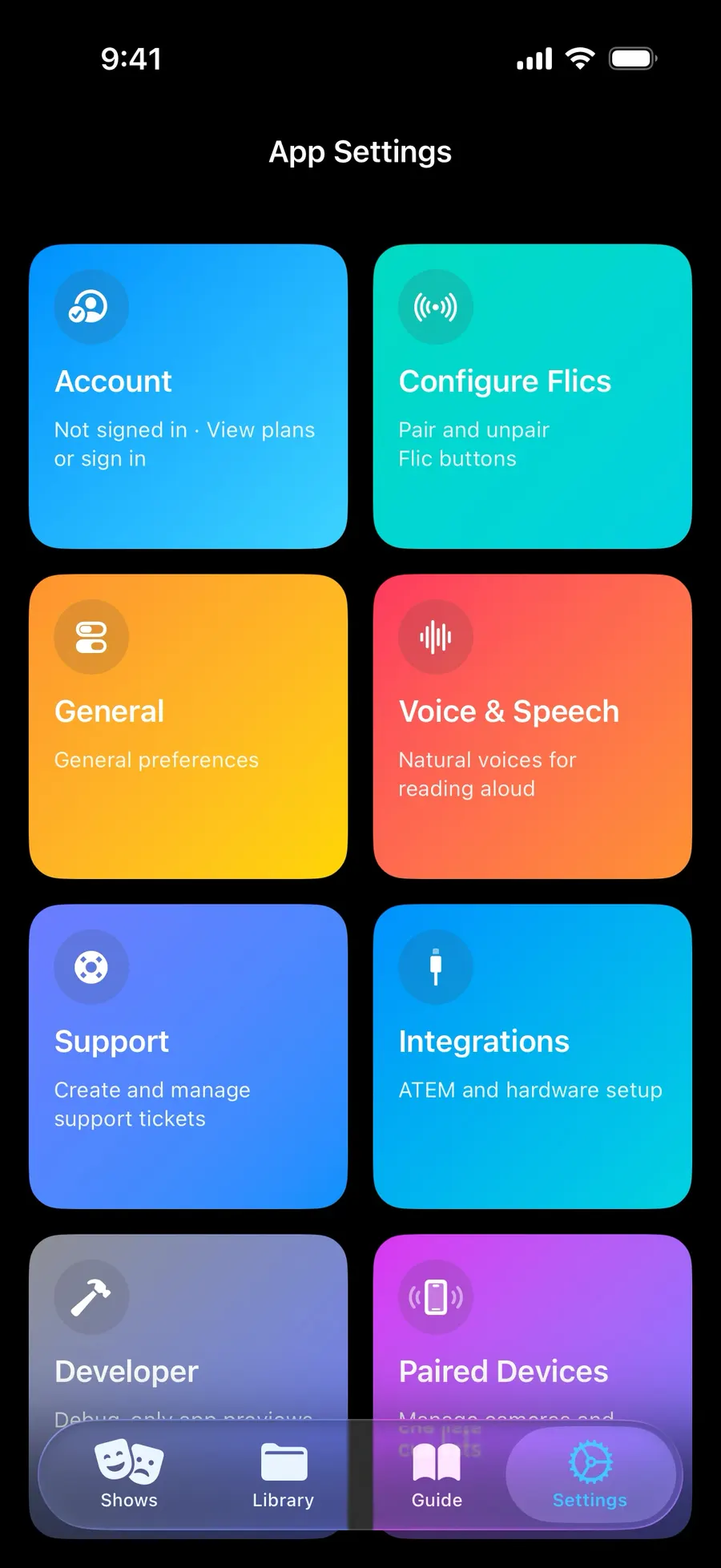
Settings holds the settings that apply to the whole app, rather than to one show:
- Account: your profile, your plan and your devices.
- Configure Flics: pair and rename Flic buttons.
- General: permissions, a custom backdrop and debugging.
- Voice & Speech: the voice iQ Pro reads aloud with.
- Support: create and follow support tickets.
- Integrations: ATEM and other hardware.
The app's version number is at the bottom, in case support asks for it.
Open Settings in iQ Pro