
Every show starts on the Shows tab. A new show opens in a short wizard that names it, helps you gather your media and creates its first group.
Start a show
- 1
On the Shows tab, tap + at the top right.
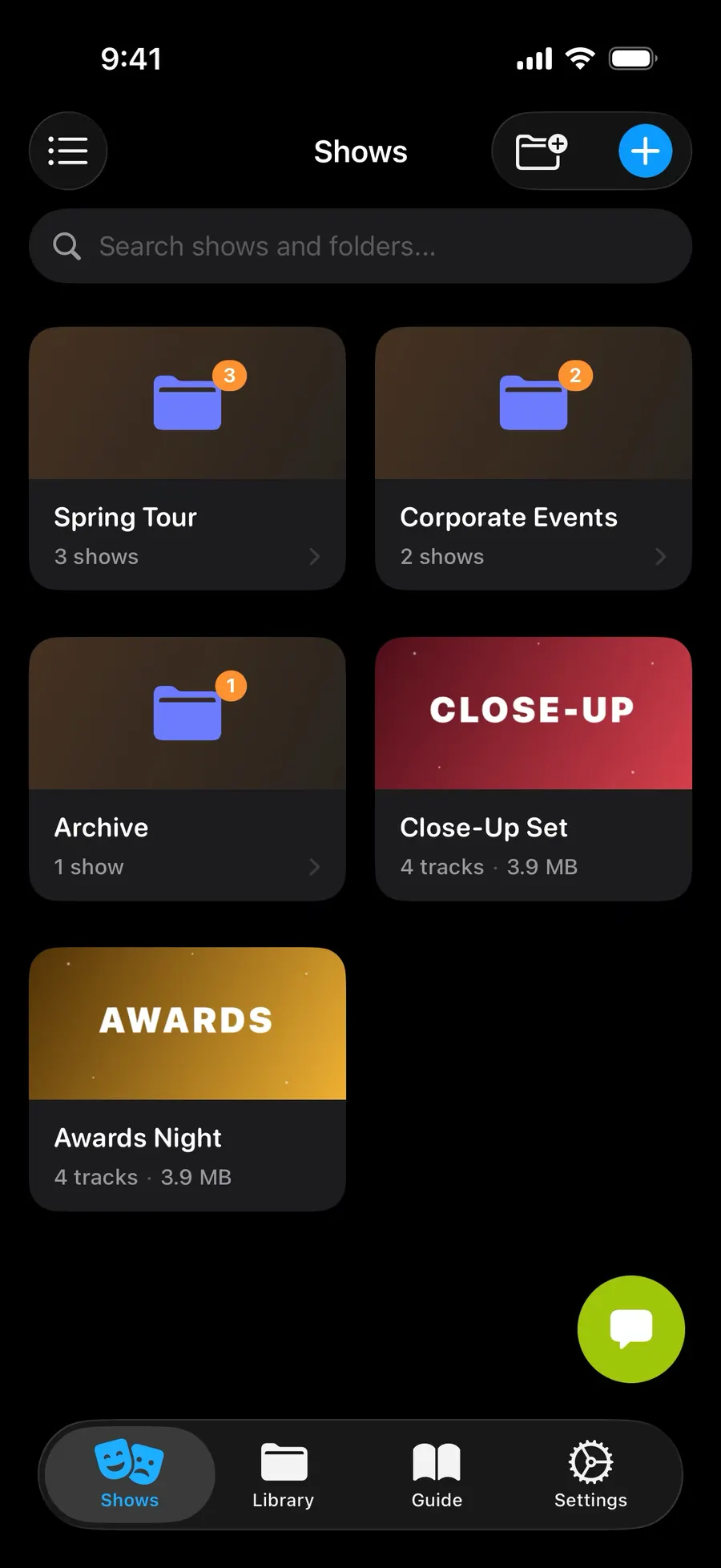
Tap + to start a new show - 2
In the New Show sheet, tap Start from scratch.
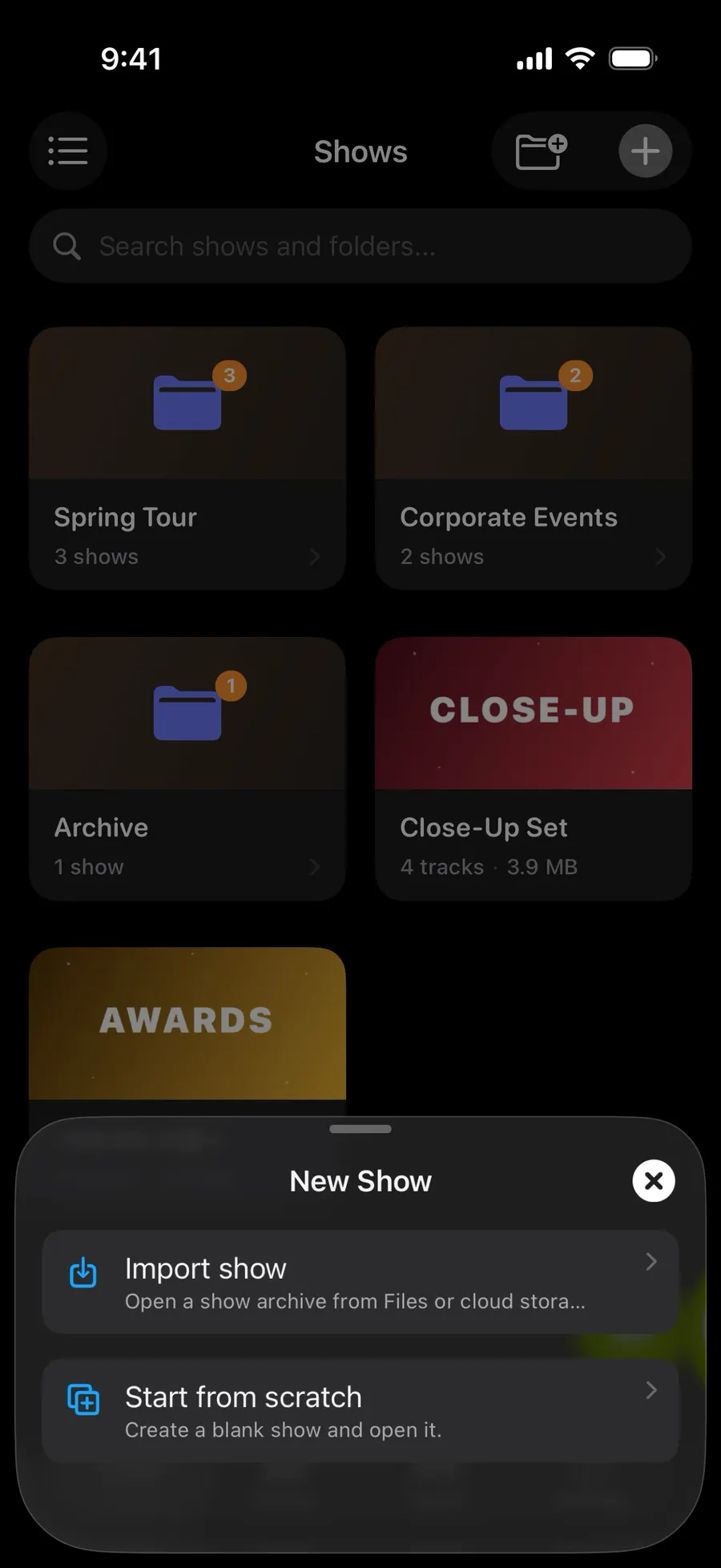
Start from scratch creates a blank show and opens it
iQ Pro creates a show called Untitled 1 (or the next free number) and opens it.
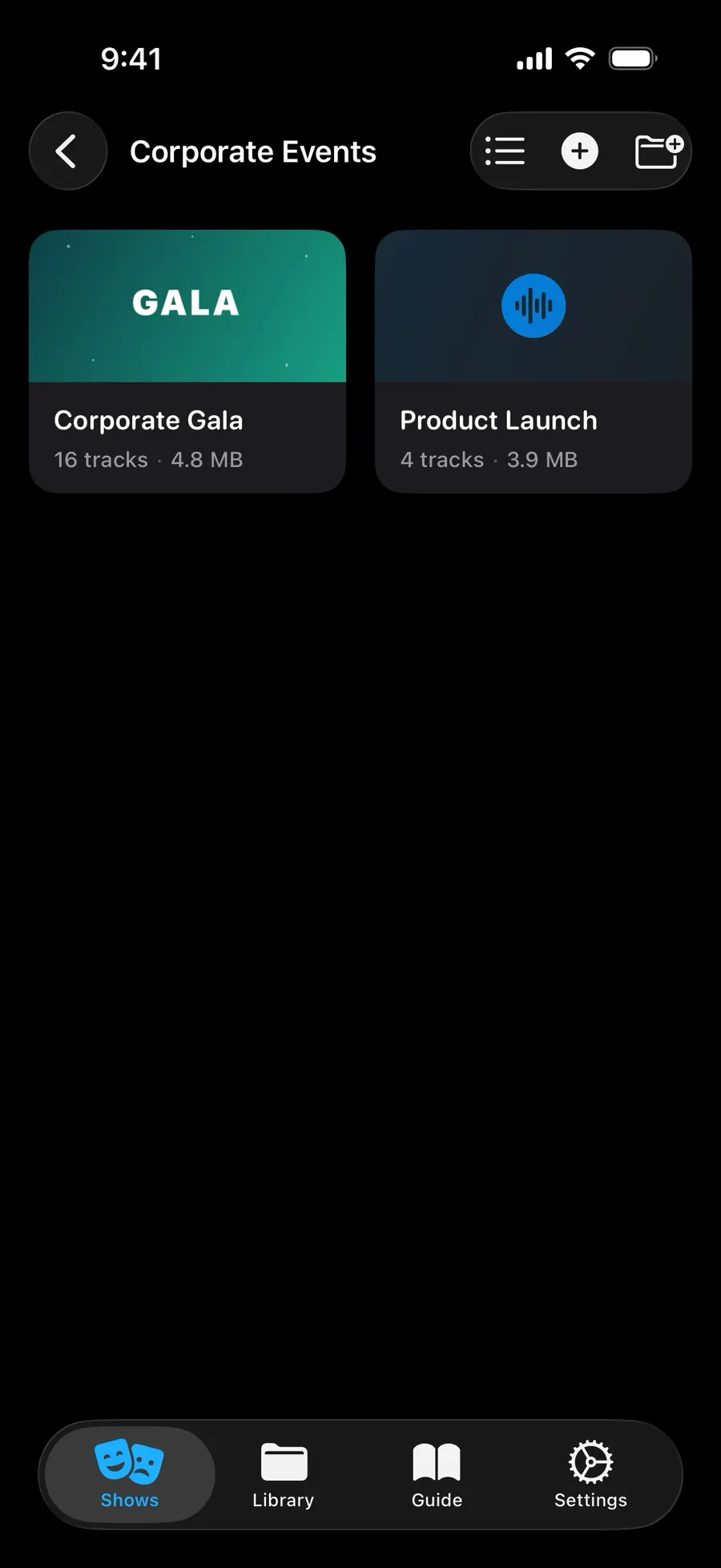
To create the show inside a folder, open the folder first and tap + there.
The new-show wizard
A brand-new show walks you through three steps.
- 1
Create Your Show: type a Show Name and tap Continue.
- 2
Prepare Your Assets: tap Choose import source to bring in the videos, audio and images you'll need: From files, From photo library or From built-in library. You can pick several files at once. iQ Pro copies them into its library so they're ready to use. Tap Skip for now if you'd rather add media cue by cue.
- 3
Create Your First Group: give the first part of your act a Group Name, such as Pre-Show, and tap Continue.
The new group opens, ready for its first cue. Tap Back at any step to change an earlier answer.
Next steps
- Add cues: see Add a cue with the cue picker.
- Rename the show at any time by tapping its name at the top of the show editor.
- Want to reuse work from another show? See Start a show from another show's groups.
Build your first show in 10 minutes takes you from a blank show to running it on stage.
Create a show in iQ Pro