
Each show can have its own artwork. It appears on the show's tile on the Shows tab, which makes the right show easy to find when you're in a hurry.
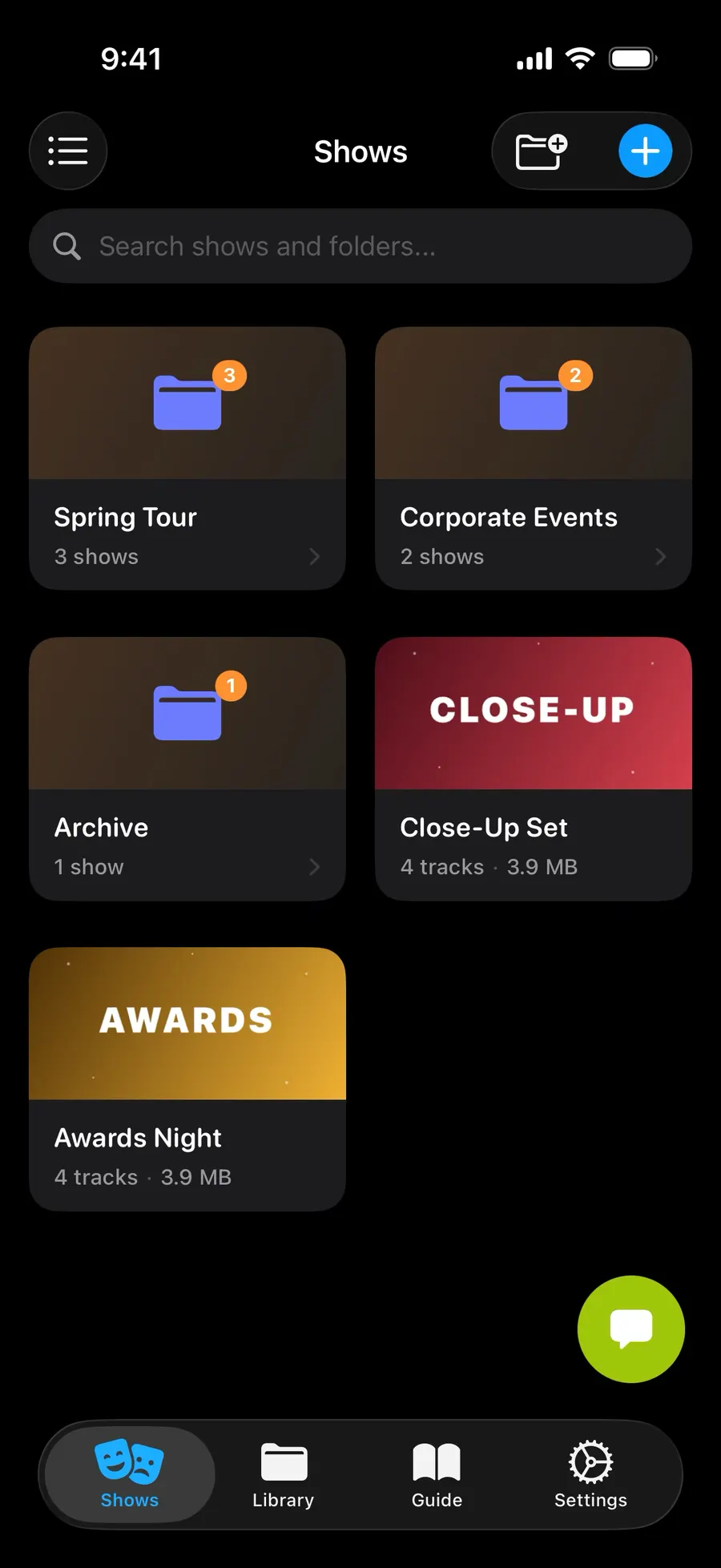
Choose a thumbnail
- 1
Open the show and tap the gear at the top right, then General Settings.
- 2
Under Artwork, tap Choose Thumbnail.
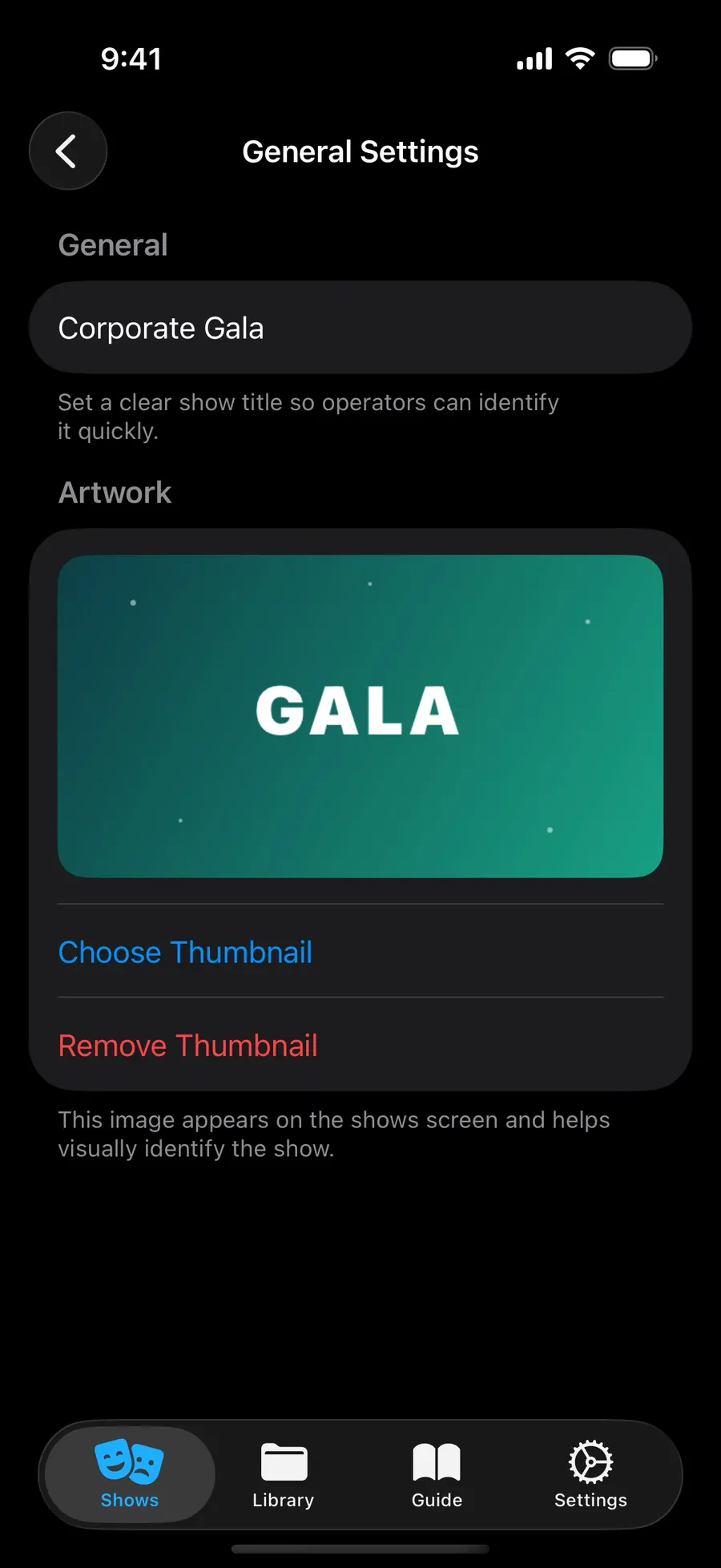
The show's artwork, under its name - 3
Choose where the image comes from: From files, From photo library, From built-in library (images you've already imported) or From stock library (photos from Pexels).
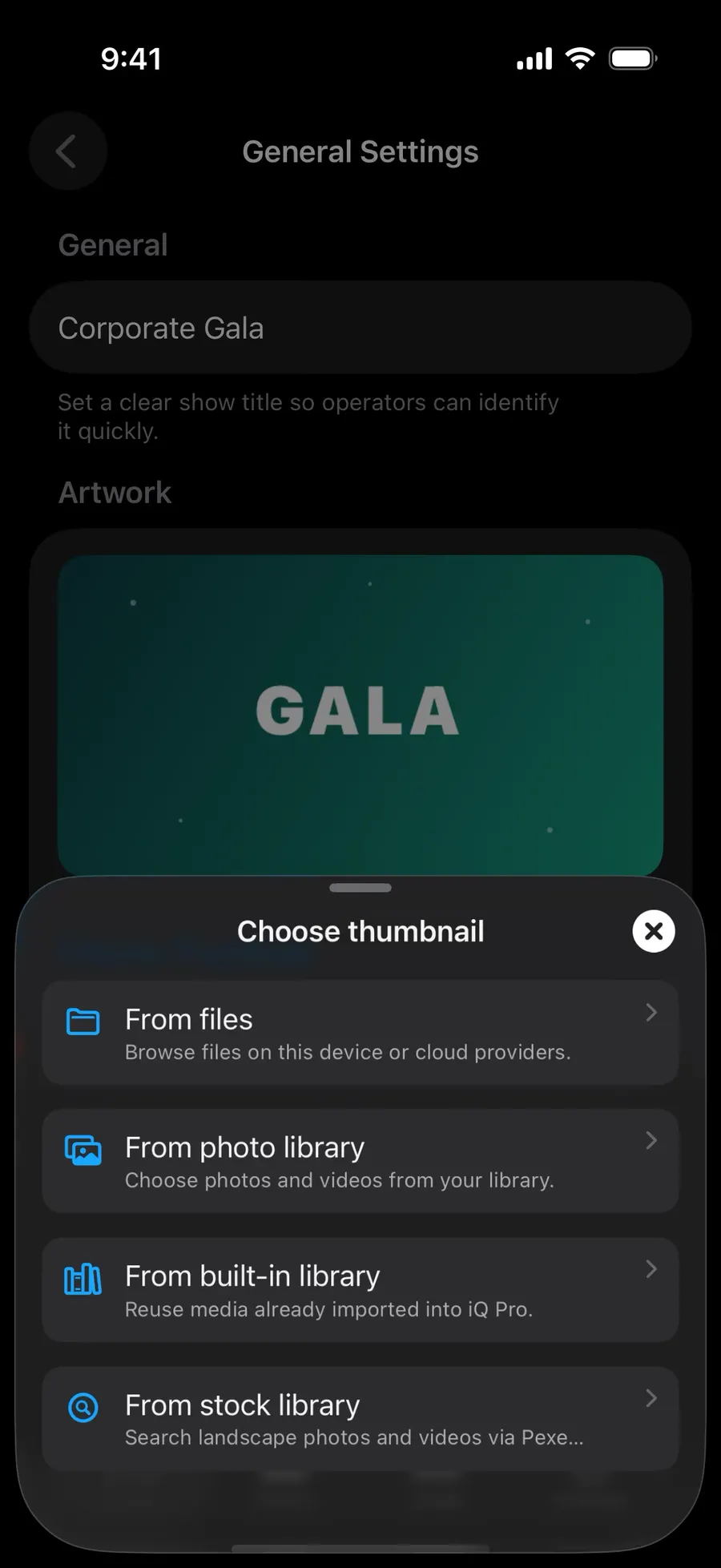
Pick a source for the artwork - 4
Pick the image. It appears under Artwork straight away.
To go back to the plain tile, tap Remove Thumbnail.
