
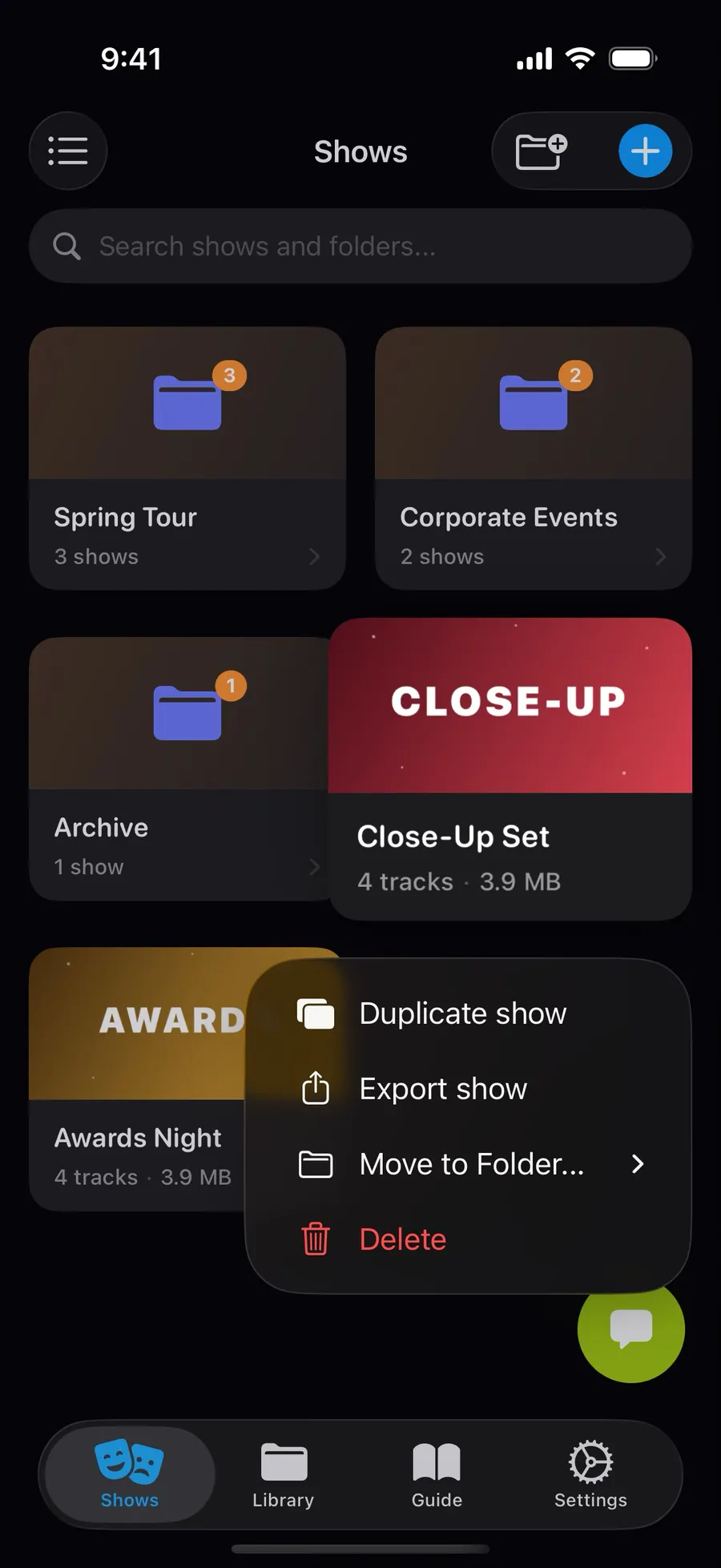
Touch and hold a show on the Shows tab to see what you can do with it.
Rename a show
- 1
Open the show.
- 2
Tap its name at the top of the show editor.
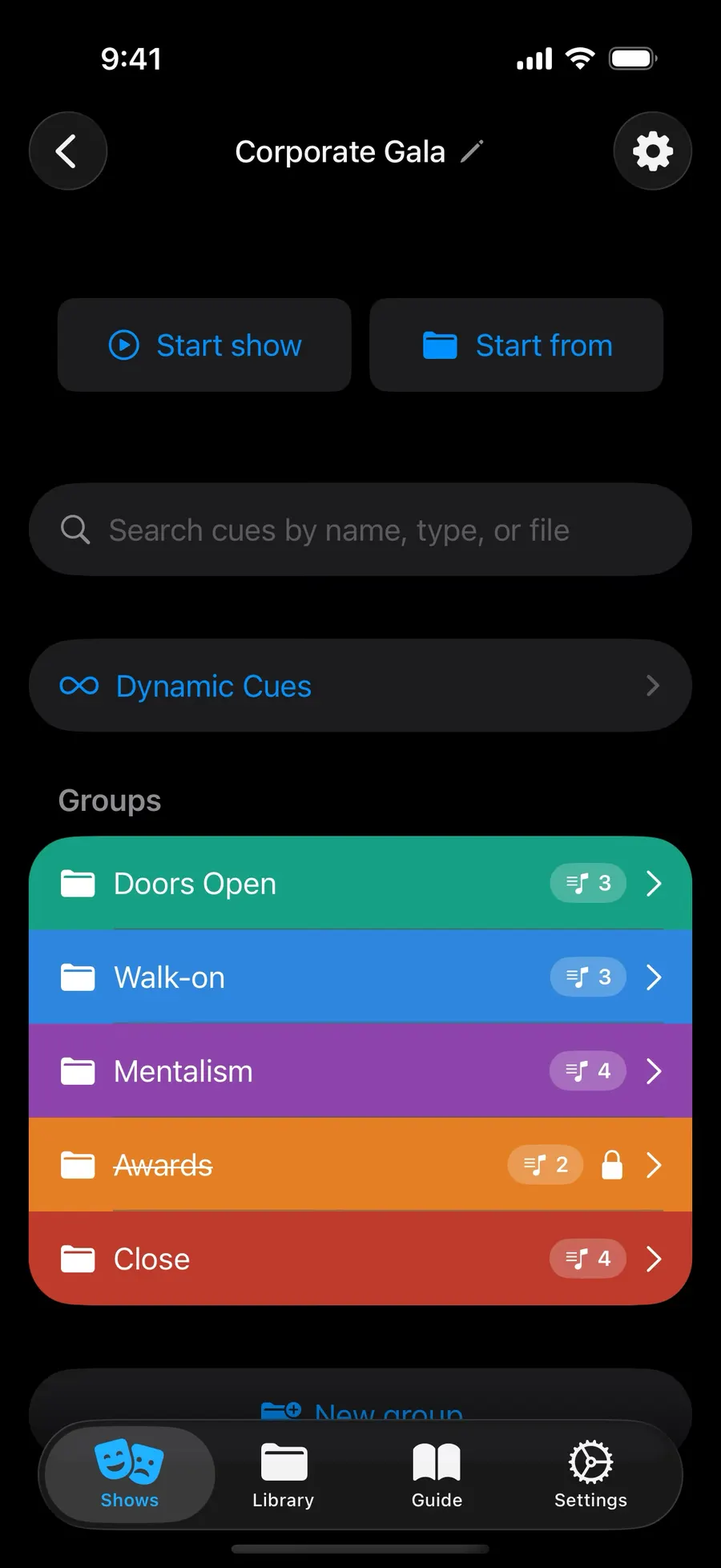
Tap the name to rename the show - 3
Type the new name and tap Save.
You can also rename it in the show's settings: tap the gear, then General Settings, and edit Show Name.
Duplicate a show
Touch and hold the show and tap Duplicate show. The copy has 2 on the end of its name, and includes every group, cue and setting, plus the show's artwork.
Duplicate a show before making big changes, so you can always go back, or to make a version for a different venue.
Move a show to a folder
Touch and hold the show, tap Move to Folder..., then tap a folder. All Shows moves it back to the top level, and a tick shows where it is now.
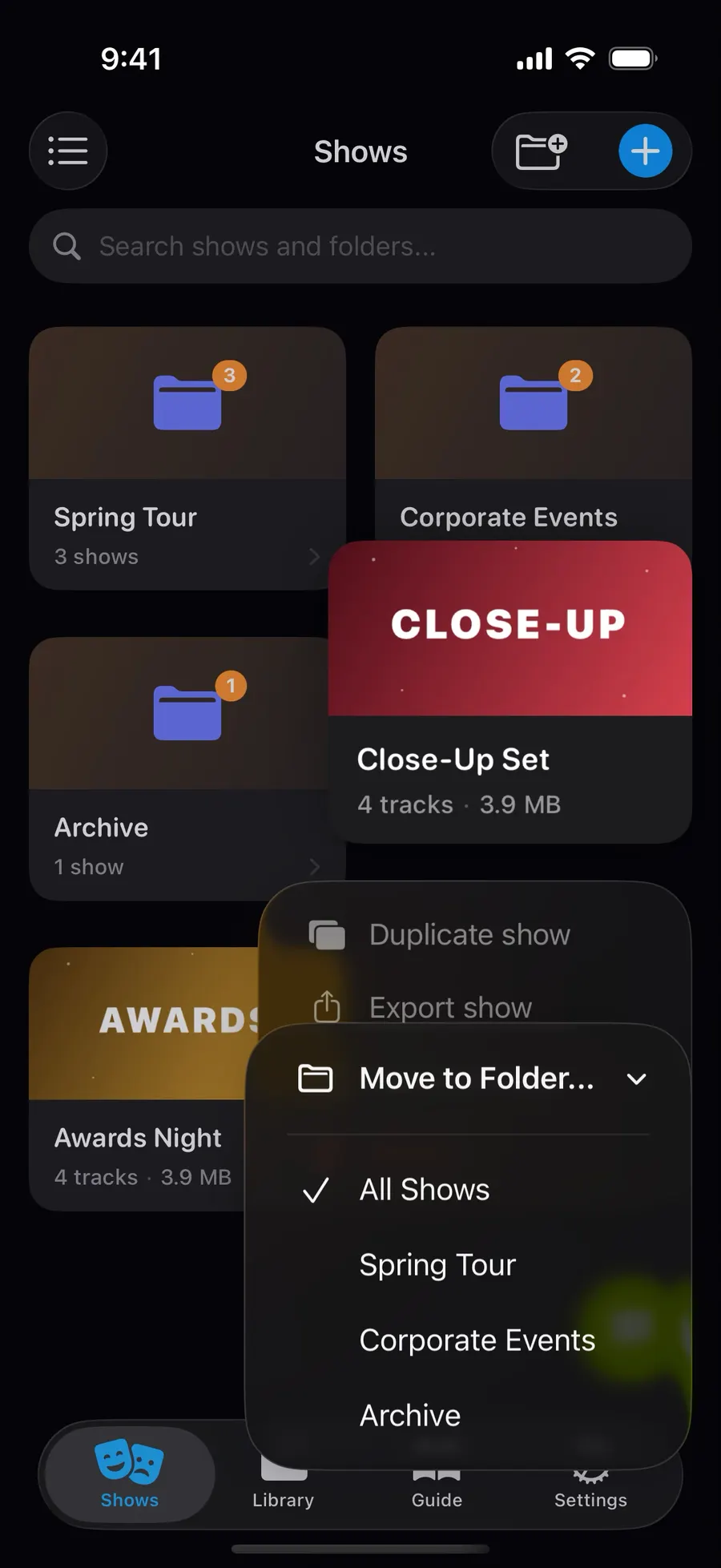
You can also drag a show onto a folder.
Delete a show
Touch and hold the show and tap Delete.
Deleting a show doesn't delete its media from your Library. To free up space, delete unused files there.
Open your shows in iQ Pro