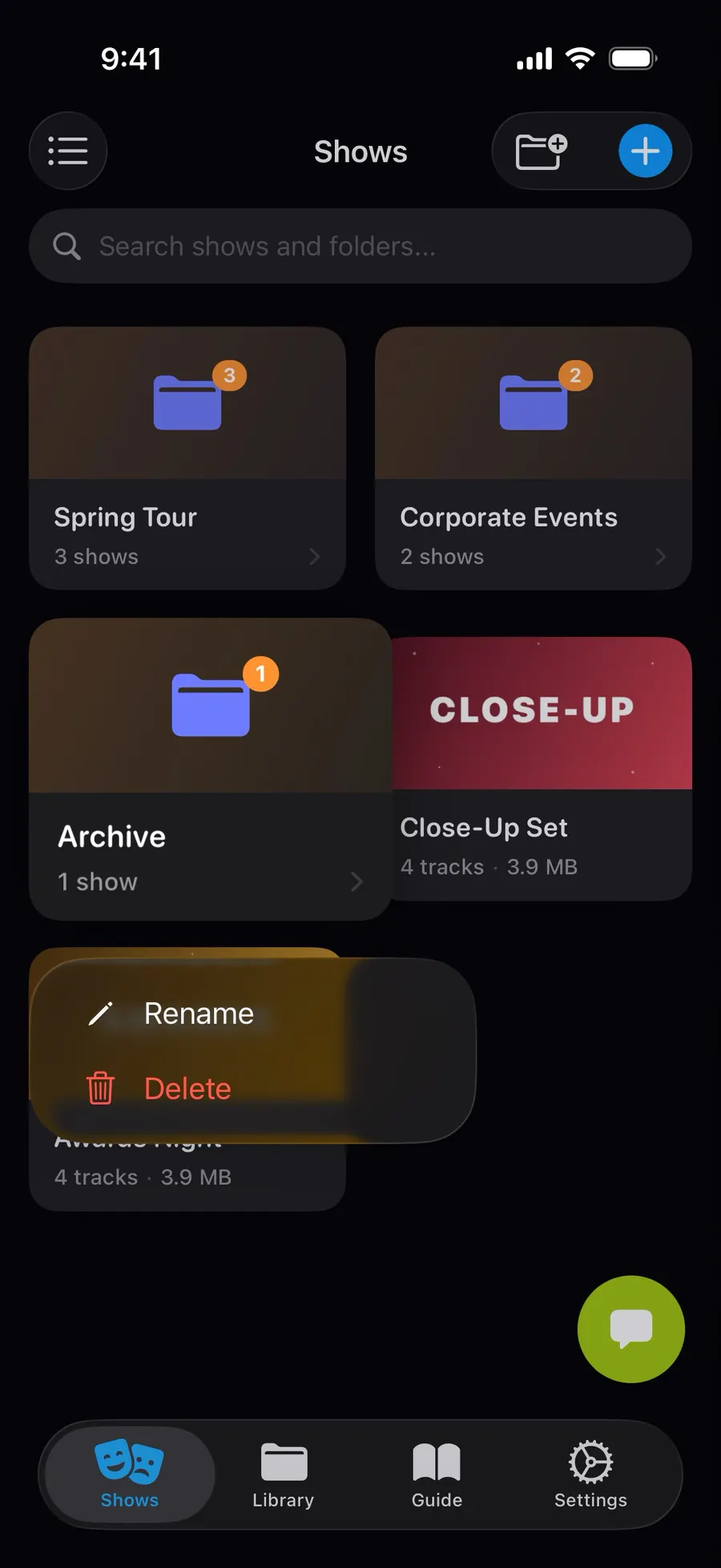
Folders keep the Shows tab tidy once you have more than a handful of shows: one per tour, client or season, say. Folders are listed first, with a count of what's inside.
Create a folder
- 1
On the Shows tab, tap the folder button at the top right, next to +.
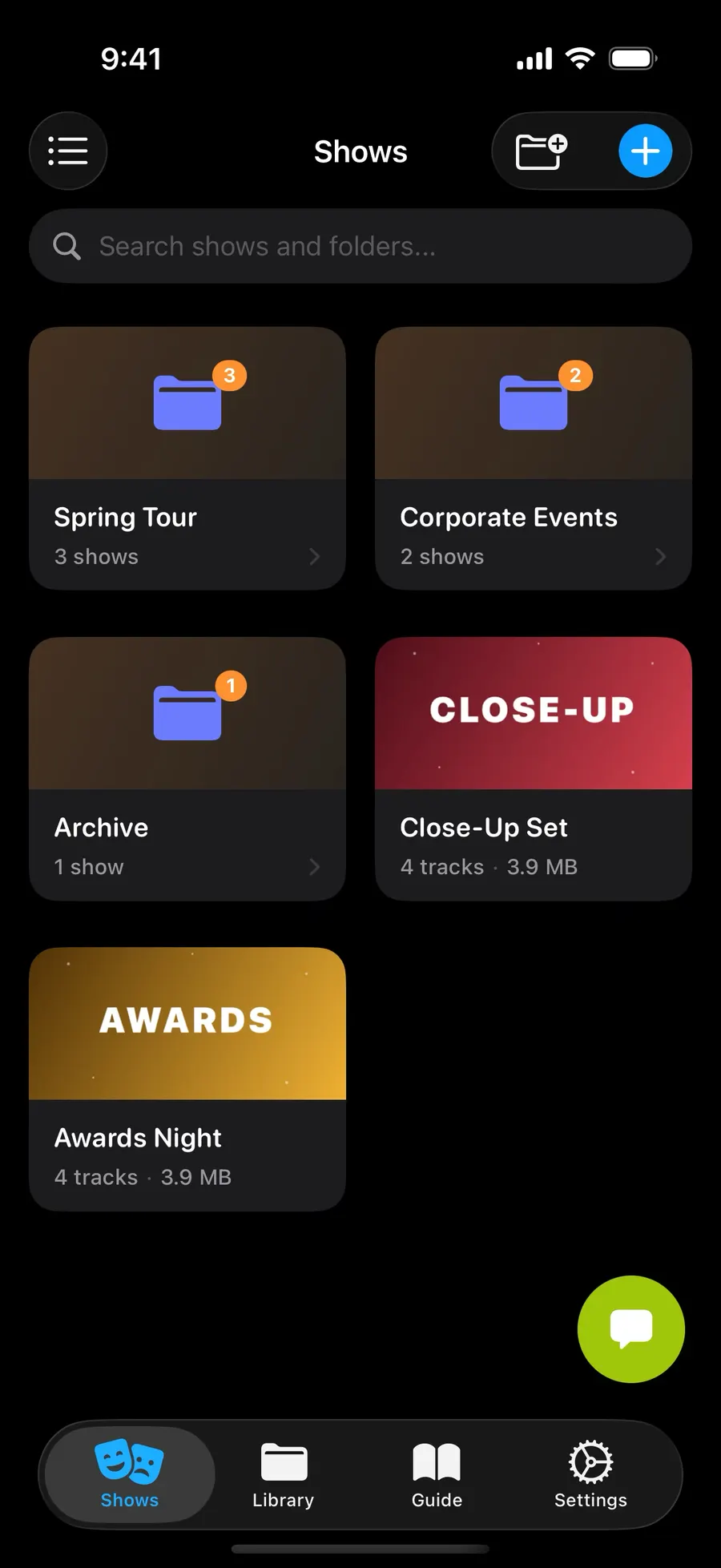
The folder button sits next to + - 2
Type a Folder Name and tap Create.
To make a folder inside a folder, open the folder and tap its folder button. You can nest folders as deep as you like.
Open a folder
Tap a folder to open it. Its shows and any folders inside it are listed, and the back button returns you to where you were.
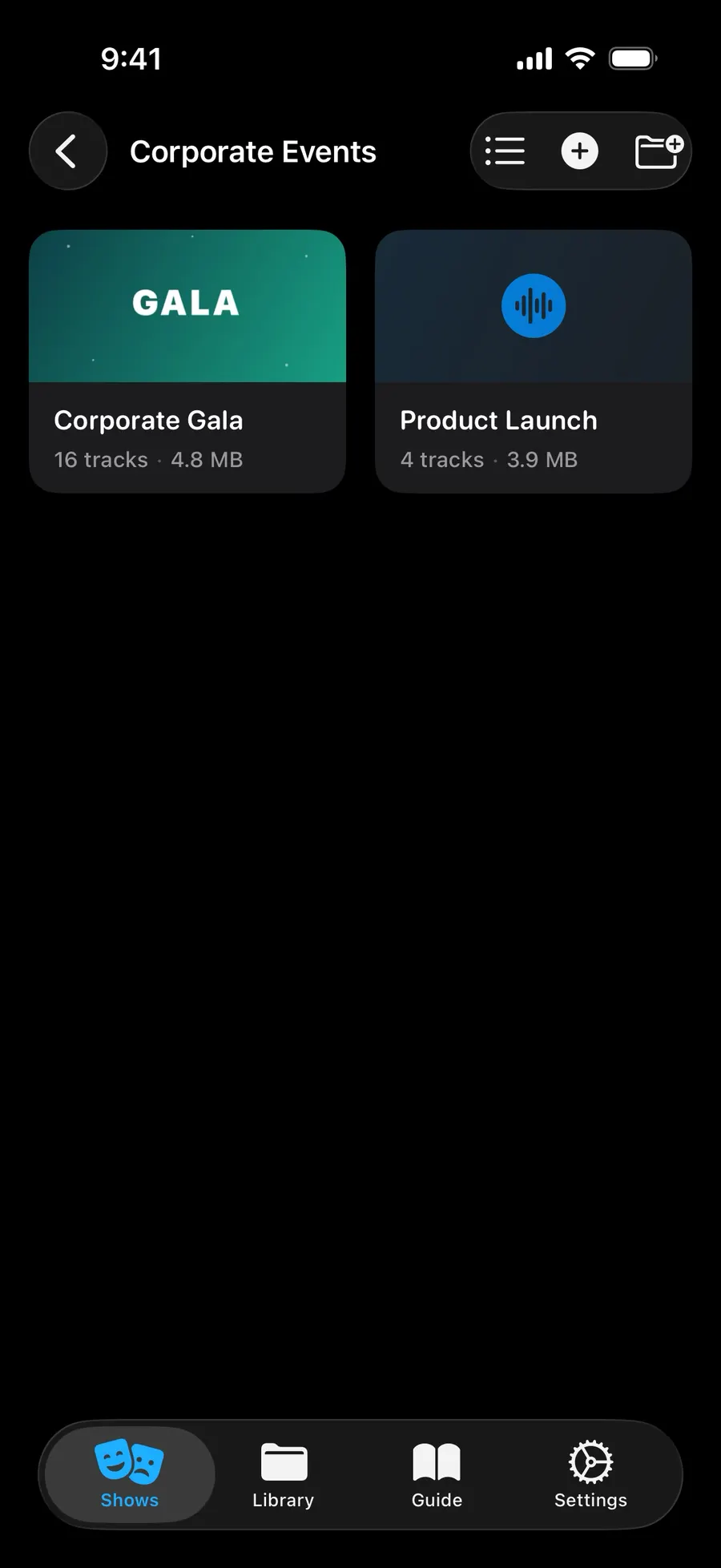
Inside a folder, + creates a new show in that folder, and the folder button creates a folder inside it.
Move a show into a folder
Either:
- Touch and hold the show, tap Move to Folder..., then tap the folder. Choose All Shows to move it back to the top level.
- Or touch and hold the show and drag it onto a folder.
See Rename, duplicate, move and delete shows.
Rename or delete a folder
Touch and hold a folder, then tap Rename or Delete.