
Every cue starts in the Add Cue sheet: media, transitions and control cues, all in one place.
Add a cue
- 1
Open a group and tap Add cue below its cues. In an empty group, tap Add your first cue.
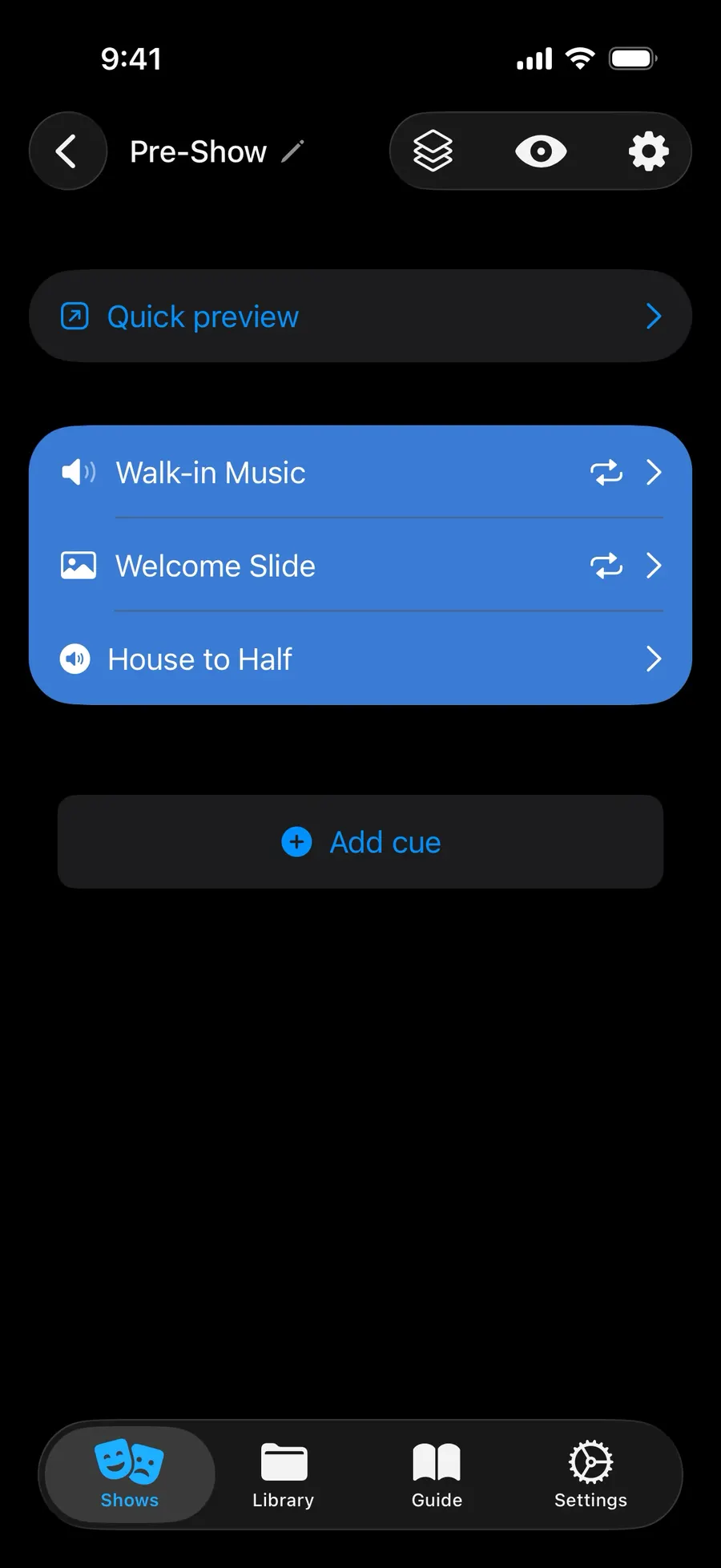
Add cue sits below the group's cues - 2
Tap a cue type.
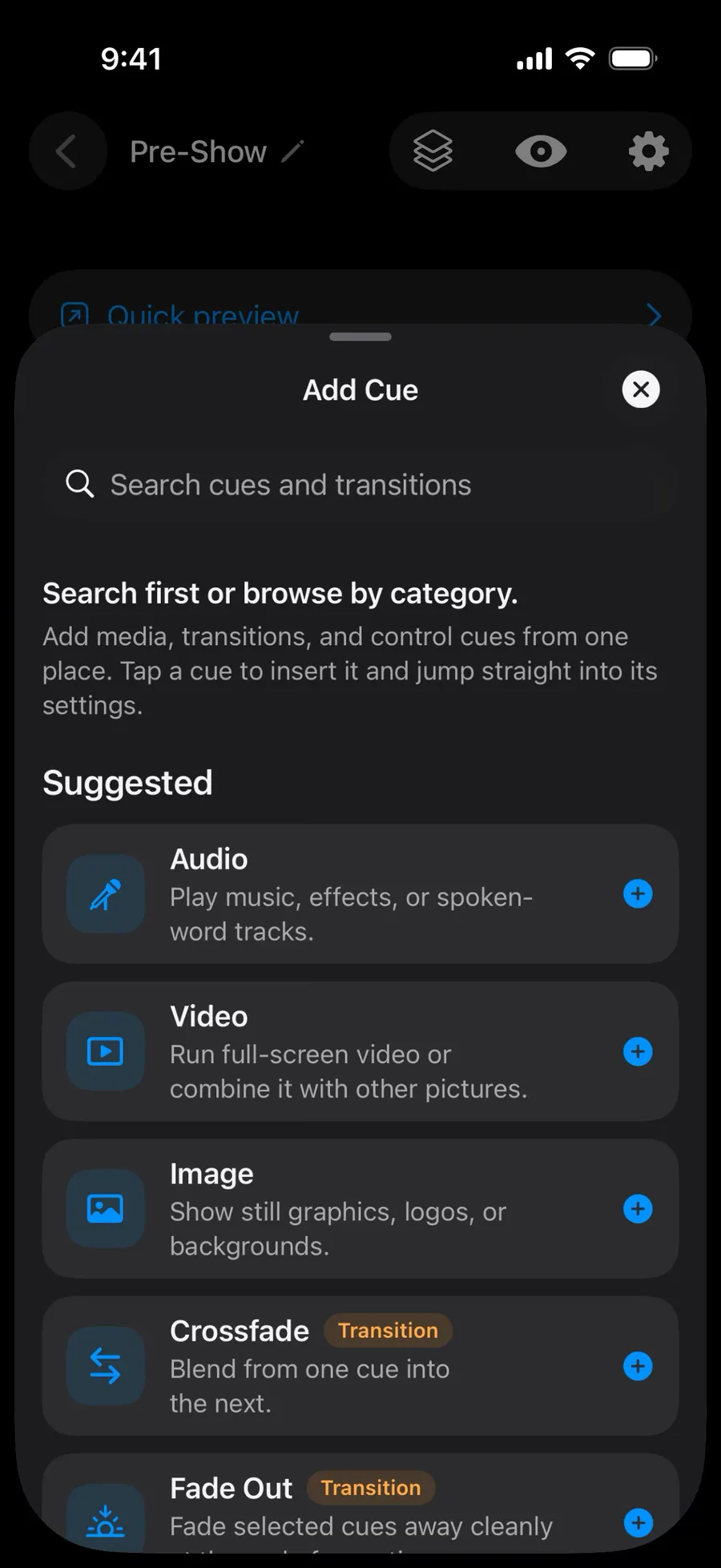
Suggested cues come first - 3
iQ Pro adds the cue to the end of the group and opens its settings, ready for you to choose its file and name it.
New cues are named after their type, such as Audio 4 or Fade out. Give each one a name you'll recognise mid-show.
What's in the picker
The sheet is split into categories:
- Suggested: the cues you'll use most: Audio, Video, Image, Crossfade and Fade Out.
- Media: cues that put something on screen or play a sound: Audio, Voice-over, Video, Image, Slide, Loop, Animated Background, Camera and Zoom.
- Transitions: cues that change what's already playing: Fade In, Fade Out, Crossfade, Cut, Animate Cue, Play/Pause Video and Volume. Each has an orange Transition label.
- Control: cues that talk to other equipment: Web View, MIDI, OSC and ATEM.
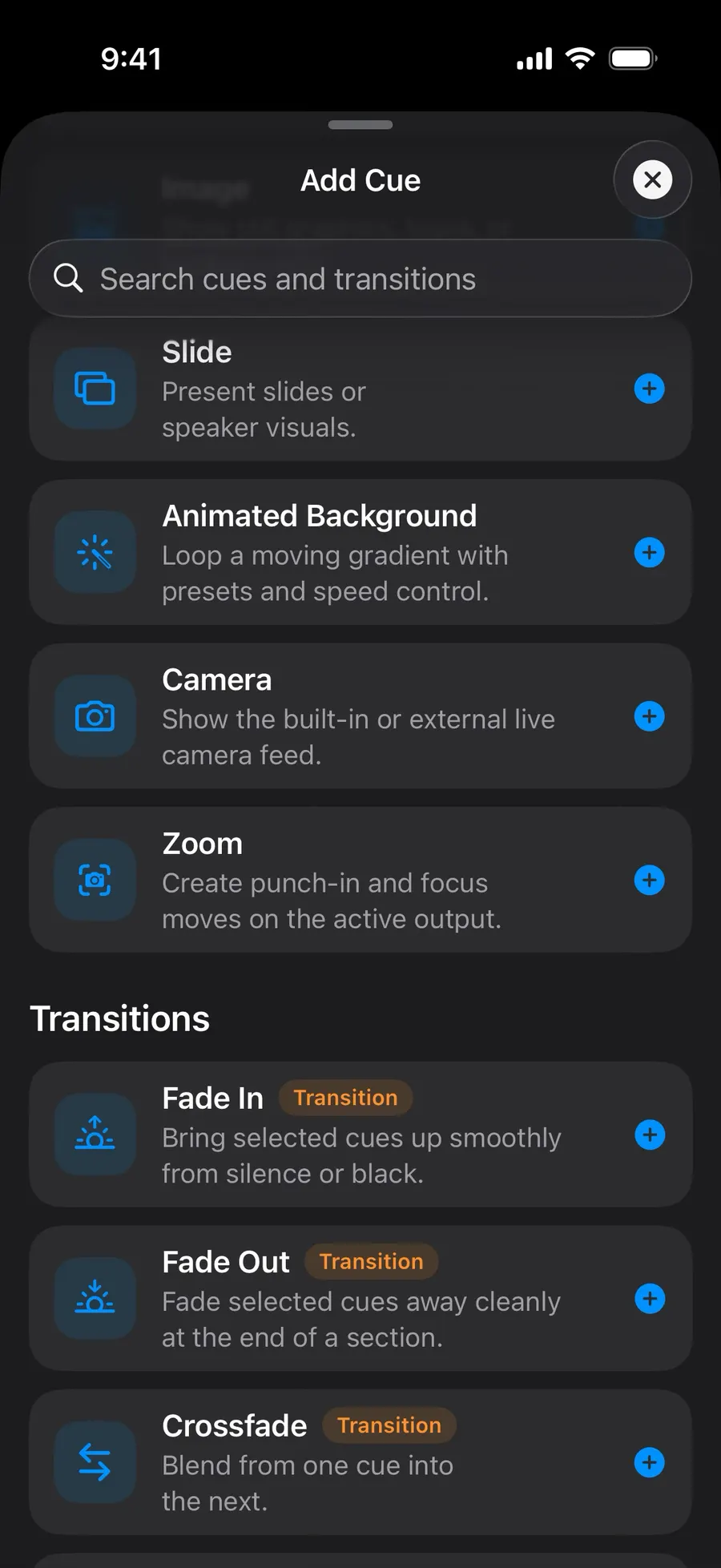
Search for a cue
Type in Search cues and transitions at the top. iQ Pro searches the names and descriptions, so fade, music or lights all find something useful.
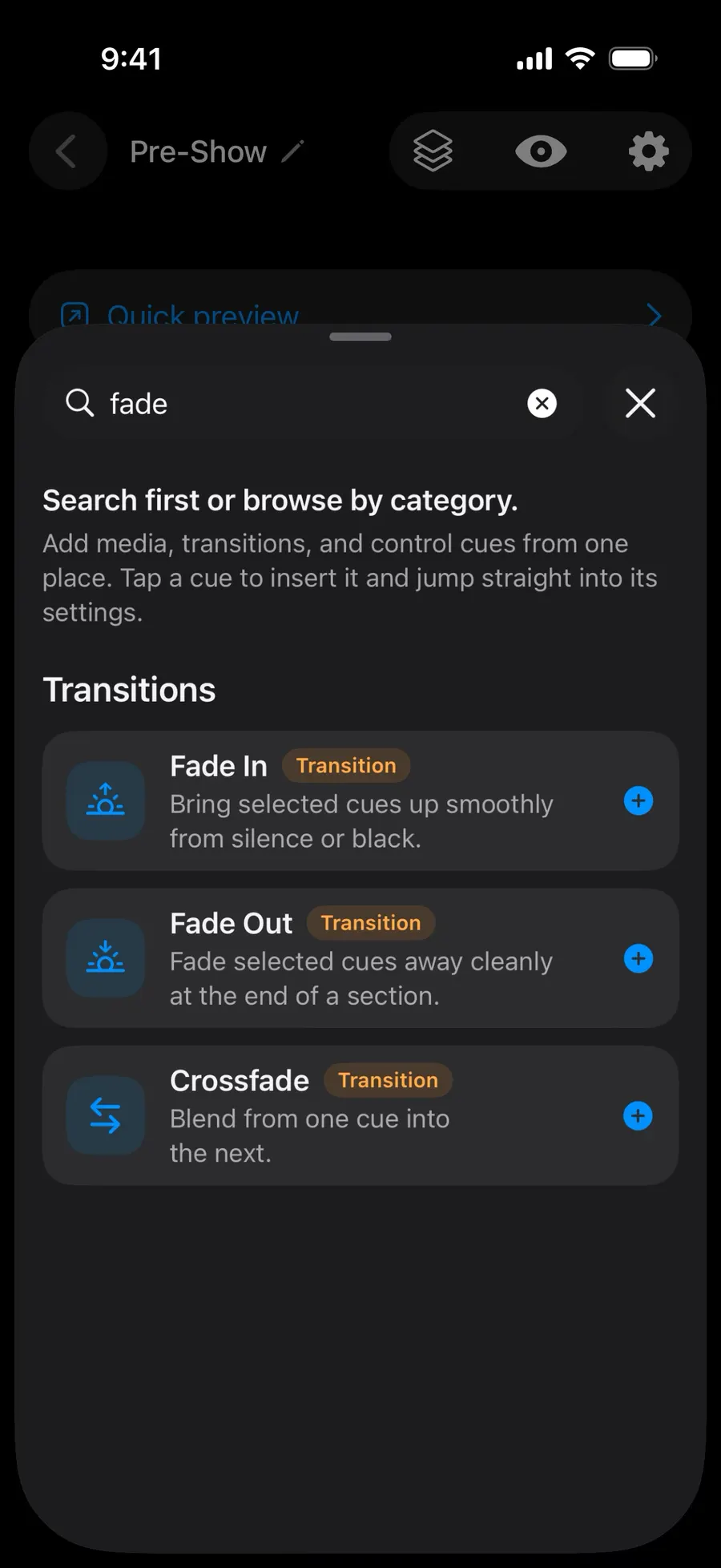
If nothing matches, you'll see No cues found. Try a broader word, like video, fade or MIDI.
Step-by-step guides for each cue type are in their own sections, starting with Add an audio cue. To have a voice read a script, see Voice-over cues.
