
Not every gig needs every routine. Disabling a group skips it when you run the show, but keeps it ready for next time.
Disable or enable a group
- 1
In the show editor, touch and hold the group.
- 2
Tap Disable. To bring a disabled group back, tap Enable instead.
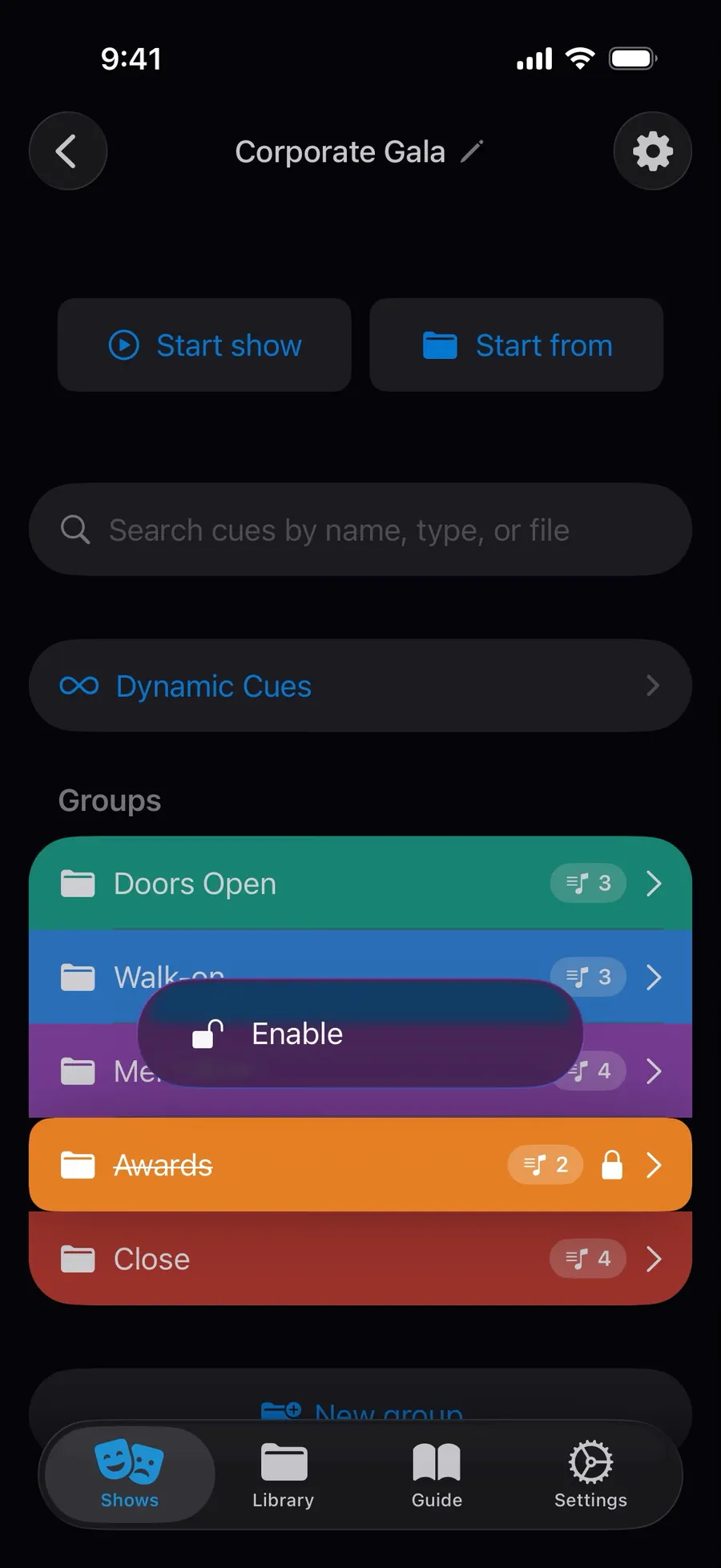
Awards is disabled; Enable brings it back
A disabled group has a lock and its name is struck through. When you run the show, iQ Pro skips it: its cues don't fire and don't appear in the Perform screen's cue list.
Copy groups to another show
To use a group in another show, open that show and copy the group in with New group › Choose from library. Its cues, colours and settings all come with it. See Import a group from another show.
To copy a single cue rather than a whole group, use Copy cue and Paste cue. See Edit, reorder, copy, paste and duplicate cues.
