
You can add a transition from the Add Cue sheet, but the quickest way is from the cue it belongs to. iQ Pro puts it in the right place and links it to the right cues for you.
Add a transition
- 1
Open the group and touch and hold a cue.
- 2
Under Add Transition, tap one of:
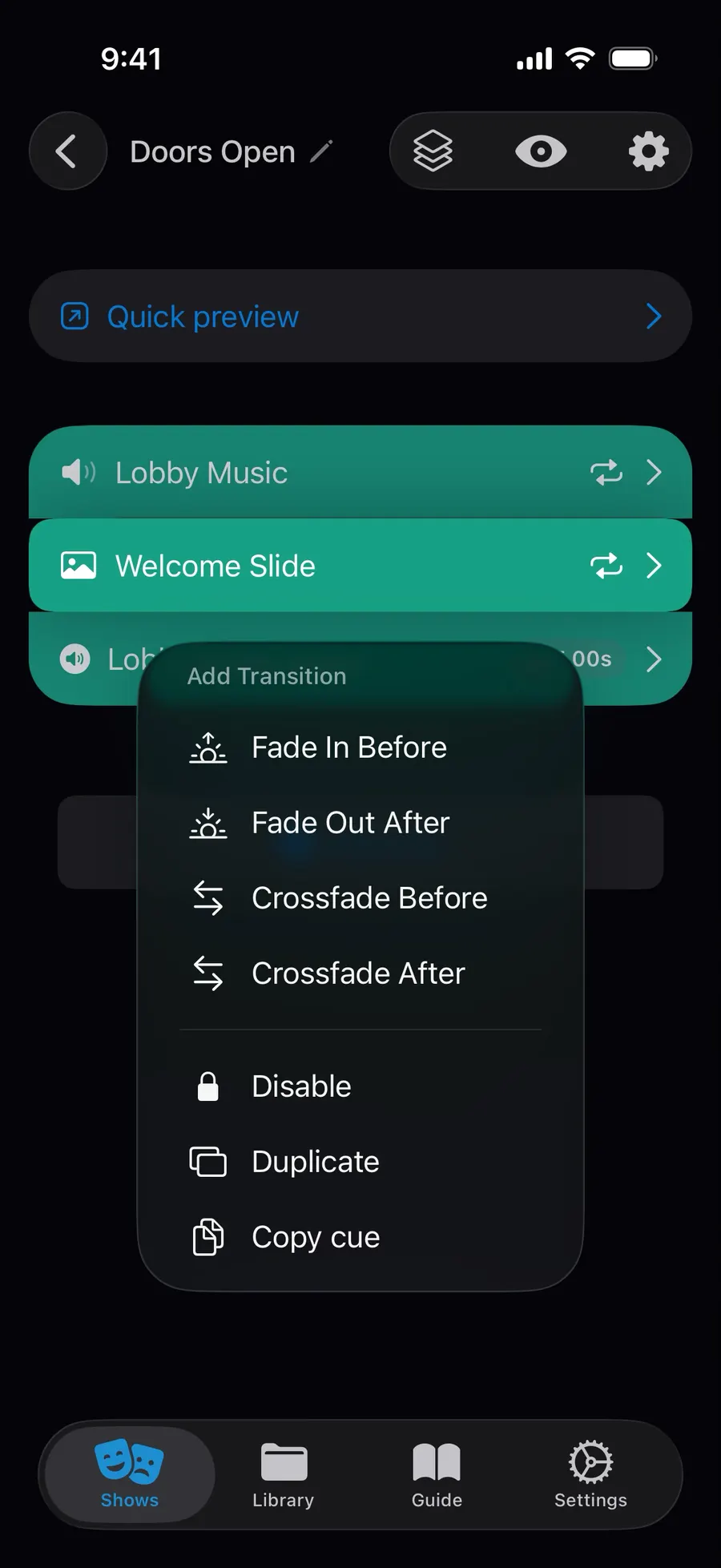
Add Transition: four ways to bring a cue in or take it out
- Fade In Before: adds a fade in just before the cue, so it comes up smoothly.
- Fade Out After: adds a fade out just after it, ready to take it away.
- Crossfade Before: adds a crossfade from the cue before into this one.
- Crossfade After: adds a crossfade from this cue into the next one.
The transition is named Fade in, Fade out or Crossfade. Tap it to change its length and the cues it affects.
Check what a transition affects
A linked transition shows a wand in the group. Touch and hold it and tap Preview attached cues: the cues it acts on are highlighted, including any in other groups.
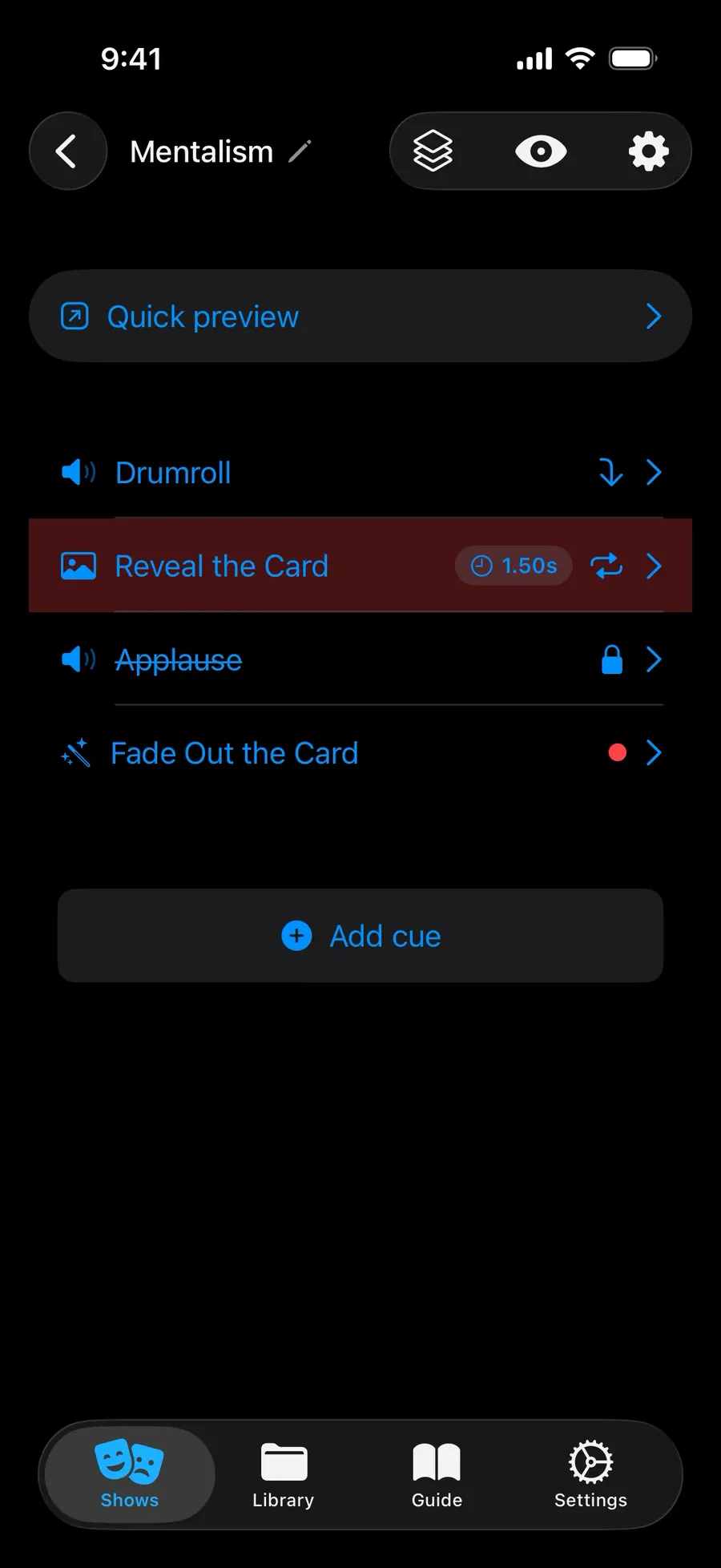
Touch and hold it again and tap Hide preview attached cues to go back to normal.
