
You don't need to run the whole show to check one routine.
Quick preview
- 1
Open the group.
- 2
Tap Quick preview at the top.
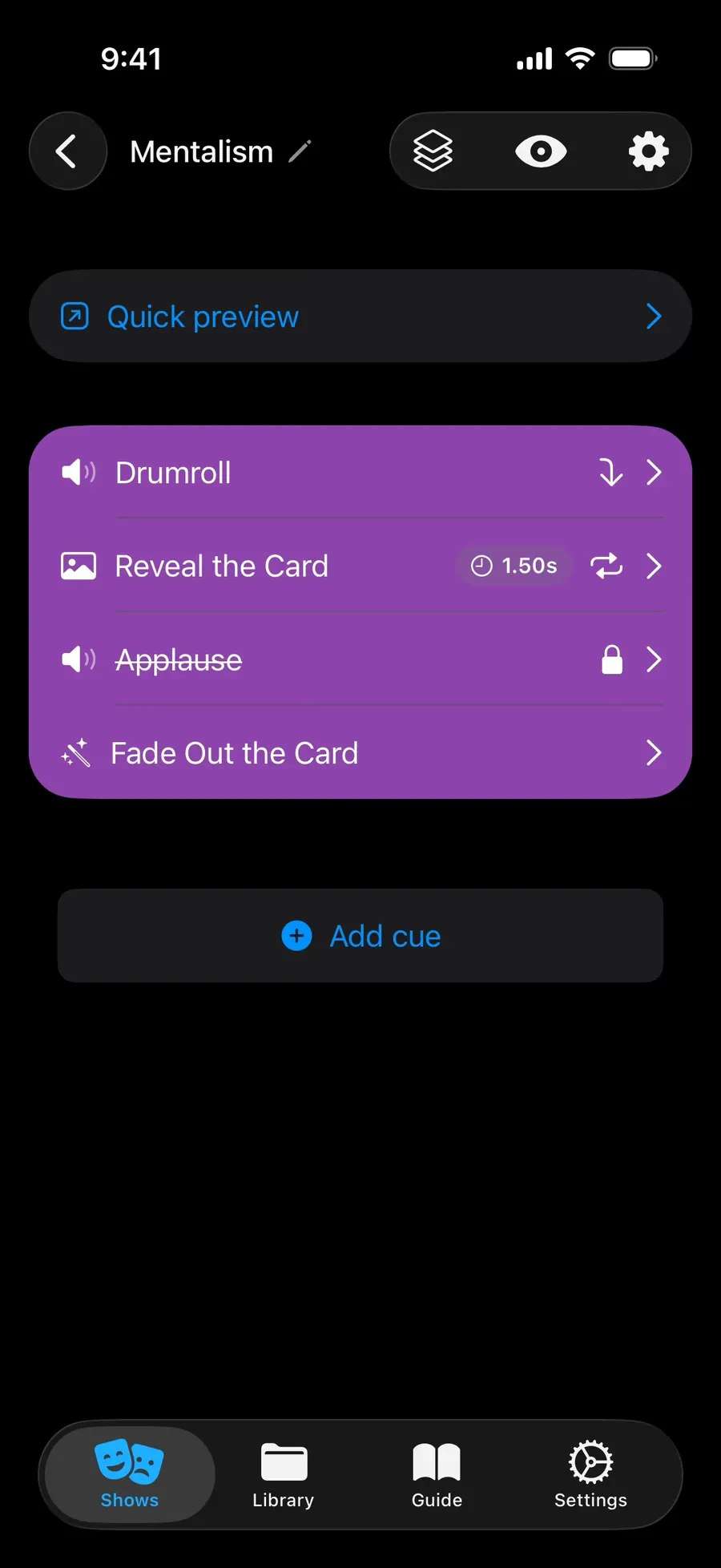
Quick preview runs just this group - 3
The Perform screen opens with just this group's cues. Tap Cue to fire each one.
- 4
Tap back at the top left when you're done.
Quick preview works exactly like the show: same output, same timings, same transitions. It's ideal for tweaking a cue, previewing it, and tweaking it again.
Start from a group
To pick up part-way through, such as in a rehearsal or after a break, start the show from any group:
- 1
In the show editor, tap Start from.
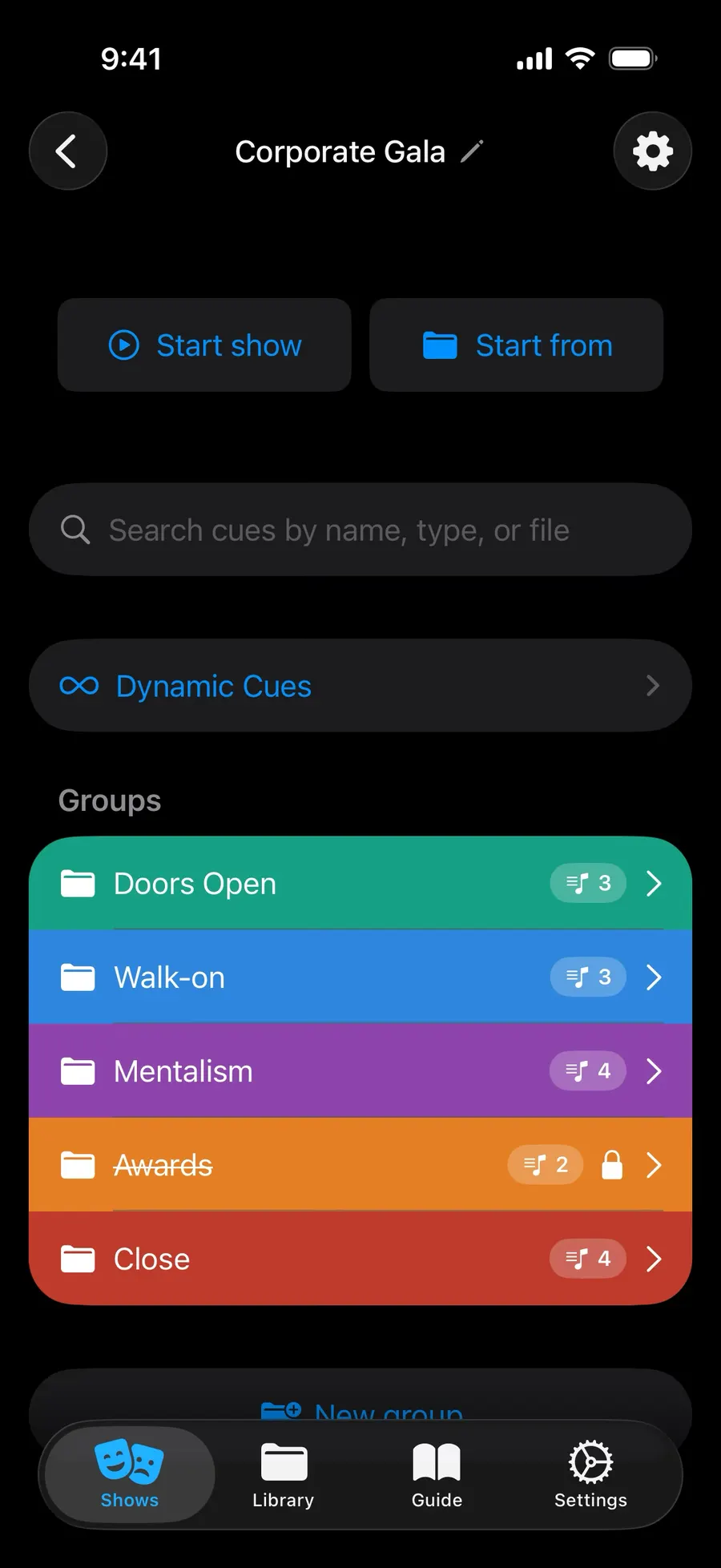
Start from sits next to Start show - 2
Tap the group to start at.
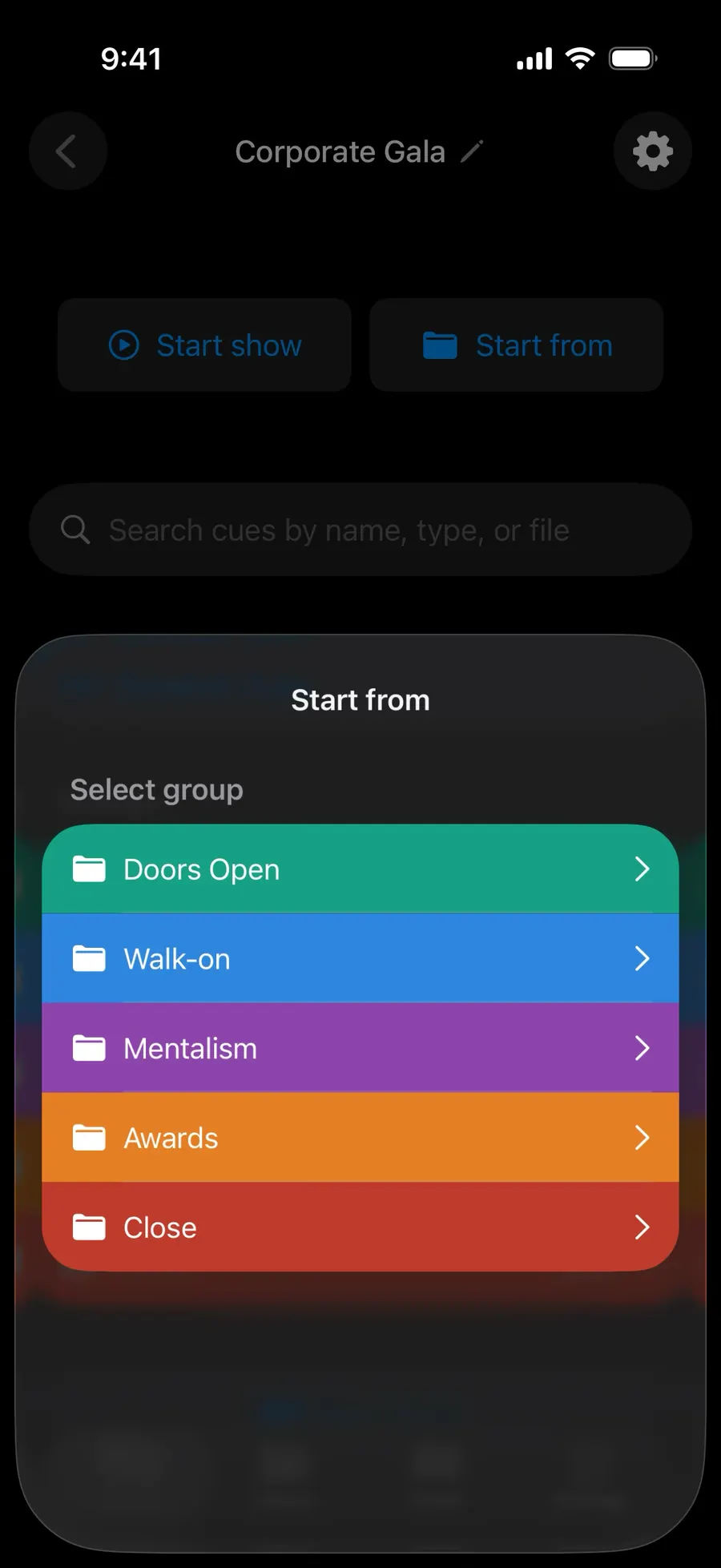
Start from Mentalism
The Perform screen opens with that group and every group after it.
On iPad in landscape, touch and hold Start show and tap Start from…, or touch and hold a group and tap Start from here. Quick preview is the play button at the top of the cue panel.
The Perform screen at a glance explains every control.
