
Create a group
- 1
In the show editor, tap New group at the bottom of the list.
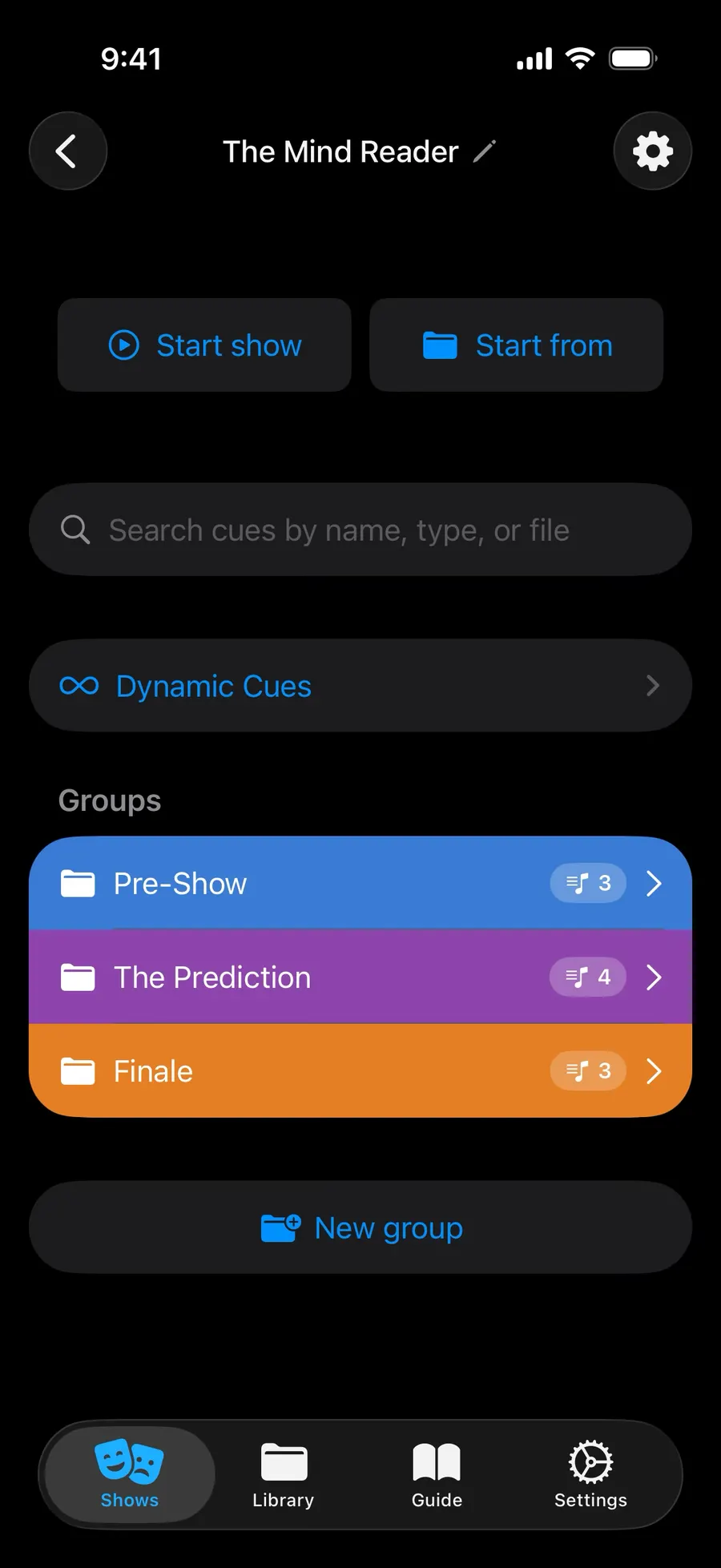
New group sits below the groups - 2
Tap Create empty group to start from scratch, or Choose from library to copy groups from another show.
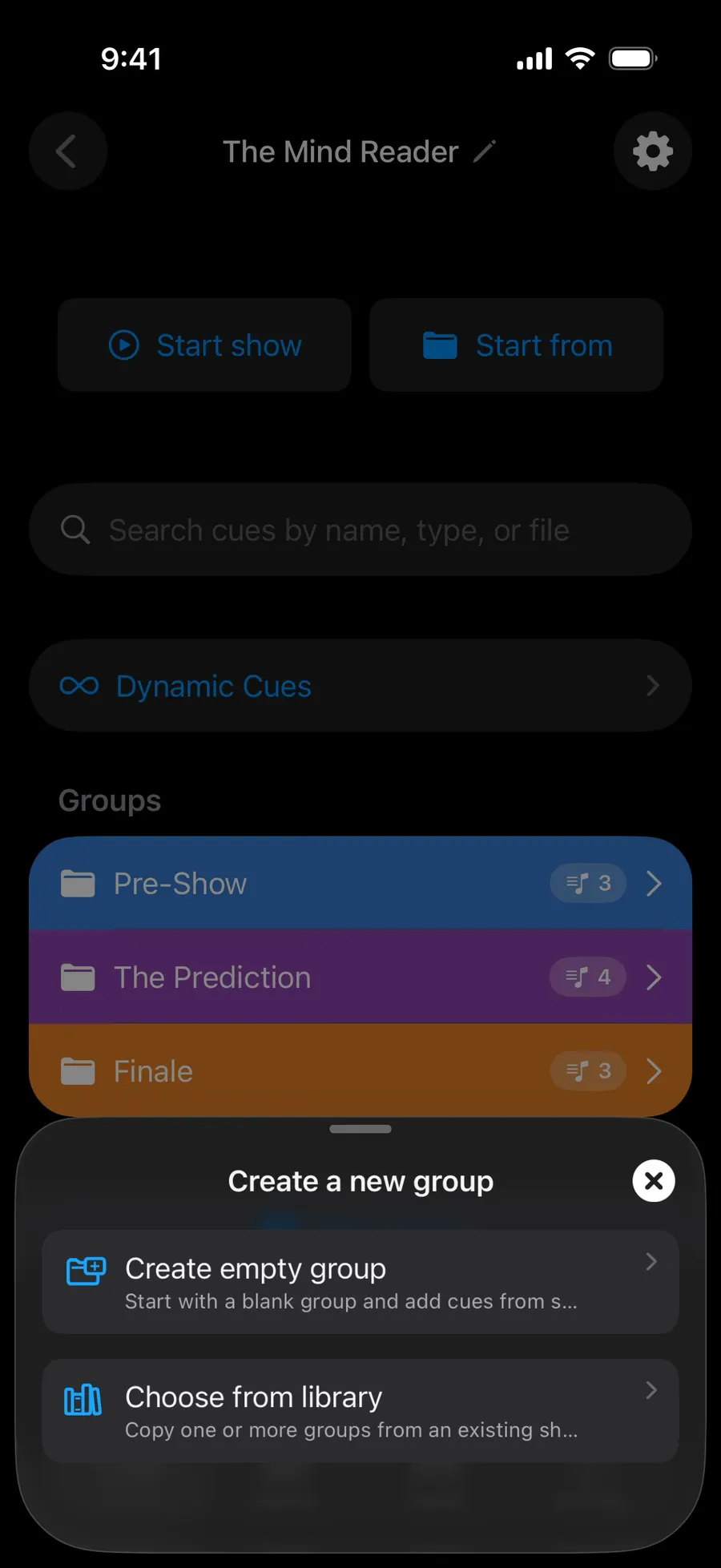
Two ways to add a group
An empty group is named Group 1, Group 2 and so on, and opens straight away, ready for its first cue. On iPad in landscape it's selected in the panels instead. Copying from another show is covered in Import a group from another show.
Rename a group
Open the group, tap its name at the top, type the new name and tap Save.
Colour a group
- 1
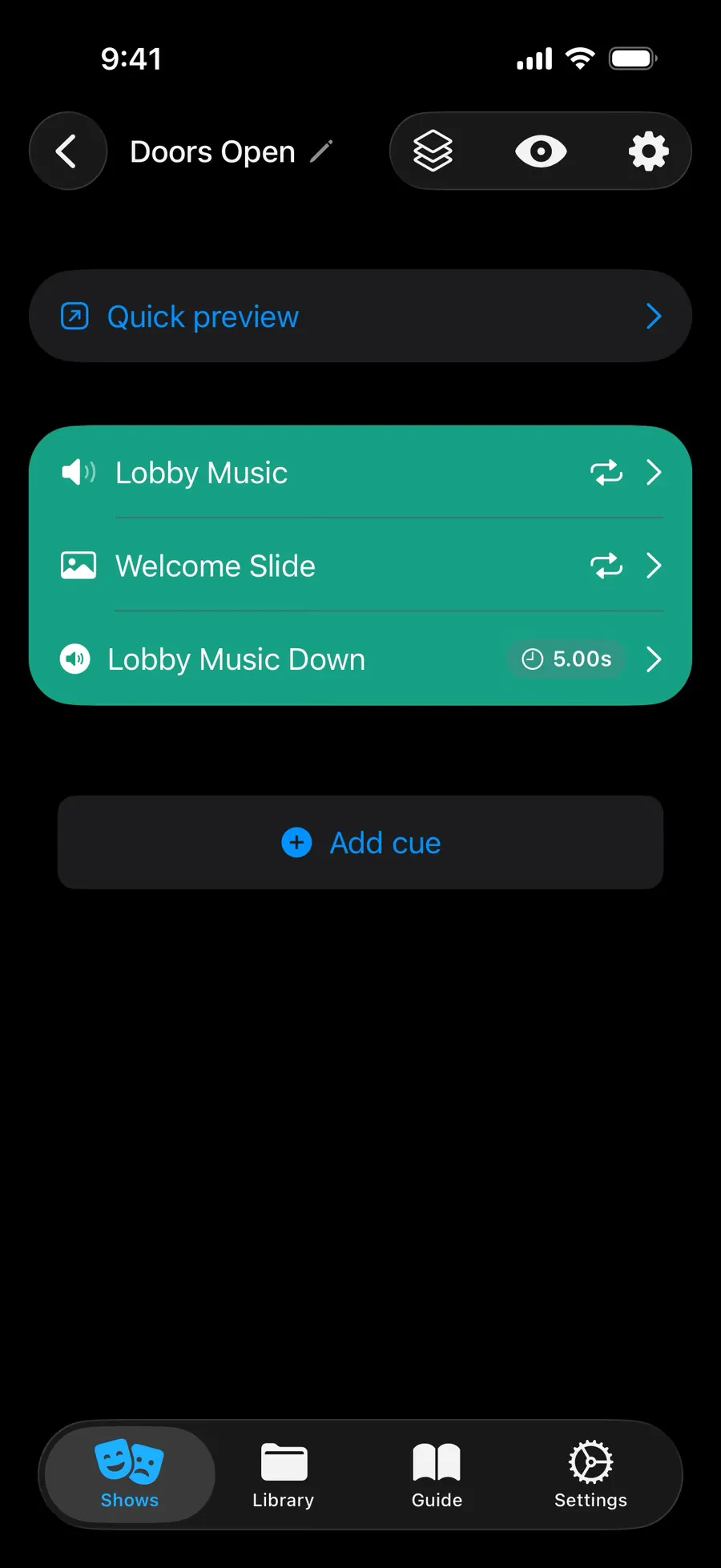
Open the group and tap the gear at the top right.
- 2
Turn on Color code, then tap Set color and pick a colour.
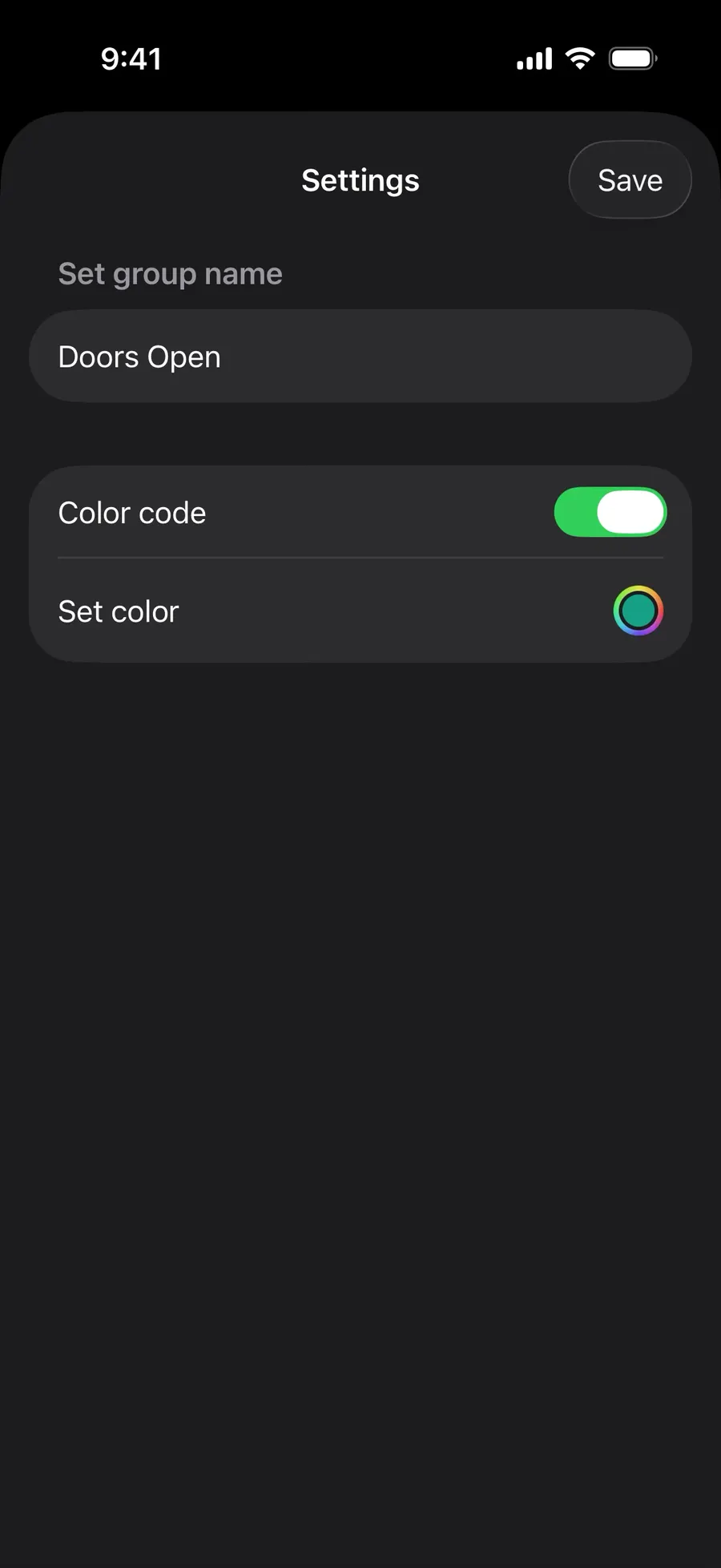
Name and colour a group - 3
Tap Save.
On iPad in landscape, tap … at the top of the cue panel, then Group settings, instead. Turn on Colour code and tap a colour or Custom colour; it changes straight away, with no Save.
The colour fills the group's row in the show editor and its cues in the group, and colours the cue list on the Perform screen, so you always know which part of the act you're in. You can also rename the group here, under Set group name.
Reorder groups
In the show editor, touch and hold a group, then drag it up or down. Groups play in the order they're listed.
Delete a group
In the show editor, swipe left on a group and tap Delete.
