
Edit a cue
Tap a cue to open its settings. What you see depends on the cue type, but most cues have the same pages underneath their own settings:
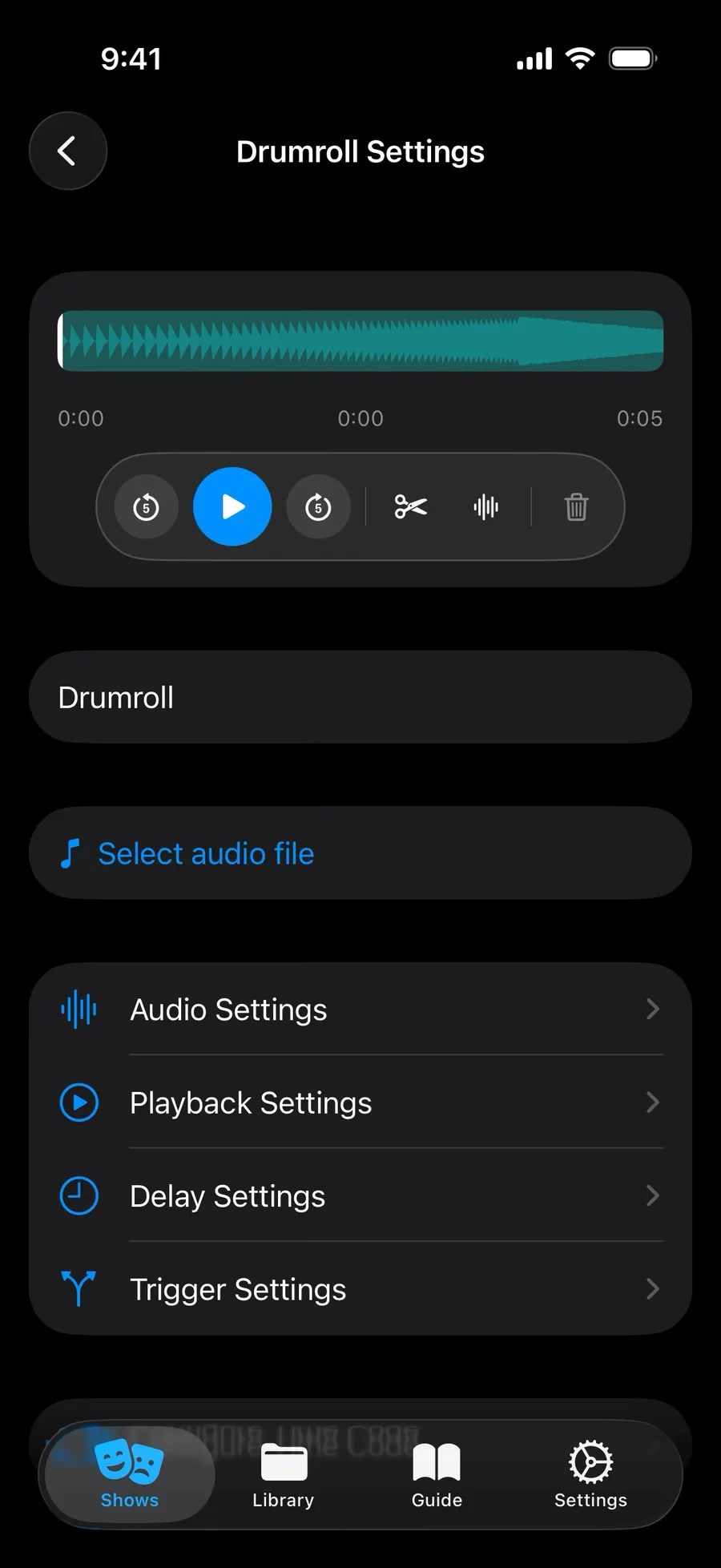
- Delay Settings: wait before the cue starts. See Cue delays.
- Trigger Settings: start the next cue automatically. See Auto-follow.
- Change Layer: where a picture sits in the stack, when the show uses manual layers.
Changes save as you make them. Tap back to return to the group.
Reorder cues
Touch and hold a cue, then drag it up or down. Cues fire in the order they're listed.
The cue menu
Touch and hold a cue for its menu.
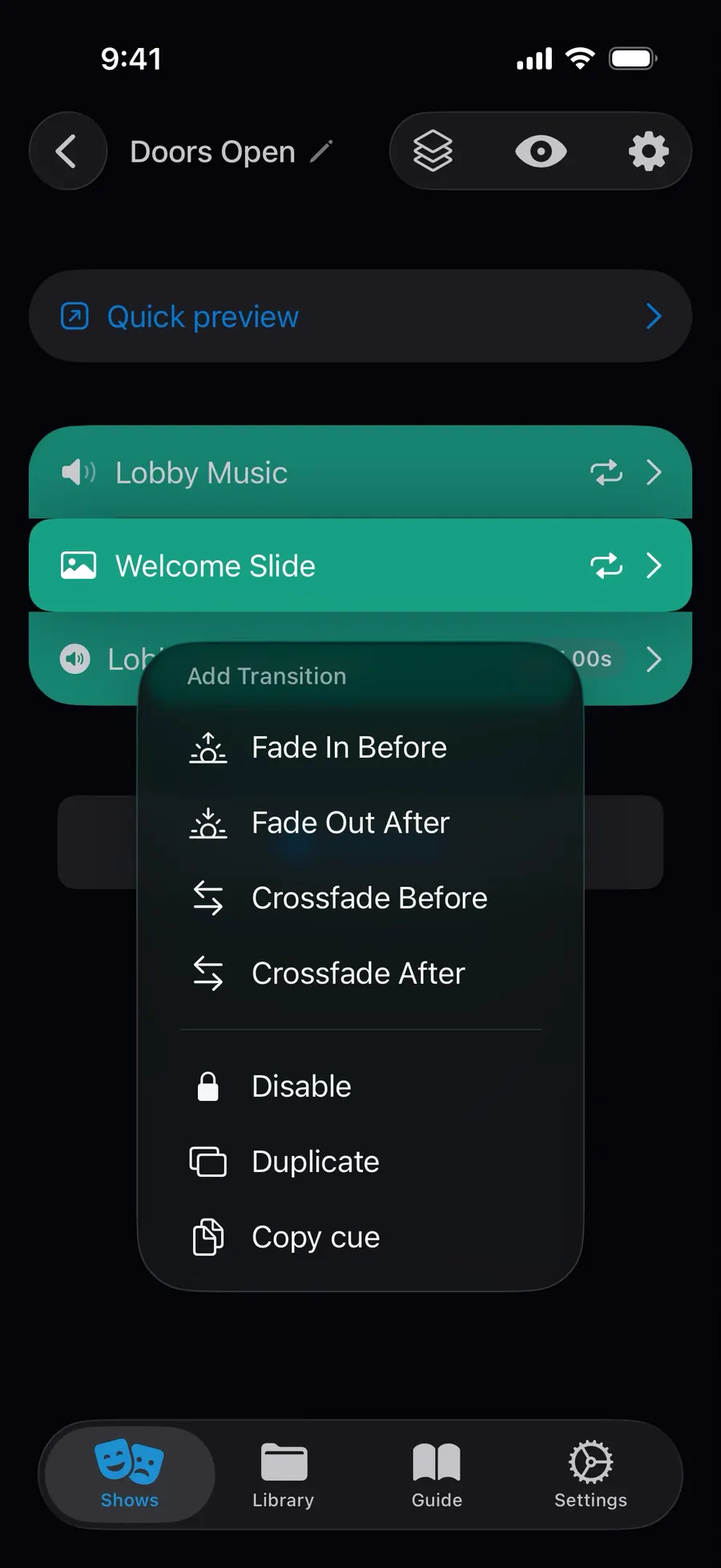
- Add Transition: add a fade or crossfade around this cue. See Quick transitions from the cue menu.
- Disable or Enable: skip the cue without deleting it. See Enable and disable cues.
- Duplicate: adds an identical copy straight after it.
- Copy cue: copies it, ready to paste.
Copy and paste a cue
- 1
Touch and hold the cue and tap Copy cue.
- 2
Open the group you want the copy in. It can be in the same show or another one.
- 3
Tap Paste cue, next to Add cue.
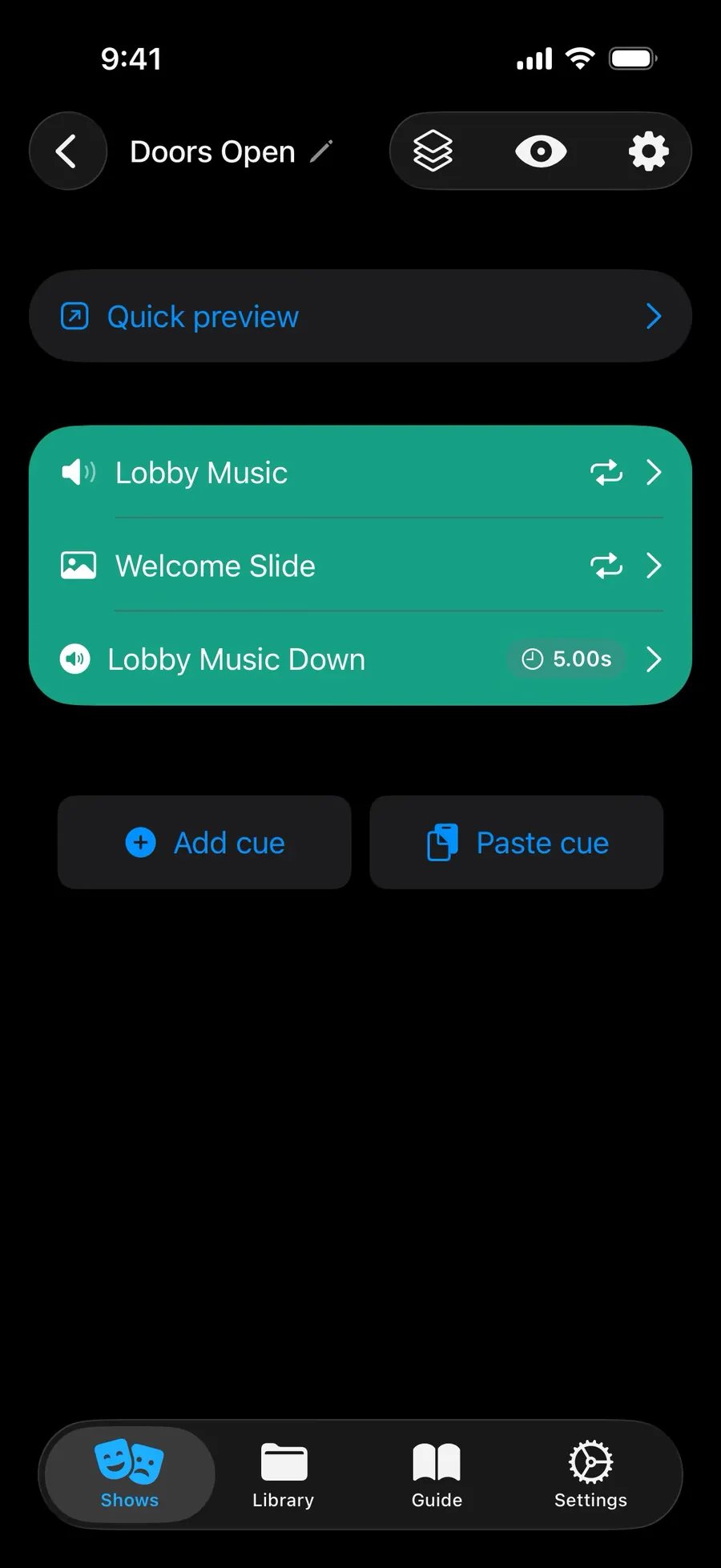
Paste cue appears once you've copied a cue
The copy is added to the end of the group, with all its settings. Paste cue stays available until you copy something else or close iQ Pro, so you can paste the same cue into several groups.
Delete a cue
Swipe left on a cue and tap Delete.
