
Disable a cue to leave it out of a performance: an applause track for a venue that doesn't need it, say, or an effect you're still working on. Everything about the cue is kept, ready to switch back on.
- 1
Open the group and touch and hold the cue.
- 2
Tap Disable. To switch it back on, tap Enable.
A disabled cue has a lock at the right and its name is struck through.
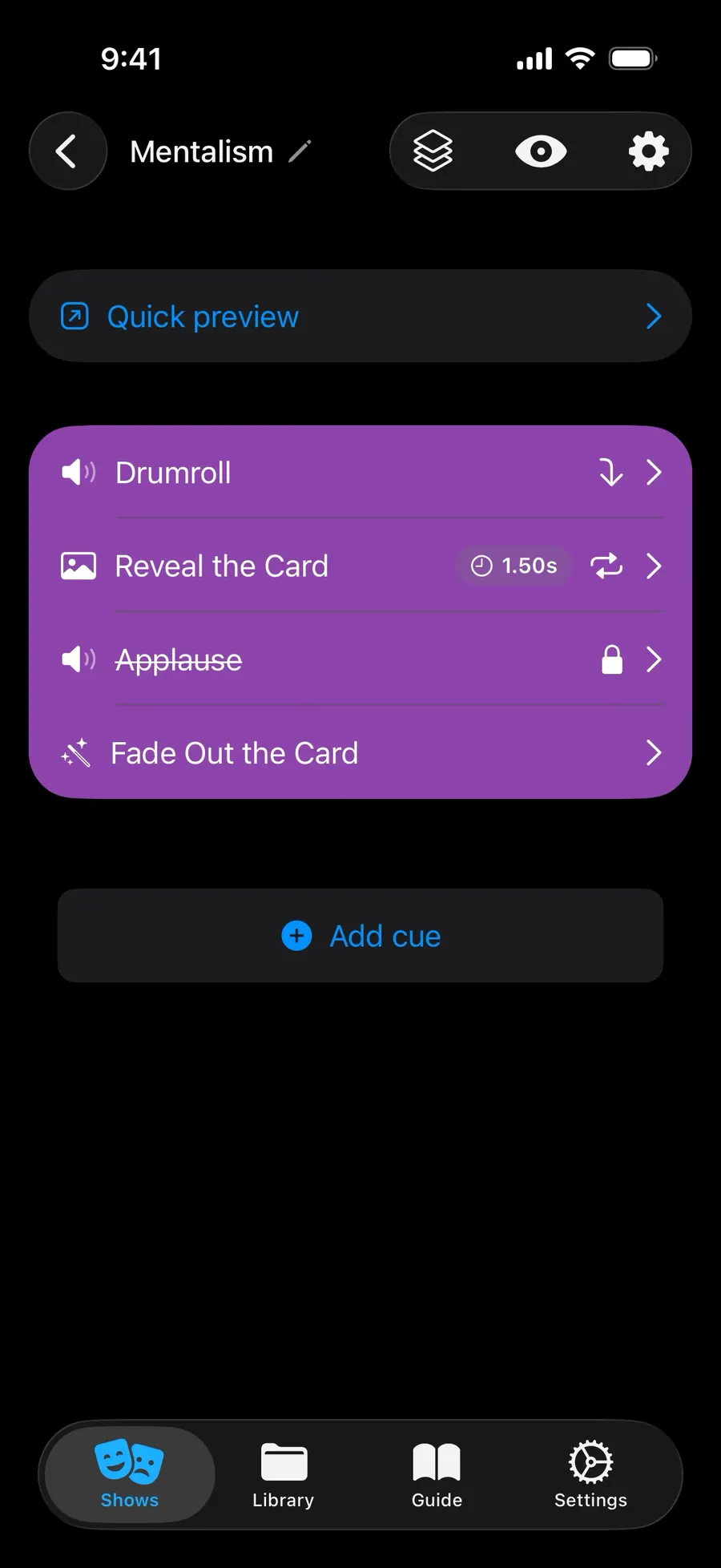
When you run the show, disabled cues don't fire and don't appear in the Perform screen's cue list. Cue goes straight to the next enabled cue.
