
Turn your iPad to landscape while you edit a show and the editor opens up into three panels: your groups on the left, the selected group's cues in the middle, and the selected cue's settings on the right. Everything you can do on iPhone is here, without opening and closing screens.
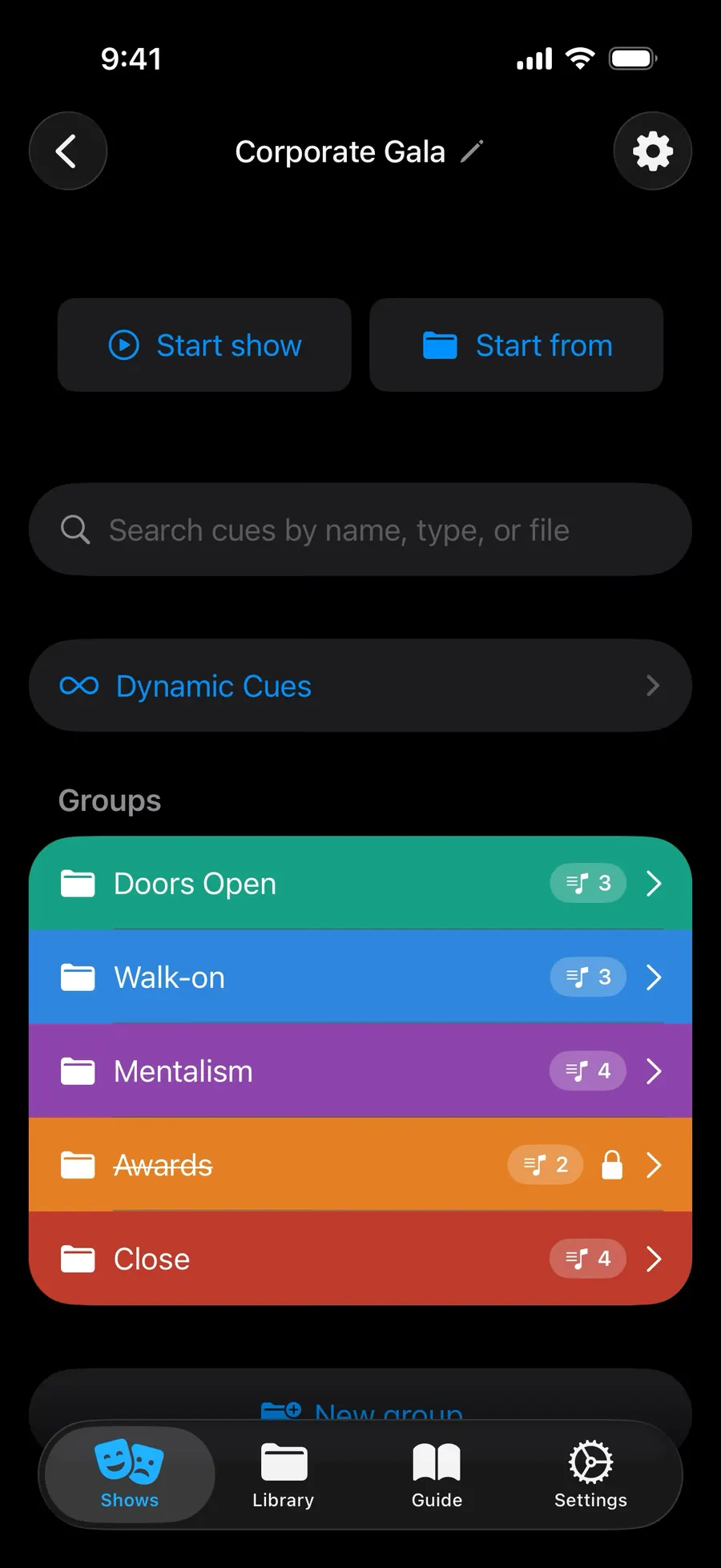
In portrait, or when iQ Pro shares the screen with another app, the editor goes back to a single list, the same as on iPhone.
The three panels
- Groups lists the show's groups in running order, each with its colour. Tap one to show its cues. New group and Dynamic, which opens your dynamic cues, sit at the bottom of the panel.
- The cue panel lists the selected group's cues, with Add cue below them. Tap a cue to edit it: it's outlined in blue.
- The settings panel shows the selected cue's settings. Pages such as Audio Settings open inside the panel, with Back at the top. Changes save as you make them, so you can pick another cue at any time.
Touch and hold Start show at the top right for Start from…, to start part-way through. You can also touch and hold a group and tap Start from here.
Groups
- Rename a group: tap its name at the top of the cue panel, type the new name and tap Save.
- Colour a group: tap … at the top of the cue panel, then Group settings. Turn on Colour code and tap a colour, or choose Custom colour. It changes straight away.
- Reorder: touch and hold a group, then drag it.
- Delete: swipe left on a group, or touch and hold it and tap Delete Group.
- Touch and hold a group for Start from here, Disable or Enable.
New groups open in the panels, ready for their first cue.
Cues
The buttons at the top of the cue panel work on the selected group:
- The play button runs a Quick preview of the group. See Preview a group.
- The eye chooses the badges each cue shows: Cue Position, Layer Number, Cue Delay and Cue Type.
- … opens the layer editor (Visual layout when the show uses automatic cue layout), Group settings and Rename group.
Touch and hold a cue for the same menu as on iPhone: Add Transition, Disable, Duplicate, Copy cue and Delete. Drag a cue to reorder it, or swipe left to delete it. Once you've copied a cue, Paste cue appears next to Add cue. See Edit, reorder, copy, paste and duplicate cues.
Search
Type in Search groups and cues to find cues by name, type or file across the show. Only the groups with a match are listed. Tap one to see just its matching cues, with the first one open in the settings panel.
