
Every picture on your output (images, video, slides, cameras) sits on a layer. With Automatic cue layout, iQ Pro works the layers out for you: each new picture stacks on top of the ones before it, in cue order, and your fades and transitions decide what stays on screen.
New shows use automatic cue layout. Shows made in older versions of iQ Pro keep the manual layers they were built with.
Turn it on or off
- 1
Open the show and tap the gear at the top right.
- 2
Tap Playback Settings.
- 3
Turn Automatic cue layout on or off.
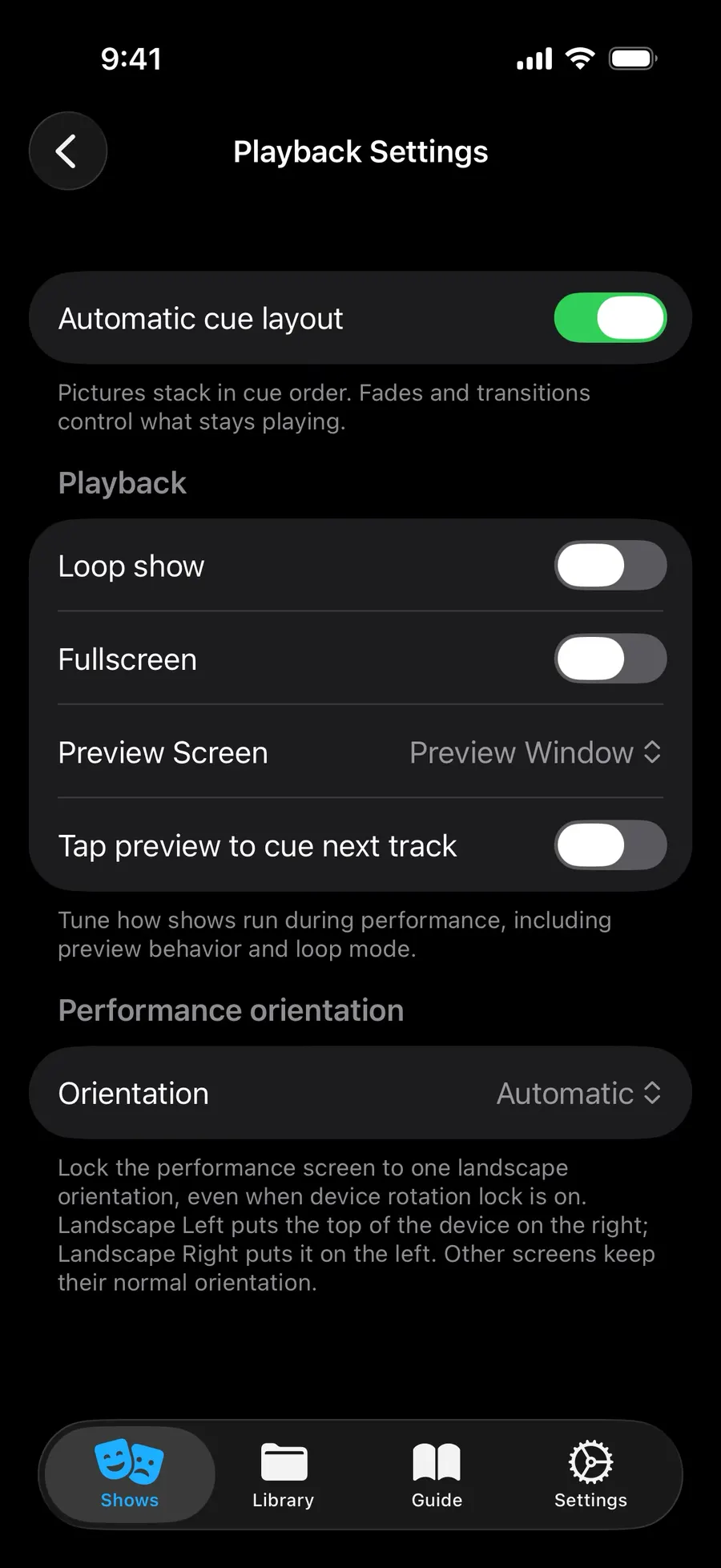
Automatic cue layout, at the top of Playback Settings
The note underneath tells you which mode you're in:
- On: Pictures stack in cue order. Fades and transitions control what stays playing.
- Off: Playback uses your saved manual assignments.
What changes
With automatic cue layout on:
- Cues don't have a Change Layer page, and the group doesn't show layer numbers.
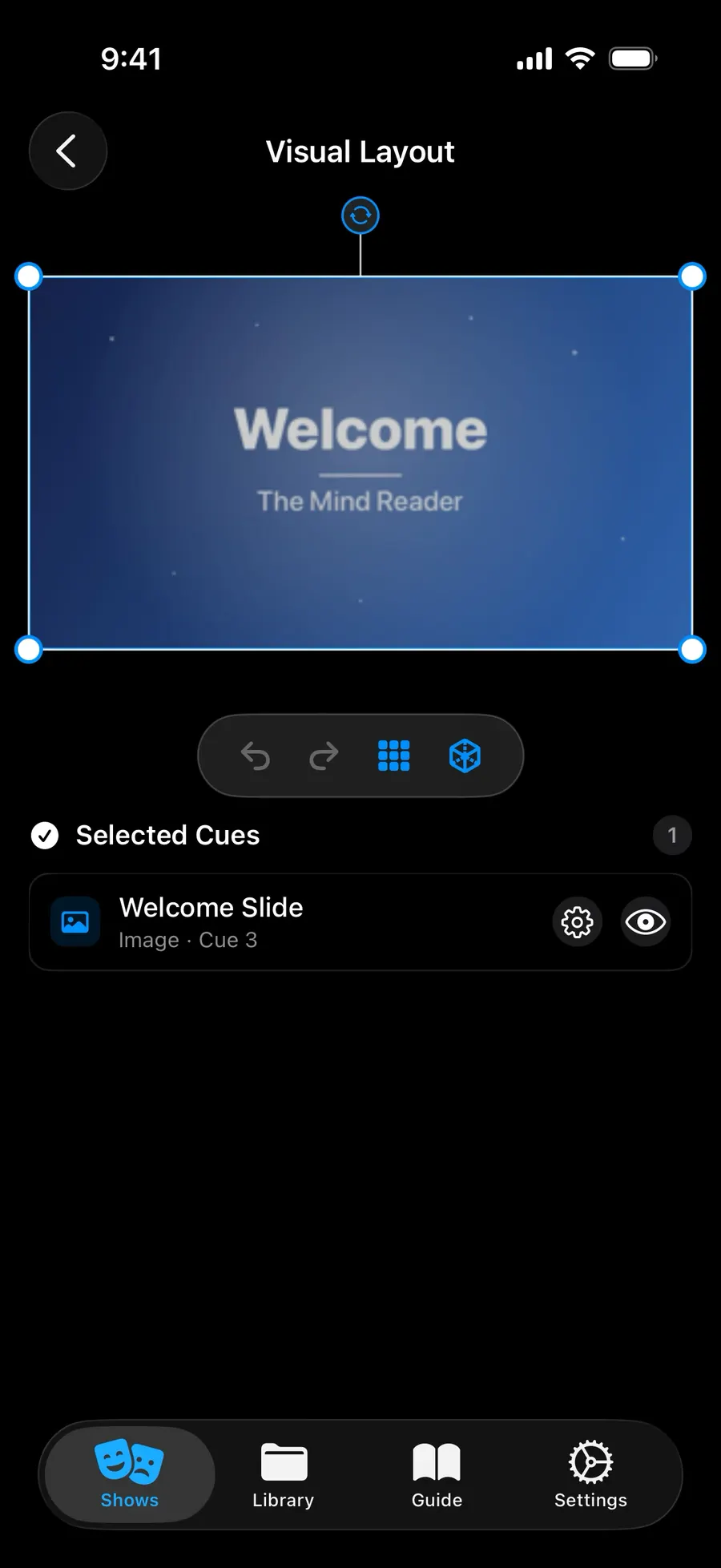
- The layers button at the top of a group opens the Visual Layout editor, where you position and size pictures without thinking about layers. First choose the cues to edit under Select Cues, then tap the tick.
With it off, every visual cue has a layer you choose in Change Layer, and the layers button opens the Layer Editor. Welcome to iQ Pro explains the idea behind layers.
