
Everything your audience sees is built from layers, stacked one in front of another. Layer 1 is at the back. Each higher layer sits in front of the ones below it, so a logo on layer 4 appears over a video on layer 2.
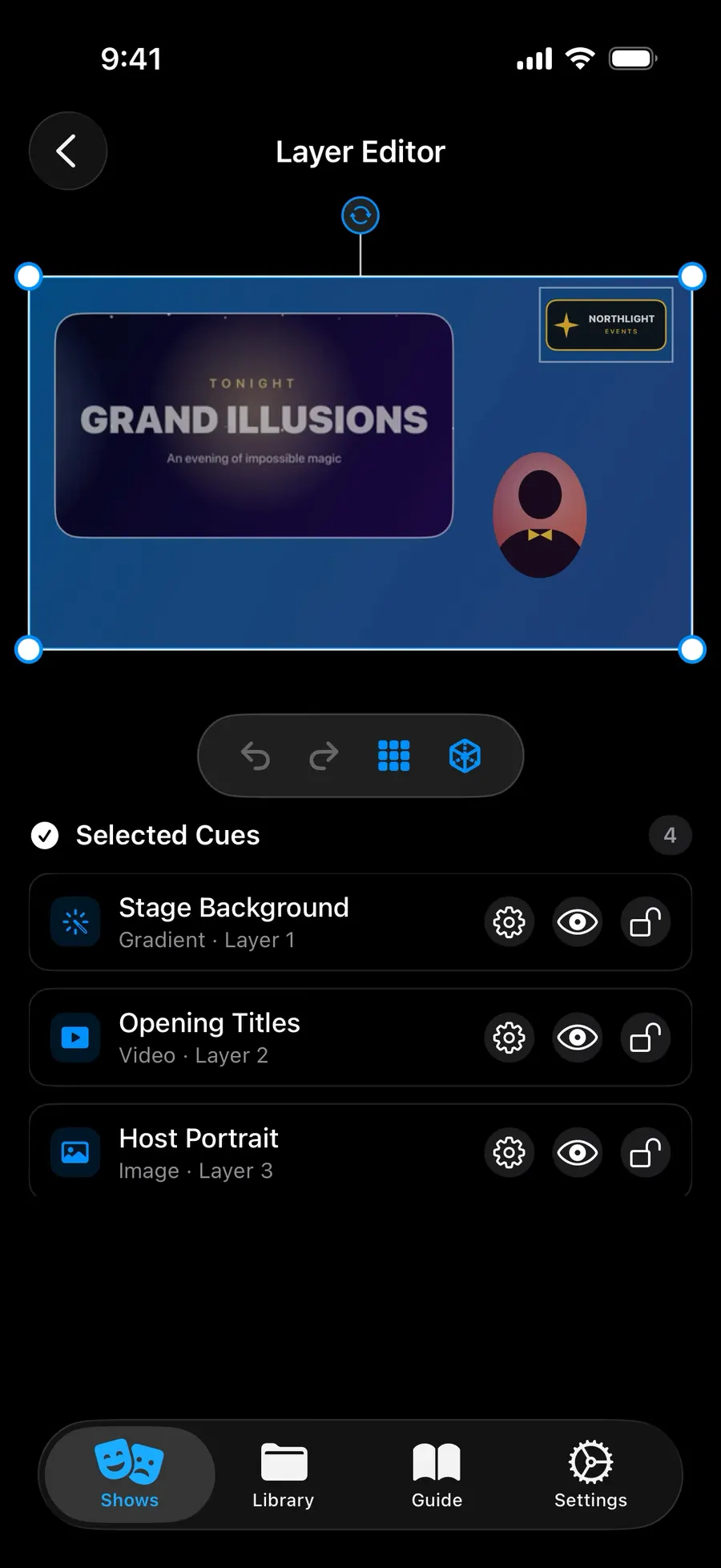
A layer shows one cue at a time. When you fire a picture cue (an image, video, slide, camera or animated background) on a layer that's already showing something, the new cue takes its place. Cues on different layers stay on screen together.
Two ways to work
How much you deal with layers depends on one setting in the show: Automatic cue layout.
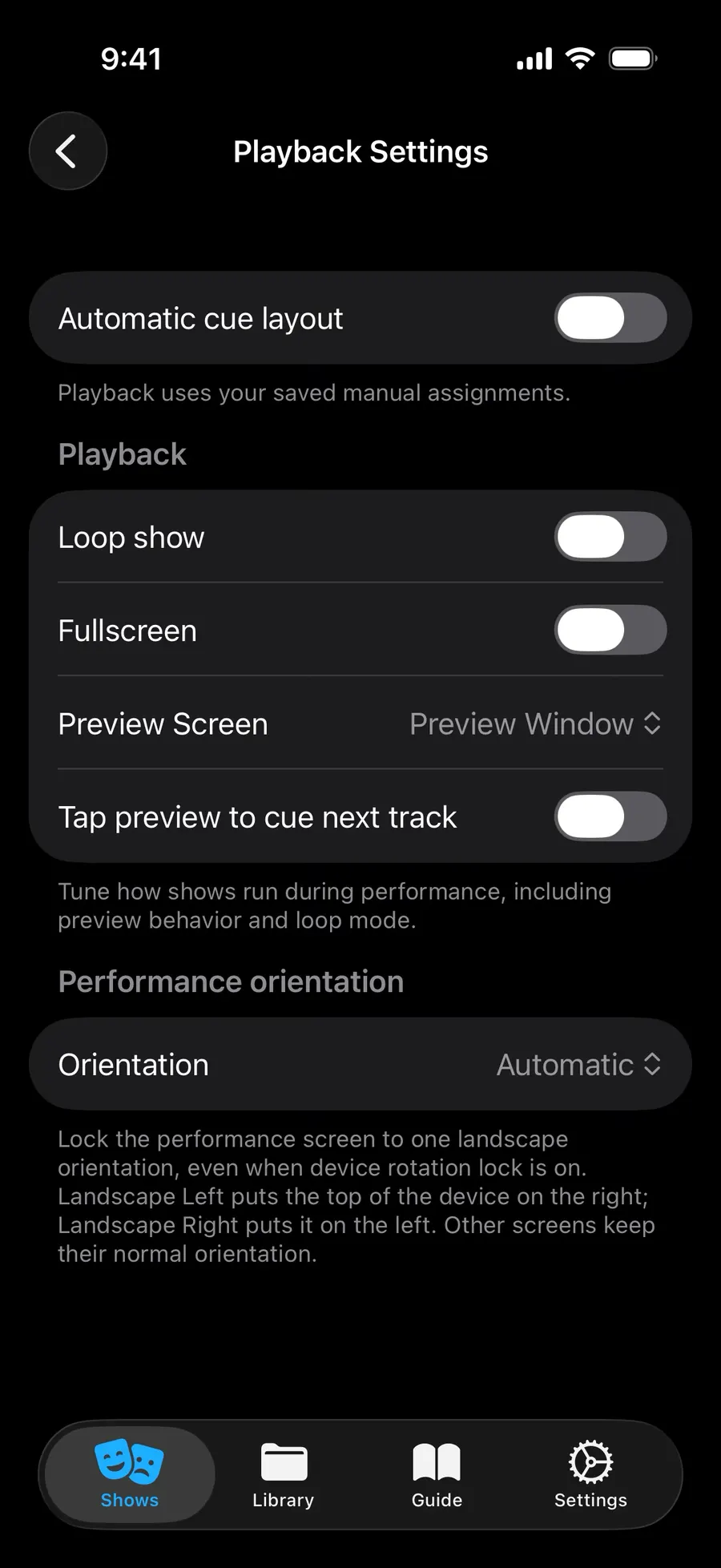
- On (the default for new shows): iQ Pro stacks pictures in cue order, so each new picture appears in front of the last. Fades and transitions decide what stays playing. You never pick a layer number.
- Off: every cue keeps the layer you give it. Use this when you want precise control, such as a background that stays put on layer 1 while titles come and go above it.
To change it, open the show, tap the gear at the top right for its settings, then tap Playback Settings and turn Automatic cue layout on or off.
See the layers in a group
With Automatic cue layout off, each cue in a group shows its layer number next to its name.
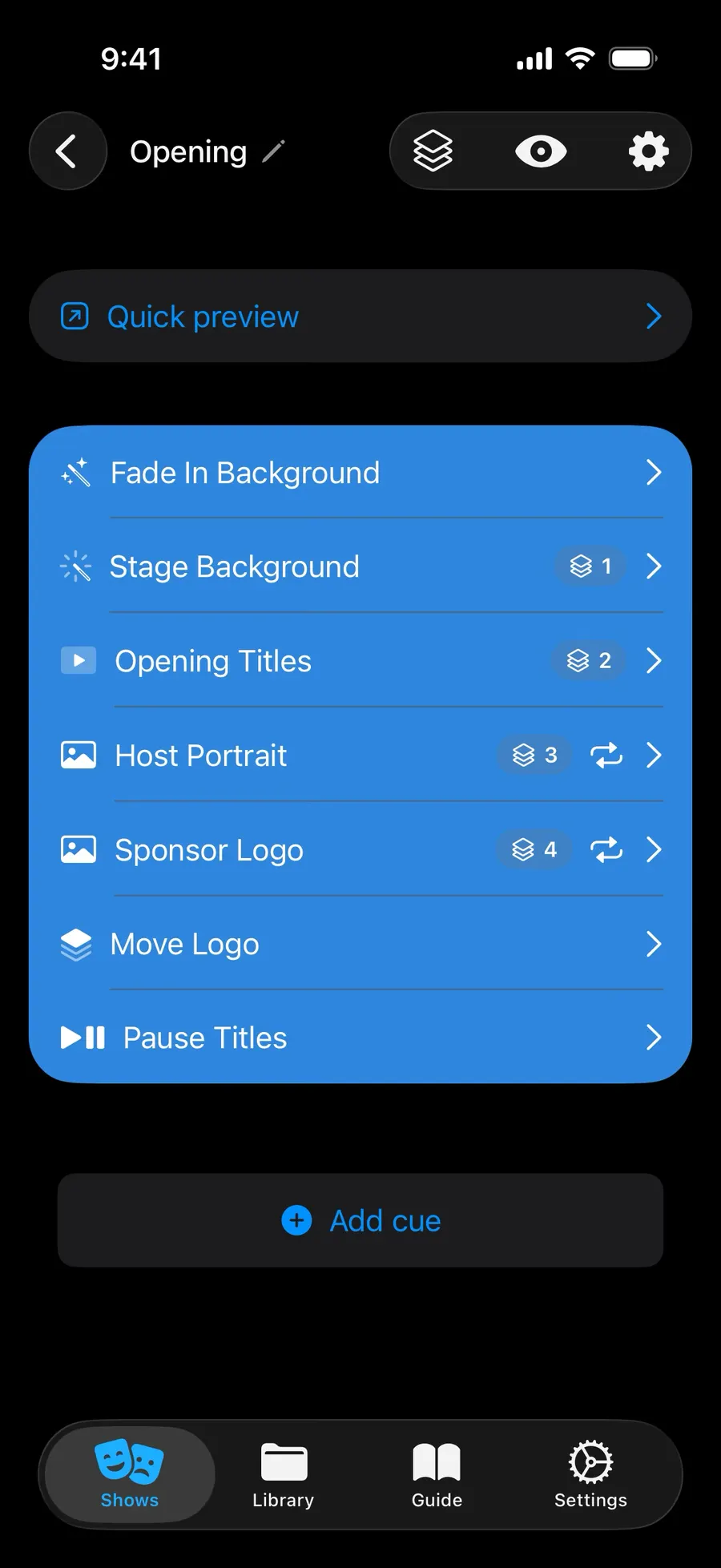
Transitions such as fades and crossfades don't have a layer number: they act on the cues you choose. To hide the numbers, tap the eye button at the top of the group and turn off Layer Number.
Plan your layers
A simple plan keeps a show easy to run:
- Layer 1: backgrounds, such as an animated background or a holding slide.
- Layer 2: the main picture, such as videos and full-screen images.
- Layer 3 and up: things that sit on top, like a presenter's camera, a lower third or a sponsor logo.
Audio cues have a layer too. Give sounds that should play at the same time, such as music and a sound effect, different layers.
