
Each picture cue has its own style: rounded corners, a border, soft edges and colour adjustments. They help a picture-in-picture video look framed, or blend a presenter into a background.
You set them in the layer editor.
Open a cue's style settings
- 1
Open a group and tap the layers button at the top right, then tick the cues to work on and tap the tick.
- 2
Next to the cue you want to style, tap the gear. Cue Settings opens, with the cue's name underneath.
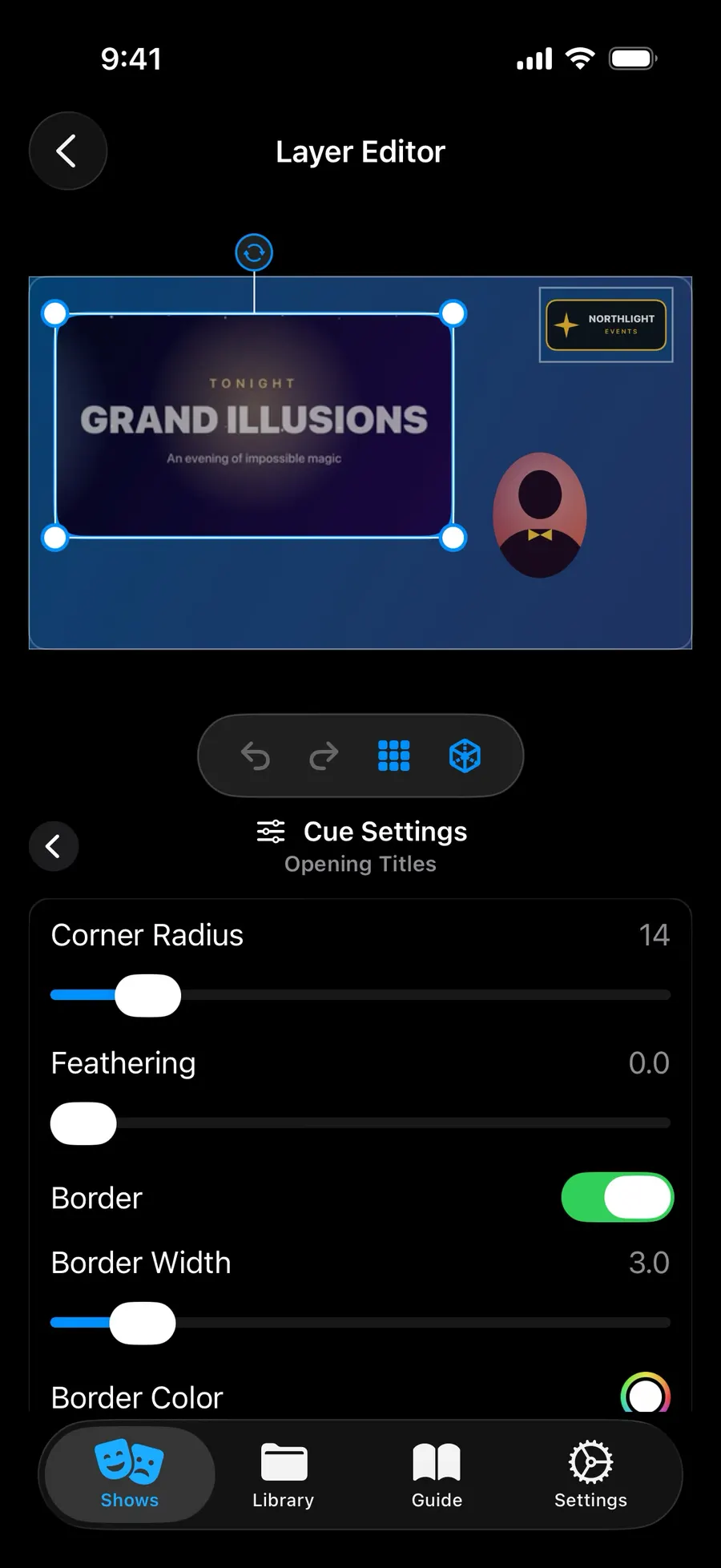
A video with rounded corners and a white border - 3
Drag the sliders and watch the preview. Changes are saved as you go. On iPad there's no gear: tap the cue in the inspector on the right, and its style settings appear below the list. Image Filters opens with a back button to return.
Corners, edges and borders
- Corner Radius rounds the corners, from square (0) to very round (120).
- Feathering softens the edge of the picture so it fades into whatever is behind it, from a hard edge (0) up to 120. A little feathering takes the harsh edge off a camera or a masked portrait.
- Turn on Border to draw a line around the picture. Set its Border Width and pick a Border Color. With a mask, the border follows the mask's outline.
Image filters
Tap Image Filters in Cue Settings for colour adjustments.
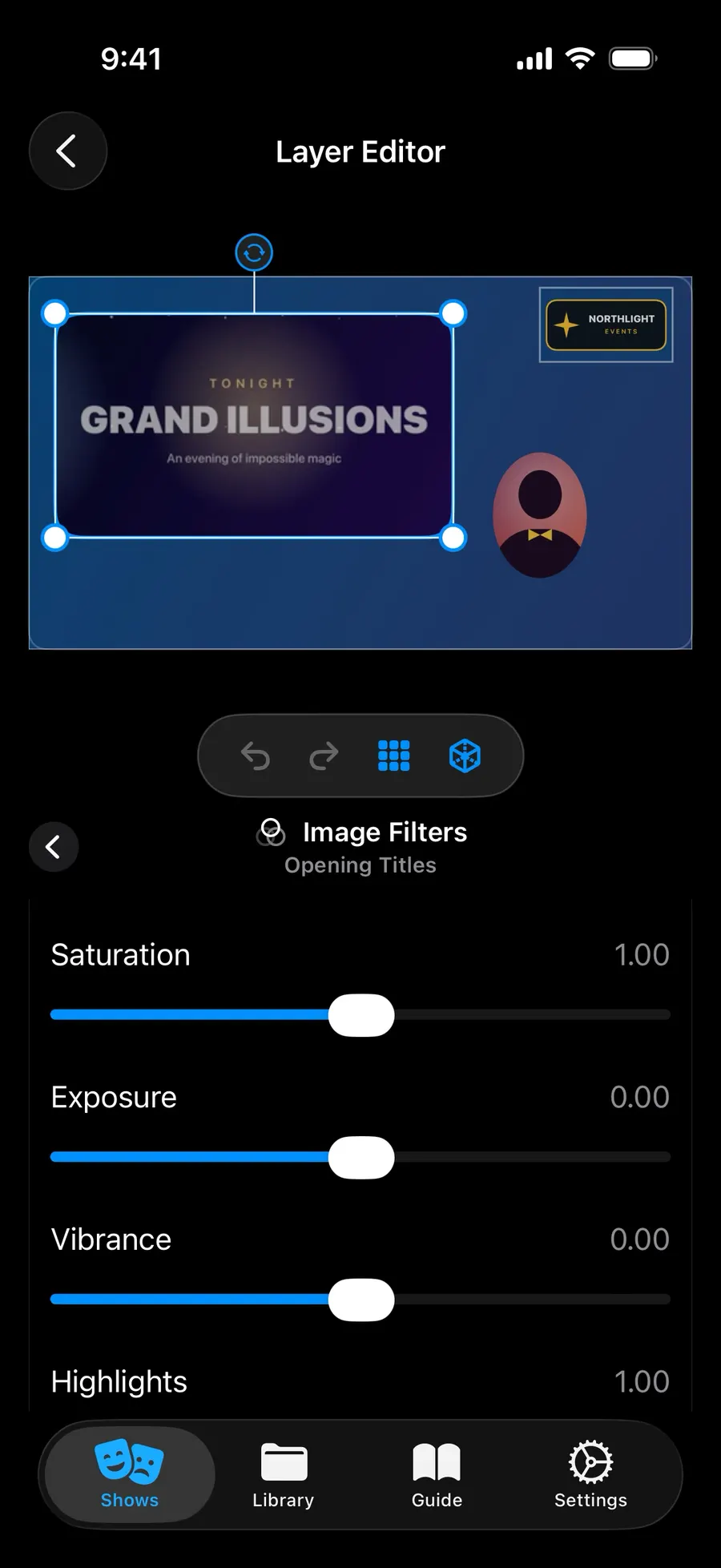
- Brightness lightens or darkens the whole picture.
- Contrast makes darks darker and lights lighter, or flattens them.
- Saturation makes colours stronger, or drains them towards black and white.
- Exposure brightens or darkens the picture as if it were shot brighter or darker.
- Vibrance boosts muted colours more than ones that are already strong.
- Highlights and Shadows recover detail in the brightest and darkest parts.
- Sharpness crisps up edges and fine detail.
To go back to the previous screen, tap the back button next to Image Filters.
