
Every audio, video and image cue plays a file from iQ Pro's media library. When you import a file, iQ Pro keeps its own copy, so the cue keeps working even if you move or delete the original. Once a file is in the library, any cue in any show can use it.
Import from a cue
The usual way to import is while you set up a cue.
- 1
Open the cue's settings and tap Select audio file, Select video file or Select image file.
- 2
On Import file, choose where the file comes from.
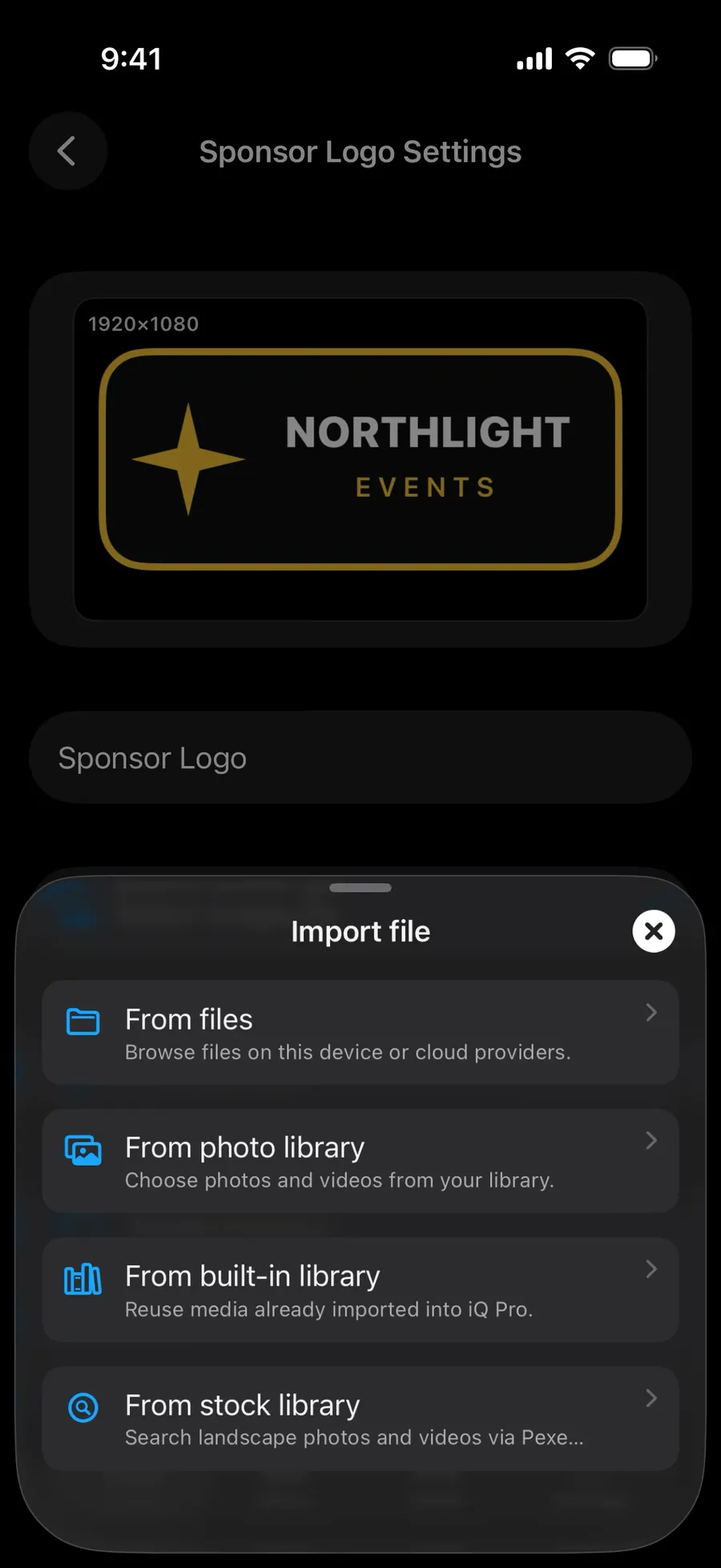
The sources for an image cue - 3
Pick the file. iQ Pro copies it into the library and the cue starts using it.
The sources are:
- From files opens Files, including iCloud Drive and other cloud storage you've added to Files.
- From photo library picks photos and videos from Photos. It's offered for image and video cues.
- From built-in library reuses a file that's already in iQ Pro, such as the logo you use in every show.
- From stock library searches free landscape photos and videos from Pexels. It's offered for image and video cues.
Reuse a file from your library
From built-in library opens Select from library, showing only files that suit the cue: images for an image cue, videos for a video cue, and so on.
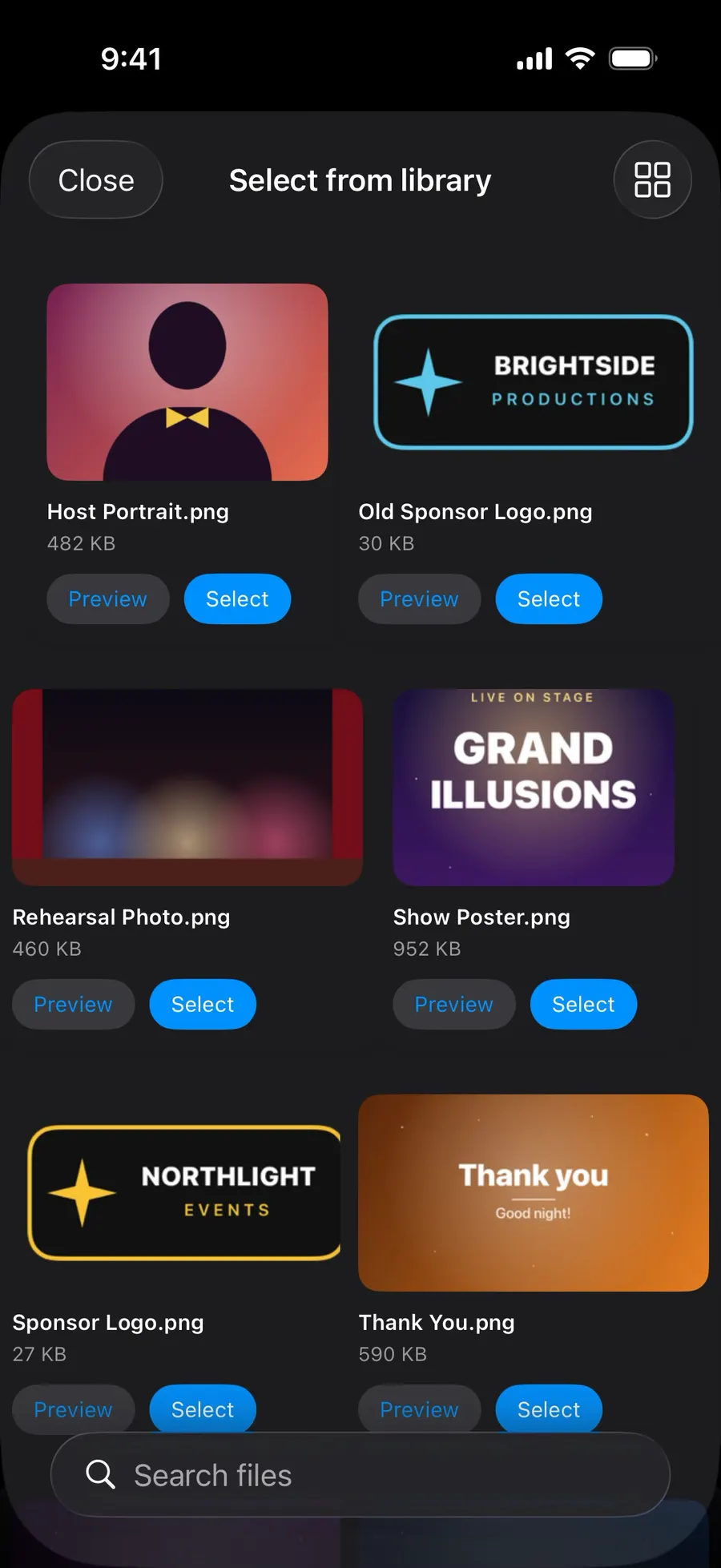
Search by name at the top, tap Preview to check a file, then tap Select. Reusing a file doesn't make a second copy, so it takes no extra space.
Free stock photos and videos
From stock library opens Stock Images or Stock Videos. Type what you're after, such as stage lights or city at night, and tap a result to download it into your library and use it for the cue. The pictures and videos come from Pexels.
Supported formats
From files accepts:
- Audio: MP3, WAV and M4A (AAC).
- Video: MP4 and MOV.
- Images: PNG and JPEG.
Import everything for a new show
When you create a show, the Prepare Your Assets step lets you bring in all your media in one go. Tap Choose import source, then From files, From photo library or From built-in library, and pick as many files as you need. You can then choose them from the built-in library as you build each cue. See Build your first show in 10 minutes.
Open the Library in iQ Pro