
A show in iQ Pro is made of groups, and each group holds the cues you fire in order: music, images, video, slides and the transitions between them. In ten minutes you'll create a show, give it a couple of groups and cues, and run it on the Perform screen.
1. Create the show
- 1
Open the Shows tab and tap + at the top right.
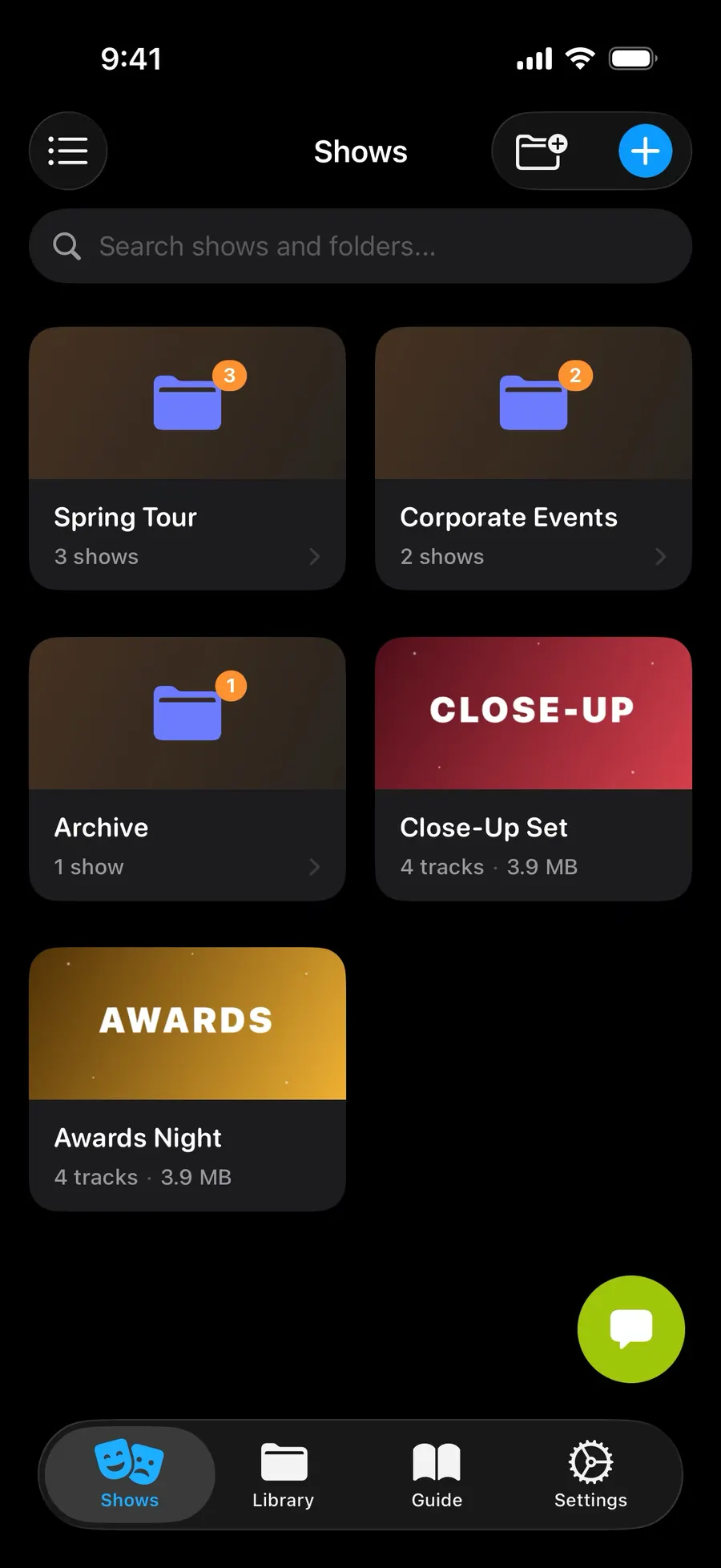
Tap + to start a new show - 2
In the New Show sheet, tap Start from scratch.
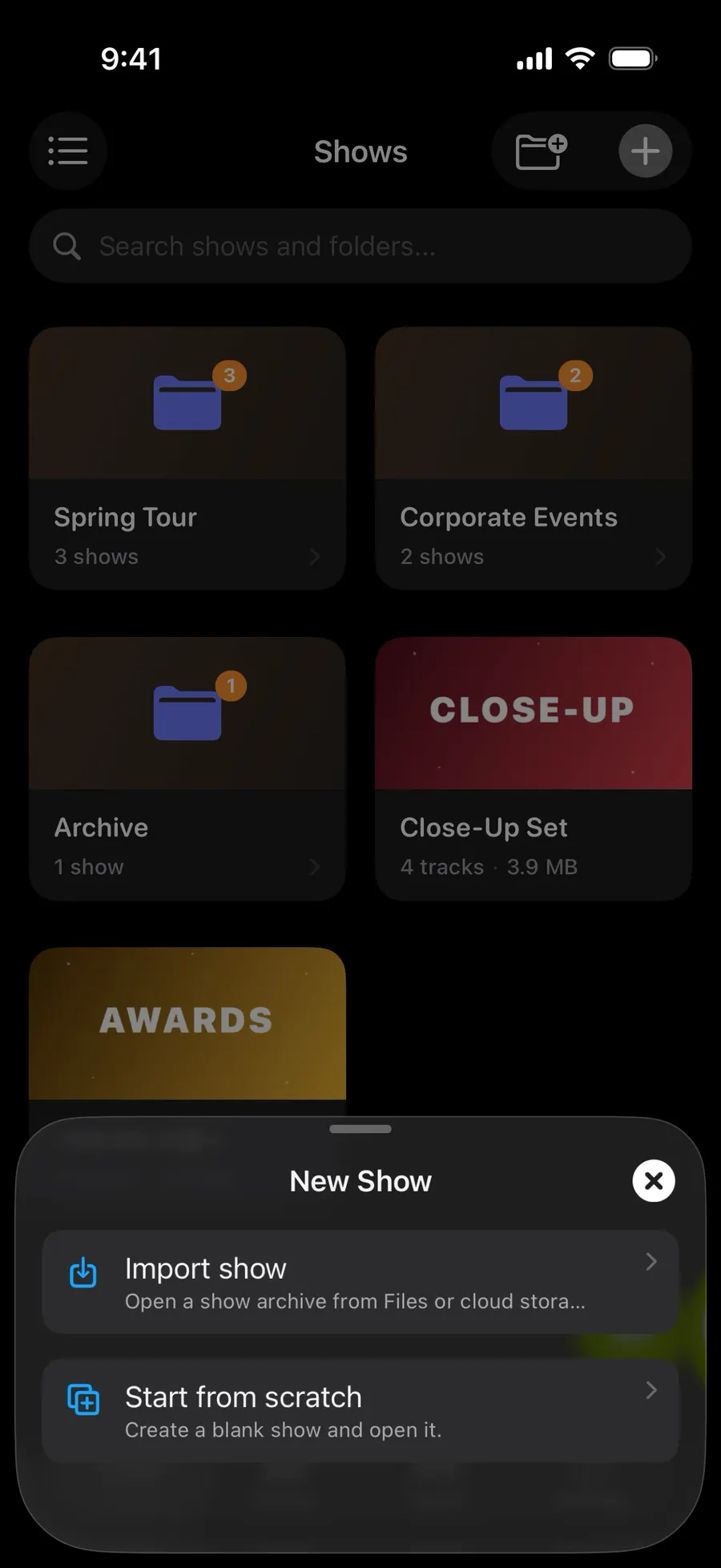
Start from scratch creates a blank show and opens it - 3
Under Create Your Show, type a name in Show Name and tap Continue.
- 4
Prepare Your Assets is the moment to bring in your music, video and images. Tap Choose import source, or Skip for now if you'd rather add media cue by cue.
- 5
Under Create Your First Group, name the first part of your act, such as Pre-Show, and tap Continue. The new group opens, ready for its first cue.
2. Add your groups
Your show opens in the show editor. Every group is listed under Groups, with a count of its cues.
- 1
Tap New group at the bottom of the list.
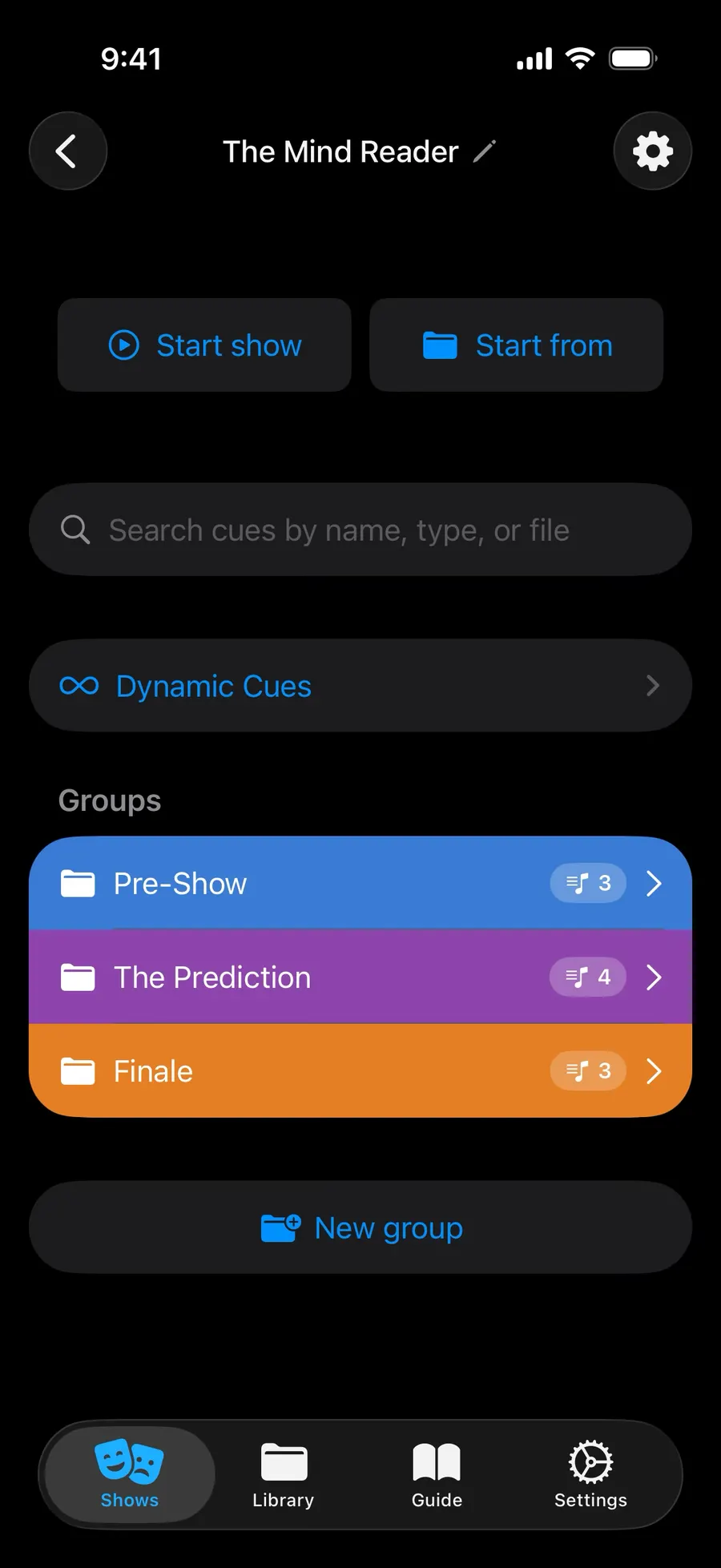
The demo show, with three groups - 2
Choose Create empty group, or Choose from library to copy groups from one of your other shows.
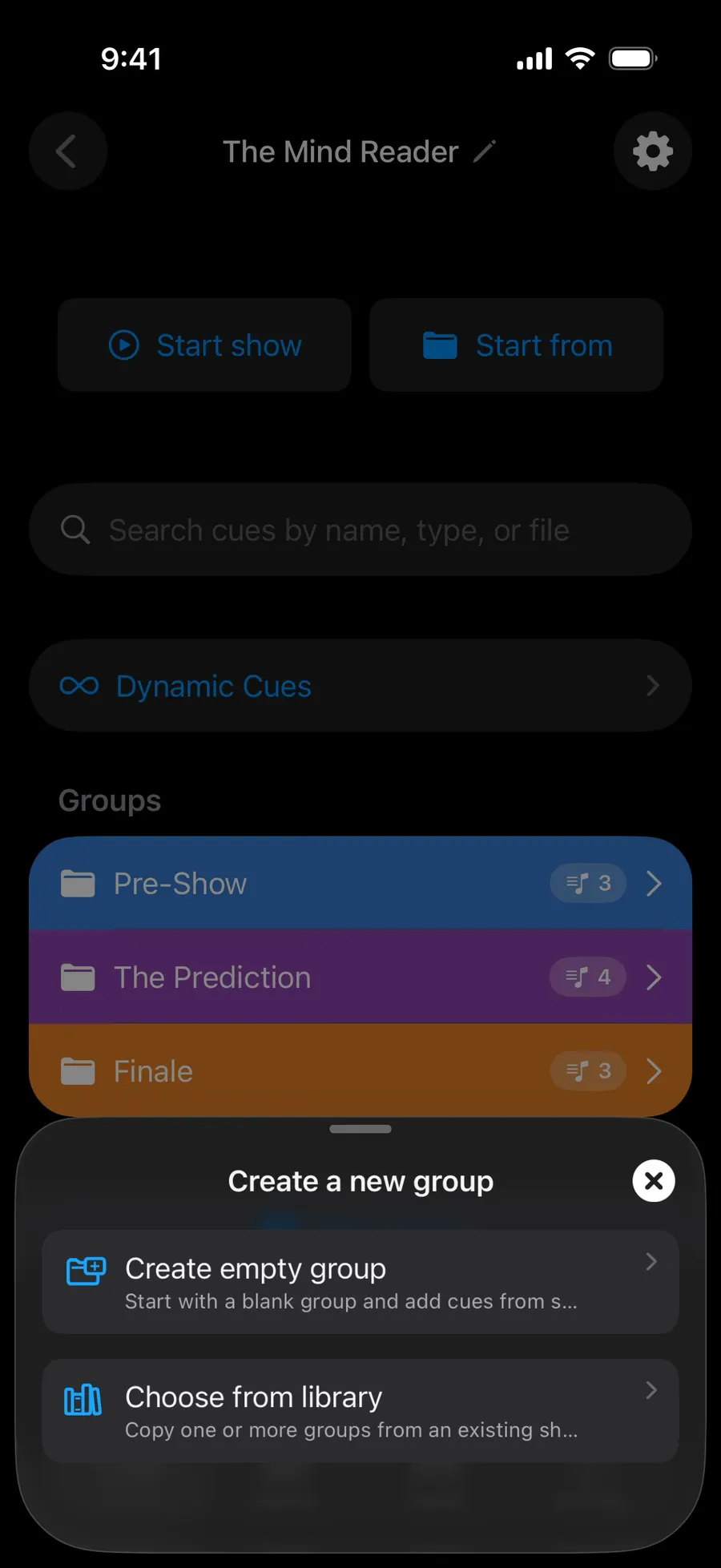
Two ways to add a group
To rename the show, tap its name at the top of the editor. Swipe left on a group to delete it.
3. Add cues
- 1
Tap a group to open it, then tap Add cue.
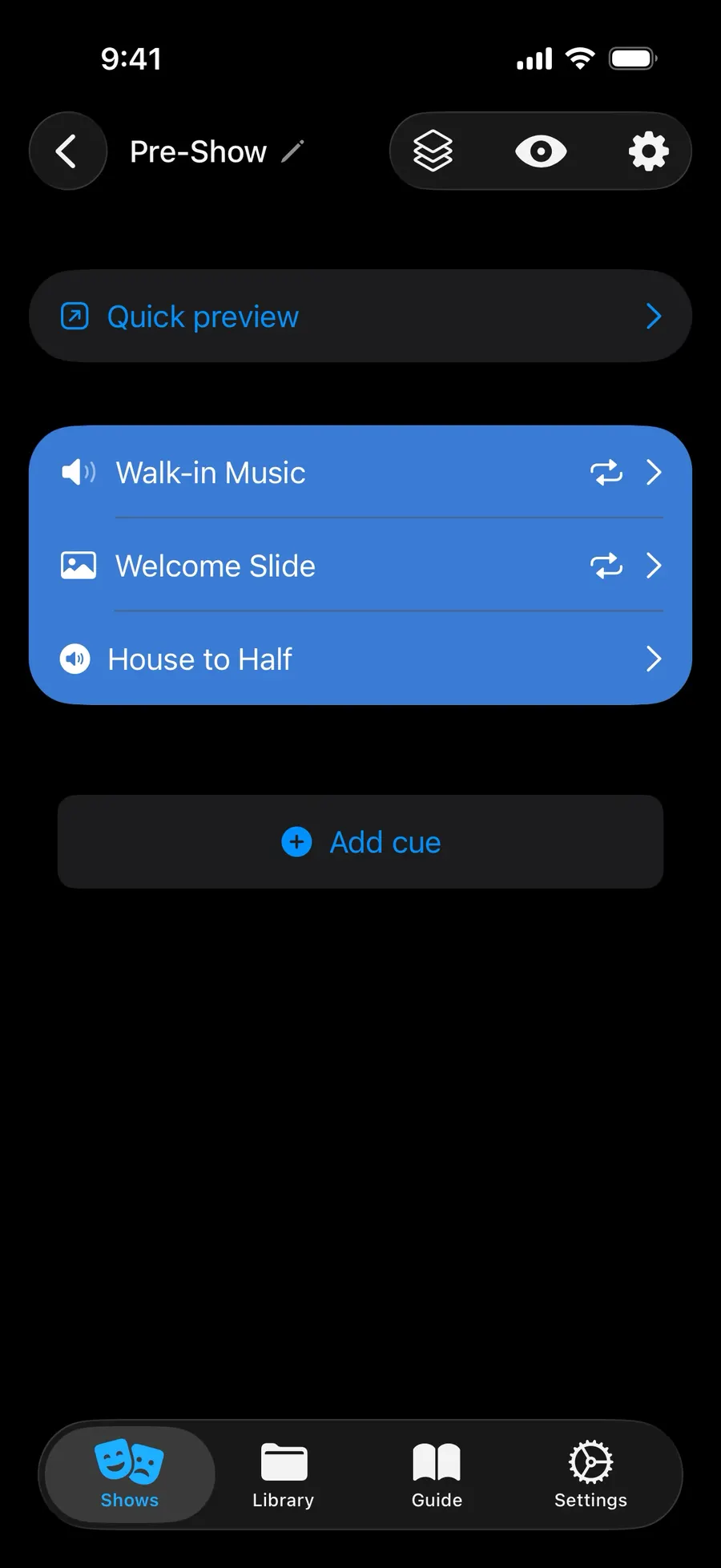
The Pre-Show group and its cues - 2
Pick a cue type. The everyday ones, such as Audio, Video, Image and Crossfade, are under Suggested. Scroll down for Media, Transitions and Control, or search for a cue by name.
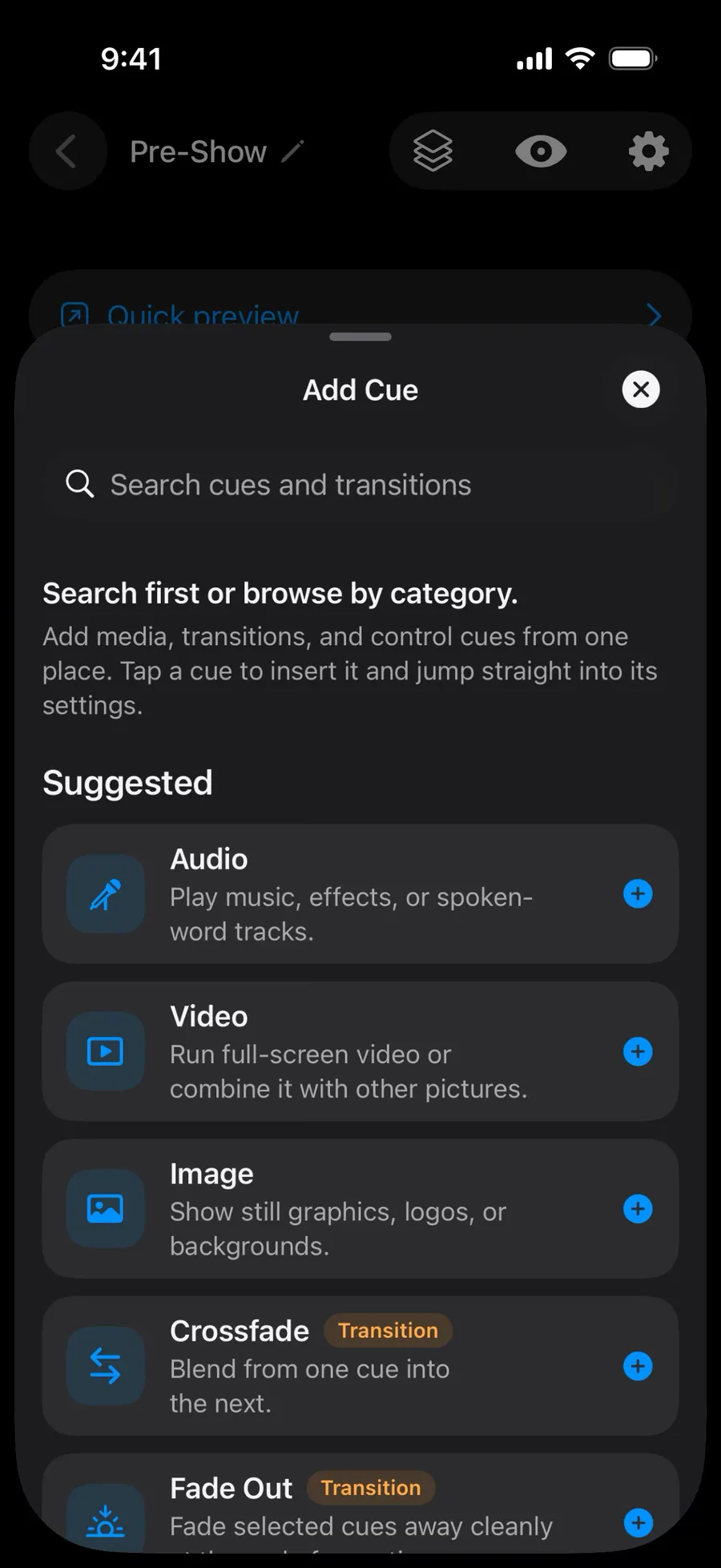
Every cue type is in one place - 3
iQ Pro adds the cue and opens its settings. Choose its file and give it a name you'll recognise mid-show.
Start with music: Add an audio cue walks through it step by step.
4. Run it
- 1
Go back to the show editor and tap Start show.
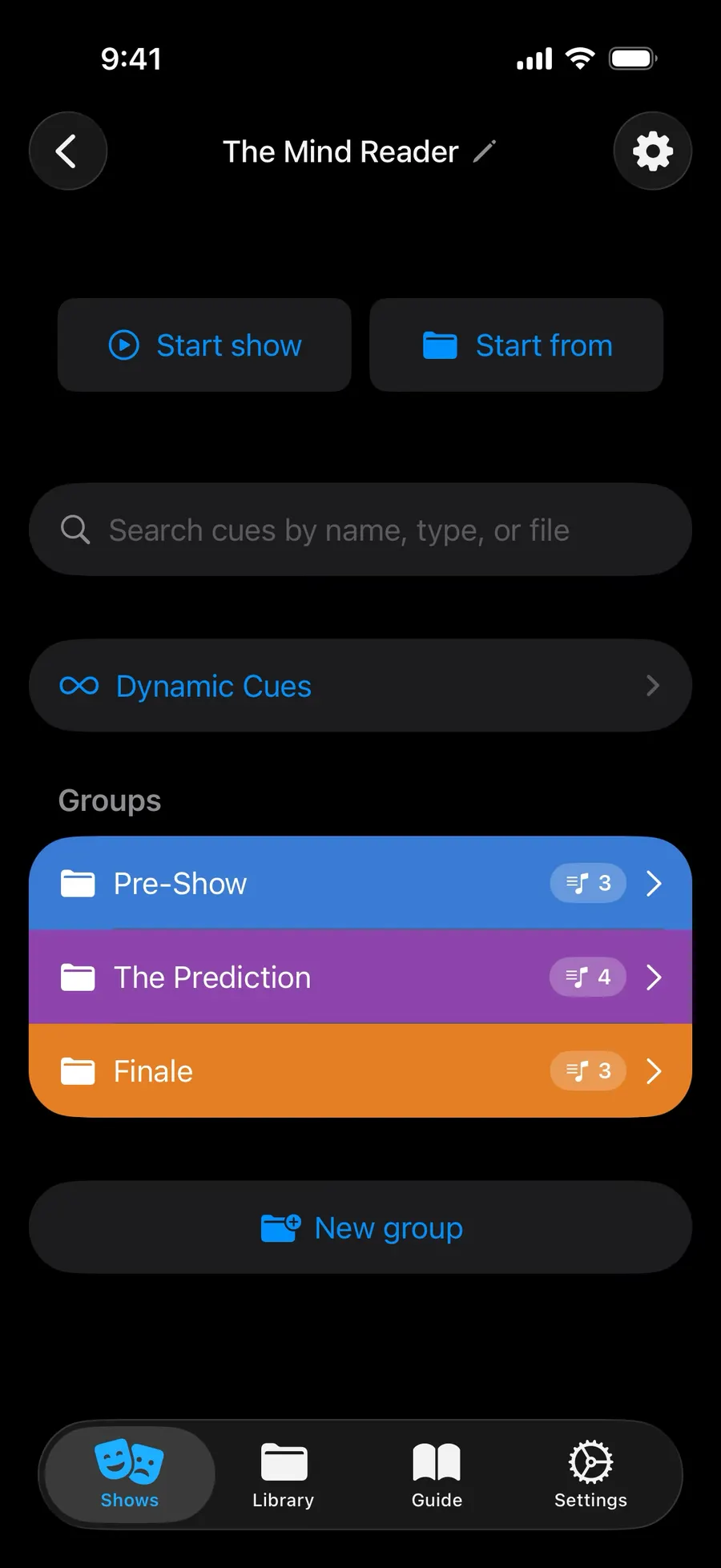
Start show opens the Perform screen - 2
Tap Cue to fire the first cue. Each tap fires the next one.
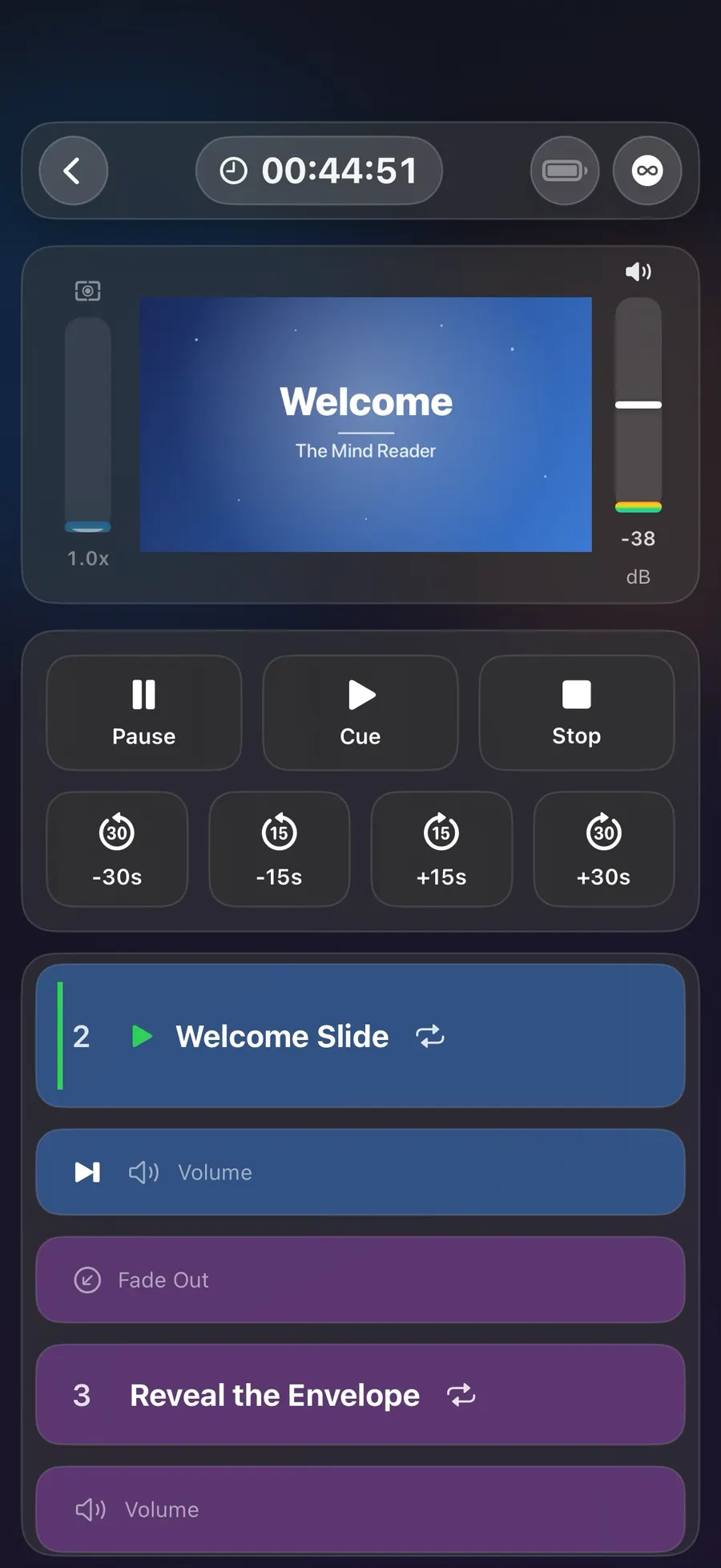
The demo show, two cues in - 3
When you've finished, tap the back button at the top left. This stops the show.
To rehearse one group on its own, open it and tap Quick preview. The Perform screen at a glance explains every control.
Create a show in iQ Pro