
iQ Pro only asks for a permission when a feature needs it, and you can review all of them in one place.
Review your permissions
- 1
Open the Settings tab and tap General, then Manage Permissions.
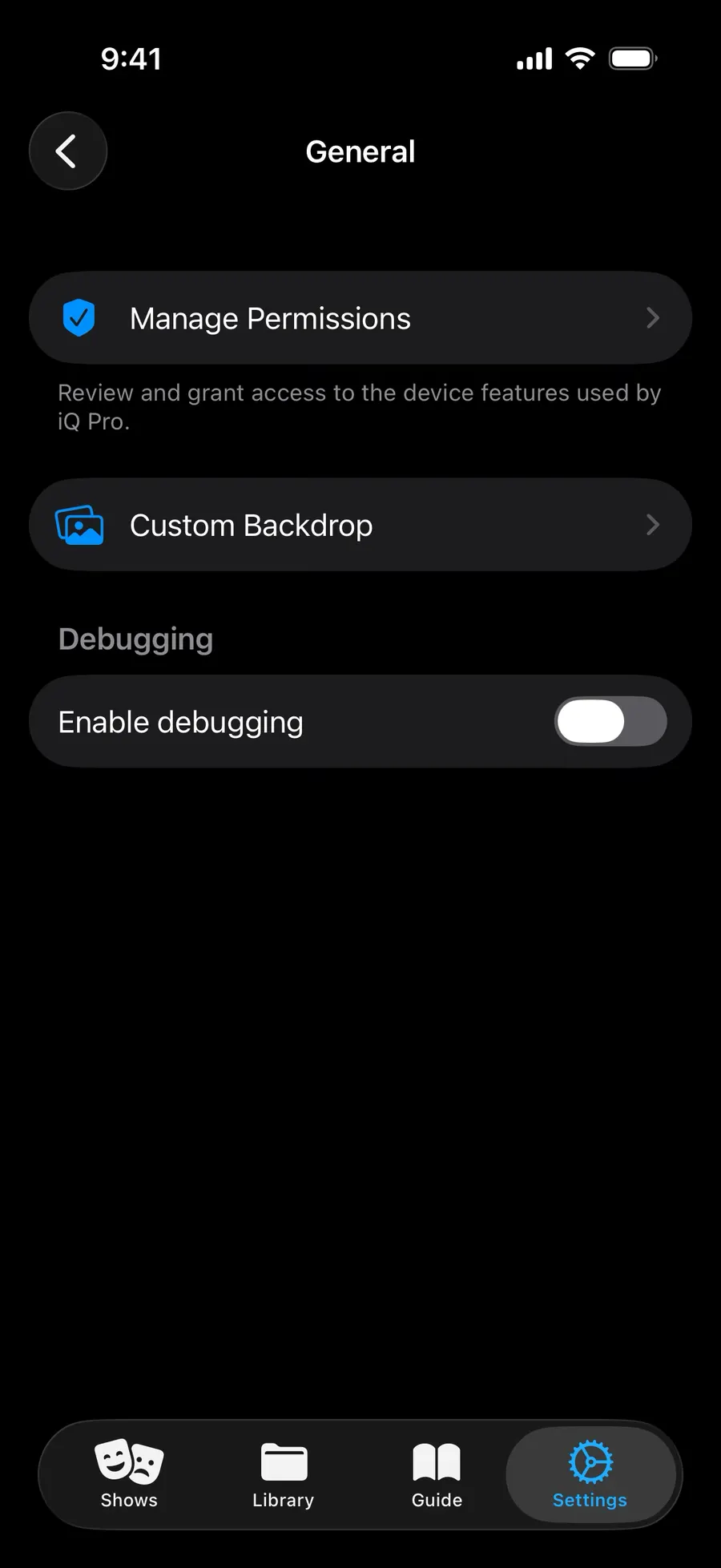
Manage Permissions is at the top of General - 2
Each permission shows what it's for and its status: Allowed, Not requested, Not allowed or Managed by iOS.
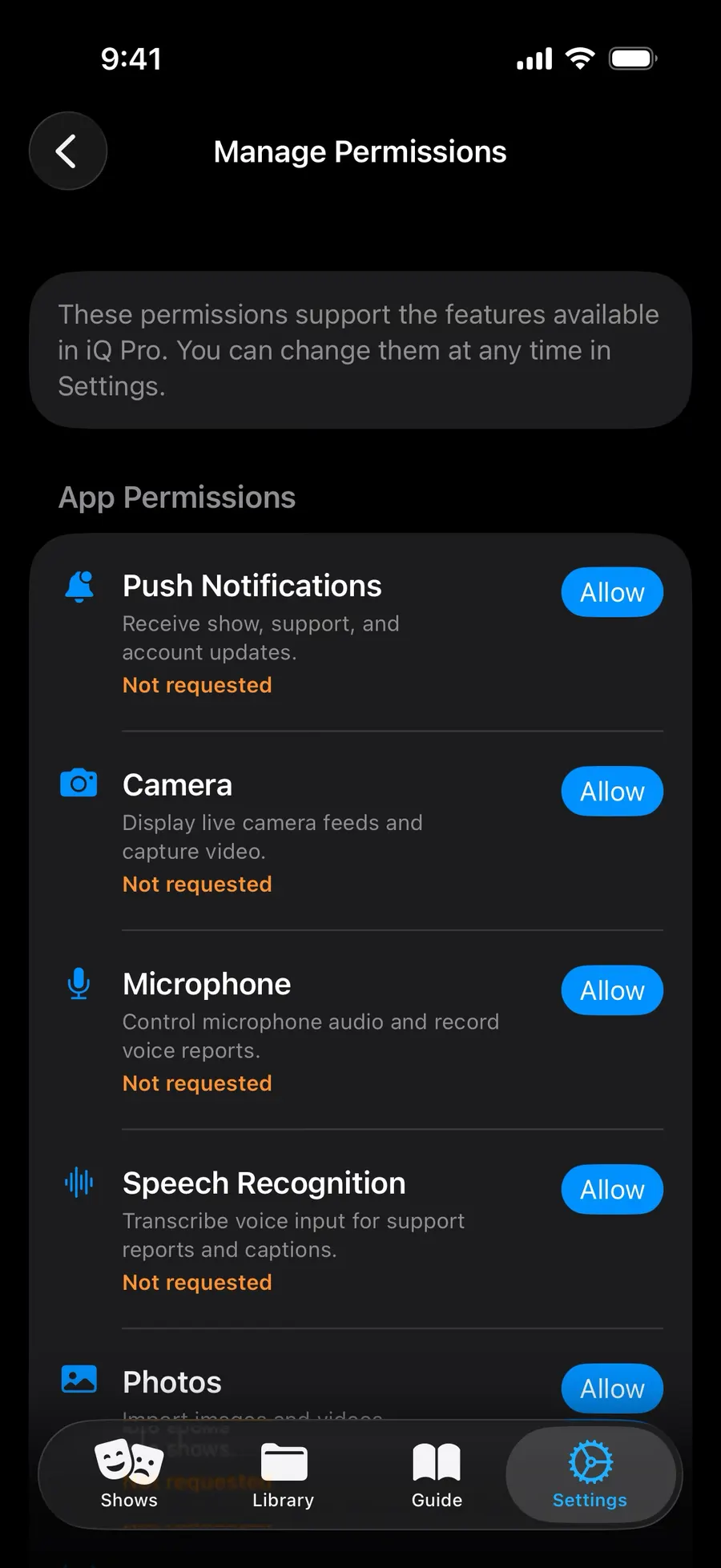
Every permission, its purpose and its status - 3
Tap Allow to grant a permission that hasn't been requested yet. If you've turned one down, tap Open Settings to change it in the iOS Settings app.
What each one is for
- Push Notifications: show, support and account updates, such as a reply to your support ticket.
- Camera: live camera feeds in camera cues, on the output and in the preview.
- Microphone: microphone audio, live captions and voice notes in support reports.
- Speech Recognition: transcribing speech for live captions and support reports.
- Photos: importing images and videos from your photo library.
- Bluetooth: connecting Flic buttons and other Bluetooth remotes.
- Face ID: protecting show settings you've locked. See your show's Security Settings.
- Local Network: talking to ATEM switchers and NDI® sources on your Wi-Fi.
