
Each cue plays on a layer. Higher layers sit in front, so moving a cue to a higher layer brings it forward. This page is for shows with Automatic cue layout turned off. With it on, iQ Pro stacks pictures in cue order for you and there's no layer to pick. Layers explained covers the difference.
Pick a layer
- 1
Open the cue's settings. Change Layer shows the cue's current layer on the right.
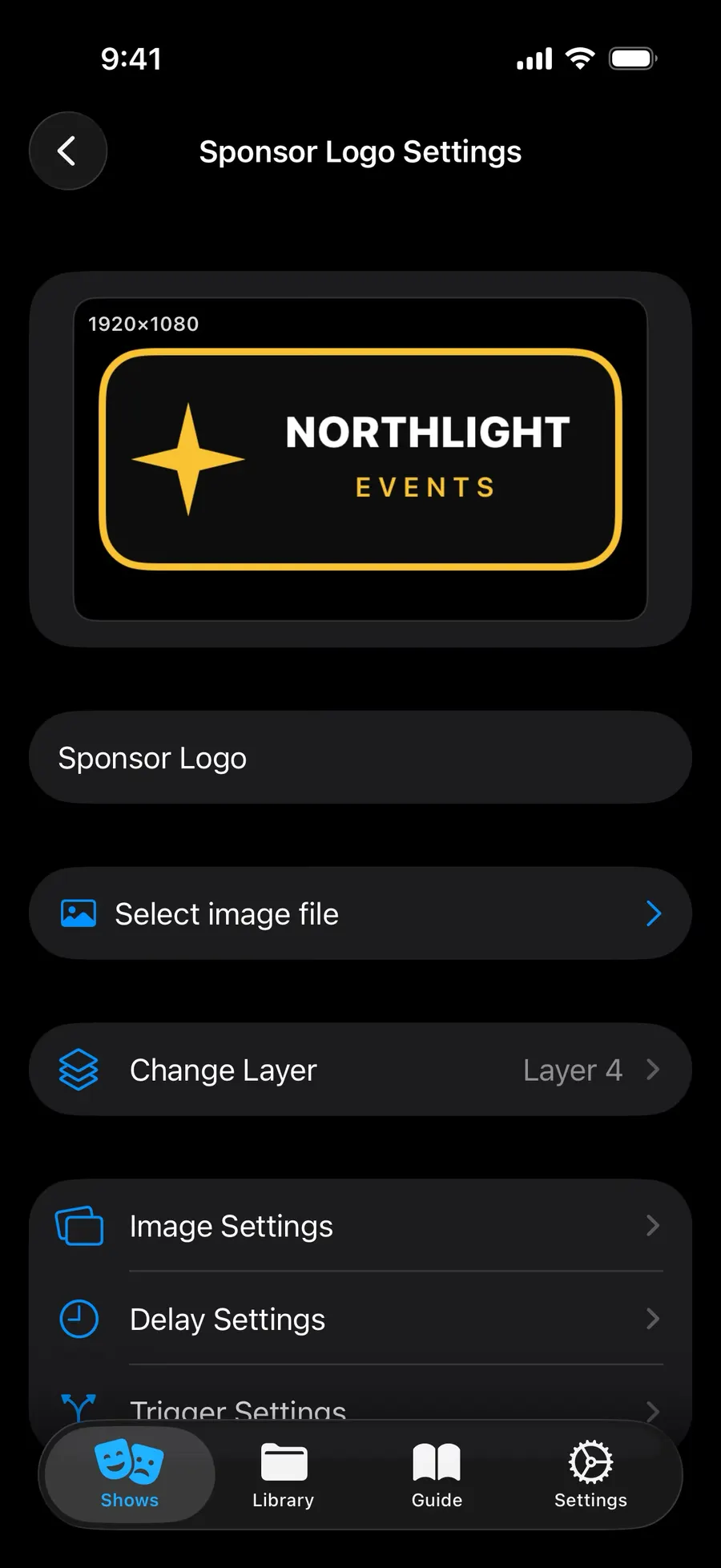
Sponsor Logo is on layer 4 - 2
Tap Change Layer. Each tile shows what's on that layer in this show, with a preview, the cue's name and the layer number. Empty layers say Unassigned.
- 3
Tap the layer you want. The tick moves to it straight away. Each tile shows the layer number, the cue on it, or Unassigned if the layer is empty.
- 4
Tap back to return to the cue. The change is saved.
Changed your mind? The ↺ button at the top right puts the cue back on the layer it had when you opened the screen.
Find a free layer
In a big show the list gets long. Tap the filter button at the top right to narrow it down:
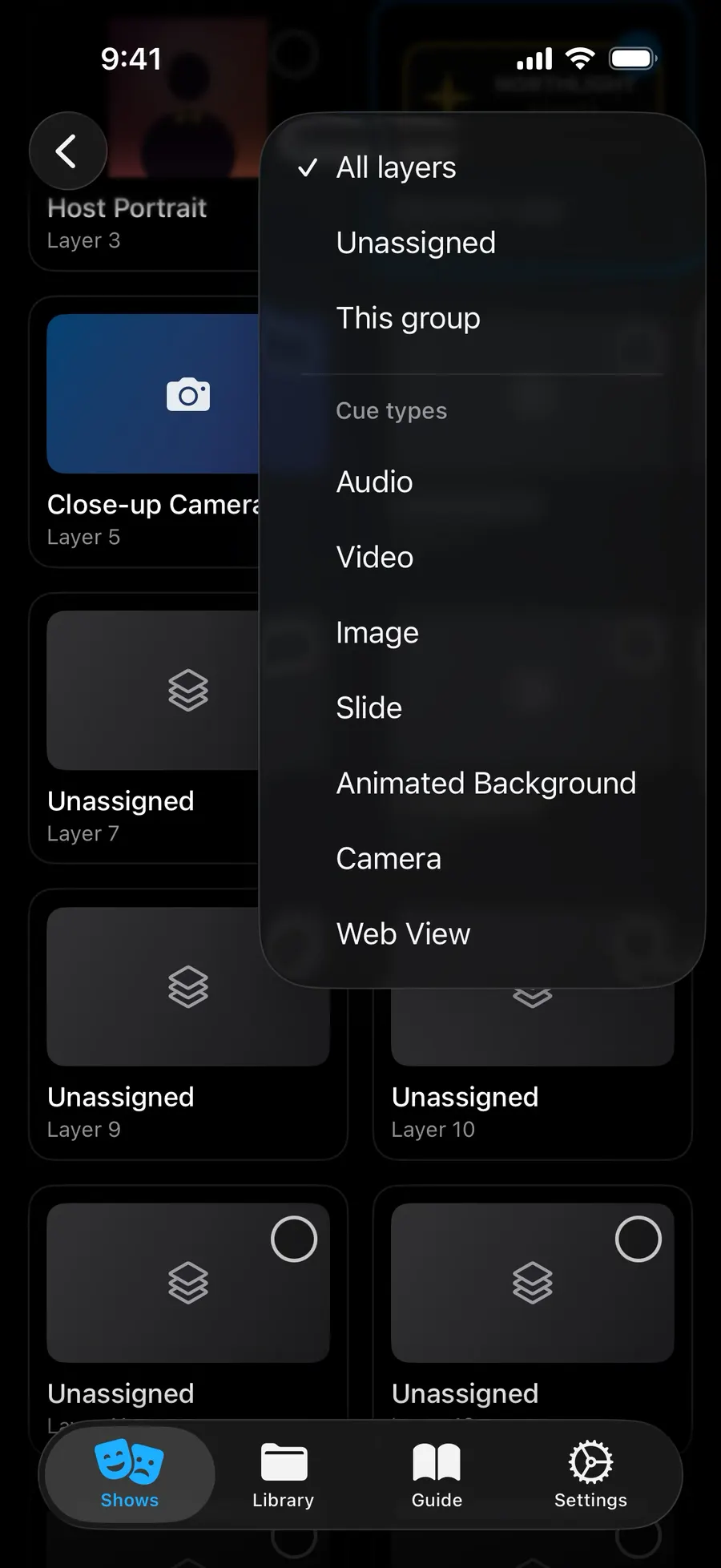
- All layers shows every layer.
- Unassigned shows only layers no cue uses, which is handy for finding a free one.
- This group shows only layers used by cues in the current group.
- Under Cue types, tick one or more types, such as Video or Image, to see only layers that hold them.
