
Check for Issues reads through every cue in your show and flags anything that could go wrong on stage: a cue with no file, a fade with nothing to fade, a loop that never stops. Run it after you've made changes, and always before a show.
Run a check
- 1
Open the show and tap the gear at the top right.
- 2
Tap Check for Issues.
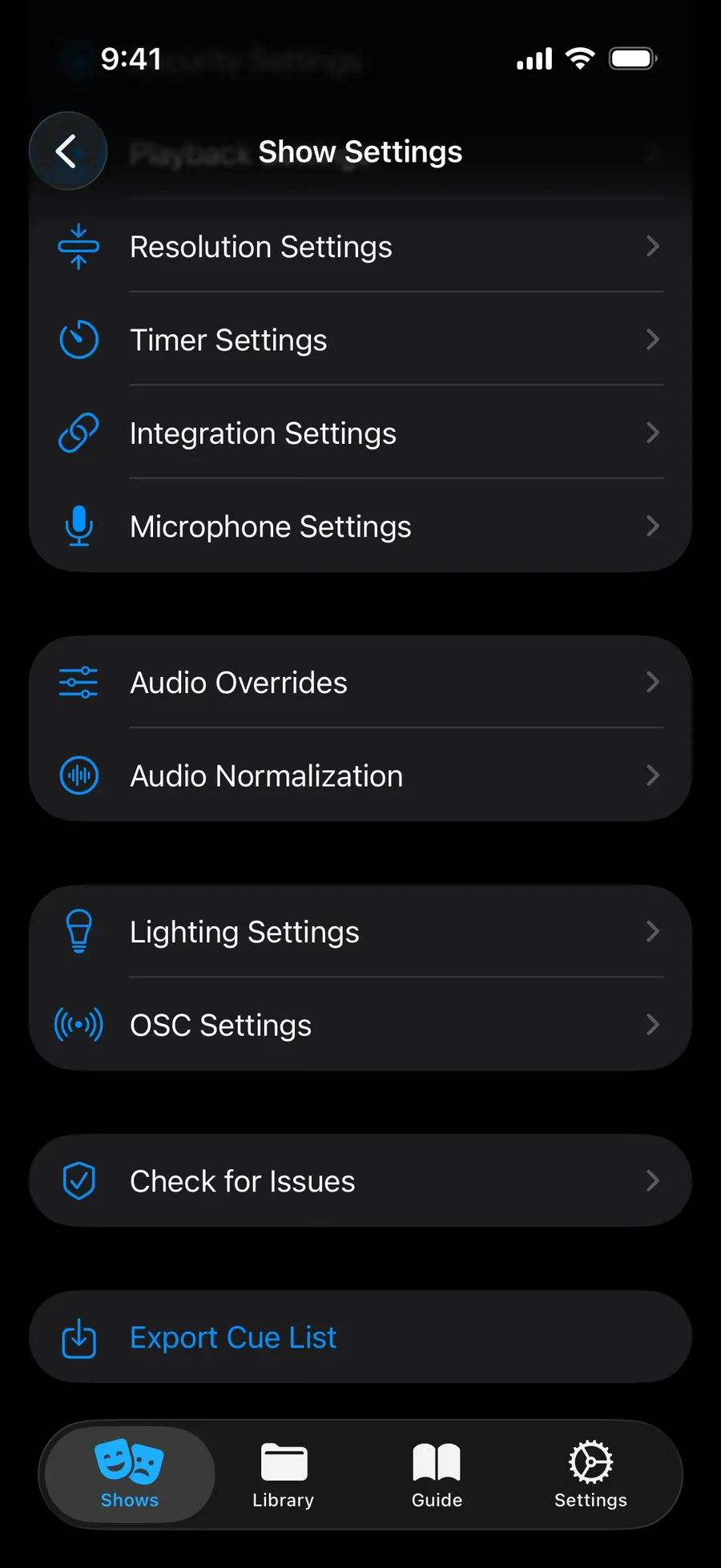
Check for Issues, in Show Settings - 3
Tap Scan Show.
If everything's fine, you'll see All Clear!.
Read the results
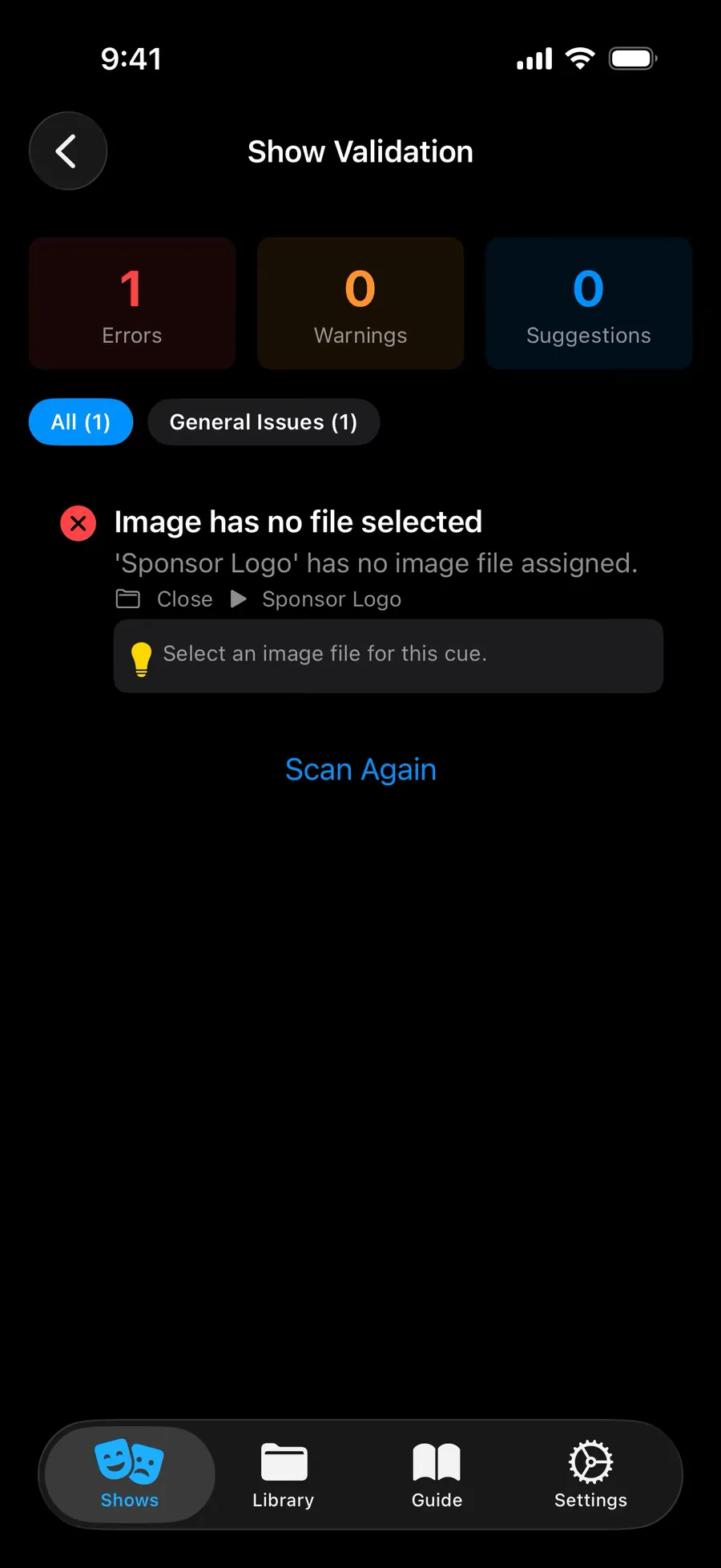
- The cards at the top count Errors (red), Warnings (orange) and Suggestions (blue).
- Tap a category, such as Transition Issues or Audio Issues, to see only those. All shows everything.
- Each issue names the group and the cue, explains the problem and, under the light bulb, suggests a fix.
Fix errors first: they're things that won't work, such as Audio has no file selected. Warnings are things that probably won't do what you expect, such as Looping cue may never stop. Suggestions are tidy-ups, such as Cue has default name.
When you've made your changes, tap Scan Again.
